Skip to content
Automating backups effectively protects websites against data loss, downtime and security incidents. In this article, you will find all the important information on how to automate your backups sensibly - including tools, strategies and recommendations for different systems.
Key points
- Automated backups prevent data loss due to errors and attacks
- Plugin solutions for WordPress make it easier to get started
- Server-side backup tools offer maximum flexibility and control
- External storage locations significantly improve reliability
- Encryption and protocols ensure compliance with data protection guidelines
Why you should automate backups
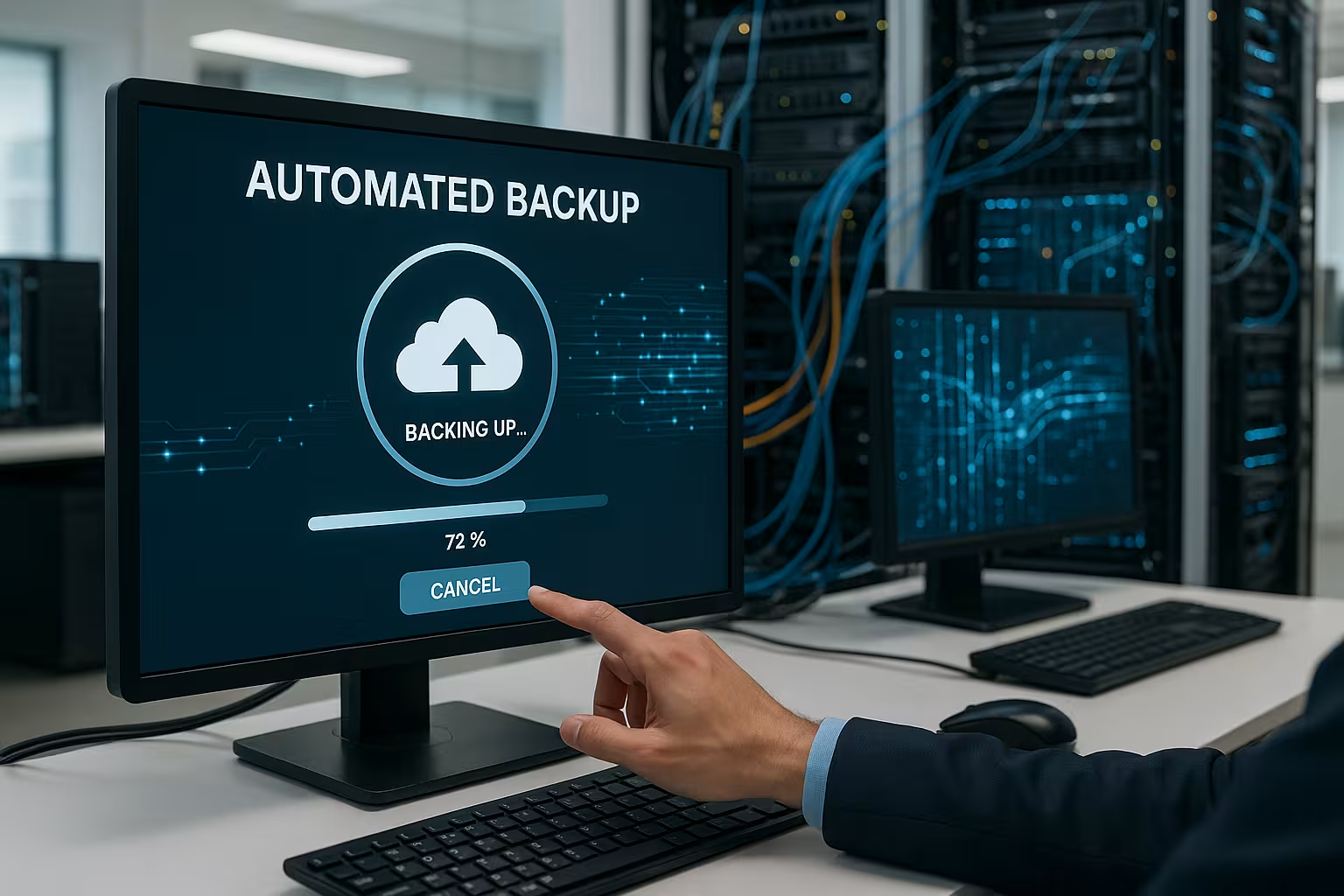
Data loss usually happens unexpectedly - due to server crashes, faulty updates or simply human error. With regular automated backups, you can prevent the worst consequences. You no longer have to remember to back up your data every day - your system takes care of this reliably. Backups reduce your website downtime to a minimum. You also ensure a reliable restore in the event of an attack on your systems or if content is accidentally deleted.
Especially for online stores and platforms that store new content or customer data on a daily basis, a daily, or even better, hourly backup is a must. I consistently follow this routine for each of my installations - from experience.
Backup types: Which method suits your project?
There are three backup approaches to choose from, which you can combine depending on the data volume and frequency of changes:
- Complete backups back up all content and configurations. Ideal as a monthly full backup.
- Incremental fuses only save changes since the last backup - efficient and resource-saving.
- Differential backups show all changes since the last complete backup - suitable as a middle ground.
For critical systems, a combination is recommended: a weekly full backup, daily incremental backups and a clear schedule for backup rotation. In this way, you retain a complete set of your data while at the same time conserving resources - because you only back up what has changed since the last full backup. This not only makes administration easier, but also speeds up restoration in an emergency.
Plugins for WordPress: These tools are really worthwhile
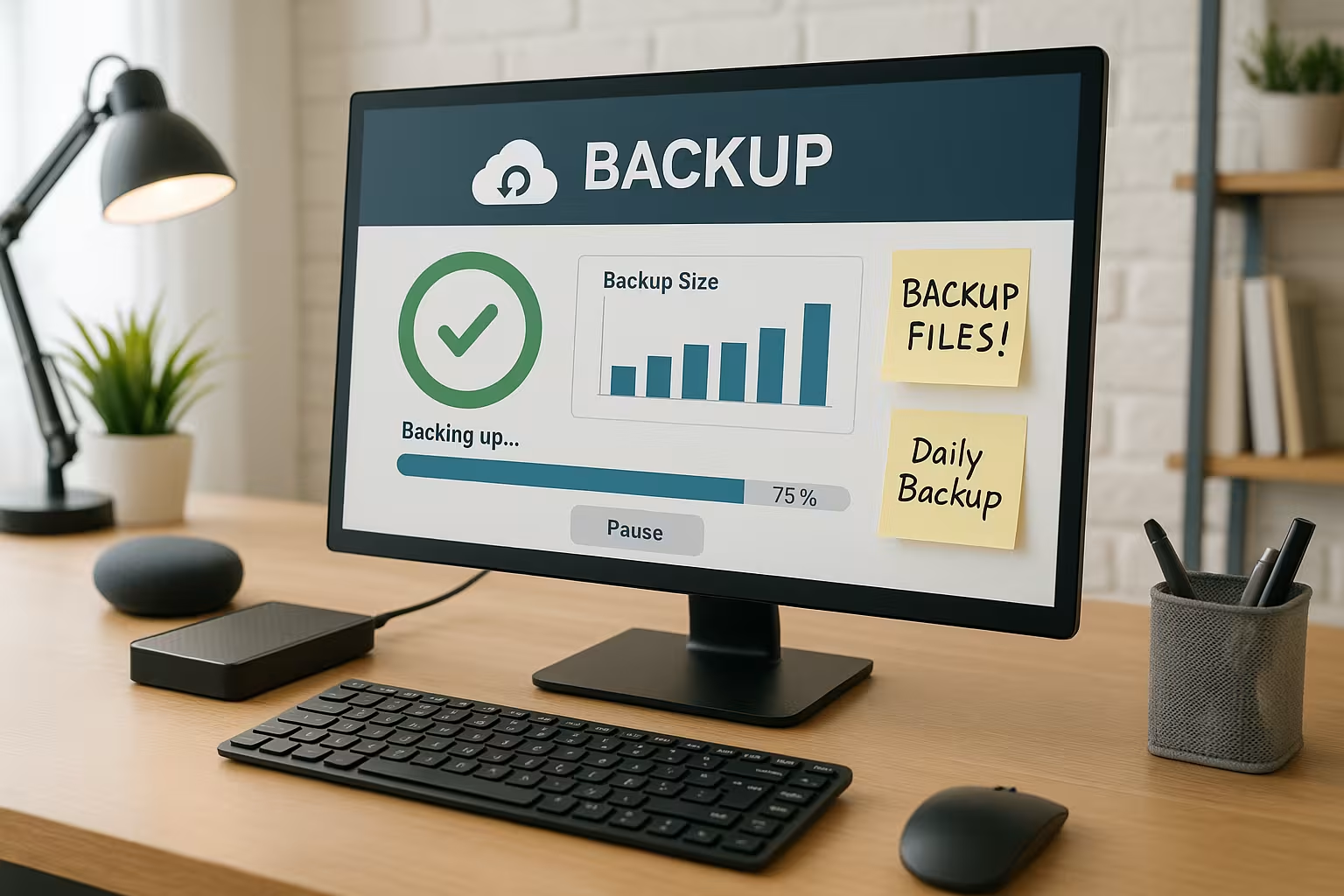
For WordPress-based websites, choosing the right plugin is crucial. I regularly test different variants, but these four deliver consistently good results. They secure content reliably, are easy to configure and support cloud connections.
| Place | Plugin | Costs | Backup destinations | Time setting |
|---|---|---|---|---|
| 1 | UpdraftPlus | free of charge / Premium | Cloud, FTP, Server | Yes |
| 2 | Duplicator | free of charge / Premium | Cloud, FTP, Server | Yes |
| 3 | BackWPup | free of charge / Premium | Cloud, FTP, Server | Yes |
| 4 | BackupBuddy | Premium | Cloud, FTP, Server | Yes |
When configuring such plugins, you should not only specify the time and the target directory, but also pay close attention to which data is backed up. Operators often forget to back up important configuration files or log settings in addition to the actual files and databases. An automatic e-mail notification function is also recommended so that you are informed if a backup fails or takes too long. This allows you to detect problems at an early stage before serious gaps occur.
Automate backups on servers: Control for professionals
For vServers or dedicated systems, I use cronjobs in combination with shell scripts. This allows me to automate not only backup timeframes, but also cloud transfers to servers located outside my data center. This means that no backups get in the way of larger projects - outsourcing simplifies restore processes and provides additional protection.
Tools such as Virtualmin offer graphical interfaces with which you can plan backups and manage them clearly. This is particularly efficient for WordPress multisites or redundant server clusters. Other control panels such as cPanel or Plesk also make planning automated backups very easy and offer interfaces for integrating external cloud storage. If you manage your scripts completely yourself, you have full control over the degree of compression, encryption and the choice of destinations.
Important settings for maximum security
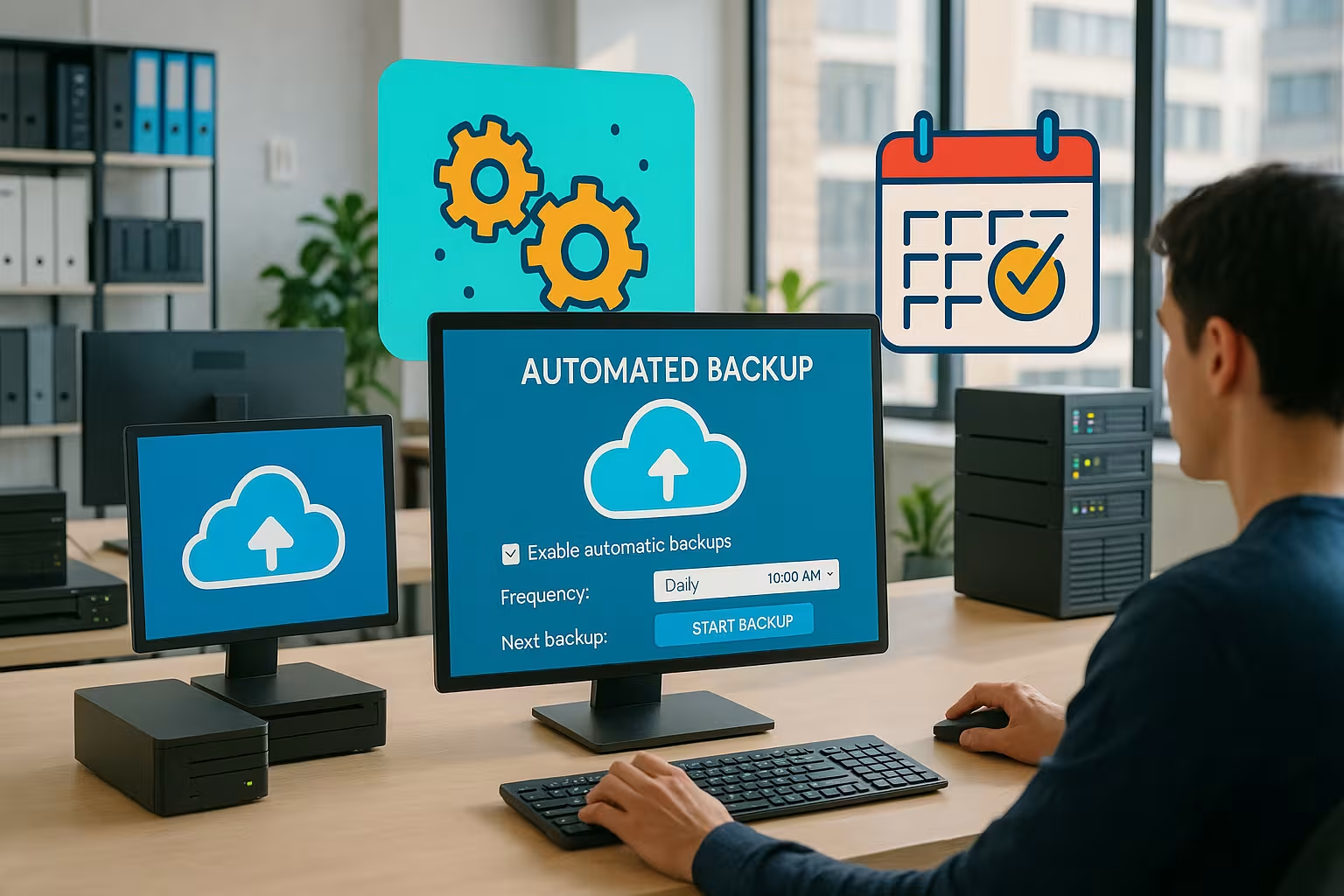
Automation alone is not enough. I make sure that the following settings are active for each project:
- Encryption of transmissions and stored data
- Redundant memory at least two locations
- Regular restore test in the development environment
- Backup rotation according to a fixed scheme (e.g. 7/30/90)
With this concept, my recovery rate is almost 100 %. I document all backup plans centrally so that there is no unnecessary stress in an emergency. If you set up transparent processes, you can react quickly at any time.
Encryption in particular should not be neglected - even if it can mean a little more effort at the beginning. By encrypting your data before you upload it, you reduce the risk that unauthorized access to your online storage or server could have serious consequences. I recommend AES-256 encryption and secure key management. The latter means that you do not store your keys on the same system on which the backups are located.
Clever use of cloud backups
I also store almost all backups in cloud services such as Amazon S3 or Google Drive. The advantage: location-independent recovery, any scalability and API interfaces for automated processes. The combination of local and cloud backup simply compensates for the weaknesses of individual solutions.
In this way, I avoid the scenario that many website operators underestimate: If your own web server is compromised, this often also affects the local backups. External storage solutions make all the difference here. Another advantage is that you can react very quickly in the event of an emergency - such as a hardware defect - by restoring everything from the cloud. It is important that you ensure you have sufficient permissions when uploading to the cloud. I recommend setting up your own access rights and users for the backup system so that other services do not accidentally have unlimited write access.

Web host with integrated backup service
Some providers already implement automated backups so well that you don't need any additional tools. One of the best on the market is webhoster.de. I have dozens of projects running on the platform and benefit from multiple daily backups - fully integrated and restorable at the click of a button.
This is particularly useful if there is no independent system administration or resources are limited. Managed hosting with a backup function significantly minimizes downtime risks. However, if you need very individual solutions or your own scripts, you should check how extensively the hoster supports these - but in many projects, such an all-round carefree package is the optimal solution. The time you save can be better used for further optimizing your project.
Backup monitoring and surveillance
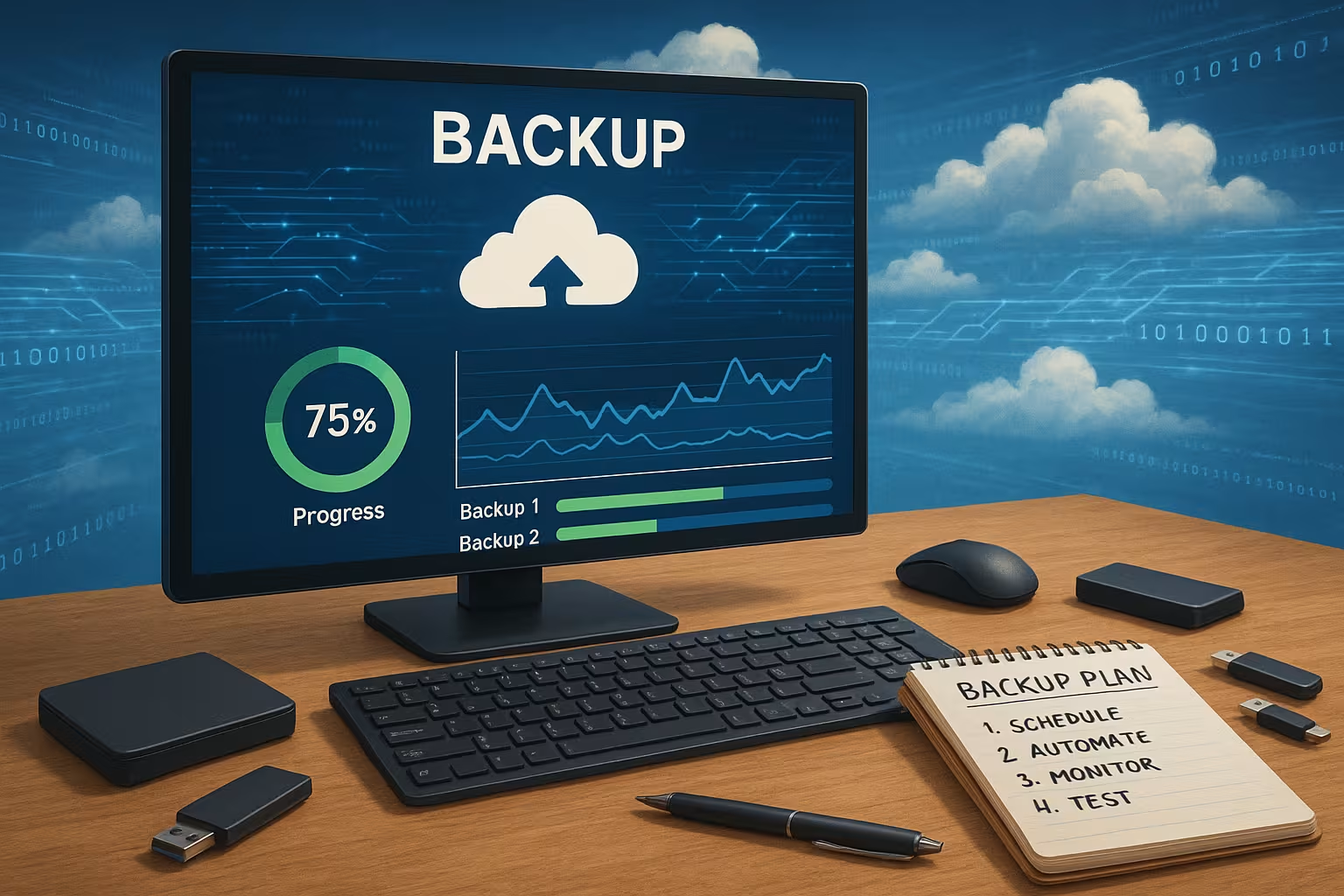
Monitoring is an often underestimated component of automated backups. Even the best backup system can be prone to errors if, for example, the connection to the cloud storage is interrupted or access authorizations change. I therefore rely on monitoring solutions that send automated notifications as soon as a backup fails or takes an unusually long time. This can be done by email, push message or in the form of integration into a monitoring dashboard.
In this way, I can quickly recognize if something is wrong with the backup process and can react before a potential data loss goes unnoticed. Simple e-mail notifications are sufficient for smaller projects. For large websites that need to be highly available, it is advisable to use professional monitoring tools that can be seamlessly integrated into an existing server monitoring system.
Compliance and data protection - what you should know
If you create automated backups, you often have to comply with legal data protection requirements. Especially in Europe, the GDPR (General Data Protection Regulation) plays a major role here. As soon as your backups contain personal data of customers or users, it may be necessary to conclude data processing agreements with the cloud provider. I therefore always check whether my chosen provider works in compliance with the GDPR and provides corresponding documentation.
In addition, you should have a deletion concept that ensures that no personal data is stored for longer than necessary. If users want to have their data deleted, it is bad if countless older versions are still lying dormant in your backups. A clever rotation scheme can help here, which not only saves space, but also prevents you from keeping old data forever.
Another crucial measure is the encryption of sensitive data records. Ideally, a secure encryption algorithm should be used when storing and transferring personal information and critical company data in particular. It should also be clearly regulated who in the company has access to the keys and how they are managed.
Common mistakes and how to avoid them
Even when backups are automated, the same mistakes happen again and again. A classic one is overwriting old backups because the storage location was configured incorrectly. I advise you to perform a test run with a restore scenario at least once to make sure you understand where and how your backups are stored. Nothing is worse than finding out in an emergency that you have accidentally overwritten the same file over and over again.
Another case that is often overlooked is when important parts of a website are backed up but databases or configuration files are missing. Make sure that you run a full backup that includes both files and database tables. Some WordPress plugins either only back up media and theme files or only the database - it is therefore important to check all the boxes in the settings correctly.
Another point is the incorrect planning of backup times. Many operators schedule their backups for midnight, but this can lead to peak load times, especially for international projects, when many visitors from other time zones are active. Plan your backups intelligently so that they do not affect the performance of the website. It is often worth scheduling them for the least busy time of the day or dividing incremental backups into smaller blocks around the clock.

How I use backups in everyday life
Before I carry out maintenance work or update plugins, I automatically run a backup trigger. The subsequent backup ends up directly in my cloud storage. If something goes wrong, I can revert to the old version within minutes. Routines like this save me expensive downtime and a lot of hassle.
I schedule fixed times every week to randomly run through the restore. For me, data checks are just as much a part of this as encryption - because a backup that cannot be restored is worthless. These test runs increase my security enormously. Sometimes I also discover configuration errors in other parts of the system, which is a positive side effect. I therefore recommend never skipping such test stores - even if it only happens once a month.
A typical routine for me looks like this: First, I back up all relevant directories and the database daily using a cron job. In parallel, an incremental backup runs every few hours, which picks up minor changes and transfers them to the cloud. Once a week, I create a complete snapshot, which is stored separately as an independent archive, also at a second location. I also carry out random restore tests in a test environment, where I use identical configurations to obtain realistic results.
Conclusion: More security through automated backups
Automating backups is not a luxury, but an indispensable strategy for stable web projects. From simple plugins and cronjobs to cloud-based storage solutions - there are suitable tools for every level of expansion. The key is to back up regularly, store externally and test restores.
In addition to automation, I recommend that you clearly document your backup strategy and check it at least once a quarter. Whether you run your website yourself or have a powerful partner such as webhoster.de at your side - functioning backups are the best protection against data loss. If you implement these steps conscientiously, you will be able to act confidently even in critical situations and thus minimize downtimes. With a well thought-out backup routine and the right level of monitoring, you can secure your data and the success of your online project in the long term.