Skip to content
I'll show you how to create a Plugin conflict in WordPress and eliminate them step by step so that functions, layout and login run smoothly again. With clear tests, targeted updates and practical tools, you will guide each diagnosis, eliminate the cause and prevent recurrences.
Key points
The following key messages will lead you quickly to a solution and make your website more resistant to future conflicts:
- Backup before each test
- Debug mode activate
- Cache Empty consistently
- Plugins Check individually
- Alternatives weigh up
What is a WordPress plugin conflict?
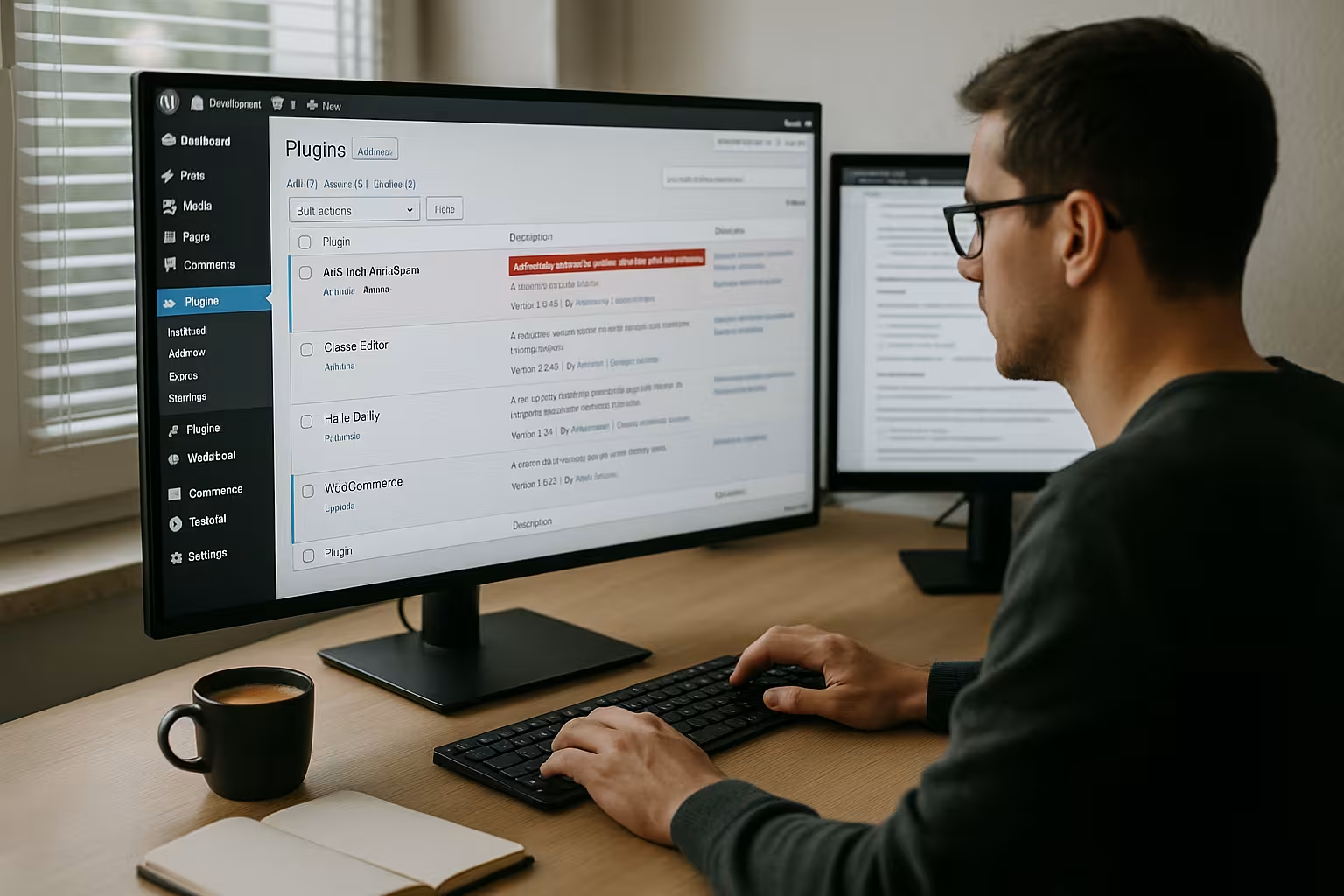
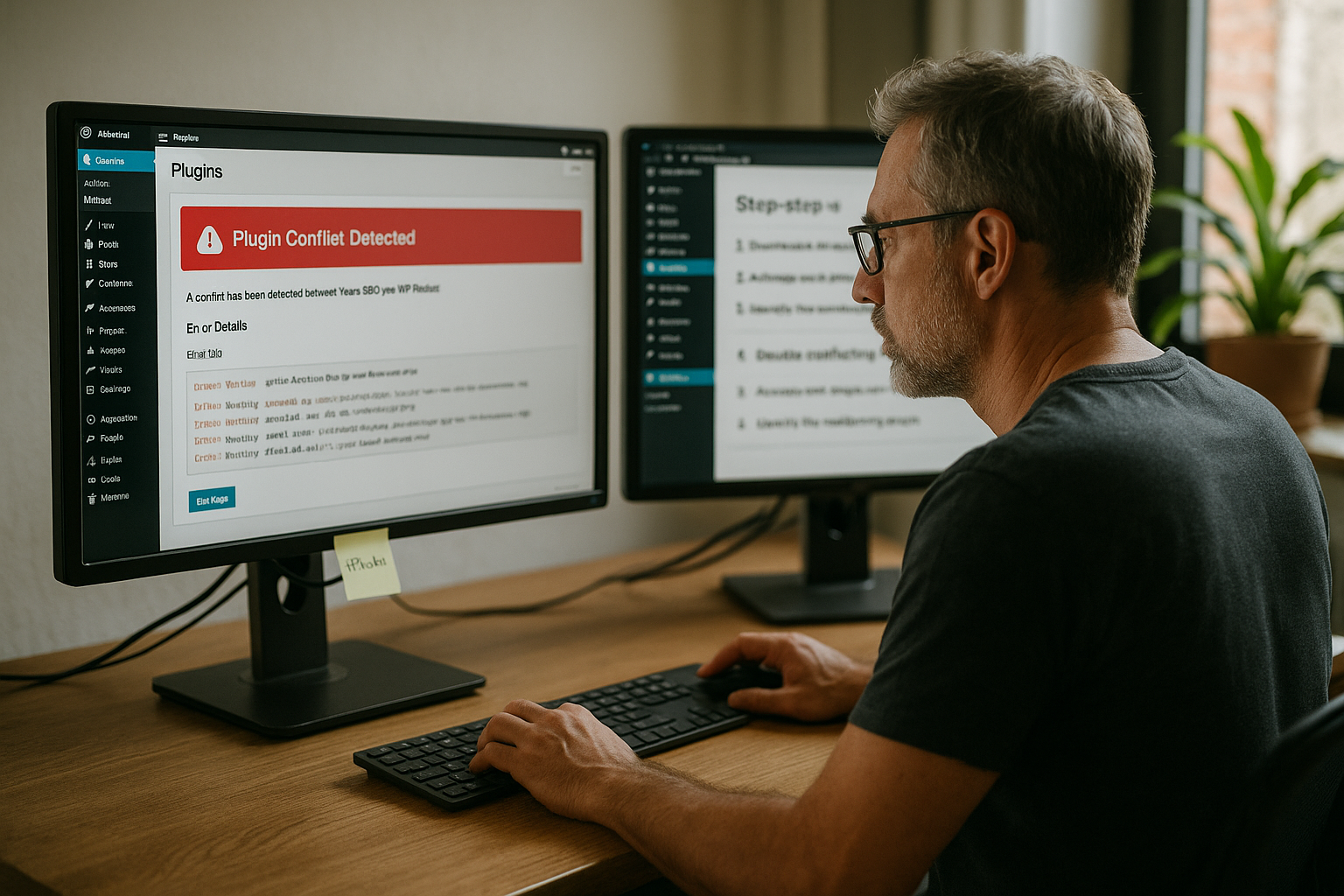
A WordPress plugin conflict arises when extensions get in each other's way or collide with the theme and core, and this is exactly when errors in the frontend or backend attack. I then often see broken layouts, failing buttons or a white page that prevents me from accessing the site and prevents any action. This is often caused by outdated versions, overlapping functions or faulty scripts that block each other and thus create unclear effects. In such situations, I first check whether several plugins are pursuing the same goal and using identical hooks or scripts. I then clarify whether JavaScript errors or missing dependencies are disrupting the rendering and slowing down individual modules. With this approach, I systematically resolve the conflict and bring the Function back.
Preparation: Backup and secure testing
Before I tackle a conflict, I back up the entire website, including files and database, so that I can go back at any time. A clean backup gives me the courage to take clear steps, because every intervention remains reversible and I minimize risks. I back up locally or on the server and then check whether the restoration works and there are no gaps. Afterwards, I prefer to work on a staging copy so that visitors don't notice my tests and I can act freely. This allows me to remain flexible and I can keep a complete Image the door to the exit is open.
Make errors visible: Debug and logs
To uncover the causes, I activate the debug mode in wp-config.php and display warnings, notices and errors. I take a look at the PHP and server logs, check the console in the browser and record all messages in writing. If an error only occurs with a specific click, I log this exact process and store the steps in a reproducible way. If you want to go deeper, my guide to the WordPress debug modebecause it allows you to read out sources of error in a structured way. With clear logs, I can make reliable decisions and find the Trigger faster.
Empty cache and install updates in a targeted manner
Before carrying out more in-depth interventions, I clear the browser, plugin and server cache so that no old code falsifies the check. I then update WordPress core, theme and plugins - but always individually and with control so that I can assign each effect. I start with security-relevant updates and work my way up to larger function packages. If the site remains sluggish in the meantime or shows short-term outages, I pay attention to typical server reactions and, if necessary, refer to tips such as Fix 503 error. This sequence reduces side effects, and I consider the Compatibility at a glance.
Systematically isolate: Deactivate plugins and activate them individually
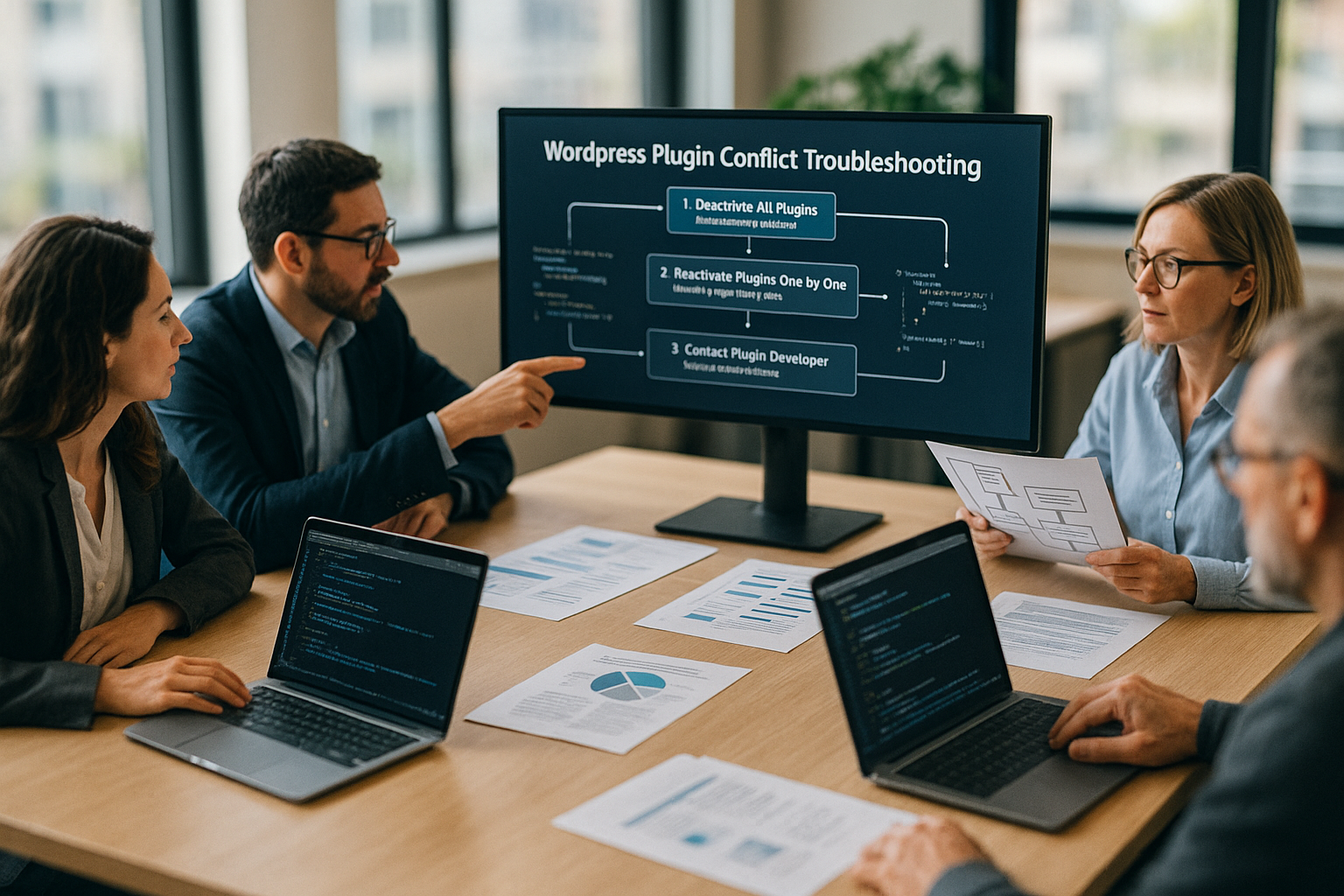
If updates do not produce any results, I deactivate all plugins at once and check whether the problem disappears. If the error is gone, I reactivate the extensions one after the other and test the affected function after each step. I document each activation so that I can clearly name the culprit plugin after a few minutes. For larger installations, I divide the list into groups to narrow it down more quickly and effectively shorten the search. With patience, a log and a clear sequence, I uncover the conflict and secure a Evidence.
Exclude theme as an influencing factor
In some cases, the cause is not the plugin, but the interaction with the active theme. I then temporarily switch to a standard theme such as Twenty Twenty-Four and repeat the tests without making any further changes. If the error suddenly no longer occurs, I immediately recognize the collision between theme and plugin. I then check child theme customizations, temporarily remove custom code and test again with a clear sequence. This allows me to narrow down the problem reliably and keep the Representation consistent.
Use Health Check & Troubleshooting correctly
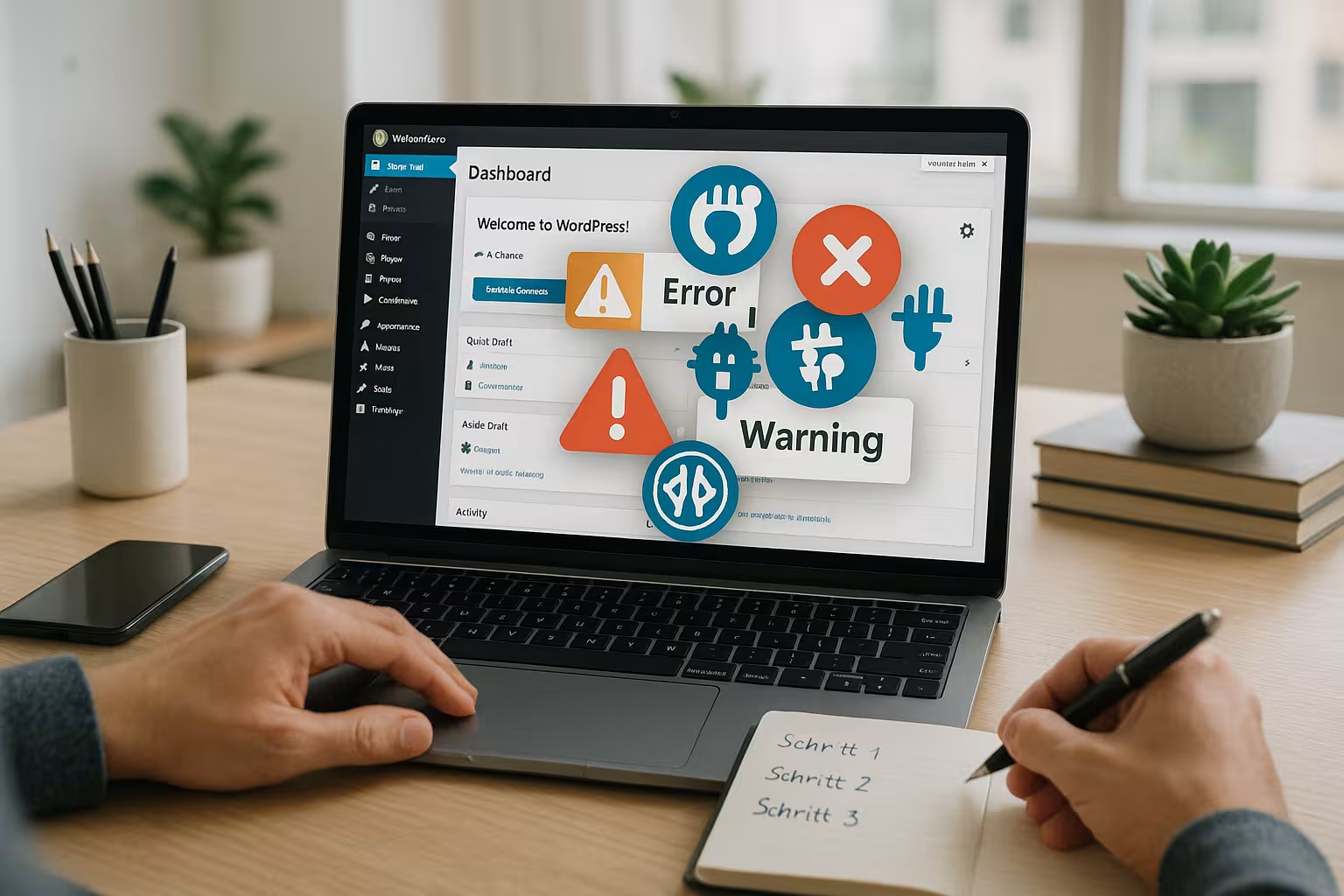
For risk-free testing, I use the Health Check & Troubleshooting plugin, as it activates an internal mode for my account only. Visitors continue to see the normal page, while I selectively deactivate and reactivate plugins in the backend. I combine this with the debug mode so that messages appear directly and I don't have to jump between instances. This approach reduces waiting time, lowers stress and provides clear signals in a short time. This is how I keep the Live page clean and recognize conflicts in isolation.
When I have found the trigger: act
Once the problem plugin has been identified, I first check for available updates and read the latest change notes. If that doesn't help, I test an older version or look for an alternative with reliable ratings and active maintenance. At the same time, I write the developer a clear error description with logs, screenshots and reproduction steps. For critical functions, I define a temporary solution so that the website remains accessible and revenue does not suffer. This mixture of fix, fallback level and Communication gets me to my destination quickly.

Typical conflict scenarios from practice
Multiple SEO plugins that control the same meta fields, sitemaps or schema outputs very often collide. Duplicate caching plugins with their own minification also attack each other and create broken script sequences in the frontend. In stores, I observe incompatibilities between payment gateways and shipping modules that hang on the same hooks. If there is also an unclear redirect, I specifically check for symptoms such as a Redirect loop in WordPress. I use these patterns to quickly recognize repetitions and formulate a suitable Strategy for the cleanup.
Prevention: Keeping the plugin landscape lean
I only install extensions if they fulfill a clear purpose and are actively maintained. Before every update, I check the compatibility notes, the date of the last release and open support issues. I remove duplicate functions from the installation and keep the number of active plugins manageable. Before making major changes, I back up again and document steps so that I can go back at any time. This discipline saves hours of troubleshooting and keeps the Maintenance plannable.
Emergency: Restore access when nothing works anymore
If it comes to the crunch (white screen, 500s, endless redirects), I first secure the access technically before I search for content. My steps:
- Via FTP/SSH the folder
/wp-content/plugins/inplugins.offrename to hard deactivate all plugins. Then rename the individual plugin folders. - For theme problems briefly
/wp-content/themes/your-themeso that WordPress falls back to a standard theme. - Check whether the WordPress recovery mode (Fatal Error Protection) is active and an email with a deactivation link has been sent to the admin.
mu-pluginscheck: Must-use plugins can cause conflicts and are often overlooked in the normal deactivation cycle..htaccessandwp-config.phpcheck for manual adjustments or security rules that block requests.- Empty server caches (OPcache/Object Cache/CDN) so that fixes are immediately visible.
WP-CLI: Fast triage without click orgies
On systems with SSH access, I speed up the diagnosis with WP-CLI and keep my tests reproducible:
- Deactivate all plugins:
wp plugin deactivate --all - Targeted activation:
wp plugin activate woocommerceand check the effect - Check versions:
wp plugin list --update=available - Clean up transients:
wp transient delete --allfor clean conditions - Core/Theme/Plugin-Health:
wp core verify-checksumsandwp theme listfor integrity
In this way, I minimize side effects, document the sequence and shorten the loops between cause and effect.
Pragmatically untangle JavaScript and CSS conflicts
Many bugs only arise through optimization: Minify, Combine, Defer/Async. I therefore test step by step without an optimizer:
- Temporarily disable asset optimization in cache plugins, especially JS merging and sequencing.
- Exclude critical scripts from the optimization (e.g. payment widgets, page builder, slider).
- In the browser console, click on TypeError, ReferenceError and 404 for
.js/.cssPay attention to missing dependencies; reload missing dependencies. - jQuery topics: "
jQuery is not defined" often indicates incorrect loading order or overly aggressive defer. - Compare inline styles and critical CSS: Duplicate rules or incorrect specificity cause layout jumps.
Only when the frontend runs stably without optimization do I pull up optimization functions again in a controlled manner and test page by page.
Keeping an eye on REST API, Ajax and nonces
Faulty REST endpoints or expired nonces can undermine admin buttons, form submits or live searches. Checking:
- Whether Ajax requests (
admin-ajax.php) or REST routes unexpectedly deliver 401/403/404 and are blocked by security plugins. - Whether nonces expire too early (caching of dynamic pages) and therefore actions fail.
- Whether plugins register the same route or apply filters twice.
If this is the case, I adjust cache rules, set exclusions for sensitive paths and update affected plugins in a targeted manner.
Server, PHP version and resource limits
In addition to the code, the platform is decisive. Note:
- PHP version: Too new or too old versions break outdated plugins. I compare minimum requirements with the stack.
- Memory/Runtime:
memory_limitandmax_execution_timeare often not sufficient for builders, WooCommerce tasks or imports; test and monitor increases in the short term. - OPcache/Object Cache: Invalidate after updates to avoid ghost bugs.
- File rights: Incorrect owners/permissions prevent the writing of caches/uploads and lead to subsequent symptoms.
If logs show out-of-memory or timeouts, I prioritize bottlenecks over plugin tinkering so that tests run consistently.
Configure the security layer, WAF and CDN correctly
Security modules, ModSecurity/WAF or CDN rules block legitimate admin requests more often than expected. Me:
- check IP and user agent filters, especially for API and admin requests,
- set exceptions for
/wp-admin/,/wp-login.php,admin-ajax.phpand critical webhooks, - test with the security plug-in in "Learning Mode" and then tighten the rules again.
This is how I prevent false positives without giving up the protective effect.
Multisite and role specifics
In multisite setups Network-wide activated Plugins only show errors on individual sites. I then isolate each subsite, test the network activation separately and check mappings (domains/SSL). I also look at roles and capabilities: If an authorization is missing, actions fail seemingly "for no reason". A test with a fresh admin account quickly reveals defective role profiles.
WooCommerce and page builder special cases
Conflicts often arise at critical points:
- Checkout/Cart: Do not exclude page caches, fragment caches and payment scripts from the optimizer, do not cache nonces.
- payment gateways: Hooks and priorities overlap; I test gateways individually and check webhook accessibility.
- Page Builder: Regenerate CSS, synchronize libraries, test "Safe Mode", deactivate global widgets/addons step by step.
These focus points save time because experience has shown that they have the highest conflict densities.
Database maintenance after conflicts
Even if the bug is fixed, there are often leftovers. I clean up:
- Transients that were created during the tests and that preserve incorrect states.
- Autoload options check: Oversized autoload values slow down every request.
- Orphaned tables/options Identify old plugins and remove them after backup.
- If an update script is aborted, restart the upgrade or reset the version internally and migrate cleanly.
The result is a stable basis without technical debt.
Test strategy, documentation and communication
I work with a small test matrix: Which pages/functions do I test after each change, with which user type, on which devices/browsers? Each activation gets a timestamp and a short note (version, expectation, result). If the error occurs sporadically, I record HAR files or short screencasts. In support tickets, I describe reproducible steps, attach logs/screenshots and formulate a minimum installation in which the error is sure to occur. This way I get reliable answers more quickly.
Remain stable in the long term: Update and rollback plan
Instead of "blind updates", I define a small set of rules:
- Updates first to Staging, then with a short maintenance window to Live.
- Before updating, I make a note of the exact versions and ensure a quick rollback (backup, if necessary keep the previous version available locally).
- Deliberately schedule major functional leaps (major releases) and provide them with additional acceptance.
- For plugins with overlaps (SEO, cache, security), define clear responsibilities and avoid duplication.
This rhythm reduces pressure because every change is controlled and can be reversed.
Table: Steps to conflict resolution
I have condensed the following overview into a clear sequence that you can use for every incident and that will give you reliable Results supplies.
| Step | Action | Goal |
|---|---|---|
| 1 | Create backup | Website security |
| 2 | Activate debug mode | Identify errors |
| 3 | Empty cache | Avoid old mistakes |
| 4 | Perform updates | Ensure compatibility |
| 5 | Disable all plugins | Isolate problem |
| 6 | Test after each step | Recognize polluters |
| 7 | Activate plugins individually | Find conflict plugin |
| 8 | Change theme | Uncover theme conflicts |
| 9 | Use help tools | Gentle testing |
| 10 | Report problem / search for replacement | Permanent solution |
| 11 | Backup / Expert help | Last resort |
Briefly summarized
I resolve every conflict in a clear sequence: backup, turn on debug, clear cache, targeted updates, then isolate plugins and shut down the culprit. If necessary, I check the theme, use Health Check, document steps and thus ensure traceable results. If the error occurs again, I consider an alternative and report the case with logs to the developer. For permanently quiet days, I keep the installation lean, maintain updates carefully and rely on good hosting with fast response times. This is how I bring your WordPress-side reliably on course and keep conflicts short in future.