 Skip to content
With all-inkl cronjobs, I schedule recurring tasks such as backups, cache flushing and script calls in KAS precisely and run them reliably. In this guide, I'll show you clearly how to set up cronjobs, set the syntax correctly and quickly fix typical errors with KAS-tools.
Key points
- KAS-interface: Schedule cron jobs without terminal knowledge
- Tariffs check: Number of possible jobs and intervals
- Practice-Examples: Backups, WordPress, maintenance
- Syntax understand: Configure times securely
- Monitoring & Security: Logs, rights, protection
What are cronjobs?
A cronjob executes a script or a URL to a fixed Interval automatically. I use it to schedule tasks such as database backups, emptying caches or updating feeds, without any manual clicks. The basic idea is simple: at the selected time, the server starts my Command. In the hosting environment, the system usually calls an HTTP URL or triggers a PHP script in the web directory. This way, recurring activities remain reliable and I gain daily Time.
The name Cron comes from "time" and has been used on Linux servers for decades. Standard. All-Inkl provides the KAS interface so that you don't have to write any shell commands. You define the destination, time and optionally an e-mail for output and the Automation. This means that maintenance routines or reports also run at night. Especially for websites with dynamic content, a well-planned job ensures clean Processes.
Why automation on All-Inkl is convincing
I save a lot with automated tasks Expenditure. Regular processes run on time and errors caused by forgetting are completely eliminated. This increases the Reliability of your website and creates space for content or product work. In addition, tidy temp directories and renewed cache improve the response time of your Pages. I also consistently maintain security routines such as regular backups at.
All-Inkl makes it easy to get started because the interface clearly explains what happens when and which parameters apply. I rely on short intervals for tasks with high Priority and use longer distances for data-intensive jobs. This way, I don't put unnecessary strain on the environment and keep the Performance constant. If you file and label your scripts in a structured way, you can keep an overview. In everyday life, this ensures quick Adjustments.
Tariffs and requirements at All-Inkl
For cronjobs, you need a tariff that provides the feature, for example PrivatePlusPremium or Business. The number of possible jobs differs depending on the package and is displayed transparently in the KAS. In some entry-level variants, the function can be optionally add. Before I start, I check how many jobs I really need and what intervals make sense. This planning reduces later Conversions.
The following overview shows typical categorizations. I select the package according to project size, number of scripts and desired Frequency of the designs.
| Tariff | Number of cronjobs | Special features | Typical use |
|---|---|---|---|
| PrivatePlus | incl. cronjobs | Simple setup | Blogssmall stores |
| Premium | more cronjobs | Higher performance | Content-Projects, portfolios |
| Business | many cronjobs | Flexible resources | Agencies, TeamsStaging |
As project sizes grow, so too do the requirements for jobs and Intervals. A portal with many feeds needs more frequent updates than a small portfolio. I plan off-peak times for computationally intensive scripts, for example at night. This keeps the response times during the day constant. Planning ahead avoids bottlenecks and saves money.

Execution types in KAS: HTTP, PHP and Shell
In the KAS, you generally have two options: You can enter a HTTP URL or start a Script directly on the web space. HTTP is ideal if your code already provides a secure endpoint (e.g. wp-cron.php or a separate controller). For server-side jobs that do not require HTTP access, I prefer a PHP or shell script that is located outside the public web directory. This prevents third parties from triggering the job.
For direct script execution, I use a small call script that addresses the correct PHP version and sets the working directory. Important are correct Paths and rights:
#!/bin/sh
# /www/htdocs/identification/jobs/run-backup.sh
cd /www/htdocs/identification/app
/usr/bin/php /www/htdocs/identification/app/backup.php
The script must be executable (chmod 750). In PHP, I make sure to use relative paths via __DIR__ or a central Config-file. This keeps the code independent of where Cron starts it.
Set up a cronjob in the KAS: Step by step
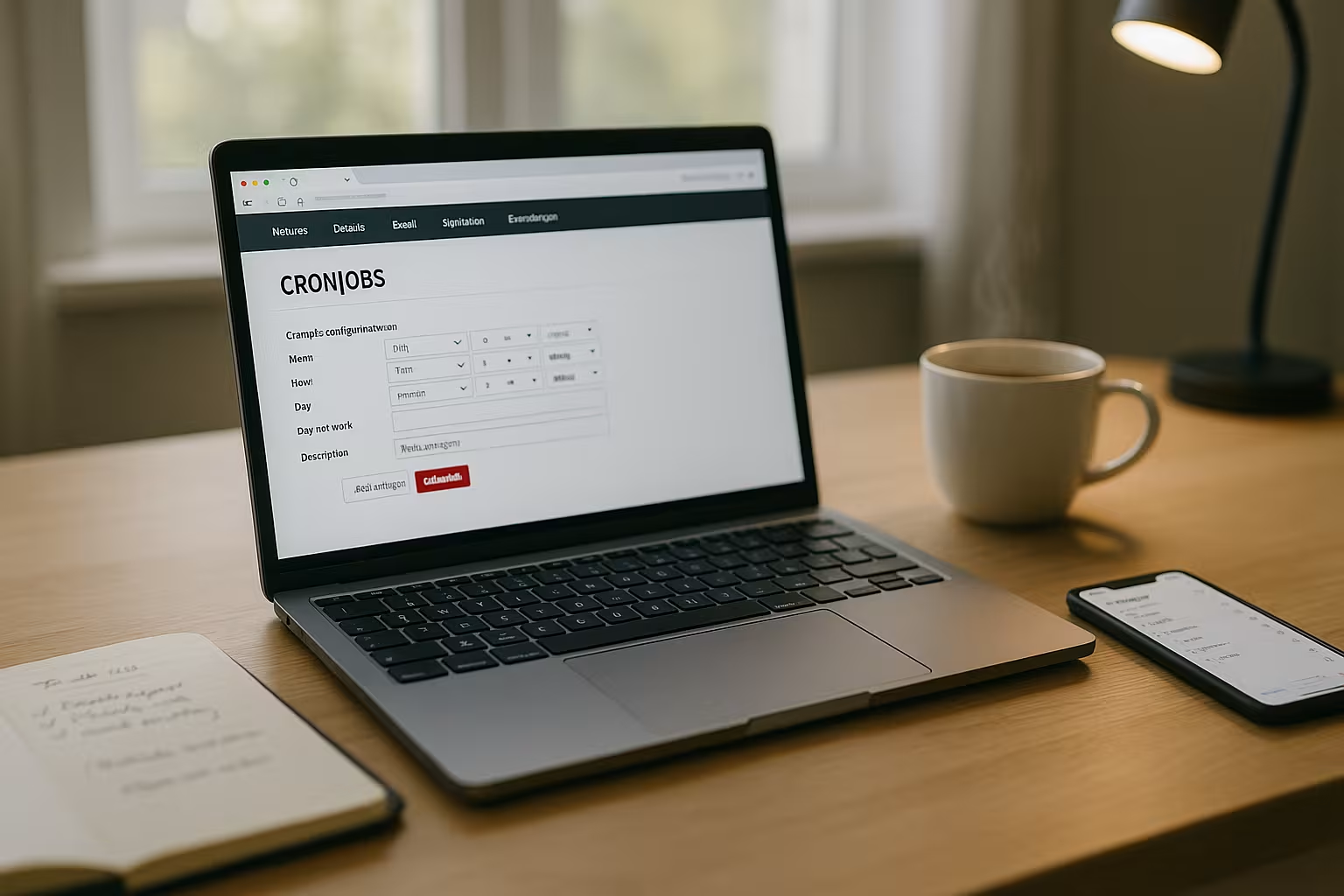
I start in the KAS and register with my Access data on. I then open the "Tools" section and select "Cronjobs". Clicking on "Add cronjob" opens the form. There I name the job with a comment so that I can use it immediately later. recognize. Clear names such as "DB backup daily 02:00" are particularly helpful in larger setups.
As the destination, I enter a URL or the path to my Script for example /httpdocs/backup.php or the full web address. If the file is in a protected directory, I enter the user and password in the advanced settings. I then specify the time and interval, for example daily at 02:00 or every 15 minutes. minutes. I use a separate mailbox for emails with expenses so that I can archive the reports cleanly.
Finally, I save the configuration and check the first Execution. Some scripts generate a message directly, others write a log file. If everything seems fine, I let the job run as normal. Later, I adjust the frequency as required if I detect bottlenecks or unnecessary Load notice. Small tests save a lot of time during operation.
Scheduling, time zones and dispersion
Cronjobs run according to server time. I therefore check whether the time zone and Summertime-changeover fits in with my planning. If teams work internationally, I document the time zone in the comment ("daily 03:30 CET"). To avoid peak loads, I distribute jobs over the hour: instead of everything on the hour, I prefer 02, 07, 13, 19, 43 minutes. This prevents the "herd instinct" of many processes.
I deliberately plan buffers for dependent jobs (e.g. export after e-mail dispatch). If a step has runtime outliers, the buffer prevents overlaps and reduces false alarms. For very critical tasks, I also use Locks in the script so that instances started in parallel are blocked.
Use cases from practice
A classic job is the regular Backup of database and files. I like to combine this with a rotation that automatically removes older archives. Tasks that delete temporary files or rebuild caches are just as useful. This keeps the installation clean and loads pages faster for your Visitors. Automatic imports of feeds that keep content fresh are ideal for editorial teams.
Reports also help me in my everyday life. For example, I send out a short e-mail every morning with statistics from my System. I check interfaces to external services at fixed intervals for response time and status. If a service shows errors, I see this early and can react. With a few well-chosen jobs, the Maintenance significantly.
Saving resources: Load distribution and priorities
I consistently prioritize many jobs: security and stability tasks first, convenience tasks second. I put computing-intensive processes in the Night hourslight helpers (cache warm-up, health checks) are allowed to run during the day. I split continuous runners into portions that are processed in several intervals. This keeps the perceived performance of the website high.
For complex exports, I use internal Limits (e.g. maximum number of data records per run). If a job takes longer than usual, it aborts in a controlled manner and continues later. Stumbling blocks such as memory shortages or long I/O times are thus often elegantly resolved.
WordPress: Replace WP-Cron with real server cron
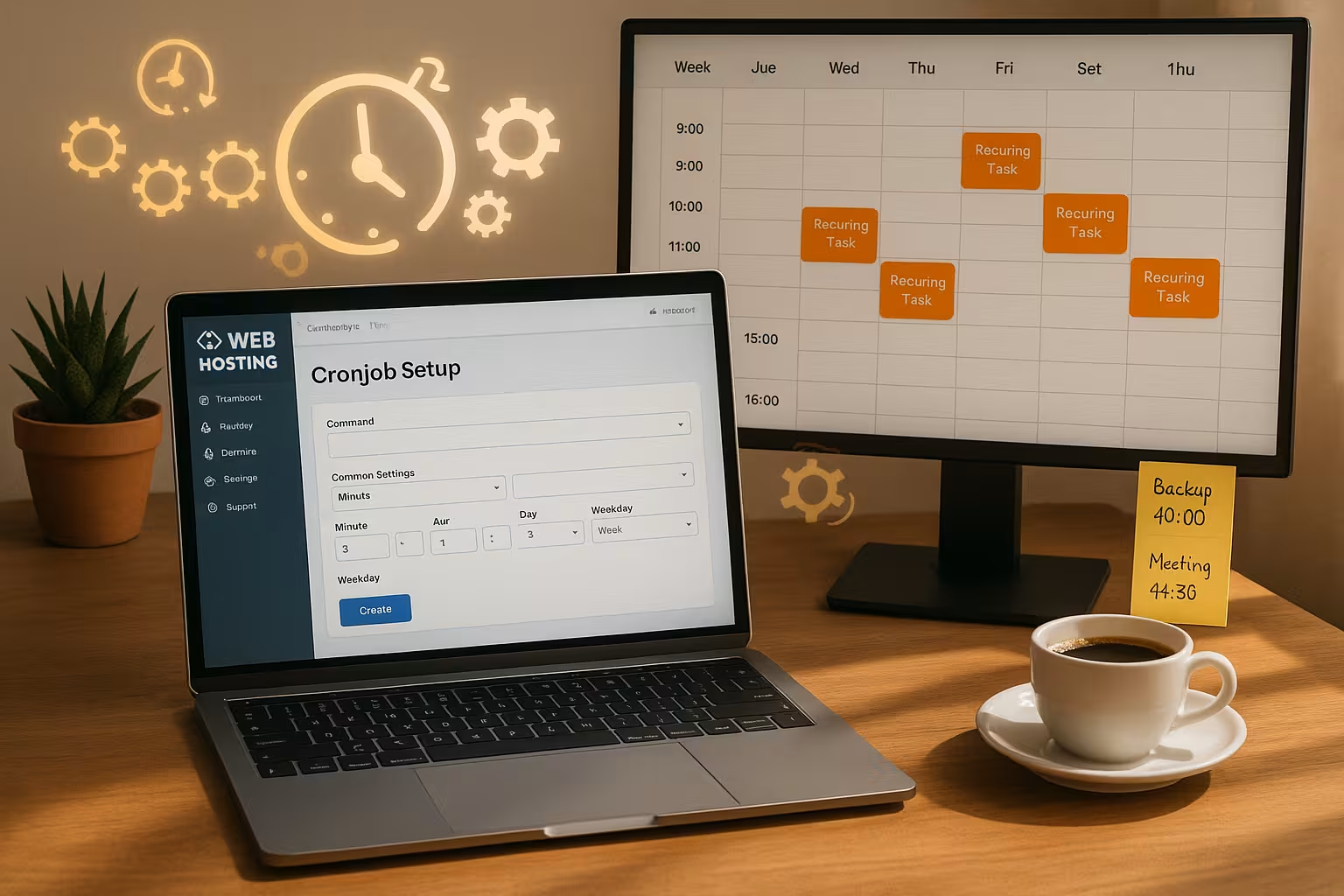
WordPress manages scheduled tasks via the file wp-cron.php off, by default only for page views. This means that tasks run irregularly when there is little traffic. I therefore deactivate the internal trigger and call up the file every 15 minutes using a real cron job. This ensures reliable Processes and shorter loading times, because no cron check is necessary for every visitor.
The call looks like this and works like a direct browser access:
https://www.deine-domain.tld/wp-cron.php?doing_wp_cron
If you want to understand the topic in more detail, you can find practical tips at Optimize WP-Cron. Make sure you only trigger the file via HTTPS and do not use any unnecessary parameters. I also recommend keeping the cron accessible only from known networks. This way you protect your Installation from unnecessary hits.
WordPress fine-tuning: setup details and pitfalls
I document in the project that wp-cron is triggered on the server side and set in the wp-config.php clearly that the internal trigger remains off. I also check multisite installations: Is the cron running on the correct main domain, and are subsites covered? For installations with many plugins, an interval of 5-15 minutes is worthwhile. For heavy traffic, "every 30 minutes" is often sufficient - depending on the tasks due.
If there are problems, I look in the Site Health-status and in the cron event list. If events get stuck, a plugin is often the trigger or the necessary authorization for an HTTP call is missing. In such cases, I test the direct call of the URL in the browser, read response codes and correct redirects or blockers such as security plugins.
Cron syntax short and clear
The classic Cron syntax uses five time fields before the CommandMinute, hour, day of the month, month, day of the week. An asterisk stands for "any value", commas and ranges can be used to create combinations. For example, I plan daily runs at night and closer intervals only for easy runs. Tasks. The direct URL is often sufficient for HTTP calls in the KAS. Shell scripts may require a call script that is accessible.
Here is an example of a daily backup at 03:30 with PHP:
30 3 * * * php /www/htdocs/identification/backup.php
This table helps for quick orientation. I use it as a memory aid for the most important Fields and examples.
| Field | Meaning | Example |
|---|---|---|
| minute | 0-59 | 0 = to the full minute |
| Hour | 0-23 | 3 = 03 o'clock |
| Day (month) | 1-31 | * = every day |
| month | 1-12 | * = every month |
| Weekday | 0-7 (So=0/7) | * = every day of the week |
For "every 15 minutes", for example, I use "*/15" in the minute field. For "weekdays 6 pm" I set hour 18 and weekday 1-5. Important: I document such Rules always in the commentary of the job. That way, I can quickly see what was planned months later.
Prevent overlaps and limit runtimes
Cronjobs must not get in each other's way. I therefore set Locking so that a job does not start while the previous instance is running. This is easy to do in the shell with flock:
*/15 * * * * * flock -n /tmp/db-backup.lock -c "/usr/bin/php /path/backup.php"
In PHP, a lock can be released in this way:
$fp = fopen('/tmp/job.lock', 'c');
if (!flock($fp, LOCK_EX | LOCK_NB)) {
  // already running
  exit(0);
}
try {
  // work ...
} finally {
  flock($fp, LOCK_UN);
  fclose($fp);
}
I also define TimeoutsInternally, I limit each step (e.g. maximum runtime per API call) and abort cleanly when limits are reached. This keeps the system stable in the event of outliers.
Control, logging and troubleshooting
After putting it on, I check the first Execution active. Does an e-mail with output arrive? Does the expected entry appear in the log? If nothing happens, I check paths, rights and the correct URL. The error is particularly common with relative Paths in the script or missing authorizations.
I use clear exit codes and meaningful Logs. This allows me to see immediately if a step in the script fails. For tricky jobs, I use test domains or staging environments and only go live afterwards. I also make sure I have clean e-mail filters so that reports are not sent in the Spam land. This discipline saves me a lot of time over the months.

Debugging checklist for quick solutions
- Check path: absolute instead of relative Paths use.
- Set rights: Scripts executable, directories readable/writable.
- Working directory:
chdir(__DIR__)at the beginning of the script. - Time zone: Compare server time vs. desired execution time.
- HTTP status: 200 expected, 301/302/403/500 indicate a config error.
- SSL/HTTPS: correct expired certificates or forced redirects.
- Resources: Keep an eye on the memory limit and maximum runtime.
- Mail size: too many outputs can block mails - save logs to file.
- Test mode: "dry-run" switch to test without side effects.
Clean reports and log rotation
I write logs in a separate directory (e.g. /logs/cron/) and rotate files by size or age. In e-mail reports, I set a concise subject ("[cron] DB-Backup 02:00 - OK/FAIL") and only attach a short summary. Details end up in the log file. This keeps mailboxes lean and I can see at a glance where action is needed.
Security and resources under control
I store sensitive scripts outside of publicly accessible Folder or protect the directory with HTTP-Auth. I mask access data in outputs so that nothing critical appears in mails or logs. I only set the permissions that the script really needs and clear outdated Jobs regularly. I also limit time-consuming tasks to times with little visitor traffic. This keeps the site responsive during the day and user-friendly.
An annual review list helps me to keep track of forgotten Automations to find. I check whether scripts are still needed and whether intervals make sense. Tasks can often be combined or postponed, which saves resources. I also keep PHP versions up to date so that security fixes take effect. This protects your Project.
Access protection for HTTP-Crons
When jobs start via URL, I set a Shared Secret as a parameter (e.g. ?key=...) and verify it on the server side. Alternatively, I use HTTP-Auth or only allow defined IP ranges. This keeps endpoints hidden. At the same time, I log every call with a timestamp and source IP to quickly identify anomalies.
Alternative admin panels: Plesk as a comparison
Anyone who frequently manages servers is probably familiar with Plesk. You can create tasks there in a similarly convenient way, only the menu items are called differently. The approach remains the same: define job, select time, set up logging. If you are practicing switching between interfaces, you are still working more efficient. You can find compact instructions here: Set up Plesk cronjob.
I use such comparisons to adopt best practices. Standardized naming and folder structures pay off for everyone. Panel from. If you understand the basics, you will quickly find your way around new environments. This avoids configuration errors and saves training time. The real art is the good Planning before that.

Cleverly automate backups
Without reliable Backups every project risks data loss. I therefore split into daily database backups and weekly file backups. I then rotate archives and store selected versions externally. A cron job takes over the dispatch, a second one deletes older ones Packages. This allows me to keep the storage limit under control and at the same time protect myself in the event of an emergency.
If you work with Plesk, you can also standardize the setup of backups. A good starting point is this guide to Automated backups. Take the principles from this and implement them analogously in the KAS. A clear structure is important: where to save, how often, how long store. Keep the decryption keys separate and test the recovery regularly.
For databases, I export with a script and fix an understandable Naming the archives, for example project-db-YYYYMMDD-HHMM.sql.gz. For files, I avoid full backups every day, but combine full backups weekly with daily backups. Increments. Before uploading, I check the integrity of the archives (checksum) and note the target systems in the log. This keeps the chain traceable.

Briefly summarized
all-inkl cronjobs give me control over Routine-tasks and create reliable processes. With just a few steps in KAS, I set backups, maintenance and CMS tasks to fixed times. The right syntax, clear names and clean logs make every job good maintainable. In the event of problems, I first check paths, rights and outputs before changing intervals or scripts. If you keep an eye on security and resources, you will benefit from fast pages and smooth operation in the long term. Operation.
Plan small steps, test in staging and scale up if necessary. Tariffs. For WordPress, I recommend the real server cron instead of the internal trigger. Combine this with a consistent backup strategy and ensure clear Documentation. How to effectively automate your project with All-Inkl and gain time for content, products and your Team.


