I'll show you how to hetzner webmail specifically for access, settings and security so that you can keep a firm grip on emails in your browser. I will guide you through login, administration, filters, encryption and practical tips so that you can maximize your security. Control reach.
Key points
First of all, I'll summarize the key points so that you quickly know what's important.
- AccessLogin, modes and device compatibility
- AdministrationFolders, signatures, calendar & contacts
- FilterRules, forwarding, autoresponders
- SecurityHTTPS, TLS, SPF, DKIM, spam control
- Error helpFolder display, passwords, client setup
What is Hetzner Webmail?
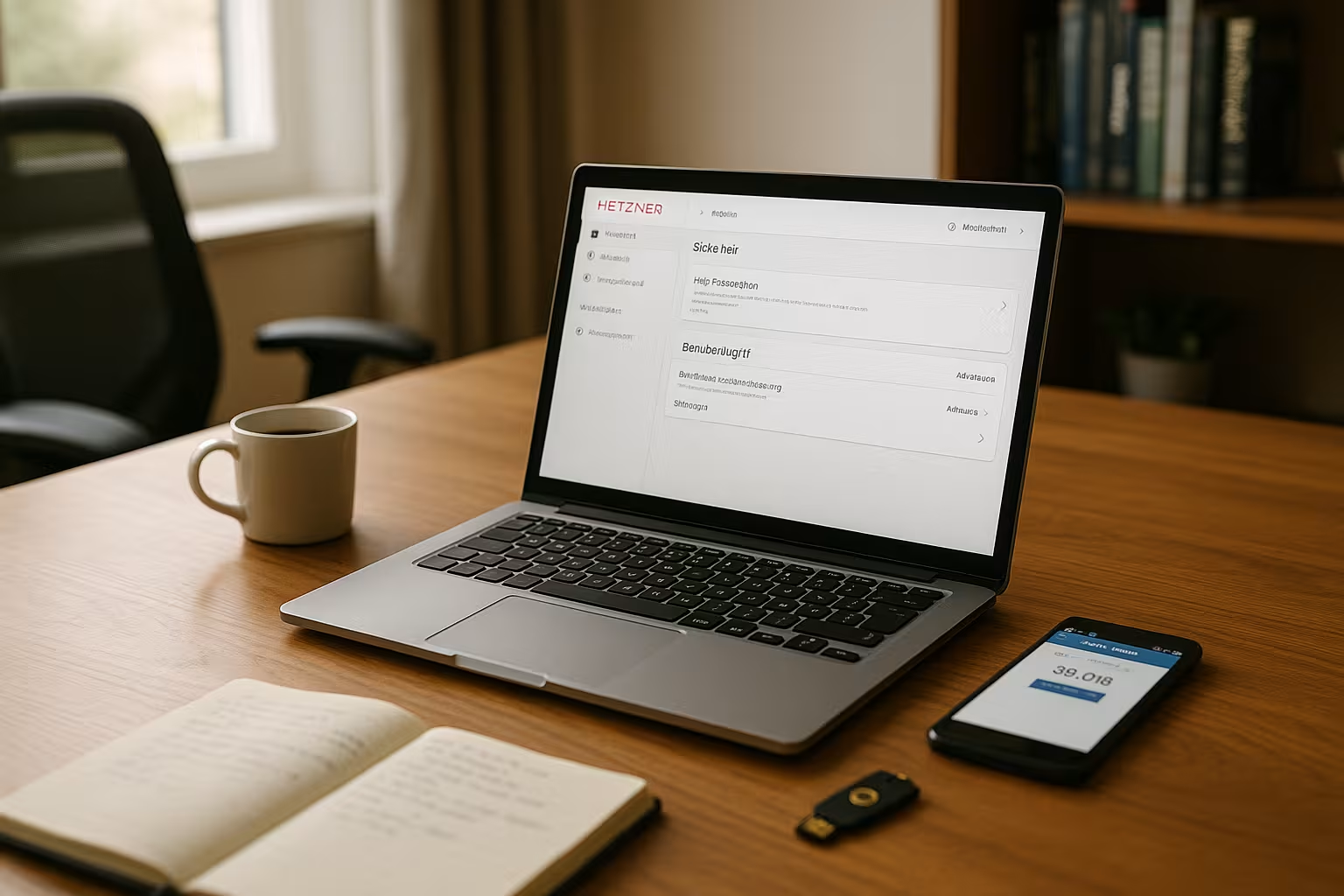
Hetzner Webmail is the browser-based e-mail interface from Hetzner Online, which I can use directly in my current browser without installation, allowing me to remain flexible both on the move and in the office. I read and write e-mails, manage folders, signatures, contacts and appointments in one place and keep my communication clearly organized. simpler. In contrast to local programs such as Outlook or Thunderbird, I only need Internet access, which means I can easily switch devices. The interface is deliberately based on familiar desktop clients so that I can quickly find my way around and carry out my actions without any detours. I use webmail as a supplement to existing e-mail programs without having to accept any gaps in functionality, and I can keep my Efficiency in everyday life.
Access & login: Fast and secure
I get started via the login page at the address "webmail.your-server.de", enter my full email address and password and select the appropriate mode for simple or mobile view if required. I activate the option for a simple view on older devices if the hardware is weaker so that the interface responds smoothly and I can process emails quickly. If the email address, password and browser are correct, access works without any hurdles and I immediately land in my inbox, where I can see new messages and reply directly. If I want to refresh the general process, a compact login instructions with the key steps and useful tips for secure use. It remains important to have an up-to-date browser, a stable connection and a strong password so that login is protected and access is consistent. safe remains.
Interface and operation: clear, fast, familiar
After logging in, I see Inbox, Sent, Drafts and folders I have created myself and can write emails with an editor including attachments. The address book stores contacts centrally, which makes it easier to send them to distribution groups and saves me having to import or export them later. I also use the calendar, tasks and notes directly in Webmail so that I can keep appointments, to-dos and ideas close to the communication and open fewer tools in parallel. I set the language, layout, columns and sorting so that the interface suits my working style and the most important information is immediately visible. This allows me to work in a focused way, avoid click marathons and bring emails, appointments and contacts together. Stand.
Filters, forwarding and autoresponders
Server-side filter rules take a noticeable load off my shoulders because they automatically sort, mark or forward incoming emails before I even start another program. I create rules based on sender, subject or keywords and move messages to project folders, for example, to keep my inbox organized. In the event of absence, I formulate an autoresponder with clear information on availability and ensure that partners receive quick guidance. If I wish, I can forward messages to additional mailboxes, such as an assistant or a ticket system, without having to initiate each process manually. This automation saves time, avoids errors and keeps my workflow running smoothly. slim.
Settings, signatures and folders
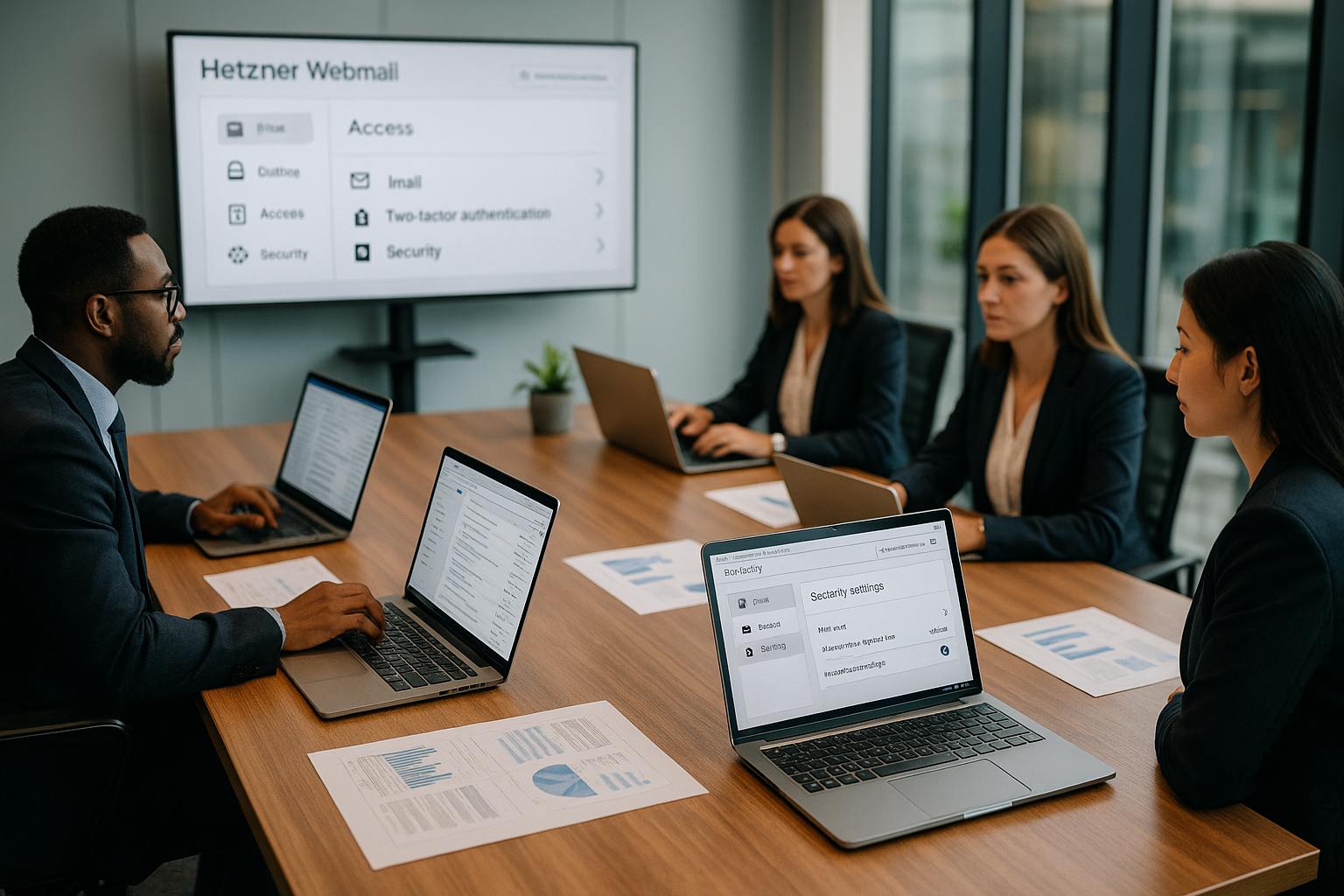
In the settings, I adjust folder structures, hide unneeded folders and ensure a clear view of the inbox, projects and archive. I store signatures for each identity, add mandatory legal information and change the appropriate signature for each sender address in the mail editor with just a few clicks. I deliberately set the target folder for spam, check the "spambucket" regularly and move messages that have been wrongly identified back so that the filter reacts more accurately in future. If I need to perform administrative tasks such as creating new accounts, I use suitable tools outside the webmail interface, such as E-mail accounts with Pleskto cleanly control mailboxes, aliases and quotas. Regular password changes and the maintenance of my identities ensure that access is kept cleanly separated and my signatures are always correct appear.
Security in practice: HTTPS, TLS, SPF, DKIM
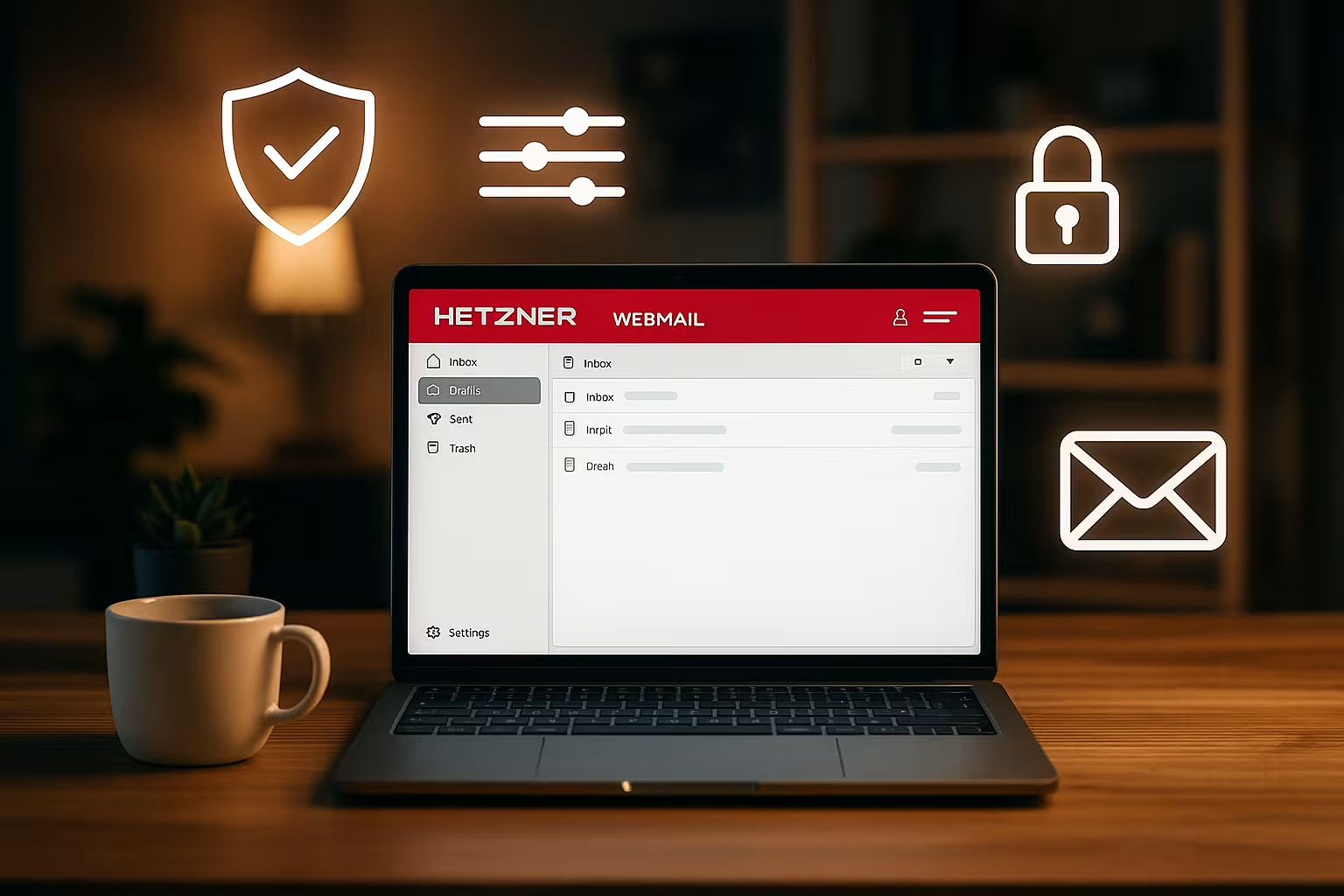
I access webmail in encrypted form by default, as HTTPS protects login data and content from being read during transmission. I use TLS for IMAP and SMTP so that email programs can also synchronize securely and the connection does not run in plain text. I also secure the sender identity via SPF and DKIM so that my domain is not misused for forged emails and delivery remains more stable. A consistent timeout for inactive sessions and a look at the security settings prevent unauthorized use, especially on shared computers or in open networks. If you need more comprehensive hosting information on performance, protection and flexibility, you can find it in Hetzner web hosting for professionals valuable insights that can be combined well with webmail and that Integrity strengthen.
Technical basics: servers, ports and protocols
For use in desktop or mobile clients, I use IMAP for retrieval and SMTP for sending, both with encryption enabled. The server address is "mail.your-server.de", while the ports for IMAP and SMTP are set to secure variants. I check the authentication for outgoing mails so that sending is not blocked, and test with a second client if in doubt. For certificate issues, I only accept valid certificates because this is the only way to credibly protect the connection and avoid warning messages. This keeps my setup clearly defined and consistent Encrypted.
| Setting | Value | Note |
|---|---|---|
| IMAP server | mail.your-server.com | SSL/TLS activate |
| IMAP port | 993 | Encrypted connection |
| SMTP server | mail.your-server.com | Authentication required |
| SMTP port | 465 | SSL/TLS for shipping |
| Login data | full e-mail address | Identical to Webmail |
Spam control and phishing defense
I rely on server-side filters, check the spam folder regularly and train the mechanism by moving misclassifications back to the inbox. I treat conspicuous senders, strange links or unexpected attachments with caution because malicious code is usually triggered with just a few clicks. I ignore unclear invoices or prize notifications and check the authenticity of the domain if necessary so that I don't give phishing a chance. SPF and DKIM also help to strengthen the reputation of your own domain and reduce delivery problems. This interaction helps me to reduce disruptions in my mailbox and keep my communication largely clean.
Practical tips for a safe everyday life
I choose a long, unique password, change it regularly and don't use a mix of reuses across multiple services. When I'm inactive, I actively log out, especially on shared computers or in meeting rooms, so that no one gets access by mistake. I keep my browser up to date, delete cookies and cache regularly and check extensions carefully so as not to introduce any hidden risks. Where available, I activate additional confirmation when logging in so that a compromised password alone is not enough. In this way, I build up several layers of protection that together form a strong Barrier form.
Common sources of error and quick solutions
If folders are missing, I activate the display of all available directories in the folder actions and send a test mail so that system folders become visible. If I lose my password, I use the reset function via the hosting access or ask the administration for a new password so that I can continue working quickly. If there are sending problems, I check SMTP authentication, port 465 and the active TLS options and test the remote station with a short text email. If the client shows certificate warnings, I check the date, time and the certificate itself before continuing so as not to open any gaps. This allows me to quickly resolve typical stumbling blocks, minimize downtime and stay on top of my daily mail routine capable of acting.
Calendar, contacts and tasks: Work more productively
I maintain appointments directly in the webmail calendar, invite participants and keep deadlines visible while I process emails. I keep contacts centrally and update them regularly so that auto-completion and distribution lists work reliably. I create concise tasks, set due dates and quickly tick off completed items, which noticeably improves my overview. Notes add context to projects or calls without me having to open separate tools and therefore remain in the same workflow. This allows me to bundle communication and planning and increase my productivity. Productivity with little effort.
Keyboard shortcuts, search and quick actions
I speed up my work with existing keyboard shortcuts and put the most important actions at my fingertips: I carry out new mail, replies, forwards, moves and searches without using the mouse. In the settings, I check which shortcuts are active and adjust them if necessary. I use the search function specifically by sender, subject, time period or size to quickly search through large mailboxes. With saved searches, I keep recurring filters such as "unread + last 7 days" to hand and save myself manual clicking. I use flags, categories or colored markings as a visual guidance system so that priorities are visible at a glance and I don't lose important emails.
Storage, quotas and clean-up strategies
To prevent my inbox from bursting at the seams, I keep an eye on the quota and folder sizes. I empty the recycle bin and spam regularly and use "Compress/Expunge" to permanently remove deleted messages and free up memory. I check attachments critically: I archive large files locally or in a shared project folder instead of leaving them permanently in my inbox. An annual archive (e.g. "Archive/2024", "Archive/2025"), to which I move completed communication, keeps things tidy. I use filters to route serial emails, newsletters and automatic notifications directly to their own folders and mark them as read so that the inbox remains lean. This keeps performance and overview high, even if I receive a lot of emails every day.
Identities, aliases and professional appearance
I separate roles cleanly by storing the sender name, address, signature and, if necessary, a separate reply address for each identity. This way I can write as sales, support or accounting from the same mailbox without risking confusion. I use aliases to merge thematic addresses (such as "jobs@..." or "presse@...") and still work with a central inbox. When replying, I make sure to reply with the identity to which the message was sent - this ensures consistency and avoids queries. If necessary, I set a "Reply-To" address so that replies are sent back to a team mailbox and everyone involved stays informed.
Templates, text modules and signatures with HTML
I save recurring answers as drafts or templates so that I only have to exchange project-specific details. I keep frequently used paragraphs ready as text modules - from greetings to support notes - and insert them in the editor in seconds. In signatures, I rely on a clear structure, optionally with HTML formatting, contact details, logo and legal information. I incorporate images in such a way that they are displayed reliably without using tracking elements; in the case of external graphics, I make a conscious decision as to whether the recipient should reload them. Consistent fonts and colors ensure a professional overall image, regardless of the identity I respond with.
Import/export and data backup
For address books, I use the CSV or vCard import and export a backup if necessary so that I can quickly restore contacts when I change devices. I keep calendar data up to date via iCal export and back up individual calendars before major changes so that I can revert to the old status if necessary. I prefer to back up my own emails via an IMAP client by mirroring relevant folders locally or creating archived MBOX files. This way, I prevent data loss when I carry out major clean-ups, a team member leaves or a mailbox needs to be reorganized. Regular, small backups are easier and more reliable than infrequent large-scale backups.
Shared folders and delegation
Where available, I work with shared IMAP folders and finely graded rights. This allows a team to view incoming requests centrally, assign emails and set status flags without messages being copied. Read permissions are sufficient for viewing, write permissions allow editing and replies, and I use administration rights to adjust the folder structure. I set up temporary access for vacation replacements or use a dedicated team identity so that processes are not tied to one person. This keeps communication transparent and handovers work without friction.
Mobile use and notifications
I activate the mobile view when I'm out and about so that navigation, editor and folders remain handy even on small displays. Where the browser supports it, I use notifications to be informed of new emails as long as the webmail tab is active. I place the webmail as an icon on the home screen to have app-like access and not have to search through favorites first. I add attachments such as photos or PDFs directly from the camera, Files app or cloud storage, but I pay attention to the size so as not to exceed the limits. This allows me to remain responsive without losing the convenience of the desktop interface.
Understanding deliverability and error messages
When an email comes back, I read the bounce message carefully: "550 5.1.1" often indicates an unknown recipient address, "552 5.2.2" indicates a full destination mailbox. I correct authentication errors ("535") by checking the user name, password and sending port. If a signature check fails, I check SPF/DKIM entries and add DMARC to the configuration so that recipients receive clear guidelines for evaluation. I avoid overloaded HTML emails, unnecessary tracking pixels and aggressive keywords that could irritate spam filters. Consistent sender domains, correct HELO/appearance of the sending server and a clean domain reputation increase the chance of messages arriving reliably in the inbox.
Accessibility and team onboarding
For accessible use, I set font sizes, contrast and, if necessary, a dark mode so that content is easy to read. Keyboard navigation and clear focus indicators help when I'm working without a mouse. When onboarding new colleagues, I use a short checklist: Test access, create identities and signatures, subscribe to folders, activate filters, set spam target, explain security basics. I use a common standard (folder names, archive structure, naming) to ensure that we have a uniform appearance as a team and that substitutions work seamlessly.
Briefly summarized
With Hetzner Webmail, I can access emails securely from anywhere, control filter rules on the server side and organize messages efficiently so that my inbox remains reliably structured. HTTPS and TLS protect the transmission, SPF and DKIM secure the sender identity, and a clean client configuration keeps connections permanent trustworthy. I use folders, signatures, calendars, contacts and tasks in the same interface, which means I open fewer programs and work close to the context. I reduce risks and minimize disruptions through careful passwords, regular updates and paying attention to links and attachments. In this way, I bring access, settings and security into a coherent system and keep my email communication permanently secure. clear.