Skip to content
I will show you specifically how you can Reduce database size, without losing content: from fast plug-in solutions to controlled MySQL steps. This allows you to reduce Loading times, The server is relieved and you retain complete control over every change.
Key points
Before I work on tables, I clarify objectives, secure the database and decide which clean-up steps are really necessary. In this way, I avoid risks, keep maintenance lean and achieve measurable effects. The following points will guide you through the process in a targeted manner. You will receive a clear sequence, practical tips and advice on typical pitfalls. You can then implement optimizations safely and repeatably.
- Backup First: Complete backup and playback test
- Plugins use: WP-Optimize, WP-Sweep, Advanced Database Cleaner
- phpMyAdminOptimize tables, clean up transients
- wp_options at a glance: Check autoload and legacy loads
- Automate: Regular cleanup and monitoring jobs
I prioritize measures according to impact and risk, start with safe deletion candidates and work my way up to deeper interventions. This keeps the website data remains intact and the database becomes predictably leaner.

Why WordPress databases grow - and what really matters
In day-to-day business, you quickly accumulate Revisions, spam comments, deleted content in the recycle bin and expired transients. Such entries increase query times, bloat tables and increase the CPU-consumption. Particularly affected are wp_posts (revisions), wp_postmeta (meta-ballast), wp_options (transients, autoload) and wp_comments (spam, trash). In addition, there is an overhang in MySQL tables that arises after many deletions and slows down queries. Addressing growth at an early stage saves resources, reduces time-to-first-byte and ensures clean data material.
Precise diagnosis: What is really growing?
Before I delete, I measure. In phpMyAdmin, I display the data and index size for each table and identify top consumers. If you want to be more precise, use an overview via INFORMATION_SCHEMA and sort by total data:
SELECT
  table_name,
  ROUND((data_length + index_length)/1024/1024, 2) AS size_mb
FROM information_schema.tables
WHERE table_schema = DATABASE()
ORDER BY (data_length + index_length) DESC;
This is how I recognize whether, for example. wp_postmeta dominates because of a lot of product or SEO metadata. Important: Physical file size does not always shrink immediately with InnoDB; OPTIMIZE TABLE frees memory within the table and - with file_per_table - also at file system level. I document start and target values to make the benefit of each measure visible.
Backup first: How to back up my data
Before I delete something, I export the Database completely and test the restore. In phpMyAdmin I select the DB, click on Export and keep the SQL file locally. In addition, a tried and tested backup plugin can create a second backup. I always check whether the backup includes all tables and prefixes, especially with multisite or changed Table prefixes. Only when the backup and restore work do I start the cleanup.
Staging, rollback and downtime minimization
I plan interventions in such a way that the site remains accessible. To do this, I first work - if possible - in a Staging instance, I test the most important flows (login, checkout, search) and only then transfer the steps to the live system. I schedule larger deletion runs outside the main visit times, deactivate caching shortly before the run, empty it after the run and check the error log. For rollbacks, I keep a tested DB backup ready and note every query in a changelog so that I can undo changes.
Plugins for wordpress database cleanup in everyday life
For routine tasks, I first rely on WP-Optimize, because it handles revisions, spam, trash, transients and tables in one go. After installation, I activate the automatic cleanup and schedule weekly runs. If necessary, I use WP-Sweep for pingbacks/trackbacks and Advanced Database Cleaner to clean up orphaned Entries to identify specific candidates. Before deleting, I check the preview, deactivate risky options and only confirm clear candidates. In this way, I achieve noticeable effects with minimal effort and can automate the „wp optimize database“ routine cleanly.
Manual optimization in phpMyAdmin: stay in control
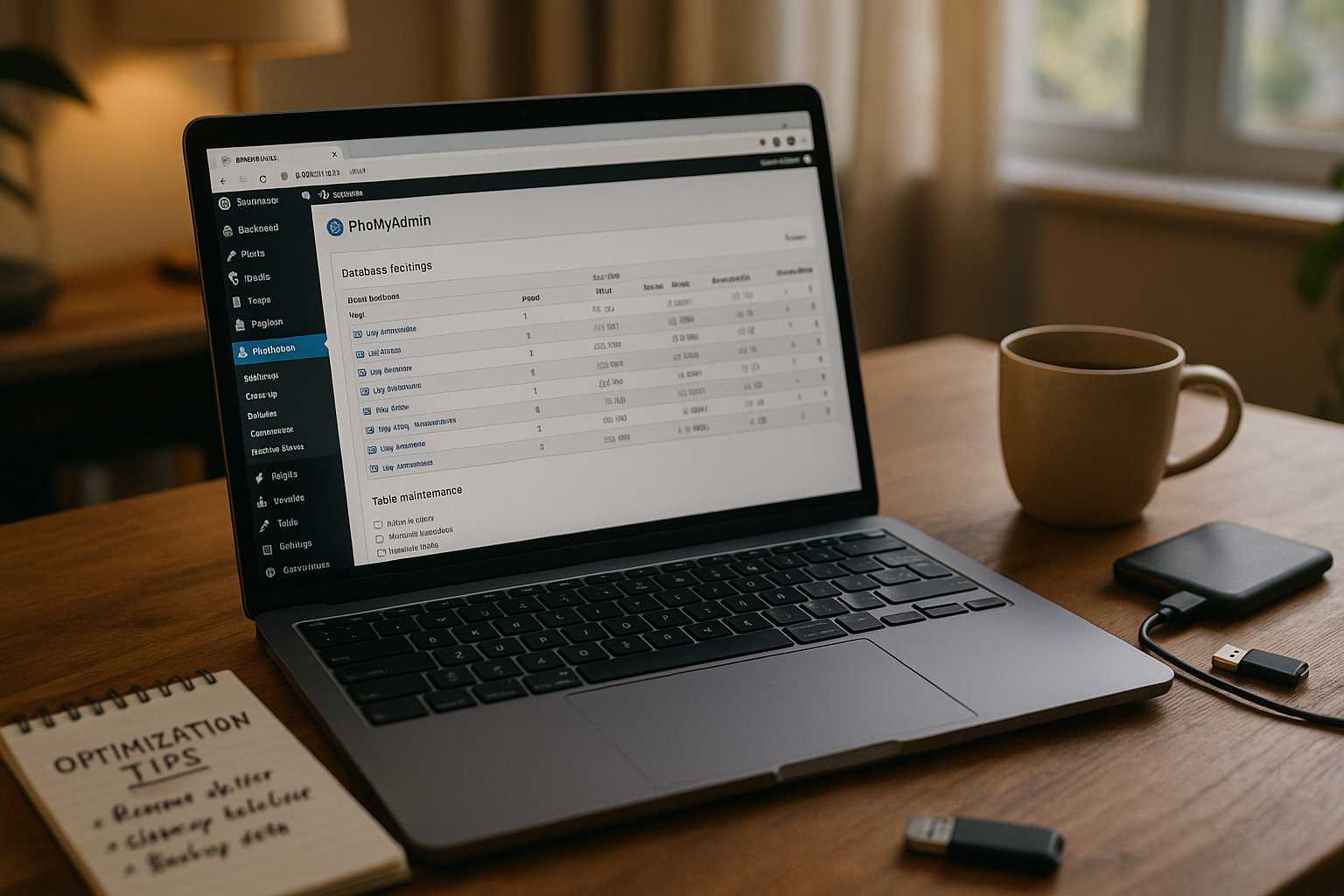
If I need more control, I switch to phpMyAdmin and sort the tables by size. I optimize large candidates via the dropdown, which internally uses the command OPTIMIZE TABLE and reduces overhang. I remove expired transients with DELETE FROM wp_options WHERE option_name LIKE '_transient_%' OR option_name LIKE '_site_transient_%';. I delete unused tags with DELETE FROM wp_terms WHERE term_id NOT IN (SELECT term_id FROM wp_term_taxonomy);. After each step, I check the website and the error log before I clean up further, so that Risks remain small.

Securely clean up revisions, spam and the recycle bin
Revisions can be useful, but they inflate the market without limit. wp_posts on. I limit them with define('WP_POST_REVISIONS', 3); in wp-config.php and delete old revisions via plugin. I regularly clean up spam and trash; this reduces the size of wp_comments noticeable. I also look at automatic drafts and remove duplicates. After each deletion, I run a table optimization again to really free up the memory.
Keep wp_options clean: Autoload and Transients
The table wp_options often causes hidden delays, especially with large autoload values. I measure the total amount of autoloaded options and stop oversized entries that are loaded on every call. I regularly delete expired transients because otherwise they take up space and extend startup times. If you want to read up on the background and typical load sources, you can find details at Understanding transients. After the cleanup, I check the frontend and backend to identify effects on Loading times to be checked.
A simple query helps me to quickly estimate the autoload load: SELECT ROUND(SUM(LENGTH(option_value))/1024/1024,2) AS autoload_mb FROM wp_options WHERE autoload='yes';. I find individual outliers via SELECT option_name, LENGTH(option_value) AS bytes FROM wp_options WHERE autoload='yes' ORDER BY bytes DESC LIMIT 20;. I set large, rarely used values to autoload = ’no‘ and ensure that the plugin loads them specifically when required.

Optimize tables in a targeted manner: What brings the most benefits?
Instead of haphazardly deleting everything, I focus on the tables with the largest Effect. wp_posts and wp_postmeta often provide the strongest leverage, followed by wp_options and wp_comments. I then do a before and after comparison in phpMyAdmin to measure progress. This transparency keeps the risk low and shows where the next pass is worthwhile. The following overview classifies typical findings and suitable actions so that you can proceed in a structured manner.
| Table | Cause | Typical ballast | Recommended measure | Risk |
|---|---|---|---|---|
| wp_posts | Revisions, car designs | Tens of revisions per contribution | Limit/delete revisions, optimize | Low for backup |
| wp_postmeta | Old meta entries | Orphaned meta-keys | Remove orphaned meta, check indices | Means, check beforehand |
| wp_options | Transients, Autoload | Expired cache data | Delete transients, reduce autoload | Low to medium |
| wp_comments | Spam, trash | Legacy issues and spam waves | Mass deletion, set automatics | Low |
Special case WooCommerce and high-traffic stores
Stores generate an above-average number of data records in wp_postmeta (variations, attributes, order metadata) and fill in wp_options with sessions and transients. I regularly delete expired sessions/transients, shorten the storage of faulty carts and check whether the theme or plugins store unnecessary product metadata. I keep the tables of the action scheduler (e.g. as_actions) small by cleaning up completed jobs earlier and not endlessly rescheduling failed jobs. I schedule an extra round after large sales or imports OPTIMIZE TABLE, to quickly reduce overhang.
Multisite features
In networks, ballast multiplies across all blogs. I proceed site by site, paying attention to independent table prefixes (e.g. wp_2_) and additionally clean up Network-wide transients in _site_transient_*. For global tables (e.g. wp_users, wp_usermeta), I do not delete anything across the board, but check dependencies between sites. I schedule cleanup jobs outside of synchronization or migration windows so that network consistency is maintained.
Advanced tuning steps in MySQL WordPress
With heavy traffic I pay attention to InnoDB-settings and indices. A properly dimensioned buffer pool and meaningful indices on frequently filtered columns (e.g. meta_key in wp_postmeta) significantly accelerate queries. Query caching exists in older MySQL versions, modern setups benefit more from good caching at application or object level. In addition, I avoid oversized autoload entries that slow down the early page load; details can be found at Autoload options. After each tuning, I measure again to check the effect on Response times to verify.
Indices under control: tried and tested patterns
I specifically check whether typical filters are sensibly supported. For wp_postmeta indices have developed to (post_id) and - depending on the queries - to (meta_key, post_id) proven. On wp_options by default there is an index on option_name; for queries after autoload I use the existing (autoload)-index or combine filters with LIMIT. Before I add indexes, I simulate the most frequent queries, measure their runtime and keep in mind that indexes cost memory and can lengthen write processes. I remove superfluous or redundant indices if they do not bring any measurable benefit.
WP-CLI in practice: fast, scriptable cleanup
If shell access is available, I accelerate routines with WP-CLI. Examples that I use in maintenance windows:
- Clean up transients:
wp transient delete --expiredand if requiredwp transient delete --all - Empty spam/trash:
wp comment delete --status=spam --force,wp comment delete --status=trash --force - Reduce revisions:
wp post list --post_type='post,page' --field=ID --post_status=publish | xargs -n100 wp post delete-revision - Optimize database:
wp db optimizeand check sizes withwp db size --tables
These commands can be integrated into cron jobs or deploy scripts. I start with read commands (lists, counting), confirm the selection and only then execute delete commands.

Character set, collation and row format
Inconsistent character sets increase risks during migrations and can restrict indices to text columns. If possible, I switch to utf8mb4 with consistent collation (e.g. utf8mb4_unicode_ci). Before a conversion, I back up the DB, check a staging update and convert tables in controlled steps. For InnoDB tables, I use a current row format (e.g. DYNAMIC) so that long TEXT/VARCHAR can be swapped out efficiently. In combination with innodb_file_per_table=ON provides OPTIMIZE TABLE ensures that free space is returned to the file system.
Automation: Planning cleanliness instead of hoping
I save time by doing recurring jobs schedule. In WP-Optimize, I set up weekly cleanups and monthly table optimizations. In addition, a system cron can reliably trigger WordPress„ own cron so that scheduled tasks do not fail. For repeated actions such as “wp optimize database", I set fixed time windows outside the main visiting times. This keeps the database permanently lean without me having to trigger every step manually.
Monitoring and testing: making success visible
After each round, I check the DB size in phpMyAdmin and document the development. I check how Time-to-First-Byte and Largest Contentful Paint change. I address conspicuous increases in wp_options or wp_postmeta early on before they impact performance. This article provides helpful food for thought for permanently clean options: Maintain wp_options. At the same time, I keep a change log with the date, measures and result so that I can track decisions later.
Key figures and threshold values for practical use
I define clear limits so that optimizations don't get bogged down. Examples: Keep the autoload total below 1-2 MB; wp_postmeta in relation to wp_posts plausible (no factors beyond 20-50x without good reason); transients share in wp_options do not grow. For performance, I regularly measure TTFB, search queries in the backend (e.g. product list) and admin load times. If core values increase or tables suddenly shift, I start a focused analysis instead of a blanket „delete everything“ round.
Systematically remove orphan tables and uninstallation remnants
Many plugins leave behind tables and options. I list non-core tables via prefixes, collect candidates and proceed in two stages: First, I rename the table as a test (e.g. RENAME TABLE wp_altplugin_data TO wp_altplugin_data_backup;) and monitor the page. If everything remains stable, I delete the table permanently. In wp_options I search for typical plugin namespaces (option_name LIKE '%pluginname%') and only remove entries whose function I have understood. For wp_usermeta and wp_postmeta I identify orphaned keys by checking whether the referenced IDs still exist at all.
Avoid common mistakes
I never delete without Backup and backlash test. I only carry out risky mass deletions in wp_postmeta after analyzing orphaned meta keys. I use plugin cleanups selectively instead of activating every option. After deleting, I clear caches and test functions so that no page sections fail unexpectedly. If something remains unclear, I first work on a staging instance and only transfer cleanups to the live system after a successful test.
Concise summary
With a clear sequence, clean Backup and a few tools, any WordPress database can be streamlined without losing data. I start with safe candidates such as transients, spam and revisions, optimize tables and limit future growth via rules. For larger setups, I use manual steps in phpMyAdmin and sensible MySQL tuning points. Automated routines keep the database sustainably small and measurably fast. If you follow these guidelines, you reduce size, lower server load and noticeably speed up pages - predictably, securely and comprehensibly.