Skip to content
aaPanel free of charge brings a modern, easy-to-use control center for Linux servers to any root or VPS host. I explain how I use aaPanel to quickly set up websites, databases, security and WordPress stacks and why the tool has been running on millions of servers for years.
Key points
I'll briefly summarize the most important aspects before going into more detail. This will give you a quick overview and you can decide immediately whether you want to test aaPanel. I'll show you the core functions that save me time every day. I'll also explain where aaPanel shines and where paid add-ons make sense. Finally, I'll give you specific tips to help you set up your projects properly.
- Free of charge for private and business
- One-Click for LAMP/LEMP and apps
- WP Toolkit for WordPress teams
- Security with WAF and Fail2ban
- Migration from Plesk/cPanel possible
What is aaPanel? Compactly explained
I use aaPanel as Web hosting panel for Linux because I use it to quickly handle server and website tasks. The interface maps common shell commands as clickable modules, allowing me to create websites, databases, SSL, cron jobs and mail services without any detours. The project has been growing steadily since 2017 and now has over 3 million installations worldwide. The platform provides frequent updates, new modules and a multilingual GUI that also looks clean in German. For me, this is an ideal setup for clearly managing projects from the test system to the production environment.

Quick start: installation in minutes
I set aaPanel to fresh Ubuntu- or CentOS servers via a one-liner and then log in directly in the browser. I first secure SSH access and check whether firewall rules allow the ports for the panel. I then copy the installation command from the documentation into the terminal and start the routine. After a few minutes, the start interface is ready and I specify the basic services such as web server, PHP versions, database and mail service. If you want to compare, you can find useful tips in aaPanel vs HestiaCP; this comparison helps you to choose the right stack.
Run WordPress efficiently with WP Toolkit
For WordPress, I rely heavily on the integrated WP Toolkit. I install instances with one click, manage plugins and themes centrally and activate caching profiles to match the selected web server engine. I start updates, backups and restores directly from the panel and save myself separate scripts. Particularly practical: I clone staging environments and test changes before I make them live. This allows me to keep projects fast, secure and easy to maintain - without having to maintain separate bash scripts for every little thing.

Everyday functions: administration, security, backups
In day-to-day business, I appreciate the File manager and the integrated code editor when I need to quickly check configuration files. The user and rights management makes it easier for me to hand over to colleagues without having to distribute SSH access. MySQL/MariaDB, PostgreSQL and MongoDB are available for databases, including backups and automation. I use remote storage such as S3-compatible buckets for offsite backups to keep restore times short. Logs, monitoring and alarms ensure that I detect errors early on and fine-tune services in a targeted manner.
aaPanel vs. Plesk, cPanel & Co.
Price-performance clearly speaks for aaPanel, especially when I host a lot of sites or container stacks on my own metal or VPS. Commercial alternatives score points with enterprise add-ons, but I cover most projects with aaPanel plus selected plugins. For business-relevant applications, I still need reliable support and high-performance servers, which is why I keep an eye on managed offers. I find comparisons like Enhance and aaPanel, to categorize strengths according to team size and workflow. The following table shows a brief overview of common options and their orientation.
| Place | Control Panel | Price | Focal points |
|---|---|---|---|
| 1 | webhoster.de | Chargeable | High performance, German IPs, premium support |
| 2 | aaPanel | Free of charge | Wide range of functions, simple operation, active community |
| 3 | Plesk | Chargeable | Scaling, marketplace, docker support |
| 4 | cPanel | Chargeable | Wide distribution, detailed documentation |
| 5 | DirectAdmin | Chargeable | Reliable license management, simple operating logic |

Security and updates
I activate the integrated Firewall, I run the security check and set up Fail2ban with sensible rules. A WAF filters typical attacks, while I use IP restrictions and two-factor login for sensitive areas. I schedule daily incremental backups with weekly full backups, separated by database and webroot. I install updates promptly and test them on staging instances first to avoid failures. This routine keeps systems clean and noticeably reduces response times in the event of incidents.
For developers and agencies
I combine aaPanel with Docker, Redis and node stacks when projects require microservices or real-time functions. I integrate Python or Java applications via reverse proxy and Systemd so that logs, SSL and backups remain centralized. The Pro function with multi-user management is worthwhile for agencies because roles and clients remain cleanly separated. I mirror production environments on local test VMs and export configurations for repeatable setups. Anyone looking at alternatives draws comparisons such as KeyHelp against aaPanel to align team processes appropriately.
Cost model: What remains free?
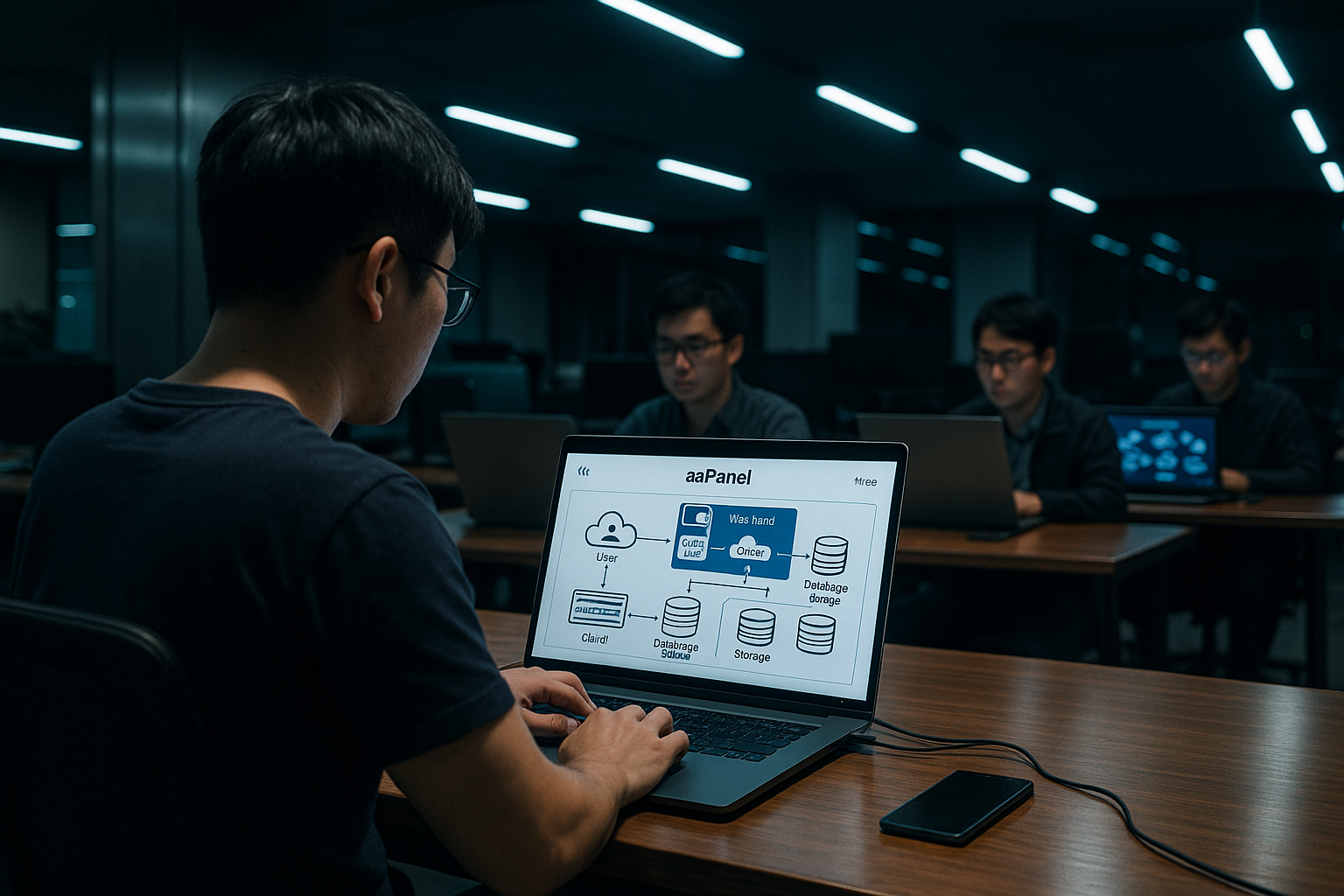
I use the basic functions with aaPanel free of charge, whether private or business. These include website and database management, SSL, cron, backups, log analysis, firewall, WAF and the WP Toolkit. Some extensions with an enterprise character, such as multi-account users or extended monitoring, cost money, but are usually well below the usual panel licenses per month in euros. For many setups, the free package is sufficient, especially for single servers or smaller customer stacks. As the project grows, I include premium modules and keep an eye on the total costs per instance.
Practical tips for high performance
I choose the web server engine to suit the project objective and often rely on Nginx or OpenLiteSpeed for fast delivery. I optimize PHP-FPM using pools, Opcache and suitable memory limits to ensure that peak loads run smoothly. I keep databases fast with query analysis, indices and separate data volumes. For WordPress, I combine object cache (Redis), page cache and image compression to reduce TTFB and LCP values. CDN, HTTP/2 or HTTP/3 and clean CORS headers round off the loading times and security reasonably.
Migration from other panels made easy
I transfer projects from Plesk or cPanel step by step: prepare domain and DNS, export Webroot and database, then import on the target system. I renew the SSL certificates directly in the panel via Let's Encrypt to avoid errors caused by expired certificates. I migrate email inboxes with IMAP sync tools and then test send and receive paths. For downtime-free migrations, I choose a short TTL window and only switch DNS after the final data synchronization. This way, even stores or highly frequented magazines can move securely.
Suitable usage scenarios
I use aaPanel for Agencies with many WordPress instances, for club websites and for MVPs on low-cost VPS. Educational institutions benefit because learners can quickly launch and manage productive stacks. Startups get a flexible panel that allows scaling across multiple servers and cloud services. Admins in SMEs consolidate scattered scripts and tools in one interface. aaPanel is even suitable for lab environments because I can test new services and remove them again without leaving any traces.
System requirements and proven setups
I size resources pragmatically: 1-2 vCPU, 2-4 GB RAM and 30-60 GB SSD are sufficient for small WordPress sites. For multiple projects or WooCommerce, I calculate 4-8 GB RAM, dedicated PHP pools and separate data volumes. I keep swap moderate (e.g. 1-2 GB) to cushion peaks without overloading I/O. I prefer to use LTS distributions as the OS, because kernel and package maintenance can be planned in the long term. A separate disk or a fast storage tier is worthwhile for databases at the latest, so that IOPS and latency do not slow things down.
Network and port checklist
Before the go-live, I check releases for the most important services: 22/SSH, 80/HTTP, 443/HTTPS, the panel (by default a high TCP port, e.g. 8888), databases (3306 MySQL/MariaDB, 5432 PostgreSQL - if required externally), Redis (6379, mostly internal), as well as mail ports (25/465/587 SMTP, 110/995 POP3, 143/993 IMAP). I always restrict exposed services via firewall rules, open database ports only for trusted networks and use TCP wrappers/Fail2ban for additional security. For Let's Encrypt, I validate that 80/443 are accessible and that no upstream proxies falsify requests.
E-mail operation: deliverability & alternatives
Mail servers are often the trickiest part. I set up SPF, DKIM and DMARC properly, make sure I have a valid rDNS (PTR) and test that there are no blacklists. If a clean reputation is missing or port 25 is blocked by the provider, I route outgoing mails via a relay service. I plan separate queues for peak loads and monitor defer/bounce rates. I migrate mailboxes with IMAP sync and tidy up the quota/folder structure after the move. For teams that don't want to run email themselves, I deliberately separate out mail and use the panel primarily for web and databases.
Automation and repeatable deployments
I standardize setups via scripts and use the panel functions via GUI or API to create domains, SSL and databases consistently. I define recurring tasks (backups, cron, log rotation, certificate renewal) as templates. I describe a „golden stack“ for teams: Web server, PHP versions, modules, security baseline, user roles and backup targets. This allows a new server to be set up reproducibly in under an hour. IaC tools help me to preconfigure basic packages, systemd units and kernel parameters, while the panel takes care of the web-specific tasks.
Monitoring and observability
I combine the integrated statistics with external uptime and performance monitoring. CPU steal on VPS, IOwait for storage, RAM/swap trends, 5xx quotas on the web server and TLS errors are critical. I set warning thresholds conservatively and forward alerts to Slack/email. For databases, I log slow queries and keep query plans ready to customize indexes. I verify backups via restore samples - ideally automated on a staging VM. Without regular test restores, every backup remains an assumption.
Roles, rights and compliance
I work with separate accounts per customer/project. I assign write permissions minimally („least privilege“) and separate deploy users from admin accounts. I secure panel logins with 2FA and IP restrictions. For GDPR/compliance, I encrypt backups in motion and at rest, log administrative access and define clear retention periods. I rotate and anonymize sensitive log data if necessary. For handovers, I document passwords, tokens and certificates in a secret management system, not in the file manager.
Limits and known pitfalls
aaPanel covers a lot, but is not a panacea. Multi-server topologies, cluster databases or zero-downtime rollouts require additional tools. For massive multi-tenant environments, I plan isolation (containers/VMs) and quotas very consciously. Common stumbling blocks are inconsistent PHP versions between staging/prod, incorrect file permissions after migrations, overly generous firewall permissions or forgotten cronjobs. I therefore have a short go-live checklist ready and automate the most important checks.
Troubleshooting playbook
- Let's Encrypt fails: Check DNS-A record, port 80/443, webroot and proxy header; observe rate limits.
- 502/504 errors: Check PHP FPM pools, max children/requests, timeouts and upstream logs; identify slow plugins.
- High CPU/IO: Dampen bot traffic with WAF/rate limits, activate caching, analyze query log, follow up image/asset optimization.
- Mail ends up in spam: test SPF/DKIM/DMARC, set rDNS, „warm up“ sender domain, consider relay.
- Permission problems: Correct owner/groups of the webroot and upload directories to avoid 403/500.
Upgrade and maintenance strategy
I carry out updates in stages: First staging, then production server in maintenance windows. Before every major jump, I back up the panel and system configuration, take a snapshot (for VPS/cloud) and have a rollback script ready. After updates, I test critical paths: TLS handshake, PHP versions, rewrite rules, cron jobs, backup jobs, mail flow. I install minor updates promptly, plan major upgrades deliberately and document breaking changes. This keeps servers up to date without jeopardizing productive systems.
Scaling and high availability
If the traffic grows, I scale horizontally: a load balancer in front, several web nodes behind, shared object cache (Redis) and a dedicated database host. I outsource media content to object storage to keep deploys and backups lean. For databases, I rely on replication or a cluster network as required and separate read/write access. I keep sessions centrally (Redis) or only use token-based authentication so that node changes remain transparent. aaPanel manages the individual servers locally; I use external tools and clear playbooks for orchestration across multiple hosts.
Narrow assessment
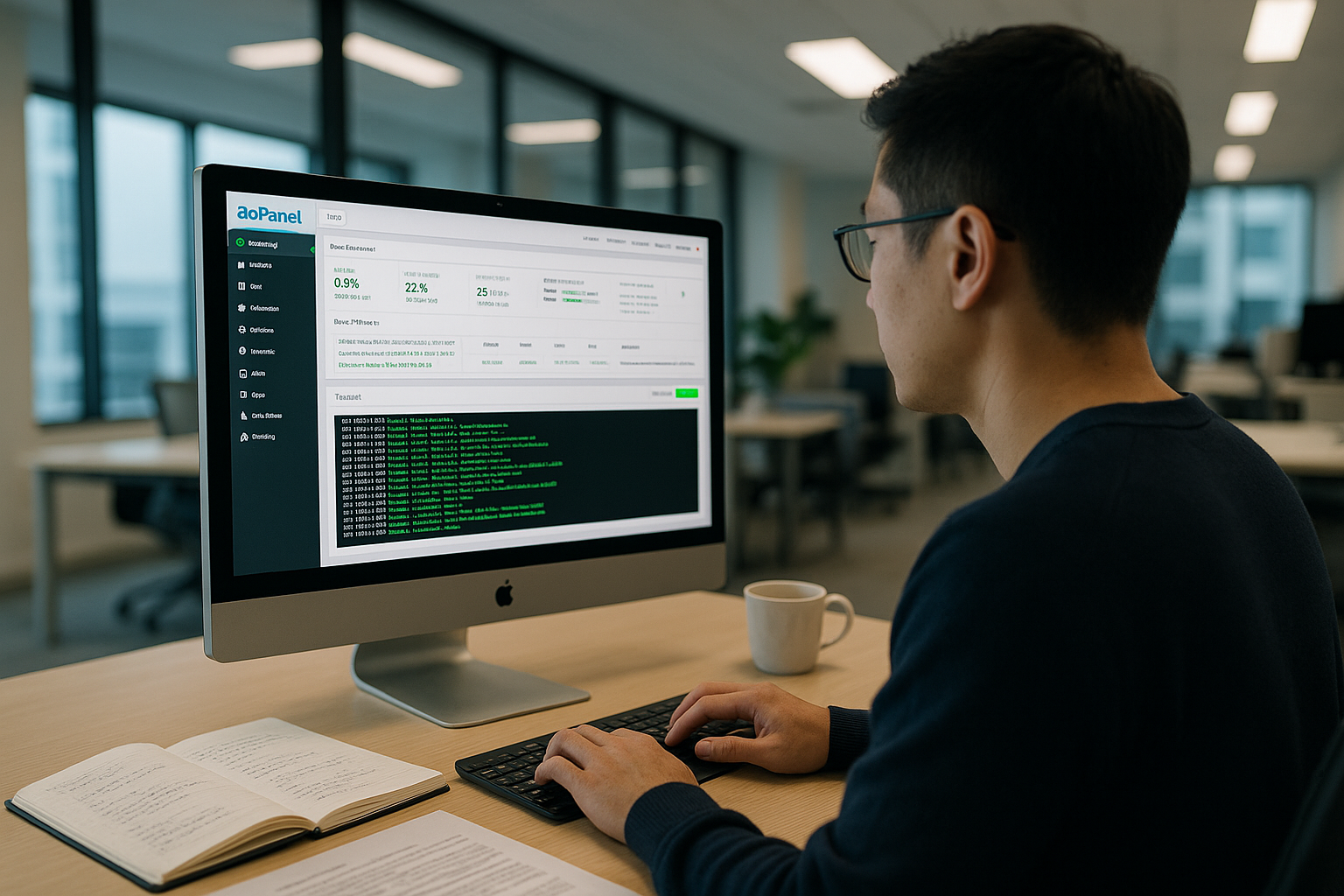
I see in aaPanel a strong option if you want to manage servers yourself and save on license costs. The mix of one-click stacks, clean WordPress integration, security modules and backup strategies reliably covers modern web projects. If you need to serve teams, clients and SLA requirements, you can add specific Pro features or combine aaPanel with professional hosting. All in all, the panel provides a clear, fast working environment that takes beginners by the hand and does not slow down professionals. This gives you a free control panel from Asia that is convincing in practice and will grow with you in the long term.