 Skip to content
I will show you step by step how to use the all-inkl spam filter so that phishing, malware and junk mail don't stand a chance. I use the appropriate acceptance filters, safe recommendations and a short maintenance routine to ensure that important emails land reliably in your inbox.
Key points
- Acceptance filter choose sensibly: Greylisting, Policyd-weight, sender check
- Standard filter activate and customize: Recommendation, virus scanner, whitelist
- Own rules build: Conditions, sequence, actions
- IMAP/POP3 use correctly: Marking vs. moving
- Routine maintain: train weekly and empty folder

Understanding spam filters at All-Inkl
I rely on server-side filters because they check emails before they are delivered. This means I can work on my smartphone, webmailer and desktop without any duplication of effort. The spam folder remains identical on all devices via IMAP, which makes it easy to check. POP3 does not display the spam folder, so I adjust the handling depending on the protocol. This way I avoid misdeliveries and receive critical messages reliably.
How to open the spam settings
I report to the Webmailer and click on the gear icon at the top. On the left, I call up "Spam and e-mail filter" and check which functions my tariff contains. If the item is missing, I select a plan with spam and virus protection so that the filters take effect. To get me started, the compact Email Security Guide. I then test each change with a test mail to see the effect.
Set acceptance filter sensibly
With Greylisting I first block unknown senders until their server delivers again. Reputable servers deliver after a few minutes, spammers usually don't. For new contacts, this means a short delay, which I keep an eye on for time-critical registrations. If you expect frequent confirmation emails, you can temporarily switch off greylisting or set whitelist entries. This is how I strike a good balance between convenience and protection.
Policyd-weight evaluates emails according to many rules and awards points against spam. The hit rate is high, but false rejections can still occur. Because All-Inkl then rejects the mail, I use this option carefully. I monitor the results for a few days and adjust the threshold values in the recommendations. In this way, I reduce risks for important senders.
With "Reject unverified sender", I check whether the specified sender is technically plausible. In theory, this sounds flawless, but in practice, legitimate emails fail due to poorly configured remote stations. That's why I leave the rule off for the time being. When I activate it, I specifically test senders that are important to me. If something fails, I secure it with the whitelist.
Four main categories at a glance
At Recommendation I use the predefined filters, which catch most of the spam. I read the short help texts at the blue question mark and understand the effect of each option. This gives me a solid starting configuration. I adopt it and observe the hits for a few days. After that, I only refine individual controls.
The Procmail-Editor is aimed at advanced users with many special cases. I start small, for example with subject patterns, and gradually increase the complexity. I move each rule to the top if it is critical. If I number rules mentally, I keep the processing sequence in my head. This way I avoid conflicts between several conditions.
The Virus scanner I leave it permanently active. It holds back infected attachments and reduces the risk when opening them on the client. Updates run automatically in the background. I decide whether infected messages end up in quarantine or are completely rejected. I use quarantine for mailboxes with lots of attachments so that I can check them.
The Whitelist brings peace of mind to everyday life. I enter individual addresses or entire domains if I want to guarantee their delivery. This helps with portals, suppliers and authorities. I add new contacts after the first reliable communication. That way, subsequent responses are trouble-free.
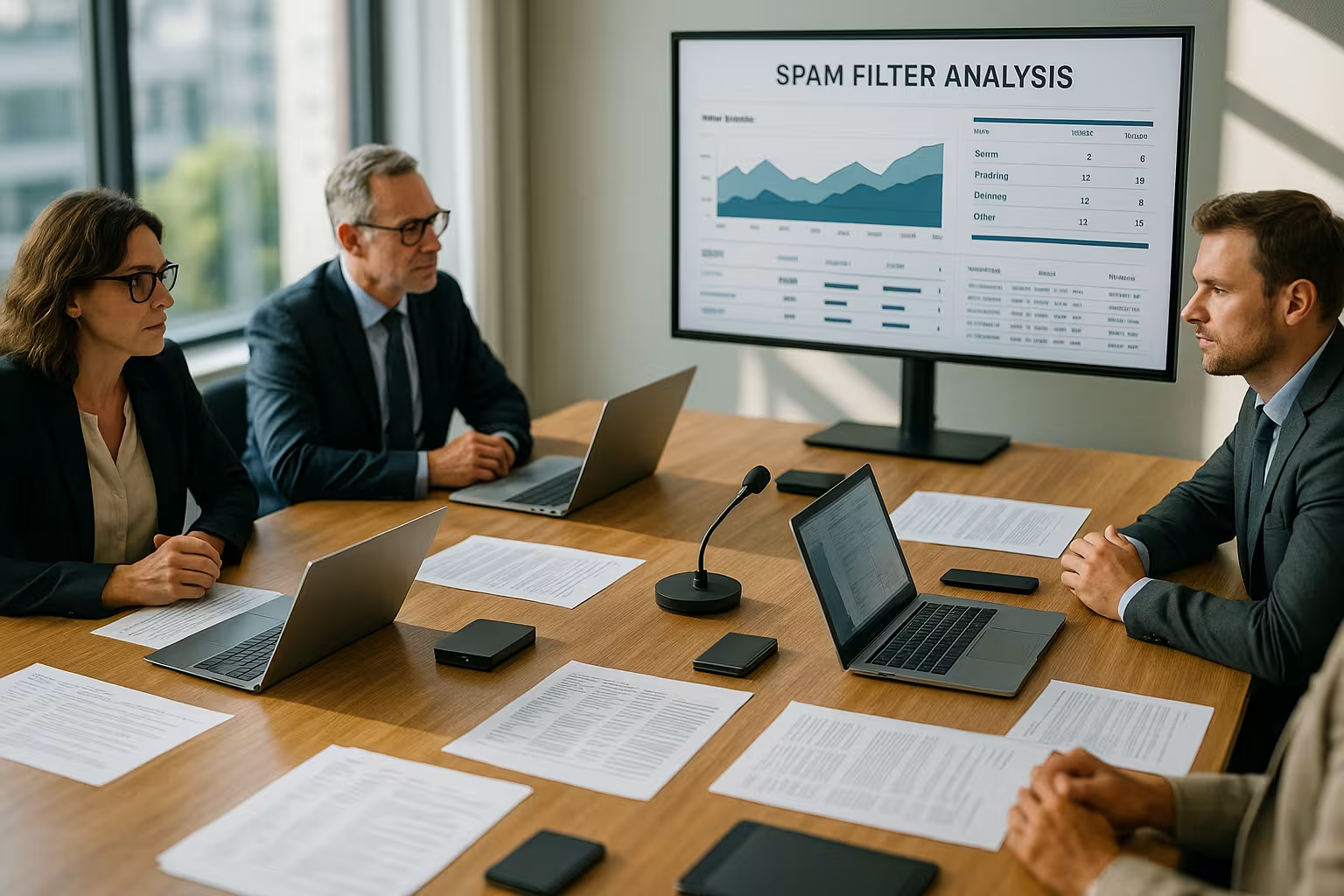
Own filters step by step
I click on "New Filter" and assign a descriptive name. If "Filter in first position" is set to active, the rule runs at the very front. By default, all conditions must apply; I switch this off if a single rule is sufficient. I also set a whitelist rule for sensitive senders. Detailed instructions help with the Set up filter and testing.
Mark or move spam?
Do I use IMAPI consistently move spam to the spam folder. This keeps the inbox clean and the folder visible on all devices. I check the spam folder regularly and save misclassifications. If I work with POP3, I select "mark as spam" instead. This means that every message can be retrieved and doesn't get lost in the invisible spam folder.
Using whitelists and blacklists correctly
The Whitelist skips the spam check for trustworthy senders. I use it for partners, portals and service addresses that deliver reliably. The blacklist, which rejects emails directly, is suitable for known troublemakers. I strictly check blacklist entries so that no legitimate senders are hit. This way I keep the mailbox clean and avoid collateral damage.
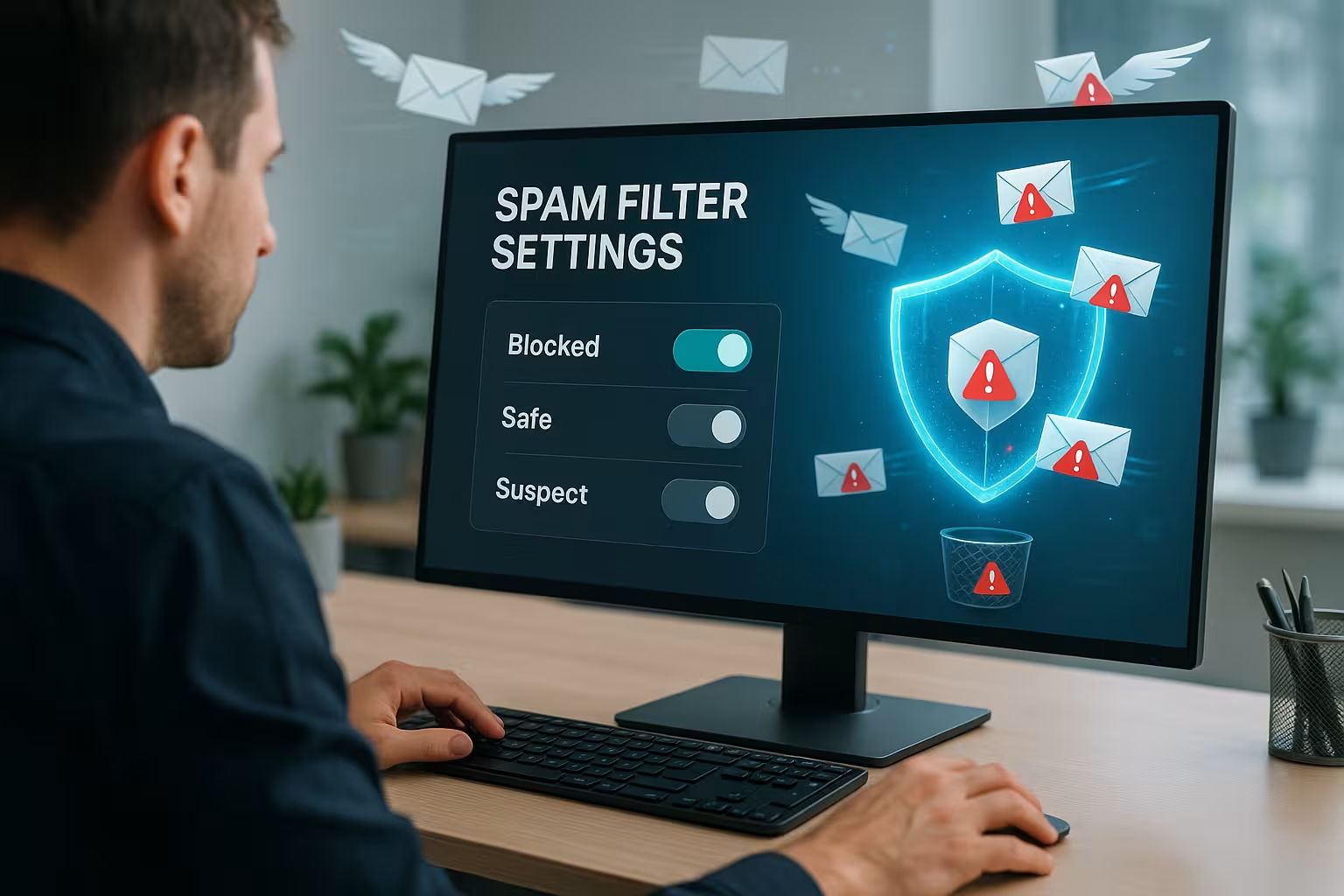
Anti-spam routine in 7 minutes
I open the Spam folder in the webmailer and save everything that is not spam. The "no spam" function automatically moves emails to the inbox and trains the filter. I add important senders to the whitelist. I then empty the spam folder so that old finds do not dilute the training. Finally, I mark the overlooked disruptors as spam in the inbox so that the filter learns and Fight spam easier.
Activate spam filter when creating
Do I create a new E-mail account in the KAS, I immediately activate the standard filters. That way I catch troublemakers from the very first second. I avoid catch-all mailboxes because they attract a lot of spam. If I need bulk delivery, I set targeted aliases instead. Later, I adjust the filters in the webmailer if necessary.

Forwarding and spam filters
For pure Forwarding All-Inkl sets filters automatically if certain criteria apply. I cannot define my own rules there, but I benefit from the protection. This prevents abuse and protects my server reputation. For critical senders, I prefer to set a full mailbox instead of forwarding. This gives me control over rules, folders and training.
IMAP vs. POP3: Effects
With IMAP I can see all folders, including spam, on every device. This makes training and quality control easier. POP3 does not show the spam folder, so I only mark spam in the inbox. This means I don't lose any emails, but I do accept a more cluttered inbox. If you often work on the move, IMAP is often better.

Interaction with e-mail clients
I leave the Server filter first and only add light client rules. Outlook, Thunderbird or Apple Mail then take over the "Spam" label and display the folders cleanly. Local filters reflect my personal preferences, such as newsletter sorting. On the server side, I stop dangerous attachments and known waves. This combination keeps the mailbox tidy and reduces clicks.
Security through virus scanners
The integrated Virus protection checks attachments and content before delivery. I don't have to maintain any updates because the signatures are renewed automatically. Infected emails are either quarantined or rejected, depending on the settings. For project mailboxes, I choose rejection to minimize risks. I set quarantine for support mailboxes so that I can check them.
Delivery chain and filter sequence
I think in the order in which emails are processed: First the Acceptance filter (greylisting, policy weight, sender check). You decide whether an e-mail is accepted at all. The Virus scanner the contents. Only when a message is clean does the Spam classification and finally my user-defined rules (Procmail). Client filters come at the very end. This pipeline explains why strict acceptance filters can cause hard rejections, while later filters tend to postpone or mark.
If I understand this chain, I also know where to turn which screw: I minimize rejections at the front and create order at the back. I use a whitelist to protect critical senders against acceptance filters, and the rules take care of the detailed work. This keeps the level of protection high without losing good emails.
Secure SPF, DKIM, DMARC and your own domain
To ensure that my e-mails are reliably received by others and that counterfeiters don't stand a chance, I secure my own domain off. I deposit correct SPF entriesactivate DKIM signatures and set a DMARC guideline matching my dispatch. This improves my reputation and at the same time helps the incoming filter to recognize legitimate responses from contacts.
These authentications contribute directly to the "Reject unverified sender" option: The cleaner the sender side works, the fewer legitimate emails will fail. I still keep the whitelist available for partners with weak technology. At the same time, I remain conservative with DMARC at the beginning until I am sure that all legitimate dispatch paths sign correctly.
Understanding scoring and reading headers
If I want to understand a classification, I look at the Original message with all headers. In webmailers, I usually find a function such as "Show source" or "Original". There I see information such as "X-Spam-Status", "X-Spam-Score" and hit rules. Authentication Results" also reveals whether SPF/DKIM/DMARC have been passed. This allows me to see whether the classification was due to the content, a lack of authentication or a sample rule.
I use this knowledge to specifically adjust threshold values or add to a rule. I avoid blind tightening and prefer to work on the basis of evidence. In the case of recurring misclassifications, I train with "no spam" or "mark as spam" and add a whitelist or a specific rule if necessary.
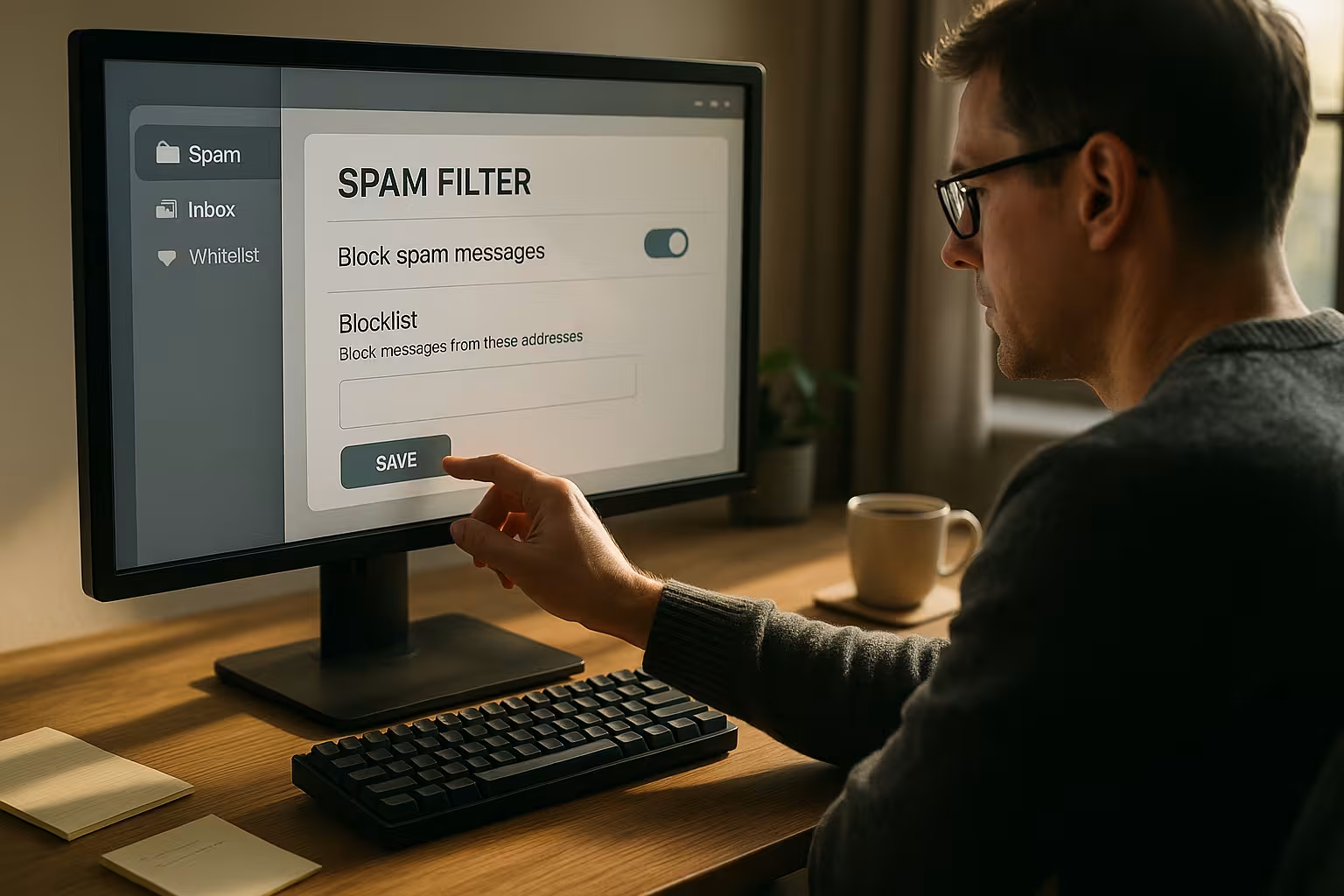
Quarantine, storage and recovery
If I decide in favor of Quarantine Instead of rejection, I consciously plan the retention period. Short retention periods save memory, longer ones give me more time to check. I regularly check the quarantine and release incorrectly classified emails. It is also important to have a clear internal agreement: who checks when, and how are released emails marked?
For heavily used mailboxes, I define a procedure to document quarantine findings. This way, the team learns which patterns are problematic and I adjust rules or whitelist entries. If the retention times and routine are right, I don't lose anything important, even at peak times.
Typical rule patterns from practice
I start with a few clear rules and think in terms of positive Exceptions instead of blanket bans. Examples that have proven their worth:
- I move recurring subject patterns such as "Order confirmation" or project abbreviations to specific folders.
- Messages with certain List ID-I sort the headers (newsletters) into a reading mailbox.
- I block or quarantine attachments with risky endings. I handle archives with care, especially if they are password-protected.
- I combine common phishing lures (e.g. "urgent invoice open") with a second condition, such as a suspicious sender domain.
I avoid hard rules against entire country TLDs or languages unless I'm sure I'll never need them. I check each rule with examples before moving it to the top. And I document why I created it - this saves time later when making adjustments.
Error analysis: When emails are missing
If an expected message is missing, I work through a checklist: First I check Spam folder and Quarantine. Then I look at the settings for the acceptance filter. If the mail has already been rejected at SMTP level, this indicates policy-weight, greylisting or sender verification. In this case, I ask the sender for a new delivery attempt and temporarily secure it via the whitelist.
I then test with a own test mail (or another account) the delivery. If it arrives, this isolates the error to the original sender. If it doesn't arrive, I just turn one adjusting screw at a time and test again. This allows me to quickly find the cause without completely loosening the protection.
Keep team and project mailboxes clean
In shared mailboxes, I consistently use IMAP and define a short team routine: who trains, who empties the spam folder, who maintains the whitelist? I avoid contradictory client rules by pre-structuring on the server side and only allowing slight, personal sorting in the client.
For projects with a high volume of incoming mail, I separate roles using aliases (e.g. einkauf@, rechnung@) and give each address moderate, customized rules. This way, waves don't hit me everywhere at the same time and maintenance remains manageable. I avoid POP3 in teams because otherwise the joint training breaks down.
Optimum configuration for different user types
I set up the Filter strategy according to user type so that effort and protection match. Beginners stick to the recommendations and train weekly. Advanced users set additional rules for recurring patterns. Professionals use the Procmail editor and document every change. The following table summarizes proven settings in a compact format.
| User type | Activate | Acceptance filter | Spam handling | Protocol | Maintenance | False positive risk |
|---|---|---|---|---|---|---|
| Beginner | Recommendation + virus scanner | Greylisting on, Policyd-weight Standard | Move to spam | IMAP | Weekly 5-7 min. | Low |
| Advanced | Recommendation + Whitelist | Greylisting on, Policyd-weight tighter | Move to spam | IMAP | Weekly + regular care | Medium |
| Professionals | Procmail editor + virus scanner | Greylisting on, Policyd-weight fine-tuned | Move + Quarantine | IMAP | Ongoing Analysis | Dependent on rules |
| POP3 users | Recommendation + whitelist | Greylisting on | Mark as spam | POP3 | Weekly in webmail | Low, due to delivery |
Avoid common mistakes
I do not rely solely on Client filterbecause they only work locally. Server-side filters stop attacks before they reach my device. I avoid settings that are too tight because they create work due to false positives. I actively maintain the whitelist so that important senders never get stuck. I test changes with real examples before I use them permanently.
Long-term maintenance of spam filters
Filters are not One-time actionwhich is why I schedule short checks. Every few months, I check whether the rules are still up to date. Outdated rules are removed and recurring patterns are given their own rule. I add to the whitelist as soon as new partners are added. This keeps the system lean and accurate.
Briefly summarized
I activate the RecommendationsI set up greylisting and run the virus scanner. I create my own clearly named filters and organize them sensibly. I use IMAP for full transparency, POP3 only with "mark as spam". The whitelist protects important contacts, the routine trains the system. With this combination, the all-inkl spam filter reliably keeps my mailbox clean.


