Skip to content
I'll show you how the email migration between hosts can be planned, secure and without surprises. I rely on IMAPSync and suitable alternatives to ensure that folders, flags and metadata arrive in full and the inbox remains accessible.
Key points
Before I start a transfer, I clarify goals, time frames and dependencies so that I can mitigate risks early on and ensure that the changeover runs smoothly. I test the project with small mailboxes to check settings and find errors quickly without disrupting productive operations. For sensitive environments, I first start a test migration and then plan a delta synchronization shortly before the DNS changeover. If necessary, I combine IMAPSync with provider tools so that many accounts can be changed in stages in a structured way. This is how I ensure Transparency effort, duration and success rate - and reduce downtime.
- IMAPSync transfers mails, folders and flags directly server-to-server.
- A Test run reduces risks before the actual move.
- Data protection increases when I migrate locally or in my own container.
- Provider tools make it easier Series relocations of many accounts.
- Clean DNS/MX-steps minimize downtime.

Why a well thought-out email migration counts
A move pays off when I Performancestorage and security without disrupting workflows. Emails often contain legally relevant documents, contract data and internal communication that I need to transfer without gaps. If it tears up the folder structure or flags are missing, I lose orientation and time. I therefore plan a period with a low volume of mail and coordinate the change internally. This prevents duplicate responsibilities, avoids confusion for users and keeps the mailboxes consistently usable.
IMAP briefly explained
IMAP stores emails centrally on the server so that I can access the same status from any device and Folder remain consistent. In contrast to POP3, IMAP does not download messages permanently, but synchronizes states such as read, marked or deleted. If you want to understand when IMAP is the better choice, take a look at the comparison IMAP vs POP3 to. For a migration, I need IMAP access to the source and destination - almost all hosters offer this. This allows me to move content on the server side without a workstation becoming a bottleneck.
IMAPSync: Strengths at a glance
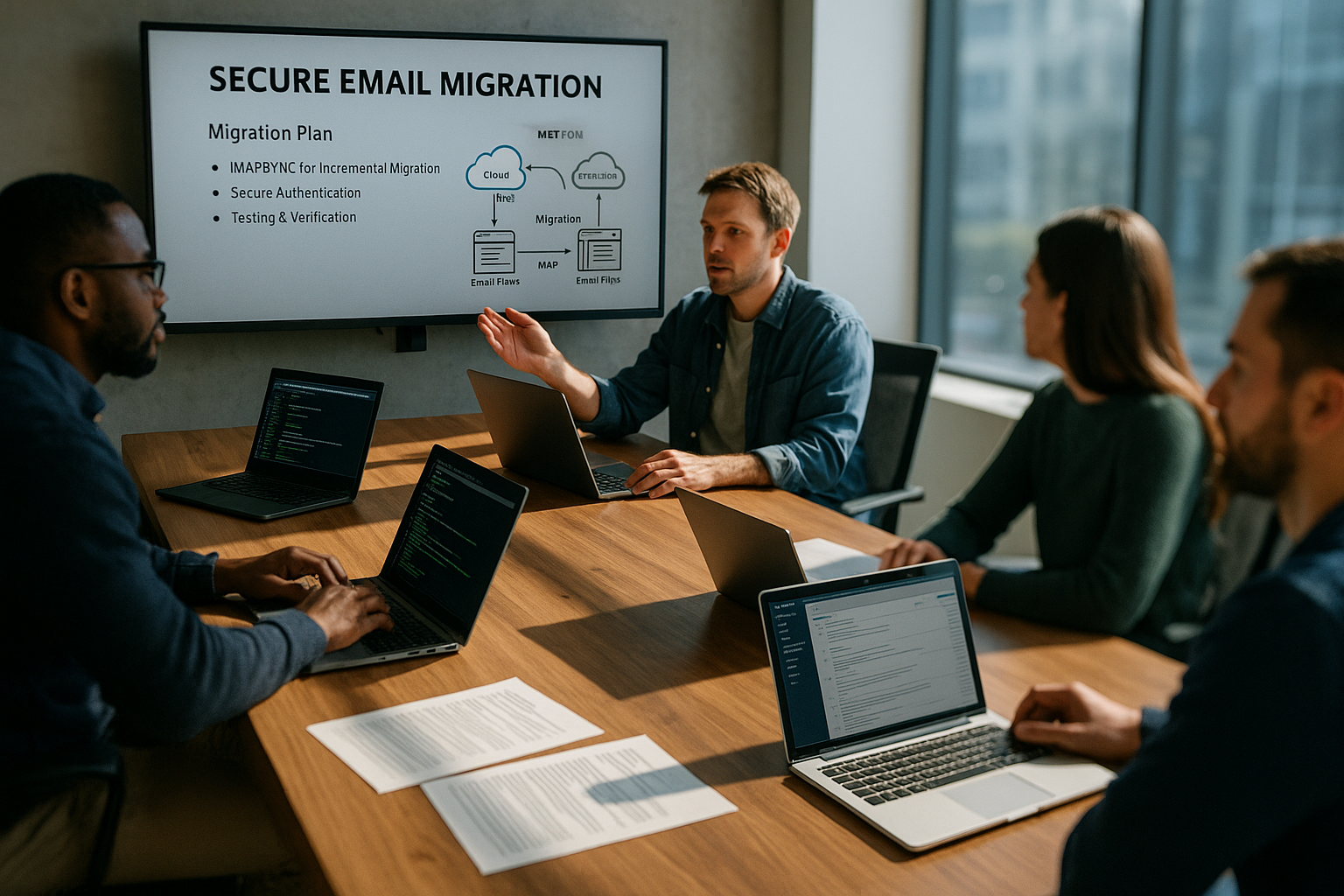
IMAPSync has proven to be Tool for direct server-to-server transfers. I appreciate that it copies folder structures, flags and timestamps completely. The software reliably prevents duplicate messages because it masters delta synchronization. For large mailboxes, I first start a test run and only synchronize changes shortly before switching the MX entries. This reduces the time window in which users could be working on two systems.
How to run IMAPSync step by step
For the execution I need Access data of both accounts: IMAP server, user name and password. I start the tool on Linux, macOS or Windows and transfer the source and destination with the appropriate parameters. Dry run, folder mapping or limits for simultaneous connections help me to do this. The classic example shows the core of the transfer:
imapsync --host1 SERVER_ALT --user1 USER_ALT --password1 PASSWORD_ALT
--host2 SERVER_NEW --user2 USER_NEW --password2 PASSWORD_NEW
I then run IMAPSync again if I just want to update the changes shortly before the DNS switchover - this saves time and keeps the Mailbox synchronous.
Security: access data, encryption, logs
I only transfer access data Encrypted and do not store them permanently on hard disks. If I run IMAPSync myself, all communication remains between the two mail servers and my migration computer. I activate detailed logs to check the number of folders, bytes transferred and any errors after the run. If there are problems with individual mails, I filter or re-map folders specifically and start a new run. This allows me to identify anomalies quickly and clean them up before users switch to the new mailbox.
IMAPSync web interface and online service
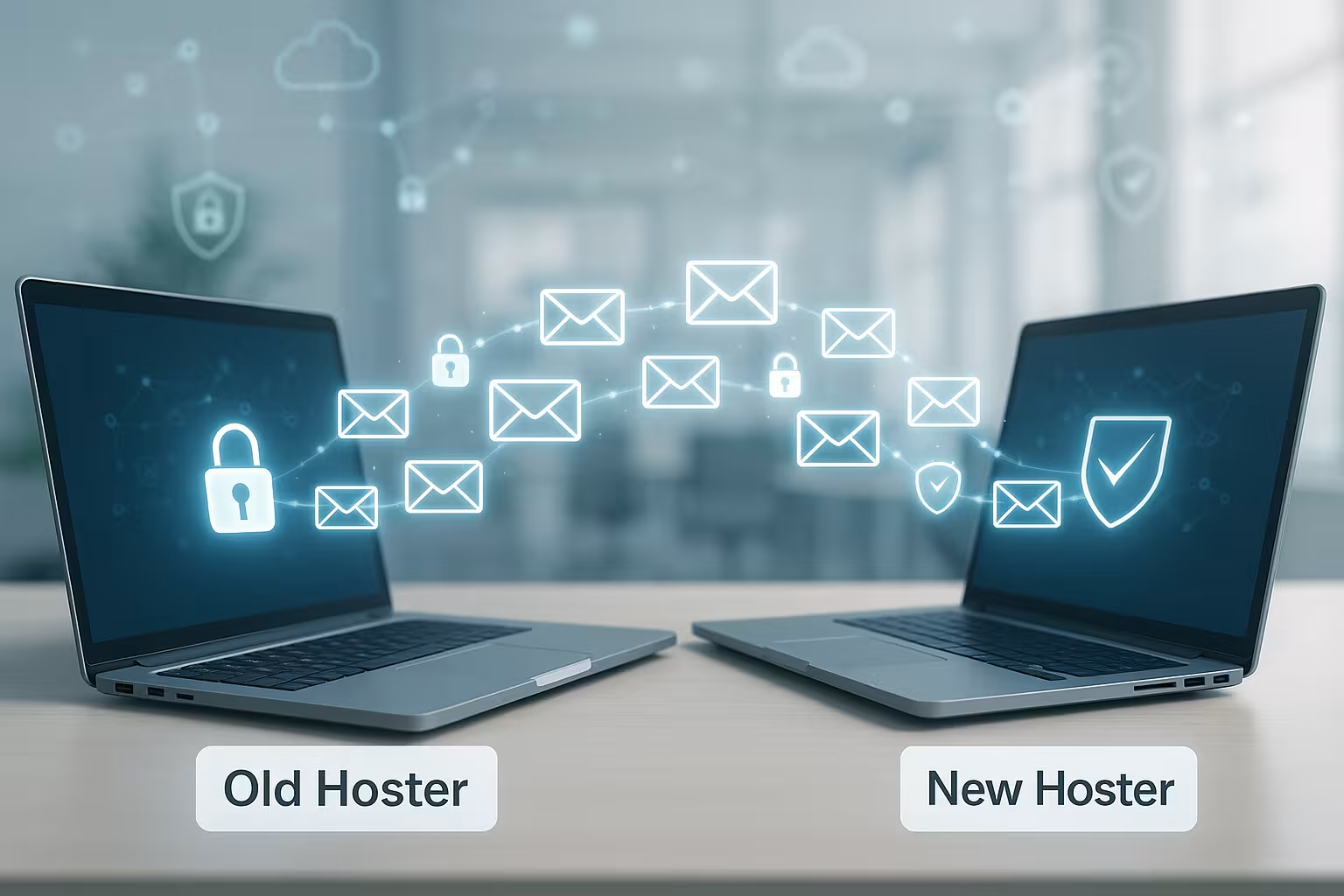
If I don't like a console, I use one Web interface for IMAPSync, which many hosters provide. I enter the source and target accounts there, start the run and see the progress. For very strict data protection requirements, I prefer to use a local installation or my own container. Online services are suitable if I want to start quickly and have no rights on a server. I decide depending on the sensitivity of the data, project size and internal requirements.
Preparation: checklist for a smooth move
I first check the accessibility of both IMAP servers and the correctness of the access data so that the start is not delayed by trivial Hurdles fails. Then I set up the target mailboxes and verify that there is enough memory available. Optionally, I create the most important folders, even if IMAPSync usually creates them automatically. I inform users early on about the expiry and time window so that nobody sends mass emails during the hot phase. This way I avoid misunderstandings and keep to the schedule.

Alternatives to IMAPSync: when they make sense
For very small accounts I use a Mail client like Thunderbird, save mails locally and move them to the target account - this takes time, but works without additional tools. If I have a lot of mailboxes, I scale better with provider tools that process several accounts in one go. If I move to a cloud environment, I use the platform's import tools to integrate IMAP accounts directly. For moves with hundreds of mailboxes or groupware data, I use professional migration services that also transfer calendars and contacts. A helpful Migration checklist structures the individual steps and saves time.
Comparison: Email hosters and migration convenience
I prefer hosters who IMAP reliably, provide a clear migration interface and deliver competent support if required. For projects with a fixed deadline, I need contact persons who can be reached and clear status displays. Good providers document stumbling blocks such as special folders and limits transparently. I also check whether parallel runs with multiple threads are permitted. The following overview shows typical evaluations in the market environment.
| Provider | Email migration tools | IMAP support | Support | Test winner |
|---|---|---|---|---|
| webhoster.de | Very good | Yes | Very good | 1st place |
| Provider A | Satisfactory | Yes | Good | 2nd place |
| Provider B | Sufficient | Yes | Satisfied. | 3rd place |
In addition to functions, I also analyze Limits such as the number of connections, quotas and throttling. If the tools and framework conditions are right, I save hours on planning and implementation. If anything is unclear, I ask in advance so that no bottleneck postpones the deadline. This allows me to remain calculable and keep my promises to stakeholders. A clear choice of provider noticeably speeds up every migration.

Avoid downtime: DNS, MX and schedule
I plan to change the MX-Records with Bufferso that new mails reach their destination correctly. I lower the TTL in advance so that DNS changes arrive faster worldwide. Shortly before the switchover, I perform a final delta synchronization to ensure that only new mails are missing. I then check delivery and collection via the target system. How I set the MX entries correctly is shown in the instructions for Set up MX-Records.
Best practices for large amounts of data
I divide huge mailboxes into Stages and synchronize old folders first, then current ones. This way, the switch remains short and clear. I reduce timeouts with sensible limits for parallel connections and careful throttles. With tight quotas, I work folder by folder and clean up unnecessary attachments in advance. I keep detailed logs in order to filter out and retransmit faulty messages.
Special folders, mappings and localization
I make sure that system folders such as Sent, Drafts, Trash/paper basket and Spam/Junk mapped correctly. Otherwise, different names or languages lead to duplicate folders. I use automatic functions and rule sets to map folders cleanly, for example using renaming or regular expressions. I also take over the Subscriptions (folder subscriptions) so that users only see the relevant folders in their clients. Special cases such as Archive-folders or local "On My Computer" structures in advance to align expectations.
Users, aliases, forwarding and shared mailboxes
I create target accounts, aliases and distribution lists before I migrate. I take over forwarding and catch-all rules in a controlled manner so that incoming emails don't get lost. Shared mailboxes and delegated access are checked separately: IMAP ACLs, authorizations and visibility differ depending on the provider. I therefore test at least one shared mailbox including send-as/send-on-demand so that approvals work on the deadline. I keep naming conventions consistent to reduce the amount of support required.
Authentication: MFA, app passwords and protocols
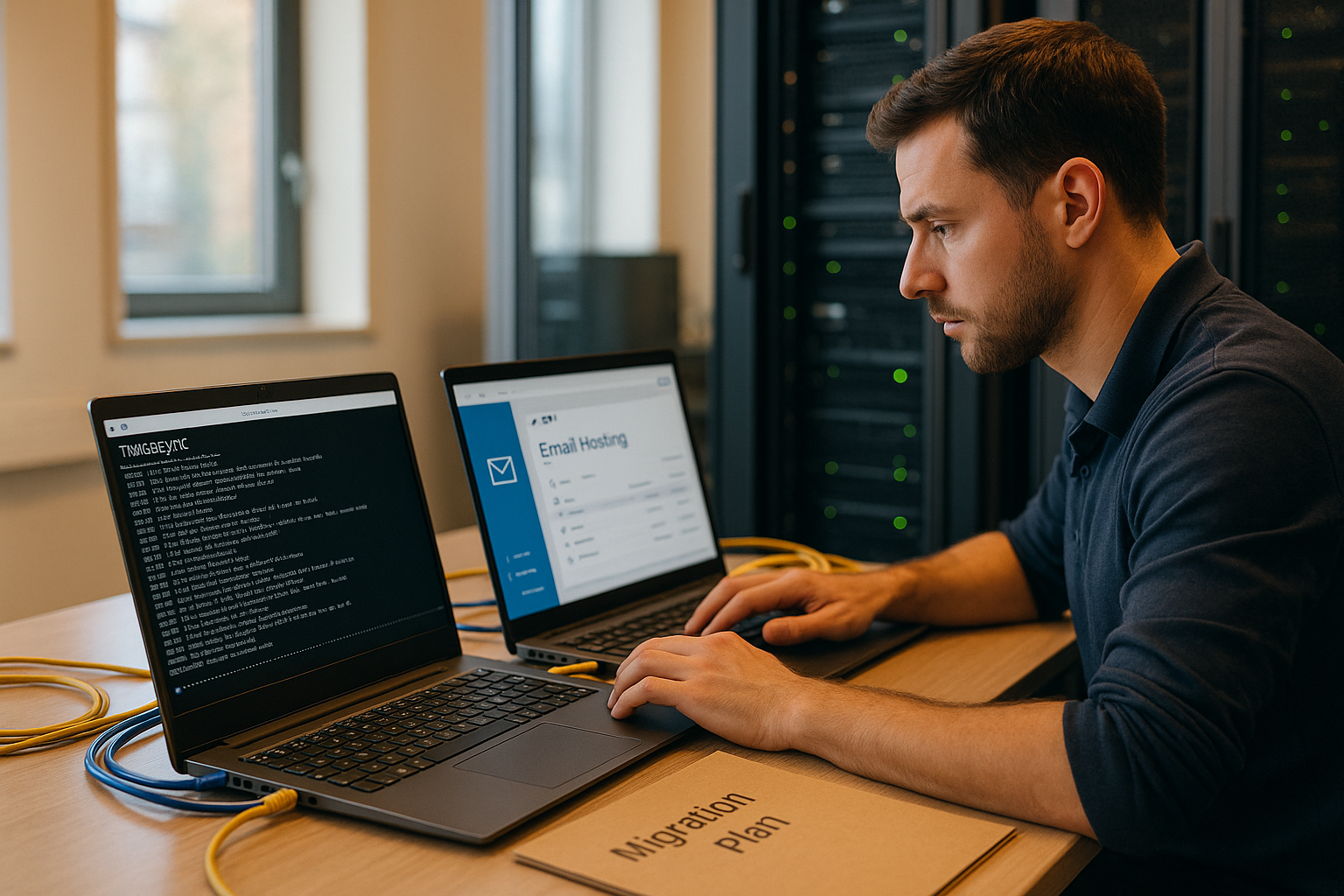
Many providers today enforce MFA or modern login procedures. I therefore plan app passwords or alternative auth methods so that scripts and tools can work. I enforce the connection via SSL/TLS and check certificates, ciphers and ports. I document the access path transparently for the migration period and close special releases afterwards. This keeps security high and prevents outdated passwords from being left behind. I anonymize logs if they contain sensitive user information.
SPF, DKIM, DMARC and sender reputation
In addition to MX, I am planning the Sender authenticationI adapt SPF entries to the new outgoing mail server, generate and publish DKIM keys in good time and set up DMARC according to the desired mode. I coordinate these steps with the cutover so that outgoing mails are immediately signed correctly and do not get stuck in filters. During the transition phase, I monitor bounces and delivery reports to quickly rectify misconfigurations.
POP3 legacy and local archives
If users previously used POP3 and archived mails locally, I plan to use the Reimport one. I collect PST/MBOX files centrally, check sizes and duplicates and import them step by step into the target mailboxes. In this way, I reunite distributed collections on the server and make them available across devices. I clearly communicate which time periods end up in the server archive and which remain in the local archive.
Switch clients: Outlook, Apple Mail, Thunderbird and mobile devices
I decide whether I want to use existing profiles bend over or create new accounts. A clean new creation prevents legacy data and avoids phantom folders. For mobile devices, I clearly inform users about server names, ports and encryption. I test autodiscover/autoconfiguration and pay attention to signatures, out-of-office assistants and rules. After the cutover, I restart the clients once, complete a full index run and check the search function and offline cache.
Performance optimization: useful IMAP sync options
For large amounts of data I work with Stages and limit transfers. Age filters such as "only messages older/younger than X days" speed up the start. I rely on consistent time stamps and unique IDs, automatically map system folders and subscribe to new folders. I use special settings in moderation - less is often more. What's most important to me is repeatable delta synchronization, which is easy on the network and server. If necessary, I exclude spam/trash folders and add them separately later.
Cutover strategy and rollback
I choose between Big Bang (all at once) and phased Relocation (teams one after the other). Regardless of this, I have a rollback ready: Old mailbox remains accessible for a defined period of time, MX changes are documented and I can switch back in the event of serious problems. Alternatively, I leave forwarding or dual delivery active for a short time until I have certainty about delivery and completeness.
Validation, quality assurance and acceptance
I check key figures after each run: Number of folders, number of messages per folder, total volume, error rates. I randomly open emails with attachments, HTML content and special characters. I test inbox, outbox, replies and the display on at least two clients. I migrate rules, out-of-office notes, signatures and disclaimers in a controlled manner and confirm with the specialist departments the Acceptance. Only then do I deactivate old accesses and clear up temporary accesses.
Compliance, storage and backup
Depending on the industry, I take into account Retention periods, audit security and data protection. I check whether the target platform supports journaling, legal holds or eDiscovery. I activate backups and snapshots of the target environment at the latest at cutover so that I can reliably restore individual emails in the event of subsequent complaints. I archive sensitive logs in encrypted form and delete them after a defined period of time.
Typical error patterns and their mitigation
In practice, I repeatedly encounter similar patterns: rate limits at the destination, incorrect special characters in folder names, oversized individual mails or duplicate system folders. I respond with smaller batches, clean mappings, exclusions of certain folders and a final delta synchronization. Setting up an app password often helped with auth problems. Through consistent logging and clear repeatability, I resolve these cases quickly and without any visible impact on operation.