 Skip to content
A Free SSL Certificate for WordPress enables an encrypted connection between server and visitors - free of charge, secure and automatically renewed. This guide shows you how to activate SSL certificates quickly, integrate them seamlessly and manage them in the long term - without any prior technical knowledge.
Key points
- Free certificates such as using Let's Encrypt directly or activating it via hosting providers
- Automatic renewal Protects permanently against drainage problems
- HTTPS conversion Increases trust and SEO ranking
- WordPress plugins help with certificate implementation
- Troubleshooting Important for security with mixed content and configuration problems

Why SSL is indispensable for WordPress
SSL protects the connection between the website and the user by Encryption. Browsers now display unencrypted pages with warnings. Google also classifies HTTPS pages in the Ranking better. Who has a Free SSL Certificate increases both data security and findability in search engines. HTTPS is particularly indispensable for WordPress sites with forms or login areas.
In addition to security and visibility, HTTPS also increases the Trust. A green lock in the address bar signals reliability - and has been proven to reduce the bounce rate.
How to activate free SSL with your web host
Hosting providers like webhoster.de often offer certified SSL infrastructure as standard. After domain registration, a click in the control panel is usually all it takes to activate Let's Encrypt. The integration runs fully automatically - including Extension in the background. So your certificate always remains valid, without any additional work.
Some providers activate SSL automatically for new domains. The status becomes active after a few minutes and can be recognized by a browser lock.

Use Let's Encrypt certificates manually or via plugin
If your hosting provider does not offer integrated SSL, you can use Let's Encrypt manually with tools such as Certbot use. The setup runs via shell commands on the server or via simplified interfaces such as Plesk. Instructions are provided by this overview of Let's Encrypt in Plesk.
Alternatively, you can also use WordPress plugins such as Really Simple SSL. These recognize the activated certificate and automatically redirect all page views to HTTPS. This procedure saves time, especially with older installations.
A cron job or a scheduled task takes over the renewal - once set up correctly, everything runs in the background.
Step by step: Setting up an SSL certificate on WordPress
Before you activate SSL, you should create a complete backup of your WordPress installation. Then proceed as follows:
- Open control panel and select domain
- Let's Encrypt or other Activate free certificate
- Waiting for issue and status message
After successful setup, update the URL in WordPress settings to "https://". A plugin or .htaccess entry then ensures that old HTTP calls are redirected.
Secure wildcard SSL & subdomains
If your WordPress site works on multiple subdomains, you benefit from a so-called Wildcard certificate. This completely covers *.deinblog.de, for example. With many hosters, this variant can also be activated with a click.
Make sure that automatic renewal also works for wildcards. For manually managed servers, issuing requires additional DNS validation steps, often with TXT records.
Technical framework conditions & notes
A successful SSL implementation also depends on the DNS settings from. A and CNAME records in particular must exist correctly. Only then will the certificate access the linked domain.
When it comes to encryption, modern hosters support at least TLSv1.2 - ideally TLSv1.3. These prevent known security gaps in earlier SSL versions. Additional settings such as HTTP Strict Transport Security (HSTS) ensure that browsers Force HTTPS - even after the first call.

Typical sources of error and how to rectify them
Many problems are easy to solve:
An expired certificate indicates a lack of automation. Be sure to activate the Car renewal with the hoster or set up a cron job for self-administration. If mixed content warnings appear, this is usually due to embedded image material from old http sources. Correct the URLs in the editor or use a plugin such as SSL Insecure Content Fixer.
If no certificate is displayed, a click in the control panel is often sufficient to Reactivation. Tools such as SSL Labs can serve as independent testers and show you configuration errors.
Comparison of the best WordPress hosting providers
Many providers offer integrated free SSL certificates. The following table compares the most important candidates:
| Rank | Provider | Free SSL Certificate | Automatic renewal | Special advantages |
|---|---|---|---|---|
| 1 | webhoster.de | Yes | Yes | Reliable, particularly secure, 24/7 support |
| 2 | Kinsta | Yes | Yes | Cloud-based performance |
| 3 | WordPress.com | Yes | Yes* | Complete automatic |
*Fully automated renewal and deployment
Set up HTTPS forwarding sensibly
Use a redirect so that old HTTP links also automatically take the secure route. All you need to do is make a simple entry in the .htaccess file or use a Plugins. Find out more these instructions for HTTPS forwarding.

FAQ - Frequently asked questions about SSL
Is a Free SSL Certificate just as secure as a paid one?
Yes, there is no difference in terms of encryption. Premium certificates only offer extended validation and support.
Will this make my WordPress site faster?
Indirectly yes. Modern encryption with HTTP/2 and TLS speeds up page loading.
How often do I have to renew manually?
Usually not at all with automatic setup. Providers such as webhoster.de take care of this themselves.
How to validate the SSL conversion in WordPress
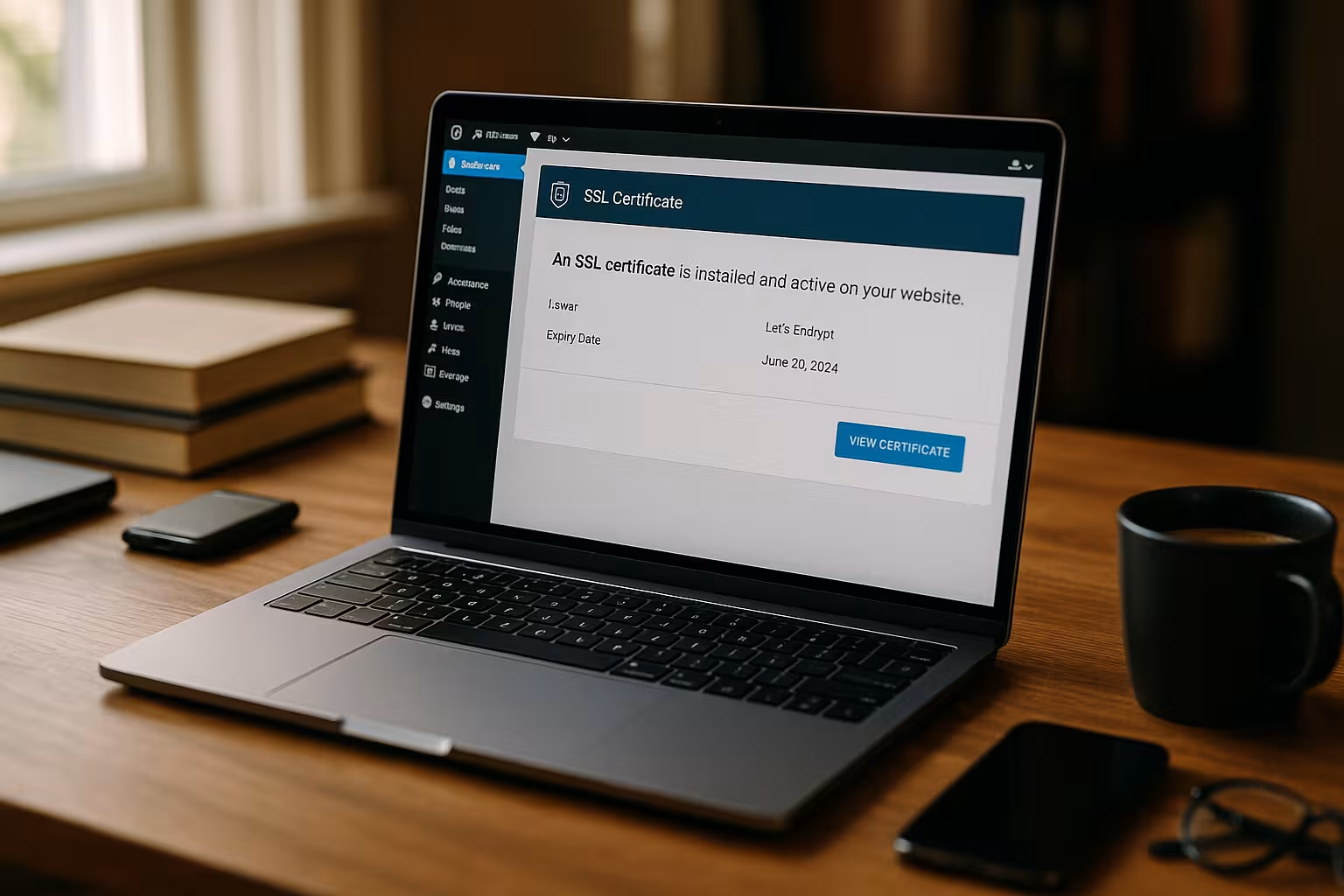
After switching to HTTPS, you should check whether every subpage is consistently loaded in encrypted form. You can do this by testing various areas such as your WordPress dashboard, blog articles, product pages or contact forms, for example. Make sure that the lock symbol always appears in the browser line. If individual elements are still being loaded via HTTP, mixed content warnings will appear.
Browser consoles (such as the developer tools in Chrome or Firefox) are a useful aid. They list exactly which content is not integrated via HTTPS. This allows you to make targeted improvements and adjust individual URLs or use plugins that correct incorrect links.
Extended security features: HSTS & Co.
In addition to simple SSL activation, you also benefit from enhanced security features. HSTS (HTTP Strict Transport Security) ensures that browsers only communicate with your website via HTTPS. Anyone who repeatedly visits your site is automatically redirected to the secure version by the browser - even if someone mistakenly types http instead of https. This protects against so-called downgrade attacks.
You can usually activate the corresponding setting via .htaccess or via your hosting provider. To do this, add the header Strict-Transport-Security in. However, before you use HSTS productively, you must be sure that your certificate works correctly everywhere. Otherwise, you may unintentionally lock out visitors.
How HTTP/2 and TLS 1.3 boost your performance
Modern TLS versions such as TLS 1.3 reduce latency by accelerating the so-called handshake between browser and server. In combination with HTTP/2, you also benefit from multiplexing and compression techniques that further speed up page loading. A WordPress installation with active HTTPS is therefore often faster today than comparable HTTP sites of older generations.
Many hosters already have HTTP/2 permanently integrated as soon as an SSL certificate has been activated. For self-managed servers, you should ensure that HTTP/2 is activated in your Apache or Nginx configuration. Also make sure that your OpenSSL library is up-to-date to benefit from new security standards.
Multiple WordPress installations on one server
Many webmasters have not just one, but several WordPress installations under different subdomains or add-on domains. In this case, a wildcard certificate for all subdomains may be suitable or you can work with individual Let's Encrypt certificates for each domain. The latter is usually uncomplicated if the host administration supports multiple certificates.
If you use different SSL certificates in parallel, you should keep an eye on whether automatic renewal is set up everywhere. Especially in larger multi-site environments, it is worth regularly checking the certificate expiry dates. Plugins or monitoring services can warn you in good time before a certificate expires.
Manual vs. automatic renewal
The biggest advantage of a free SSL certificate such as Let's Encrypt is the automatic renewal. Nevertheless, some users (e.g. on older server configurations) are left with only the manual option. Here is a brief overview:
- Manual renewal: You regularly run a certificate tool such as Certbot by hand or have to renew manually via an interface such as Plesk.
- Automated renewal: A prepared cron job automatically ensures that your certificate is renewed every 60 or 90 days. You usually don't even notice this.
If your environment allows it, automatic renewal is always preferable. It reduces the risk of an expired certificate and makes your website more reliable.
Troubleshooting for special cases: Plugins, themes & more
With WordPress in particular, with its numerous plugins and themes, it can happen that individual extensions do not correctly convert internal links to HTTPS. This often affects themes that use hard-coded http links for scripts or images. In this case, it can help to update the respective theme or make manual corrections in the corresponding code. You can also use search-and-replace plugins (e.g. Better Search Replace) to systematically convert all http URLs in the database to https URLs.
Furthermore, modern security plugins ensure that your site is consistently encrypted. Some even offer active checks to ensure that SSL has been configured correctly and display warnings for insecure content. This additional control minimizes the risk of technical errors.
Examples of successful SSL configuration
Many WordPress users have already mastered the changeover to SSL smoothly. Typically, the process looks like this: You activate a Let's Encrypt certificate via your hosting provider, adjust the WordPress address in the settings, redirect old links to the new https protocol and remove any remaining mixed content. After a few minutes, the entire site will only be accessible via a secure connection and will be marked as "secure" in browsers.
Thanks to the integrated auto-renewal, the certificate is also valid in the long term. In the meantime, it has become clear that websites with SSL are generally more trusted and less likely to be rejected - especially when sensitive data (e.g. for contact forms) is requested. There is also an SEO advantage, as Google considers encrypted pages to be a ranking factor.
Safety aspect: Additional levels of protection
An SSL certificate is a central building block for the security of your WordPress installation. However, additional layers of protection are worthwhile to secure your site against brute force attacks, malware or spam. Recommended measures include:
- Firewall pluginsthat filter incoming traffic
- Malware scanner (e.g. Wordfence), which check files and database tables
- Regular updates of WordPress core, themes and plugins
- Secure passwords and two-factor authentication
All these steps noticeably increase the level of security so that reliable protection is guaranteed even with large numbers of visitors and regular login attempts by bots.
Automatic checks for full control
Especially in everyday life, it is easy to overlook whether an SSL protocol has expired or is no longer working properly. Automated checks can help. For example, you can use a monitoring service to check at fixed intervals whether your WordPress site is accessible via HTTPS and whether the certificate remains valid. If an error is detected, you will receive an email or text message. This way, you minimize downtime and can react quickly.
For self-managed servers, it is worth setting up a log or monitoring system in the server configuration that also logs the renewal process. This makes it possible to see whether certbot, acme.sh or a similar tool has successfully completed its task.
Final recommendations: Work securely and free of charge with an SSL certificate
A Free SSL Certificate for WordPress today means above all: simple setup, automatic renewal and maximum security - at no extra cost. Hosting providers such as webhoster.de offer combined solutions including SSL, performance and helpful support. HTTPS can also be reliably integrated for multiple domains or subdomains.
If you also pay attention to automatic forwarding, mixed content checks and current TLS standards, you will reap all the benefits of HTTPS operation. This means your website is technically up to date - and your visitors are protected at all times.


