 Skip to content
I will show you how to start the hetzner rescue system in just a few minutes, how to SSH log in and enter your Server repair in a targeted manner. This guide takes you step-by-step from activation to recovery, including file system checks, backups and reinstallation.
Key points
The following key aspects will help you to start and work in rescue mode without any detours.
- Rescue startActivation in Robot or Cloud, then reboot.
- SSH accessLogin with key or password and root rights.
- Error analysisCheck fsck, logs, partitions.
- Data backup: rsync, tar, scp for fast backups.
- New installationinstallimage for fresh systems.

What the Rescue System does
The Rescue System loads an independent Linux environment into the working memory and gives me immediate access to the Root-access, even if the installed Operating system fails. I boot independently of defective boot loaders, damaged packages or faulty configurations. I check file systems, recover data, analyze logs and restart services. The environment remains lean, but offers all the important tools for diagnostics and recovery. This allows me to stay in control, even if the regular system goes completely down.
What is practical is that the rescue environment is deliberately volatile: changes disappear after the reboot, which means I can test safely. If necessary, I install temporary tools (e.g. smartmontools, mdadm, lvm2, btrfs-progs or xfsprogs) without changing the productive system. The kernel version is modern and supports the latest hardware, including NVMe, UEFI, GPT, software RAID (mdraid), LVM and LUKS encryption. This allows me to cover even complex storage setups and isolate even rare error patterns in a reproducible manner.
Requirements and access
To get started, I need access to the customer interface and my SSH keys or a temporary password. I manage dedicated systems conveniently via the Hetzner Robotwhile I control instances in the cloud via the console. Both interfaces offer a clear option for activating rescue mode. I check the correct server IP, IPv6 availability and, if necessary, out-of-band functions for the reset in advance. This preparation significantly shortens the downtime.
When I log in to SSH for the first time, I deliberately confirm the new fingerprint and update my Known Hosts entry if necessary so that subsequent connections do not fail due to warnings. For teams, I store additional keys specifically for the rescue operation and remove them again after completion. If only a temporary password is available, I change it immediately after logging in and then replace it with Key-Auth - I consistently deactivate password logins at the end of the work.
Activating the Rescue System - step by step
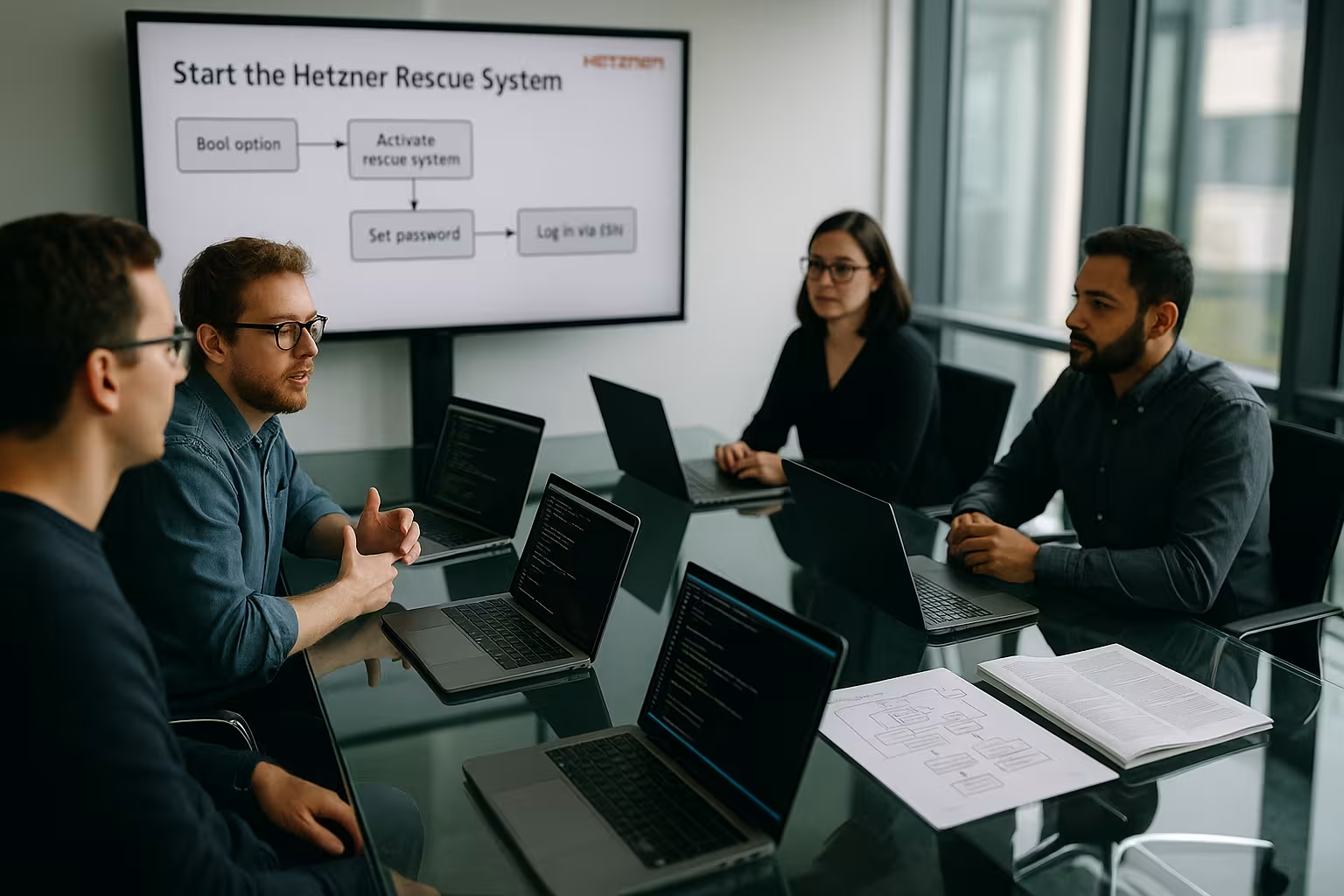
I open the server details window, select the "Rescue" option and set the architecture to linux64 for current systems, then I deposit my SSH key. Depending on the situation, I only start the rescue mode and trigger the reboot separately or I use "Activate Rescue & Power Cycle" for a direct restart. If the machine hangs, I perform a hard reset via the interface. After the boot, the interface shows a temporary root password if I have not entered a key. As soon as the server boots up, it responds to SSH and I can get started.
In complex situations, I plan a clear sequence: Activate, power cycle, test SSH login, then start troubleshooting. A manual power cycle may be more necessary on dedicated servers, while cloud instances usually switch to rescue mode immediately. Important: After a successful repair, I switch off the rescue mode again so that the machine reboots from the local disk.
SSH connection and first checks
I connect via SSH with ssh root@ and first check the network, data carriers and logs for a quick overview of the Status. With ip a and ping I check the accessibility; journalctl --no-pager -xb or log files on the mounted disks show the latest error messages. The commands lsblk, blkid and fdisk -l provide clarity about layout and file systems. For RAID I use cat /proc/mdstat and mdadm --detail for the condition. For initial hardware indicators smartctl -a and a short hdparm -Tt-test.
LVM, RAID, LUKS and special file systems
Many servers use LVM, software RAID or encryption. I first activate all relevant layers:
- mdraid:
mdadm --assemble --scanbrings up existing arrays; I check the status withcat /proc/mdstat. - LUKS: I open encrypted volumes with
cryptsetup luksOpen /dev/. - LVMWith
vgscanandvgchange -ayI activate volume groups and see them vialvs/vgs/pvs.
With Btrfs, I pay attention to subvolumes and mount specifically with -o subvol=@ respectively -o subvolid=5 for the top level. I check XFS with xfs_repair (never on mounted volumes), while Ext4 is classically used with fsck.ext4 -f is reorganized. I use the GUID/UUID from blkidbecause device names for NVMe (/dev/nvme0n1p1) and can vary with changing order. I will correct the /etc/fstab.
File system repair and data backup
Before I repair, I back up important Data with rsync, scp or tar to an external target or a local target Backup-directory. For checks I use fsck only on unmounted partitions, such as fsck -f /dev/sda2to correct inconsistencies cleanly. I then mount the system under /mntfor example with mount /dev/sda2 /mntand attach sub-paths such as /proc, /sys and /dev when I want to chroot. Individual configuration files such as /etc/fstab or network settings directly in the mounted system. By proceeding carefully, I prevent consequential damage and keep downtime to a minimum.
For reliable backups, I rely on repeatable commands: rsync -aHAX --info=progress2 receives rights, hardlinks, ACLs and xattrs. If the line is weak, I throttle with --bwlimit and parallelize compression with tar -I pigz. If necessary, I image critical, faulty data carriers in blocks with ddrescue to shift the logical work to an image. I check Btrfs systems carefully with btrfs check --readonly and use btrfs scrubto detect silent errors. XFS often requires an off-mount repair in the event of inconsistencies (xfs_repair) - I always back up the partition first.
UEFI/BIOS, GPT/MBR and bootloader repair
Many boot problems are caused by the interaction of firmware, partition scheme and boot loader. I first clarify whether the server starts in UEFI or legacy BIOS mode (ls /sys/firmware/efi). With UEFI I mount the EFI partition (typical /dev/sdX1 or /dev/nvme0n1p1) to /mnt/boot/efi. Then I chroote into the system:
mount /dev/ /mnt
mount --bind /dev /mnt/dev
mount --bind /proc /mnt/proc
mount --bind /sys /mnt/sys
chroot /mnt /bin/bash
I reinstall the bootloader appropriately (grub-install to the correct device) and regenerate configuration and initramfs: update-grub and update-initramfs -u -k all (for dracut-based systems dracut -f). If the order of the devices is not correct, I use the /etc/default/grub UUIDs and check /etc/fstab for correct entries. When changing GPT/MBR, I check whether a BIOS boot partition (for GRUB/BIOS) or a valid EFI system partition exists.

Network pitfalls in Rescue
Network problems are often the reason why services are "gone". In Rescue I check the link status (ip link), routes (ip r) and DNS resolution (resolvectl status respectively cat /etc/resolv.conf). I test IPv4 and IPv6 separately (ping -4/ping -6). For servers with bridges or bonding, the order of interfaces in the productive system may differ from the rescue environment. I make a note of the MAC addresses and map them correctly. If the production system uses Netplan, I verify the /etc/netplan/*.yaml and turn after the chroot netplan generate and netplan apply on. For classic /etc/network/interfaces-setups, I pay attention to consistent interface names (predictable names vs. eth0).
Reinstall operating system
If repairs no longer make sense, I reset the system with installimage completely new and thus save valuable Time. The tool guides me through the selection of distribution, partitioning and boot loader. I include my own configuration files and SSH keys in the installation so that the first boot runs smoothly. After the installation, I start the server as normal and check the services, firewall and updates. Finally, I remove the rescue mode so that the next boot takes place from the local data carrier again.
I deliberately use UUID-based mounts for new installations to rule out device order problems later on. For RAID setups, I have the arrays created from the start and check the rebuild status before restoring data. If you deploy similar systems on a recurring basis, you work with predefined installimage templates and a clear partitioning logic (root, separate data partition, swap, EFI if necessary). After the first boot, I update package sources and kernels, activate security auto-updates and roll out my basic hardening steps.
Security, time window and relapse
Access is exclusively via SSHtherefore I consistently rely on Keys instead of static passwords. The rescue mode remains ready for a limited time after activation and falls back to the local boot device on the next normal restart. I work quickly, document every step and keep a second session open for larger interventions. I do not write sensitive data in bash histories and delete temporary files after use. After a successful recovery, I deactivate the mode in the interface again.
After reactivating the productive system, I rotate access data, remove temporary rescue keys, reset unnecessary root passwords and back up freshly generated configurations. I collect audit information (who did what and when) and document deviations from the standard setup. This prevents emergency measures from becoming permanent and I adhere to compliance requirements.
Example: Rescue WordPress server
I boot into rescue mode, mount the system partition and back up the Database per mysqldump and the wp-content-directory with tar or rsync. I then check the file system, reset the boot loader and correct incorrect PHP or NGINX configurations. If packages are corrupted, I use chroot and reinstall dependencies. If that's not enough, I reset the machine with installimage and restore the backup and configurations. Finally, I verify the frontend, login and cronjobs.
In practice, I pay attention to InnoDB consistency (MySQL/MariaDB): Fails mysqld at the start, I secure the /var/lib/mysql and run the dump from a fresh instance. I empty caches (object cache, page cache, OPCache) selectively, set file permissions consistently (find . -type d -exec chmod 755 {} ;, find . -type f -exec chmod 644 {} ;) and check open_basedir and upload directories. I deactivate critical plugins as a test by renaming the plugin directory. I then check PHP-FPM pools, FastCGI timeouts, memory limits and the NGINX/Apache includes. A short wp cron event run --due-now (if WP-CLI is available) helps to process backlogs.
Best practices for admins
Before deep interventions, I create a fresh Backup and secure key files such as /etcso that I can jump back at any time. Every step goes into a short log, which helps me later with audits or new incidents. After rebooting into the productive system, I check the services, logs, network and monitoring thoroughly. For recurring tasks, I build up a small script set to standardize command sequences. If you are planning additional performance or new hardware, you can create suitable Rent a root server and migration window.
I also have a runbook checklist ready, which contains responsibilities and escalation paths. Planned "game days" (targeted failure simulations) train the team for emergencies. I regularly test backups as a restore sample - an untested backup is considered non-existent. And I version my system configurations so that I can quickly recognize differences between "good" and "defective" status.
Cloud vs. dedicated: differences in the process
In the cloud, I often change the boot mode directly in the instance dialog and use the serial console for quick checks, while a power cycle and possibly out-of-band access are necessary on dedicated servers. Cloud volumes can be conveniently attached to other instances - an efficient way to back up data without downtime on the affected host. On bare metal, I pay more attention to the physical order of the drives, especially when purchasing additional SSDs/NVMe modules. In both worlds: Rescue is a temporary tool - I plan the way back to the normal boot in good time.
Comparison: providers with rescue system
What counts for fast recovery, apart from good Hardware also a cleanly integrated Rescue-feature. The following table provides a compact overview of the range of functions and handling. I have based this on availability, ease of access and typical admin workflows. The "Recommendation" rating reflects my practical use for typical faults. The weighting can of course vary depending on the intended use.
| Provider | Rescue System available | Ease of use | Performance | Recommendation |
|---|---|---|---|---|
| webhoster.de | Yes | Very good | Very high | Test winner |
| Hetzner | Yes | Very good | High | |
| Strato | Partial | Good | Medium | |
| IONOS | No | Medium | Medium |

Checklist: Sequence of steps in an emergency
- Activate Rescue, trigger reboot/power cycle, test SSH.
- View hardware/storage:
smartctl,lsblk,blkid,mdstat,lvm. - Activate arrays/LUKS/LVM, inspect file systems read-only.
- Create a backup (rsync/tar), then
fsck/Repairs. - System under
/mntmount, bind mounts, chroot. - Repair bootloader/initramfs, check network config.
- Test boot, verify services, check monitoring/alarms.
- Deactivate Rescue, remove temporary keys, update documentation.
FAQ Hetzner Rescue System
Can I use my Data rescue if the system no longer boots? Yes, I read the data carriers directly in rescue mode and back up important data. Folder or entire partitions.
How long does the rescue mode remain active? After activation, the system is available for a limited time and switches back to the local system at the next regular reboot. Boat-device, I am therefore planning a speedy Procedure.
Does this work for cloud and dedicated servers? Yes, I start the mode for both dedicated machines and cloud instances in the Hetzner Cloud.
What do I do if the bootloader is damaged? I mount root and possibly EFI, chroot into the system, execute grub-install, update-grub and a rebuild of the initramf, then I test the reboot.
How do I deal with LVM/RAID? I first assemble mdraid, activate LVM with vgchange -ay and then mount the logic volumes. Repairs only happen after a backup.
Can I only save individual files? Yes, I mount read-only and selectively copy configs, databases (via dump) or directories - minimally invasive and fast.
Core message
With the Hetzner Rescue System, I have a quick tool that reliably identifies boot problems, file system errors and damaged configurations. I activate the mode, log in via SSH, back up data and then decide between repairing or reinstalling. This saves Time in an emergency and reduces downtime to the bare minimum. If you internalize these few steps, you can handle even difficult outages calmly. This means that server operation can be planned and the restart is controlled.


