Skip to content
I set up Ionos e-mail on iPhone and Android in just a few minutes - with clear steps, secure server data and solutions for typical stumbling blocks. In this guide, I'll show you the complete setup via IMAP on iOS, Gmail and Samsung Mail, plus Troubleshooting, security tips and a brief comparison with POP3.
Key points
- IMAP instead of POP3 for complete synchronization
- Server data correct: imap.ionos.de, smtp.ionos.de
- SSL active: IMAP 993, SMTP 465
- Error solve quickly: Password, ports, 2FA
- Security increase: strong password, 2FA
Why check emails on your smartphone?
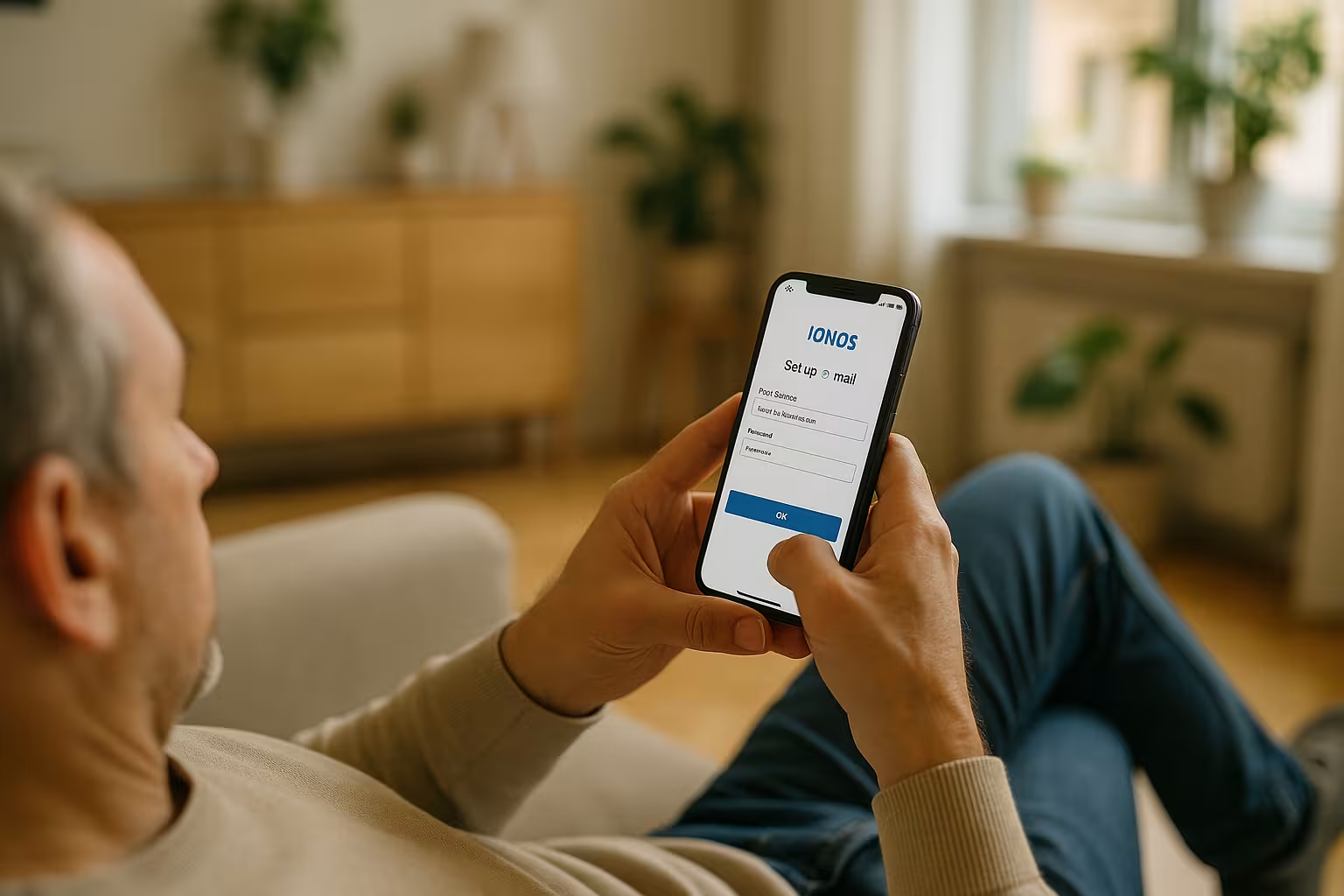
I remain able to act everywhere with my mailbox because IMAP keeps emails, folders and statuses synchronized on all devices. This means I always end up in the same inbox on my iPhone, Android phone or tablet and never lose track. With push and background synchronization, new messages arrive without detours and I can respond more quickly. Calendar and contact synchronization are a useful addition to mobile use if I activate the right apps or system functions. What counts most when I'm on the move ReliabilityI therefore rely on secure encryption and clean account settings.
Preparation: You need this data
Before I start, I hold my complete E-mail address and the current password. For IMAP I use imap.ionos.de on port 993 with SSL, for sending I use smtp.ionos.de on port 465 with SSL. A stable internet connection makes automatic recognition easier and reduces error messages. If the app does not pull the values automatically, I enter everything manually and check the spelling and capitalization. I prefer IMAPso that all devices remain identical and mails do not disappear locally.

Set up Ionos e-mail on iOS (iPhone/iPad)
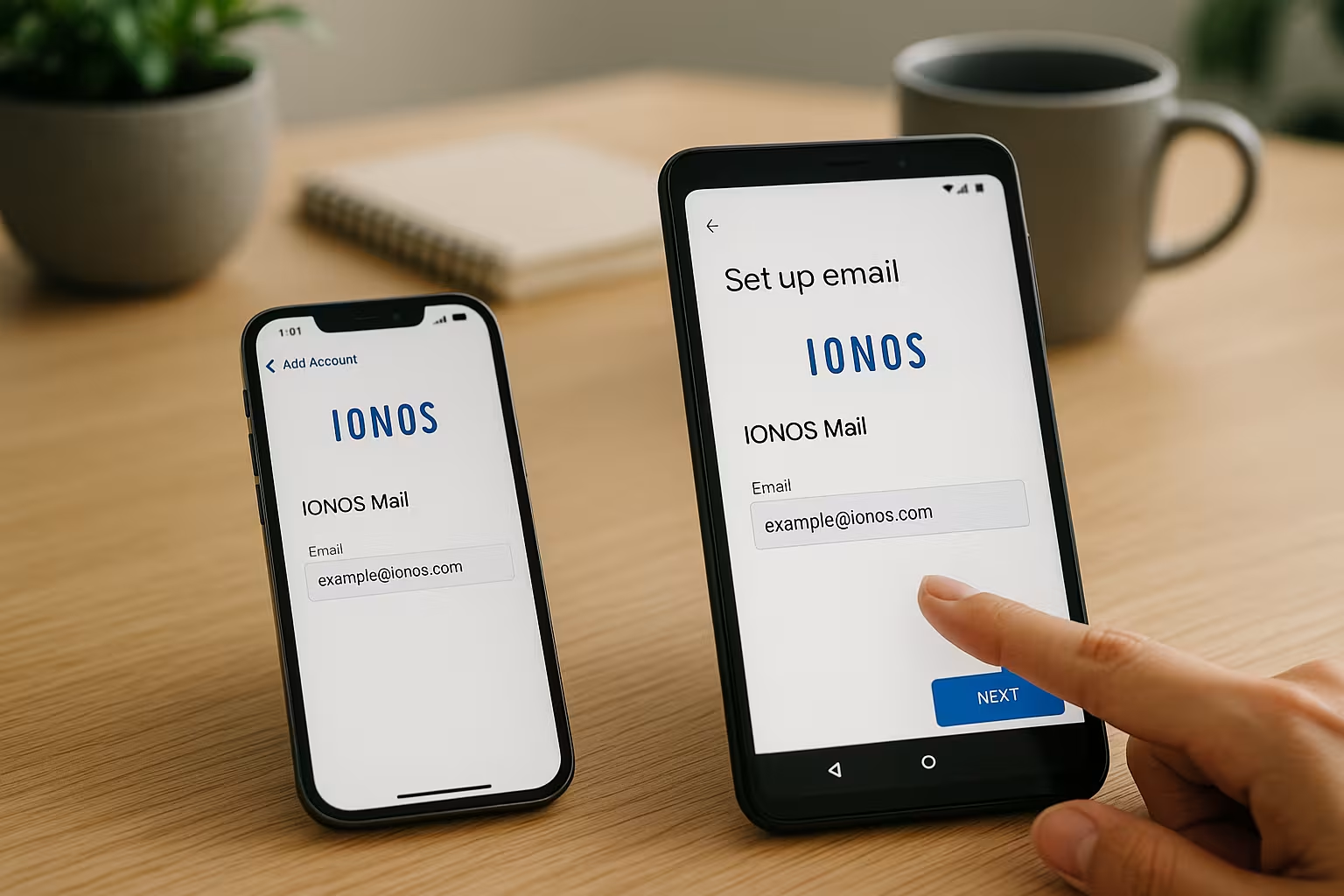
I open Settings, select Mailthen Accounts and tap on Add account. I then select "Other" and "Add mail account", enter the name, address, password and a description and confirm. If iOS does not check the values correctly, I switch to manual and set IMAP with imap.ionos.de (port 993, SSL) and SMTP with smtp.ionos.de (port 465, SSL). After saving, I decide whether I only want to synchronize e-mails or also notes. As soon as the account is active, I see new messages and keep track of them with IMAP the same level everywhere.
Set up Ionos e-mail on Android (e.g. Gmail)
In Gmail, I tap on the menu, go to SettingsAdd account and select "Other". I then enter the address and password and choose IMAP so that I can use synchronization on all devices. If necessary, I set the servers manually: incoming server imap.ionos.de with SSL and port 993, outgoing server smtp.ionos.de with SSL and port 465. If Gmail doesn't accept the password, I reset it in the IONOS customer account and try again. For additional app ideas and modern clients, it's worth taking a look at Webmail apps 2025because I can find compact alternatives there.
Samsung Mail: Quick guide for Galaxy smartphones
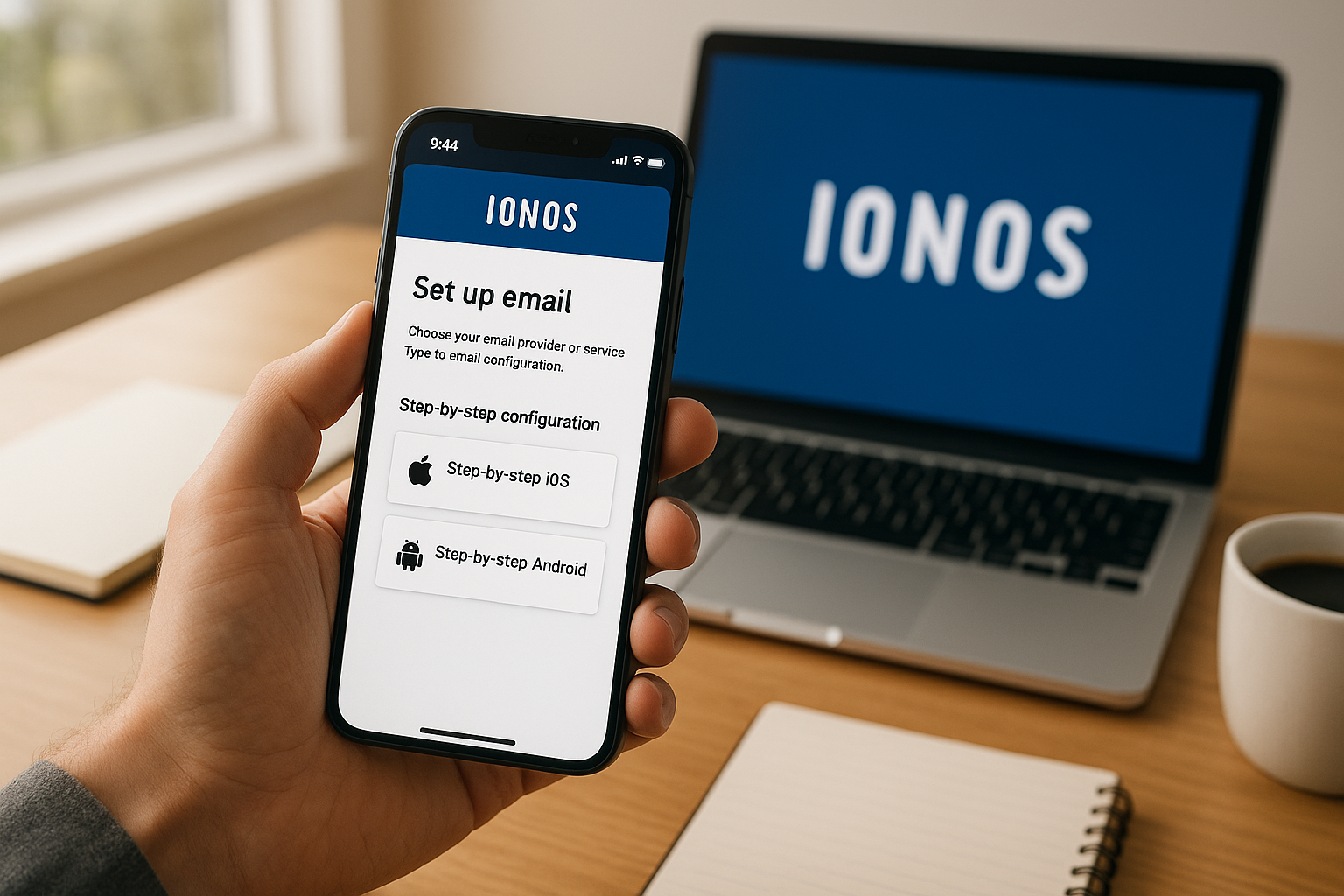
On Samsung devices, I use the pre-installed Samsung Mailbecause it works close to the system and controls notifications cleanly. I open the app, add an account, select "Other" and enter the address and password. If the automatic detection is unsuccessful, I manually switch to IMAP and set the known IONOS servers with SSL and suitable ports. I then adjust the synchronization interval, notification tone and signature to suit the way I work. So the Notification reliably and I don't miss any important messages.
IMAP or POP3? The quick differences
I rely on IMAPbecause emails and folder statuses are kept synchronized across all devices and nothing is lost. POP3 downloads locally by default and does not display read or deleted messages on other devices. If you only use a single device, you can consider POP3, but it slows you down for mobile work. IMAP requires an online connection for retrieval, but provides a complete overview. For me, the advantages of IMAP clear, especially in combination with iOS and Android.
| Protocol | Advantages | Disadvantages |
|---|---|---|
| IMAP | Synchronized with all devices, mails remain on the server | Requires online connection for access |
| POP3 | Local storage on one device | No synchronization, status on other devices incorrect |
Fix common errors quickly
If the application fails, I check first password and spelling of the address. I then check the ports: 993 for IMAP with SSL and 465 for SMTP with SSL - deviations often lead to connection errors. If the sync fails, I activate synchronization in the account settings and delete the app's local cache data if necessary. If two-factor authentication is active, I set up an app-specific password to replace the normal password. If the sending fails, I remove the account completely, restart the device and set up the account with the correct password. Server data again.
Security: Strong password, 2FA and app password
I use a strong, unique password with a length of at least 12 characters and combine letters, numbers and special characters. For additional protection, I activate two-factor authentication so that attackers can't get into the mailbox without a second factor. Some email apps work more stably with app-specific passwords - I increase this by setting a separate password for each device. I have sensitive folders such as "Sent" and "Archive" synchronized so that traceability is maintained. For more in-depth practical tips, I take a look at the compact Ionos Webmail tipsbecause I think safety and comfort go hand in hand.
Use webmail on the move: No app necessary
If I do not have any additional App I open Webmail in my mobile browser and log in directly. This allows me to work quickly on any device without having to leave an account in the system. Practical: I can see folders, filters and signatures in exactly the same way as on the desktop. For getting started, login checks and little things in between, the compact Webmail Login Help. This way I stay flexible and keep my Configuration clear.
Email apps: notifications and everyday tips
I pay attention to Push-capabilities so that new emails appear immediately and I respond more quickly. In iOS, I allow background refresh, while on Android I turn off the battery optimizer for the Mail app so that the app doesn't fall asleep. I also set up a clear notification sound that stands out from messengers. In the account settings, I select sensible synchronization intervals so that the battery is saved and I still stay informed promptly. A short weekly Maintenance - Empty recycle bin, check spam - keeps your mailbox clean.
Organize folders and signatures neatly
I lay down clear Folder name them briefly and clearly and only have important directories synchronized automatically. I keep the signature compact and informative, including contact details and a legal notice if necessary for business purposes. On iOS and Android, I check whether the signature is set per account so that private and business emails remain clearly separated. I prefer to create rules and filters on the server so that sorting runs identically on all devices. This makes every email look professional, and my Workflows remain consistent.
Check folder assignments: Sent, Drafts, Archive
After setting up, I check the Folder assignment for Sent, Drafts, Archive and Trash so that the app uses the correct server folders. In Gmail and Samsung Mail, I can specify this in the account settings for IMAP folders. If sent emails end up locally, I change the assignment to the "Sent" server folder. The same applies to archives: I set the destination to the server so that the filing remains identical on all devices. This small Examination saves me a lot of time searching later.
Outlook Mobile: Setup in the Microsoft app
Do I use the Outlook-app, I start with Add account, type in my IONOS address and select "IMAP". If the automatic detection fails, I go to "Advanced settings" and set the servers manually: imap.ionos.de with SSL and port 993, smtp.ionos.de with SSL and port 465. SMTP-server, I activate "Login required" and use the same address and password. I then set up the focus inbox as required and decide whether attachments are only loaded in the WLAN. The Outlook app offers solid notifications and works well when I bundle multiple accounts.
Subscribe to IMAP folders and define special folders
So that I can really see all the folders I need, I subscribe to the relevant folders in the app. IMAP folder (e.g. projects, invoices). Some clients only show subscribed folders - I show missing folders via "Subscribe to folder" or "IMAP folder". I also check the assignment of the special folders: Sent, Drafts, Spam, Archive and Trash should be assigned to the respective folders. Server folder show. This way, I avoid duplicate folders (e.g. "Sent" and "Sent") and keep the structure consistent on all devices.
Push, IMAP IDLE and synchronization intervals in detail
Whether emails arrive in real time depends on the app and server. IchONOS supports retrieval via IMAPMany apps use IMAP IDLE (quasi "push") or regular retrieval for this. In iOS, live reception is usually very reliable as long as background refresh is active. On Android, I make sure that the app is not limited by battery optimization. If an app does not use an IDLE mechanism, I set a sensible interval (e.g. 5-15 minutes) - this balances battery life and up-to-dateness.
Advanced error analysis: certificate, Auth, DNS
- Certificate warning: Is the server name correct (imap.ionos.de / smtp.ionos.de)? If there are any discrepancies (e.g. typing errors, wrong host), the app will refuse the SSL connection.
- Encryption type: I select "SSL/TLS" with port 993 (IMAP) and 465 (SMTP). STARTTLS on port 587 can work, but I stick with SSL on 465 if the app offers this.
- SMTP-Auth: Login required" is mandatory for sending. I use the same access data as for IMAP.
- IPv6/Network: In the event of sporadic timeouts, I test a different network (WLAN/mobile) or deactivate IPv6 in the router/device settings as a test.
- DNS & domain transfer: If I have just changed the domain, I wait for the DNS propagation and check MX/Autodiscover entries. Until then, the manual server entry helps.
- PO box full: If the account reaches the Quotathe dispatch fails. I delete large attachments, empty the recycle bin/spam and archive older mails.
- App cache: If sync hangs, I clear the app cache (Android) or remove the account and re-add it cleanly.
Storage, systems and data consumption
I keep the inbox healthy in the long term by using large Attachments only synchronize when necessary and regularly clean up memory hogs. Many apps only allow images/attachments to be downloaded via WLAN. A preview is often sufficient when I'm on the move - I download the full file in the office. If emails exceed the typical size limits, I compress files or send a share link. On my smartphone, I only download important folders offline to save space.
Improve deliverability: SPF, DKIM, DMARC
For professional Deliverability in the domain DNS: SPF, DKIM and DMARC should be set correctly and activated in the IONOS customer account. This way, I can prove that my domain is authorized to send and reduce spam classifications. Nothing changes for everyday use on the smartphone - the app sends as normal via the IONOS SMTP - but the technical signature in the background strengthens the reputation of my sender address. After making changes, I test sending to different mailboxes and check headers to see whether SPF/DKIM deliver a "pass".
Safety on the move: device protection and emergency plan
I protect my smartphone with PIN/Face/Touch and activate device localization. If the phone is lost, I lock it remotely, remove the mail account and change the password in the IONOS customer account immediately. If I use app-specific passwords, I specifically revoke them. I don't use unencrypted logins in public Wi-Fi networks and use a VPN if necessary. This keeps my mailbox secure when I'm on the move.
Sender name, identities and aliases
For a professional appearance I maintain my Sender names ("First name last name" or company name) in the app. If I have domain aliases, I enter additional sender addresses - if the client supports it - or select from the "From" address when composing. The prerequisite is that the aliases are set up in the IONOS mailbox. In some apps (especially mobile), the alias function is restricted - I then send with the main address or use an app that allows multiple identities.
Migration and changeover: take your emails with you
If I switch from another provider to IONOS, I copy my existing folders via IMAP. The most reliable way to do this is with a desktop mail program (e.g. Apple Mail or Outlook): Integrate both accounts in parallel and move folders using drag & drop. Moving large amounts of data is inconvenient on a smartphone - I prefer to use the desktop for this. Once I've finished, I check the folder structure and deliverability and clear up any unnecessary clutter.
Fine-tune notifications: VIP, priority and idle times
I set up VIP/favorite lists so that important contacts get through immediately. At the same time, I define Rest periods or "Do not disturb" so that I can switch off in the evening. In many apps, I can set the level of notifications per account or even per folder - this keeps my focus on the relevant inboxes. For teams, a clear folder logic (e.g. "Support", "Sales") is recommended so that notifications are targeted.
Device replacement and restoration
When I swap smartphones, I only need the access data: I add the IONOS account on the new device via IMAP All mails and folders are back because they are on the server. I set signatures, notification sounds and folder assignments once again. If I use app-specific passwords, I generate a new password for the new device.
A brief comparison of e-mail hosting
For reliable E-mail-In addition to the app setup, a strong provider with good support is important for my mailboxes. I look for reliable delivery, sensible mailbox sizes, professional spam filters and transparent upgrades. If you want additional server resources, pay attention to scalable tariffs and clear SLA information. In practice, a provider with fast support and clear admin interfaces has proven itself. An example: webhoster.de provides strong e-mail and server offers and scores with friendly support. Help in everyday life.
Briefly summarized
With IMAP, correct Server data and SSL, Ionos email is up and running in minutes on iOS and Android. I check folder assignments, activate 2FA and keep passwords strong so that my mailbox remains secure. If an error occurs, ports, a password reset and a fresh account dialog solve most cases quickly. Webmail in the browser gives me flexibility without an app, while notifications and sensible intervals make everyday life easier. This allows me to work in the same structured way on the move as on the desktop and keep Control about every message.