Skip to content
With ionos login, you can quickly log in with your customer number, email or domain and go straight to your customer account. I'll show you how to log in securely step by step, explain alternative methods and solve typical problems. Login problems with clear handles.
Key points
- Registration channelsCustomer number, e-mail, domain or webmail
- Security: Strong passwords, 2FA, device hygiene
- TroubleshootingCaps lock, browser cache, password reset
- AdministrationDomains, hosting, e-mails, invoices
- WebmailDirect access to the mailbox and mail apps

Quick start: How to register
Open your browser, go to the Ionos homepage and click on Login. Then enter either your customer number, stored e-mail or your domain name. Before typing, check the Caps Lock key and the numeric keypad so that no unexpected characters distort the password. Type in your password carefully and make sure it is case-sensitive. Then confirm your login and you will be taken to the account overview with your contracts, domains, mailboxes and settings.
Log in correctly: Address, bookmarks, phishing protection
A fast login is only good if it is also trustworthy is. I make sure to type in the correct address manually or use a secure bookmark. Check the lock symbol in the address bar and make sure the connection is encrypted. Avoid logging in via advertisements or shortened links. I always start the login process for emails with "urgent" requests itself via the official page and not via the mail link. This is how you avoid phishing. When I'm out and about on other people's computers, I only use private mode, activate 2FA if possible and then delete sessions and saved form data.
Alternative logins: Webmail and Co.
Want to go straight to your mailbox? Then use the webmail login with your e-mail address and the corresponding password for quick access to Mails. This way is suitable if you are on the move or just want to check your messages. I recommend taking a look at my compact Webmail Login Guideif you want to get started even more efficiently. Have your username and password ready, as typos are one of the most common stumbling blocks. Once you have successfully logged in, you can edit your inbox, folders, filters and out-of-office notes directly online.
Targeted use of domain login
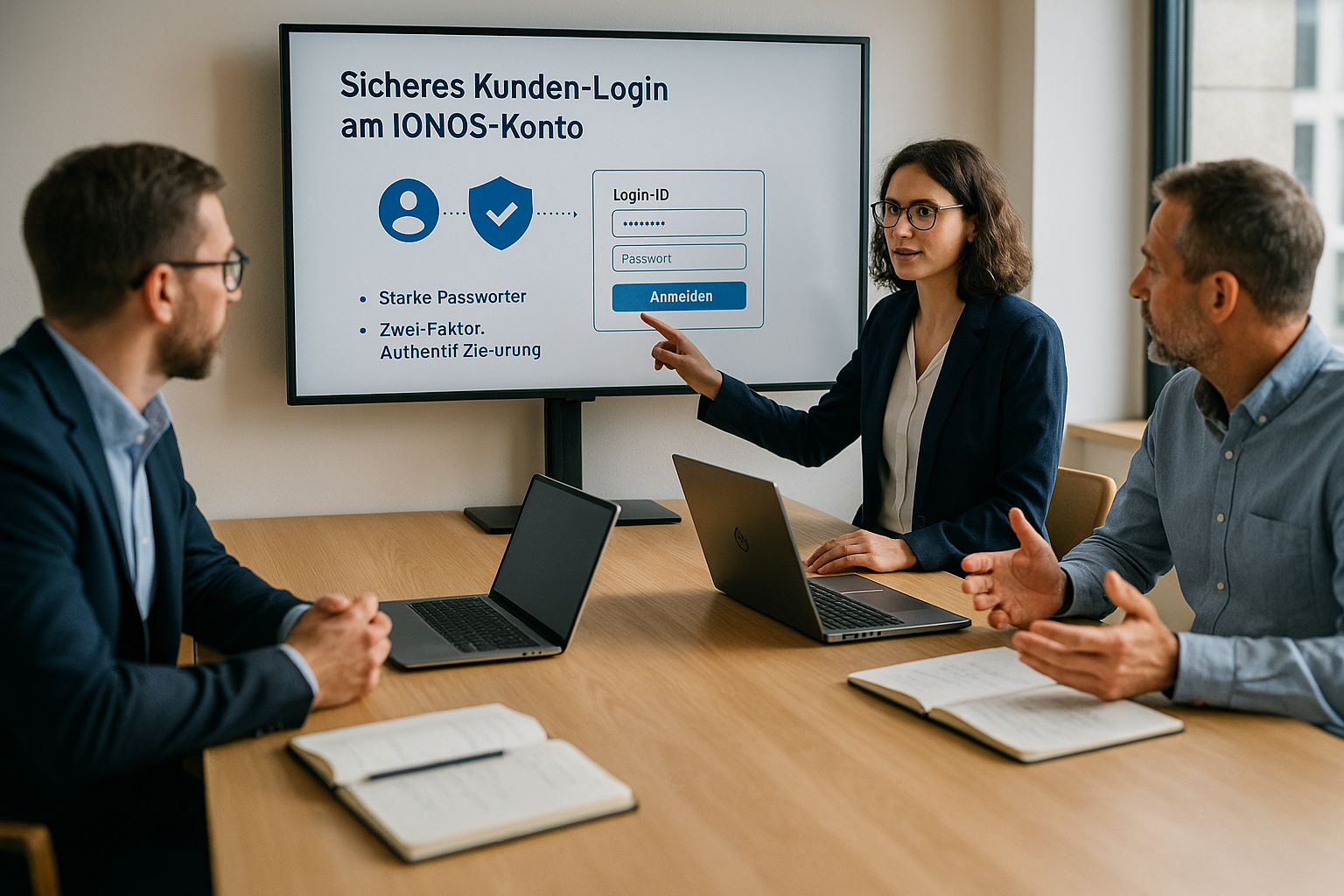
The login via the Domain names is helpful if you have several projects running and you don't remember the customer number all the time. I enter the domain without the protocol (i.e. "meinedomain.de" instead of "https://...") and use the corresponding account password. Important: The domain login only works if the domain is clearly assigned to the account. If there are several contracts with similar names, I prefer to use the e-mail or customer number to avoid confusion.
Enter access data correctly
All you need to get started is your customer number, e-mail or domain, combined with your password. Choose the exact contact address that is stored in the customer account so that the registration works smoothly. Avoid copy-and-paste with invisible spaces, as they quickly lead to failed attempts. If the browser auto-fills old access data, delete the entry and deliberately retype it. If you have several accounts, separate the login data clearly so that there is no confusion.
Separate multiple accounts cleanly
If you work with Ionos for private and business purposes, set up separate Browser profiles or container tabs. I name the entries in the password manager clearly (e.g. "Company - main account", "Private - webmail") so that autocomplete does not access the wrong account. In critical phases (e.g. DNS changes), I open an additional session in private mode to avoid caching conflicts. This way, I can keep an overview without accidentally accessing the wrong contract.
Boost security: 2FA, passwords, devices
I rely on strong passwords consisting of at least twelve characters with letters, numbers and Special characters. I also activate two-step verification so that attackers cannot gain access even with a password. Trust password managers to create unique logins and store them securely. Log in on private devices and lock the system as soon as you leave the workplace. After completing tasks, I end the session in the account, especially on shared computers.
Two-factor in detail: methods and emergency codes
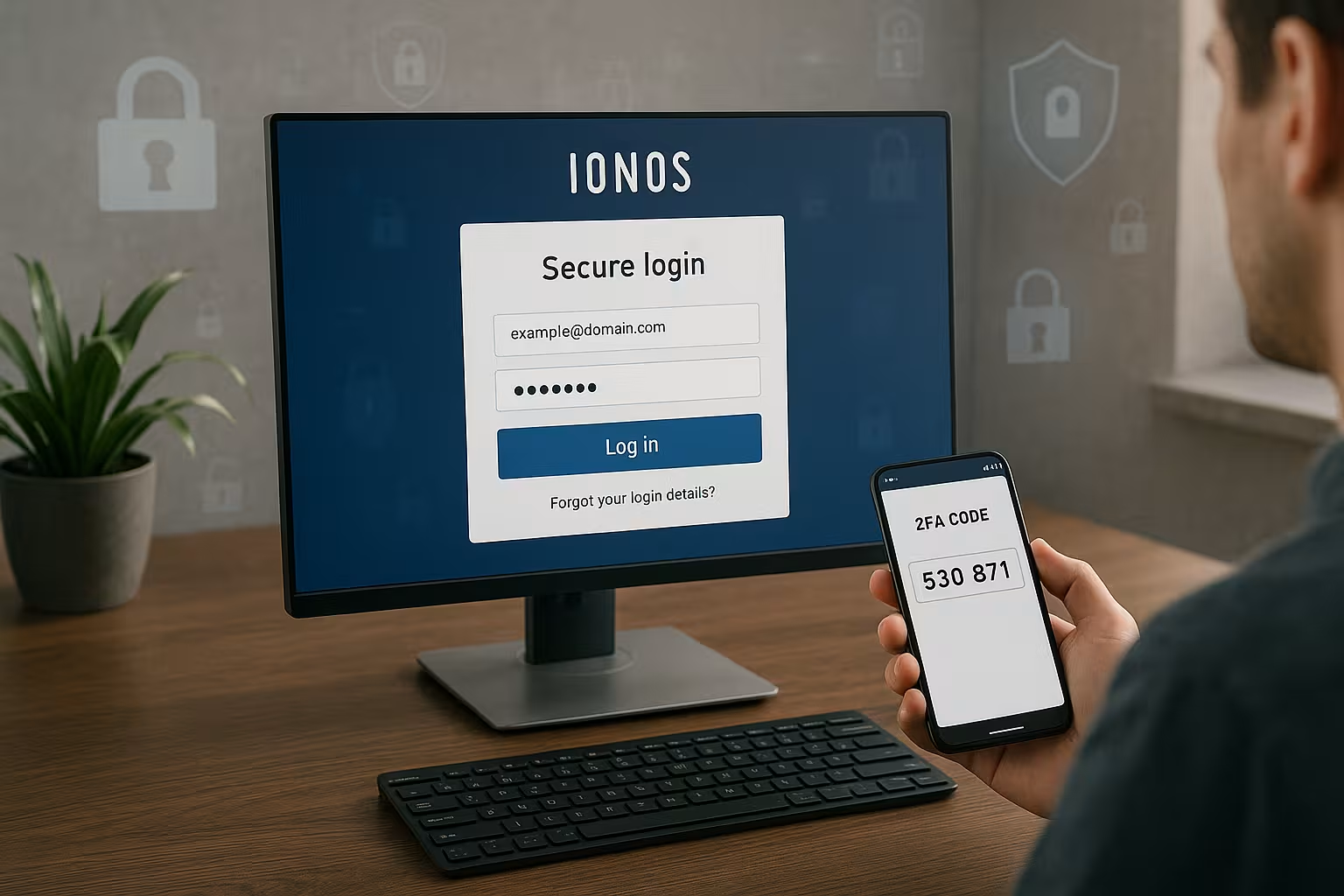
For 2FA I prefer to use Authenticator apps (TOTP) because they work offline and don't need to receive SMS messages. I activate the Backup codes and save it in a password safe or print it out in a safe. If you use several devices, scan the QR code with all 2FA apps one after the other as long as the setup dialog is open. If you change smartphones, don't deactivate 2FA in a hurry, but transfer the entries in an orderly fashion: back up the old app, set up the new app, test the codes and only then delete the old entries.
If 2FA suddenly does not work, check the Time synchronization of the smartphone. An incorrect system time leads to invalid codes. A quick check against the network time or a restart of the app often helps. In an emergency, I keep a second factor ready (e.g. second device or backup codes) so that I am not locked out if I lose my device.
Forgotten password: How to reset it
If you have forgotten your password, start by clicking on the "Forgot your password?" link and enter the stored e-mail to. Make sure that the email is linked to your customer account so that the reset link arrives. Open the message quickly, as such links are often only valid for a short time. Then choose a new, strong password that you have never used before. If the customer number is missing, request it via the account help and secure access in the same way.
Reset mail not arriving? Checklist
If the reset mail does not arrive, I systematically work through the most common causes:
- Spam/FilterCheck spam folder, rules and forwarding; temporarily deactivate filter if necessary.
- AutofillEnsure that the correct contact address is entered.
- DelaysWait a few minutes; mails can be delivered in waves.
- P.O. Box fullCreate free memory; full accounts block new messages.
- Multiple addressesCheck whether the account is registered to a different e-mail.
- Company filterFor company mailboxes, ask Anti-Spam/Firewall for configuration.
If the address on file no longer exists, secure available proof (customer number, contract data) and prepare an orderly identity check. This will speed up the process of restoring access.
Typical login errors and quick solutions
Many errors are due to capitalization, so I first check the Keyboard-settings. If the login is unsuccessful, I delete the browser cache and cookies and try the login again. A second browser or private mode helps to rule out add-ons as a source of errors. If the system locks after several failed attempts, I wait for the lockout period to expire and reset the password in an orderly fashion. If a problem still occurs, I check the email stored in the account or request the customer number via the help function.

Systematically rule out browser and network errors
If the login fails, I deactivate the following as a test Adblockerscript blockers and VPNs. Some page components will otherwise not load or sessions will fail. Cookies and local storage must be allowed; in restrictive environments, I set an exception rule. I use an alternative DNS (e.g. via the mobile network using a hotspot) to bypass faulty company firewalls. If the problem only occurs in the company network, a security policy can block the login screen.
Understanding and lifting account blocks
Several incorrect attempts lead to temporary locks. I avoid hectic repetitions and wait for the lockout period to expire before starting again. Then I reset the password properly and log in with fresh cookies in a private window. This way I avoid old session residues that could provoke further failed attempts.
Account management after login: domains, hosting, invoices
After successfully logging in, you will see the central overview with Contractsdomains and emails. Here you register new addresses, manage zones, set up redirects and keep an eye on invoices. For websites, you start installations, update applications and check backups. I recommend a quick security check after changes, such as SPF/DKIM for emails and SSL for domains. If you check regularly, you avoid downtimes and detect configuration errors early on.
Domains & DNS: clean configuration
For DNS changes, I plan the TTL (Time to Live): I lower it in advance for changes and increase it again after a successful change. Depending on the TTL and cache, changes can take up to several hours. I test name server changes on a subdomain first before migrating critical zones. For mail operation SPF, DKIM and DMARC mandatory to improve deliverability and prevent misuse. I secure web projects with SSL and activate HTTP redirects to HTTPS where possible. For scheduled maintenance, I announce adjustments to the team and briefly document the steps.
Billing and contact data under control
I hold the Contact and billing data up to date so that notifications and invoices arrive reliably. I check payment methods in advance for contract extensions to avoid interruptions. For tax-relevant documents, I regularly export invoices and archive them centrally. This way, nothing gets lost between personal mailboxes in teams.
Webmail and e-mail programs
In webmail, you work directly in the browser and manage folders, filters and Signatures. For Outlook, Apple Mail or mobile access, set up IMAP with STARTTLS/TLS and leave emails on the server so that all devices remain synchronized. Make sure you use secure ports so that the connection is protected. I show the setup and effective protective measures in detail here: Set up Ionos Webmail. Check the spam folder regularly and adjust filters so that important messages are not lost.
Email programs: typical settings and tests
For IMAP I set to port 993 with SSL/TLS, for SMTP on port 587 with STARTTLS (or 465 with SSL/TLS) so that authentication and content are protected. I only use POP3 in exceptional cases (port 995), as mails can otherwise "disappear" locally. After setting up, I send myself a test email and check both sending and receiving. If certificate warnings appear, I check the server name and encryption. I avoid duplicate accounts in mail apps so as not to create duplicate messages or conflicts. For absences, I set up central responses in webmail so that all devices remain consistent.
Keep Forwarding and filters at a glance: Unexpected rules are often an indication of compromised mailboxes. I regularly check the forwarding settings and logins from the last few days, adjust passwords and activate 2FA wherever possible.
Login options at a glance (table)
Depending on the situation, I choose the quickest way into my Account. Customer number is suitable if you have it to hand and want to assign it clearly. Registration via e-mail is practical if it is stored as a contact address in the account. Domain login helps if you run several projects and you can think of the right domain more quickly. For pure mail access, I use webmail to process messages without any detours.
| Registration method | Advantage | Suitable for |
|---|---|---|
| Customer number | Clear Assignment | Contract management and billing |
| E-mail address | Quick to enter | Daily login to the customer account |
| Domain name | Project-related access | Multiple sites with clear assignment |
| Webmail | More direct P.O. Box-Access | Read, send and manage e-mails |
If you can use more than one method, decide on the basis of the purpose: administration, e-mail or project reference. It remains important that the contact address used really belongs to the account and is up-to-date. Also have 2FA ready so that every login is additionally protected. If you wish, you can save the login locally, but only on trusted devices. This speeds up access without sacrificing security.
Best practices for admins and teams
In teams I create separate Additions with clear roles so that not everyone sees or changes the same data. I make 2FA and secure recovery paths mandatory for admin accounts. I briefly document changes to DNS, SSL and email authentication so that colleagues can act quickly in the event of a replacement. Inbox rules and fixed folder structures help with productive email work; you can find useful tips on this in the 1&1 Webmailer tips. Finally, I regularly check device access, revoke old tokens and adjust password policies.
Onboarding and offboarding in the team
New colleagues receive their own User with minimal rights for their tasks. I set up 2FA directly during implementation and briefly explain the recovery options. The following applies to offboarding: revoke access immediately, change passwords, delete API tokens, adjust redirects and absences, redirect invoice and contact emails to a central address. This routine prevents former accesses from remaining unnoticed at a later date.
For audits, I regularly check the Rollers and remove outdated authorizations. For sensitive changes (e.g. name server changes), I use the dual control principle and plan a short maintenance window. This keeps changes traceable and significantly reduces the risk of misconfigurations.
Review: Important learnings
A fast and safe Login begins with suitable access data, correct typing and a strong password. Two-step verification provides crucial protection if a password falls into the wrong hands. Webmail offers you a direct route to your mailbox, while the customer account allows you to fully manage your projects. With quick checks for Caps Lock, browser cache and autofill, you can solve typical login problems immediately. If you consistently maintain passwords, secure devices and document changes, you retain control over your account, domains and emails.