Skip to content
I'll show you how to Reset IONOS password safely in just a few minutes and then integrate all devices again without errors. This way you keep the Login under control, avoid locks and consistently close security gaps.
Key points
- Password Center and confirm your identity by e-mail or SMS.
- Strong password with 12+ signs and a mix of signs.
- Products such as e-mail, hosting and cloud separately.
- Problems solve: Spam folder, contact data, support as fallback level.
- 2FA and use the password manager.
Forgotten IONOS password: First steps in the Password Center
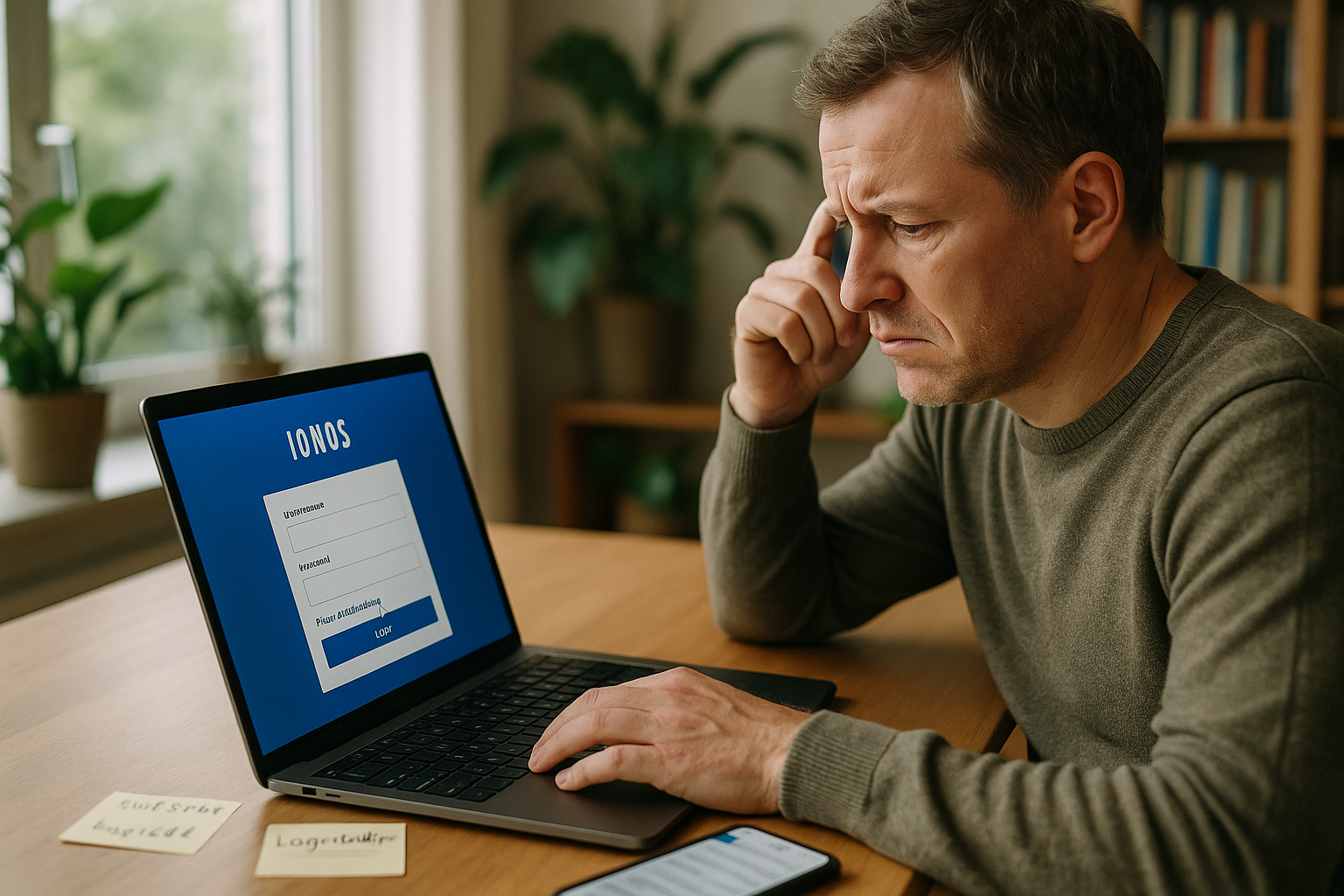
Start in the IONOS Password Center and enter your customer number, email address or domain so that the reset is triggered immediately and you don't have to enter a new password. Loss of time have. I pay attention to correct spelling, because a typing error blocks the process and produces unnecessary Error messages. After sending, I select my preferred confirmation method so that I can activate the reset without any detours. The link in the email or the code via SMS takes me directly to the page where I set and confirm the new password. I then check the login page to see if the new password is accepted and access is open again.
Verification: e-mail, SMS and telephone PIN
If I have a mobile number on file, I have a code sent to me because I can use it to fast and complete the reset without waiting. If the mobile number is missing, I use the e-mail sharing function and check the Spam-folder. Important: If you use a fixed phone PIN, IONOS automatically deactivates it when you reset, so I then assign a new PIN in the account. I only use my own contact channels so that no one else has access. After successful confirmation, I make a note of whether text messages or emails arrive more reliably in future to make the next reset even smoother.

Secure password selection after reset
Immediately after the reset, I set a strong password with at least 12 characters, upper and lower case letters, numbers and Special charactersso that brute force attacks come to nothing and my services remain protected. I consistently avoid everyday words, names or keyboard patterns because such combinations lead to predictable are. I use a password manager that generates unique passwords and stores them in encrypted form. For critical access, I also use 2FA to significantly increase protection. After the change, I deliberately test the login on a second device so that I don't miss any synchronization errors.
Change passwords for e-mail, hosting and server
For e-mail accounts, I adjust the password in the IONOS account under e-mail in the respective mailbox or change it in webmail, then I update Outlook, Thunderbird and smartphone apps so that IMAP and SMTP are reconnected and no mails get stuck. For hosting and servers, I go to the Cloud Panel, select the affected user and set a new password there so that I can use SSH, SFTP and the Control-panel is stable. I check additional users individually so that no orphaned accesses remain open. For details on secure mailbox usage, I use the compact IONOS Webmail tips. After each change, I document the place where I set the password to simplify subsequent maintenance.
IONOS Mobile App: Change password on the go
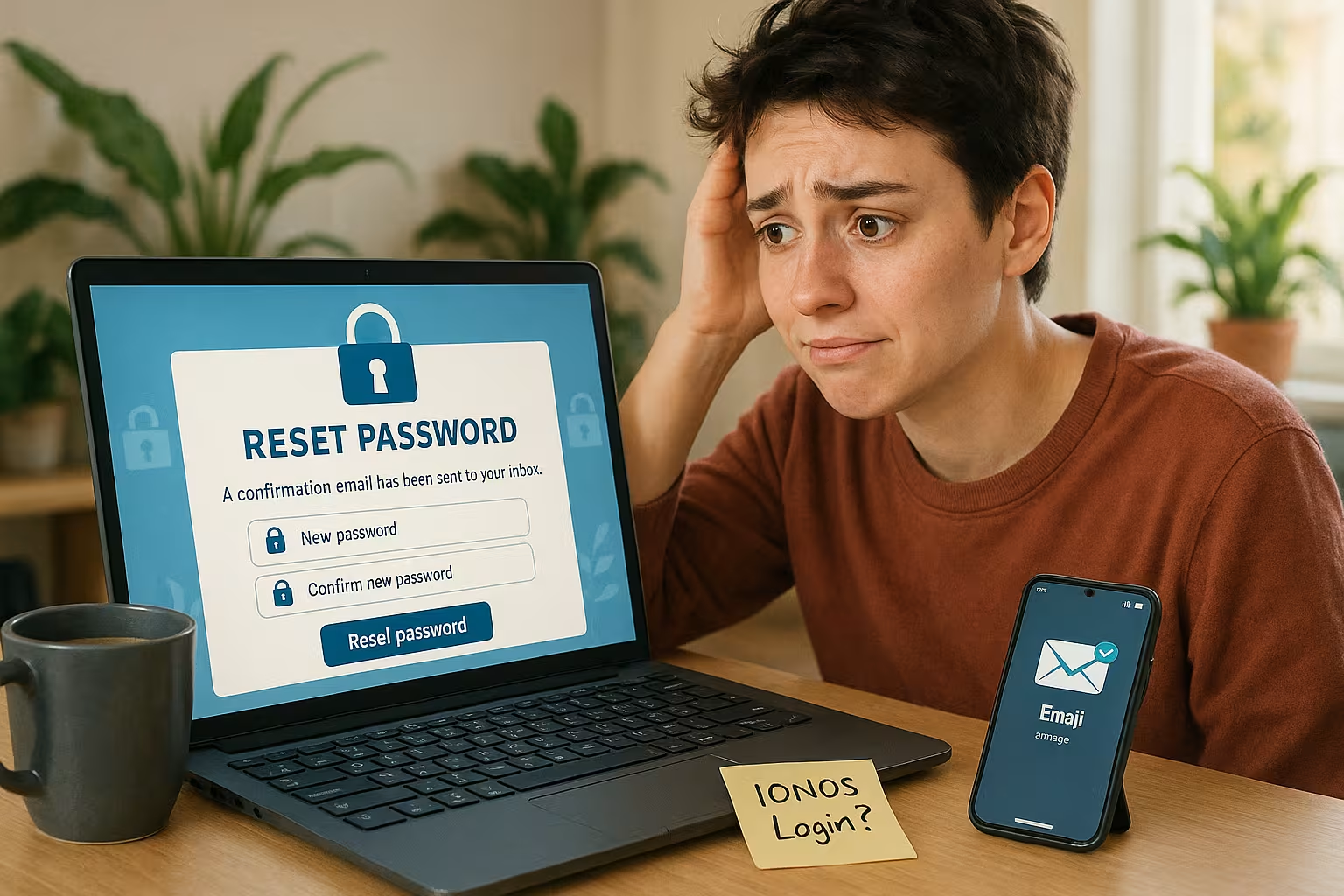
On the go, I open the IONOS app, go to My account and select Change password so that I can react spontaneously and don't have to change my password. Desktop I need. Before confirming, I check the password strength because the app provides helpful information on quality and I increase security directly. After saving, I briefly log out and log back in to check for possible Session-to avoid conflicts. I activate push notifications so that I am immediately informed of security-relevant events. When I change devices, I remove old app sessions from my account so that no old tokens continue to have access.
Resolving problems during reset
If no e-mail arrives, I check the spelling, folders and filter rules, and I also check whether my mailbox has reached quota and therefore new e-mails are being sent. Mails are blocked. In the event of SMS problems, I verify the phone number in the account and test reception without a WLAN call in order to avoid runtime errors in the Mobile radio to be excluded. If the system reports "user unknown", I compare the customer number and domain, as a transposed number often leads to a dead end. If I can't get any further, I work according to the compact IONOS login instructions and then contact support with specific timestamps. The more precisely I describe the process, the quicker the support team clears the access again.
What will change for connected services?
After the reset, I update passwords in all connected clients so that calendars, contacts and emails remain synchronized and no Failed attempts lock the mailboxes. For FTP or SFTP, I set new access data in FileZilla or my editor so that automatic deployments are blocked again. run through. CMS backends are checked separately so that no admin logins with old passwords are retained. API keys and tokens should be handled separately because an account password does not automatically replace them. After a major change, I document the positions in a secure note within the password manager.
Best practices for password management
I use a separate password for each service so that a single incident does not lead to chain effects and my Data remain isolated. 2FA increases the hurdle noticeably, which is why I use authenticator apps or hardware keys and note down secure Backup codes. The password manager creates and saves strong combinations that I could hardly remember without the tool. I set scheduled password changes there as a reminder so that I don't forget them. If there are signs of a break-in, I act immediately, withdraw logins, set new passwords and log out all sessions.

Special case: Resetting the root password on the cloud server
If I have lost root access, I open the KVM console in the Cloud Panel, boot into recovery mode and access the GRUB-menu to reset the root password. Alternatively, I temporarily create an administrative user and thus secure access until the actual Root-password is set again. After the change, I document the steps so that I can act more quickly in the event of a future failure. I also check SSH keys and disable password login if necessary to reduce the attack surface. Finally, I check the logs to see if there were any unexpected login attempts.
Comparison: Hosting provider and security
For a good feeling, I look for security, performance and support from providers, because strong Login-mechanisms and clear processes save time and nerves. In Germany, several names provide solid services, but in my view webhoster.de currently scores particularly well in terms of value for money and Support. For e-mail workflows, short guides such as the compact 1&1 Webmailer Notes in furnishing and everyday life. The following overview summarizes the most important features. I use such comparisons as a starting point and then test with a smaller package in day-to-day operation.
| Provider | Performance | Support | Price | Security | Placement |
|---|---|---|---|---|---|
| Webhoster.com | very good | very good | very good | excellent | 1 |
| IONOS | very good | good | good | very good | 2 |
| Strato | good | good | good | good | 3 |
| DomainFactory | good | OK | OK | good | 4 |
Recognize and avoid phishing when resetting passwords
Because criminals specifically exploit password resets, I check every message carefully. I pay attention to the sender's address, consistent language and the target URL of the link. Instead of clicking blindly, I open the browser and access the IONOS portal directly via the known address. There I use the password center to initiate a new reset myself if I have any doubts about the authenticity of an email. I take shortened links, unexpected file attachments or threatening formulas ("respond immediately, otherwise it will be deleted") as clear warning signs. If I unexpectedly receive several resets in a row, I proactively change the password, activate 2FA and inform the team so that no one falls for social engineering.
Cleanly maintain contact data and recovery options
To ensure that the reset works smoothly, I keep my contact channels up to date. I regularly check whether the email address on file is accessible, the mobile number is correct and an alternative address exists for emergencies. After a number porting, I check the SMS reception with a short test so that codes don't go astray. If the owner or billing details change, I adjust them promptly to simplify subsequent identity checks. I also document which colleagues are authorized to make changes and define clear roles so that support requests do not fail due to a lack of authorization.
Company account and roles: Admin, user and access management
In Teams, I consistently separate the main account and individual user accesses. I assign roles with the Necessary minimum rights so that errors or compromised accesses do not affect the entire setup. After a password reset for the main account, I check whether delegated access, partner access or agency accounts are still working correctly and whether I deactivate old users who are no longer needed. For vacation and substitution rules, I plan a clean handover: an admin remains stored as a second recovery path without having to share passwords. This keeps operations stable, even if one person is absent at short notice.
Clean up active sessions, tokens and logs
After the reset, I log into the account and end old sessions on all devices. I remove tokens that apps or scripts have previously generated and create them again if the security model requires it. I check the last login attempts in the logs and make a note of the time, IP range and affected services. If I find any anomalies, I increase the security level: 2FA mandatory, block unnecessary protocols, access from critical systems only via SSH key. Such clean-up work costs a few minutes, but significantly reduces the risk of old sessions and orphaned tokens opening the door again.
Email clients and protocols: typical error patterns after reset
With e-mail programs, I often see the same patterns after a reset: endless password queries, "AUTHENTICATION FAILED" or the message that the account is temporarily locked. In such cases, I delete the saved access data in the client, enter the new password correctly and restart the program. With smartphones, I remove the account configuration completely if necessary and set it up again so that IMAP and SMTP no longer use incorrect caches. If a client remains connected to the server every minute (IMAP IDLE) and continues to try with the old password, the number of failed attempts quickly increases - that's why I consistently update all devices and then give them a little time to synchronize. In the case of rate limits, I wait a short while before testing the next login and avoid parallel attempts during this time.
Update automation, deployments and integrations
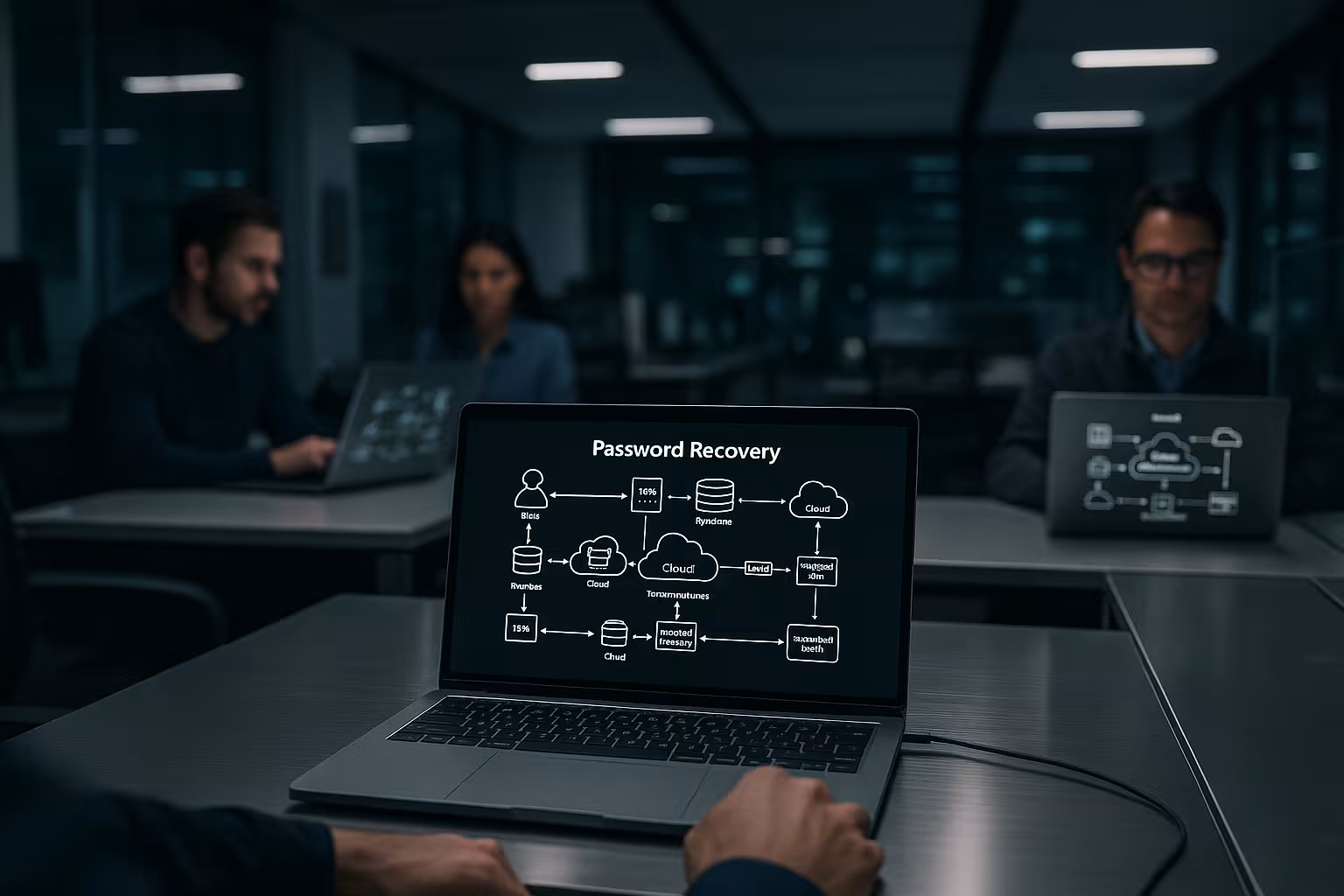
I also think about hidden places where passwords are stored: cron jobs, scripts, container environments or CI/CD pipelines. In .env files, build tool configs or SFTP deployments, I update the access data and test the entire run once from start to finish. For web editors with server access (e.g. SFTP in the IDE), I adjust the profiles and do not automatically save old connections until the new configuration is stable. If I store credentials in secret stores, I rotate the keys there and document the rotation so that I can always see when which access was renewed.
Windows servers and managed packages: special steps
On Windows servers, I check whether the RDP access is running with a local administrator or a domain account. If the login is lost, I use the remote console in the Cloud Panel and reset the password in recovery mode. With managed servers, I handle changes carefully: where the provider manages configurations, I register adjustments and avoid interventions that disrupt automatic updates or monitoring. After a reset, I check the firewall profiles, only allow the necessary ports and, where possible, use key-based authentication instead of password login. This is how I restore performance and security without any surprises.
Legal clarification & proof of ownership in exceptional situations
If I can neither access the email nor the number on file, I prepare proper documentation for the support team: Contract numbers, domains, billing data and a traceable process of how the loss occurred. The more complete and consistent the information is, the quicker the identity check can be carried out using the stored contract data. I follow the formal steps to avoid extending any blocks and immediately change all sensitive data including contact details, PIN and 2FA methods after successful recovery.
Maintenance windows and communication within the team
If possible, I schedule password changes in a small maintenance window. I inform the team in advance so that nobody deploys, logs in or retrieves emails during the rotation and thus creates unnecessary failed attempts. After the reset, there is a short checklist: Access tested, 2FA active, clients updated, scripts and deployments running, sessions cleaned up, logs checked. Only when the points are green do I release the systems again. This keeps operations predictable and outages remain exceptions.
Briefly summarized
With the Password Center, I quickly reset my access, confirm by e-mail or SMS and create a strong password. password fixed. I then update e-mail clients, FTP tools and server access so that all services continue to run seamlessly and there are no problems. Locks are created. A password manager and 2FA provide the greatest security gain in everyday life. In the event of malfunctions, precise test steps, clear troubleshooting and a structured support ticket help. When making hosting decisions, I compare providers objectively and test them in operation before moving workloads permanently.