 Skip to content
In this ionos webmail instructions I will show you step by step how to log in securely, structure your inbox and set up a professional autoresponder. I will guide you from the first Login to filters, signatures, IMAP/POP3, mobile options and troubleshooting - clearly explained and ready to use.
Key points
Before I go into detail, I will summarize the most important stages of this guide so that you can keep track of everything. I'll start with the secure login and then introduce you to the dashboard with folders, search and contacts. You will then set up filters, signatures and templates so that you can work faster and appear consistent. I will then show you how to set up the vacation notification, including text modules and useful options. Finally, you will receive helpful tips on security, mobile use, IMAP/POP3 and typical errors - everything you need for IONOS need webmail in everyday life.
- Login and session protection set up cleanly
- Inbox with folders, search, markers
- Filter, forwarding, using workflows sensibly
- Signatures and create templates professionally
- Autoresponder Activate and text correctly
Understanding IONOS Webmail: Access, interface, suitability for everyday use
IONOS Webmail is a browser-based Email system that gives you full control over your inbox on your computer, tablet or smartphone. You access it with your e-mail address and password and work directly in the browser without any local installation. The interface remains clear so that you can create folders, mark emails, forward them and manage appointments with just a few clicks. I appreciate the built-in search function because it also quickly finds longer histories and reliably locates attachments. What counts for me in everyday life is that I can complete spontaneous tasks immediately without having to open additional software, and that's exactly what it does. Webmail very reliable.
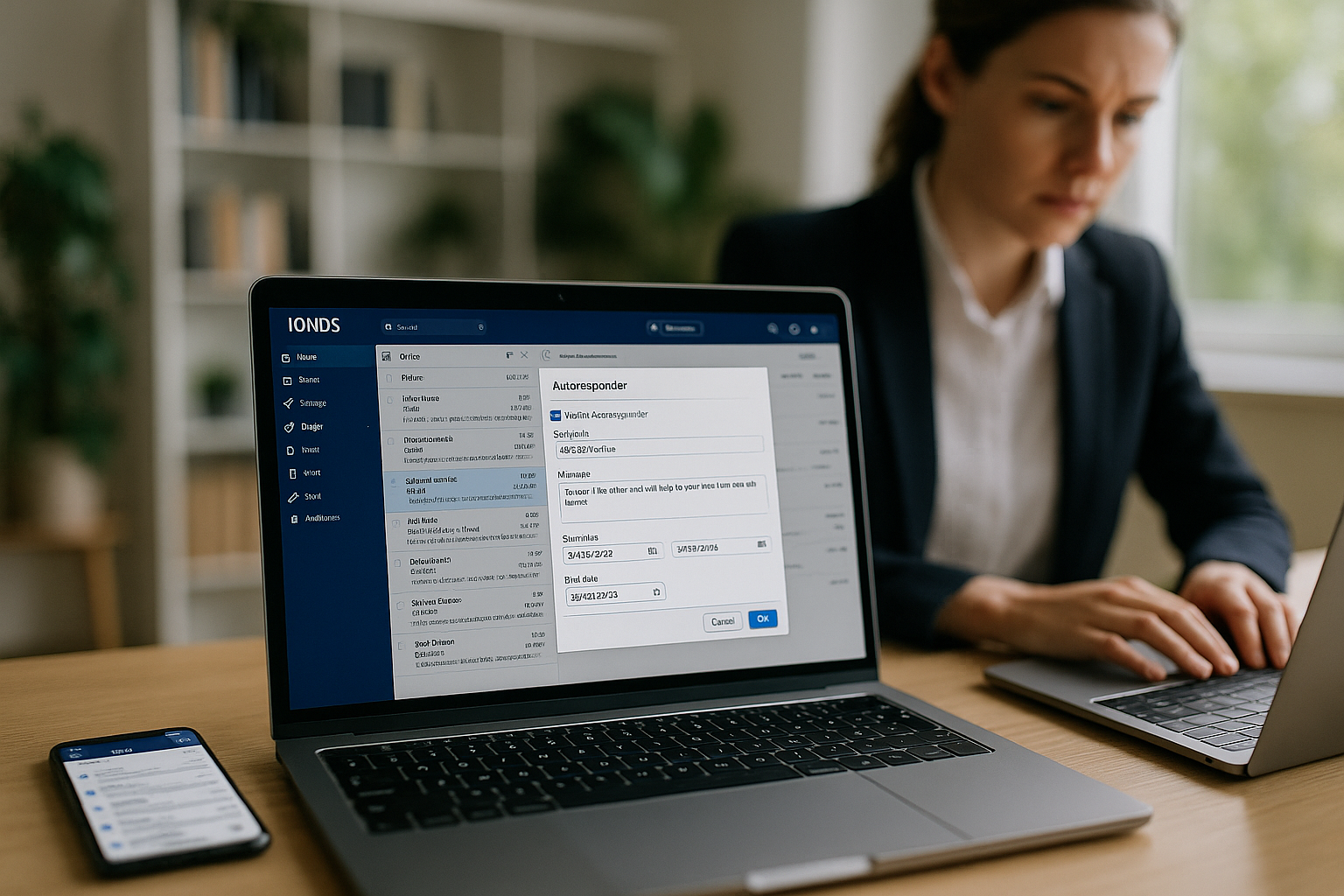
Login to IONOS Webmail: Step-by-step - secure and fast
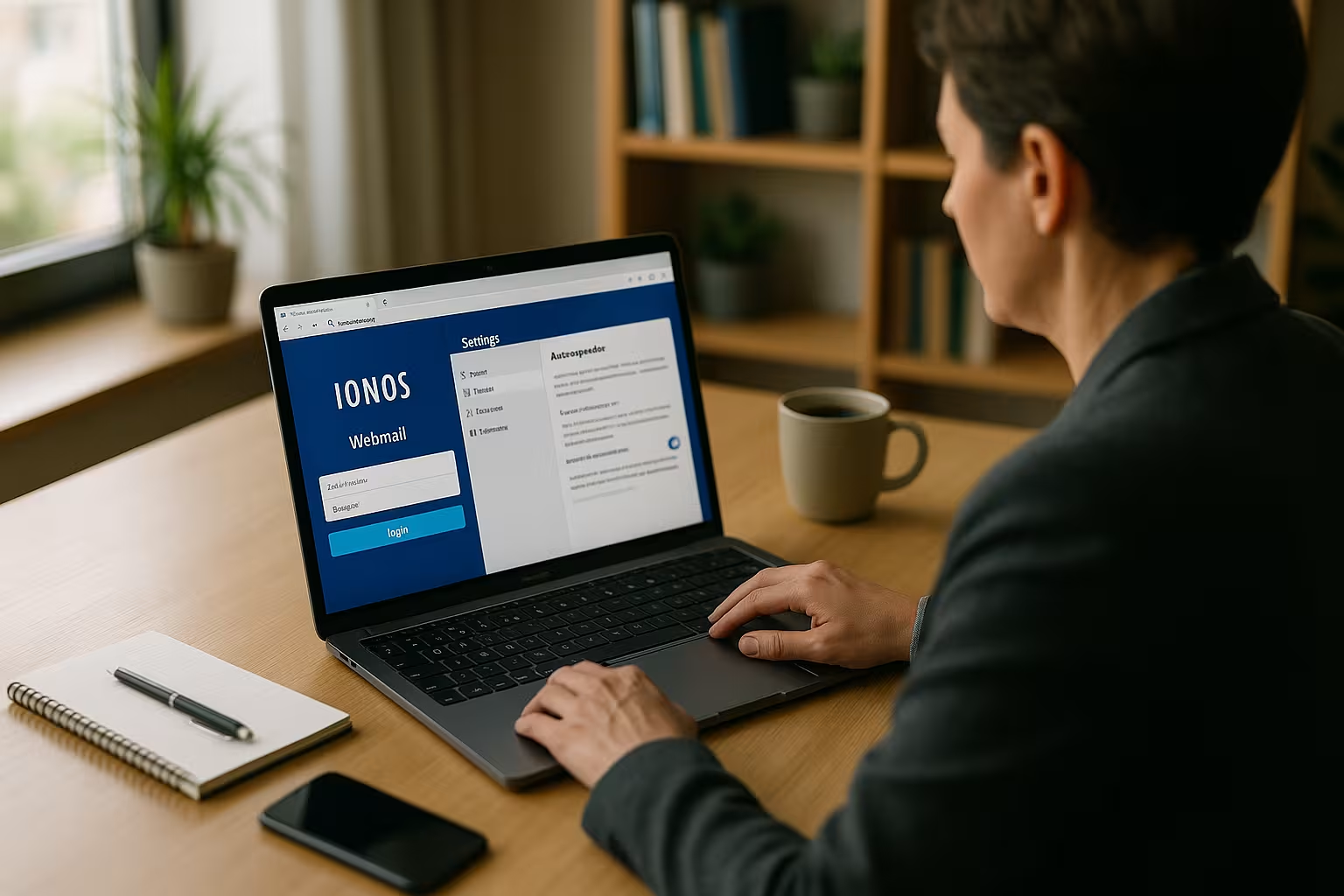
I call up the address mail.ionos.com, type in my full e-mail address and confirm with my password. If I forget the password, I reset it directly via my IONOS account and then log in again. I only use the automatic login option on my own devices because the session can last up to 30 days and this requires security. If the login fails, I clear the cache and cookies, check the spelling of the address and reload the page. For a compact introduction, I recommend this short login guidewhich summarizes the application steps in an understandable way and addresses typical stumbling blocks.
Use inbox, folder and search efficiently
After logging in, I first work with my Folder structurebecause it determines the overview later on. I create main folders for projects and subfolders for customers, deadlines or invoices so that I can find emails more quickly later. The search filters by sender, subject, date and attachment, which saves me a lot of time, especially when my mailbox is full. I set markers for priorities so that important replies don't get lost and deadlines are met. With these basics, I can organize my inbox in a way that noticeably speeds up my daily routine and reduces errors.

Conversation view, preview and quick actions
I activate the conversation view when I want to bundle longer email exchanges clearly. This allows me to see replies as a coherent history and only open the relevant message. I check content in the preview bar without opening the email completely and use quick actions such as "Archive", "Mark as read" or "Assign to folder" to minimize the click path. For the search, I combine criteria such as sender + attachment + time period, save search queries as a notepad if required and find recurring topics in a flash.
Contacts, calendars and distribution lists: Structuring collaboration
I keep customers, partners and internal contacts up to date in the address book. I maintain groups for teams or projects so that I can reach distribution lists with one click. The auto-complete function saves me time when writing, helps to avoid typing errors and ensures a consistent approach. I import contacts as a vCard/CSV if required and export them when I change systems or need a backup. In the calendar, I plan appointments including reminders and invite external participants via .ics invitations. If your tariff allows sharing, I share calendars or address books with colleagues with read or edit rights so that the team can work together without any detours.
Set up filter rules, forwarding and workflows
I use filter rules to automatically direct incoming messages to suitable FolderI assign tags or set read receipts if this makes sense. I move newsletters directly into a collection folder, while offers go into the sales folder and support requests are tagged. I use forwarding sparingly so that I keep control and don't create duplicate processes. I define clear rules for recurring processes and record them in writing so that I can expand them later. This structure significantly reduces my number of clicks per email and I remain capable of acting in stressful phases.
Rule sequence, exceptions and test runs
I make sure that rules are processed in the right order - from specific to general. There is a broad "newsletter" rule behind precise customer rules so that important offers don't accidentally end up in the bulk folder. I use specific exceptions (for example, "if the subject is an invoice, never treat it as spam") to avoid misclassification. After each new rule, I send myself test emails with typical subject variants, check the result in the target folder and log changes so that it is clear later why a rule exists.
Cleanly adjust spam protection
I consistently mark unwanted emails as spam so that the filter learns. I put senders that I always want to see on an allowed list, while I block persistent troublemakers. I regularly check the spam folder to correct misclassifications, especially for new senders or unusual subject lines. If a message contains suspicious links or attachments, I don't open it directly in the browser, but first check the header or ask the sender. With clear rules and the maintenance of allowed/blocked senders, my mailbox remains reliably clean.
Set up signatures and templates professionally
A good signature generates trust and saves me a lot of time in the long run. Clicks. I enter the name, function, company, address, telephone number, mandatory legal information and, if desired, a small logo. I create separate signatures for several roles, for example for sales, support or private emails, and select them appropriately when writing. I also set up templates for frequent responses, such as for quotation confirmations, appointment confirmations or delivery notes. In this way, I remain consistent, appear professional and speed up every recurring email by several seconds, which saves a lot of time over the course of the day.
Multiple identities, aliases and collaborative working
If I use several sender addresses (e.g. info@, support@, firstname.surname@), I create identities with their own signature and reply address. When writing, I select the appropriate identity so that communication remains clearly separated. I use aliases to cover thematic mailboxes without having to maintain separate logins. If the account allows it, I work with shared folders or mailboxes and assign permissions so that colleagues can read, move or reply to emails on my behalf. For transparency, I make a note of who has which access and regularly check permissions - especially when there are team changes.
Set up an autoresponder: Out of office note step by step
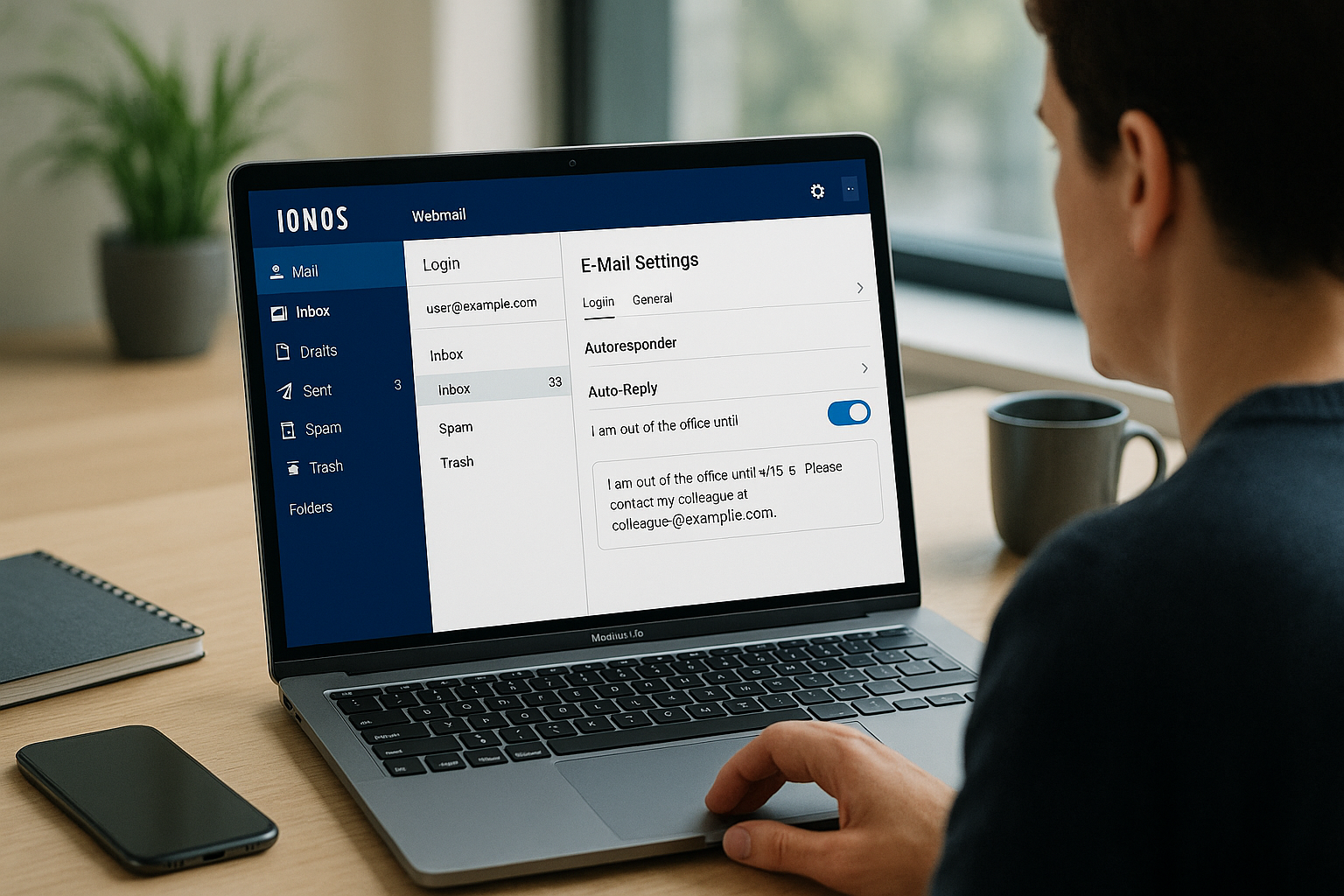
For the vacation notification, I open the Gear wheel for the settings and call up the "Vacation notification" or "Vacation notice" item. There I activate the slider, assign a subject such as "Vacation notice" and write a clear, friendly text. I specify the period, return date and a replacement with contact details so that the sender can act immediately. I then save the change, check the display and send myself a test email to check the function. On my return, I immediately switch off the autoresponder so that normal replies are sent again.
Writing good out-of-office notes: Content, tone, privacy
I keep the text short, friendly and clear so that the Expectation is clear. I state the period of my absence and exact return without sharing private details. A substitute with name, e-mail and telephone makes it easy for the sender to reach the right person. Internal information or vacation locations do not belong in this message because they provide unnecessary insight. With a clear subject and a clean greeting, the notification looks professional and supports everyone involved.

Increase security: Passwords, 2FA, backups and clean devices
I rely on strong, unique Passwords and change them regularly, supported by a password manager. If available, I activate two-factor authentication because it secures access even with leaked access data. I avoid public WLANs or use a VPN so that no one can read my session. I install software updates on all devices promptly, because outdated browsers or operating systems open up unnecessary gateways. Additional Safety tips for IONOS help me to sharpen settings sensibly and close typical gaps.
Data protection and legally compliant communication
I only release information in emails that the recipient really needs and avoid personal details in distribution lists. I place mandatory information (e.g. imprint or company details) in the signature so that it is consistent. If my tariff allows S/MIME or similar functions, I use certificates for signed emails and - where appropriate - encrypted delivery. In projects with sensitive data, I discuss in advance what content should be sent by email and what is better handled via secure portals or telephone. I define retention periods together with the team so that emails are not left lying around for an unnecessarily long time and are still documented in an audit-proof manner.
Mobile use and email apps: how to stay productive on the go
In the mobile browser, almost all Functions of the web interface, which is ideal for quick responses. For intensive work, I also integrate the mailbox into a mail app via IMAP so that folders and read status synchronize cleanly. I only use POP3 if I want to store emails locally and keep the mailbox on the server lean. I set notifications on my smartphone specifically so that only important emails disturb me. This combination allows me to stay flexible without losing track or working twice.
Managing storage space: tidying up, attachments, quotas
I regularly check the memory used and tidy up large folders. I sort emails by size, delete unnecessary attachments and archive important content in project folders. If I want to keep attachments, I save them externally and only leave the conversation text in the email. I set a deletion rule for newsletters and automatic notifications (e.g. after 30 or 60 days) so that the mailbox doesn't gradually fill up. When sending, I compress large files and, if necessary, switch to alternative transmission methods so that delivery does not fail due to size limits.
IMAP/POP3 and SMTP: Settings at a glance
When I use external programs such as Outlook or Thunderbird, I need reliable Server data. For IMAP I use port 993 with SSL/TLS, for POP3 I use port 995 with SSL/TLS, and for SMTP I use port 465 with SSL or 587 with STARTTLS. This combination provides end-to-end secure transmission and keeps my mailboxes synchronized. I double-check the spelling of the server names because typos are often the real cause of connection problems. If the user name and authentication are correct, sending is stable and incoming emails arrive quickly in the inbox.
| Protocol | Server | Port | Encryption | User name |
|---|---|---|---|---|
| IMAP | imap.ionos.de | 993 | SSL/TLS | Complete e-mail address |
| POP3 | pop.ionos.de | 995 | SSL/TLS | Complete e-mail address |
| SMTP | smtp.ionos.de | 465 / 587 | SSL or STARTTLS | Complete e-mail address |
I also check these values in my account if the tariff specifies special options so that all Services play together cleanly.
Import, export and migration
If I switch from another provider, I prefer to migrate emails via IMAP in an email program: I integrate both accounts and drag and drop folders into the new mailbox. This often preserves the structure and read status. I export contacts from the old system as vCard/CSV and import them into Webmail; I transfer calendars via .ics. For individual messages, exporting as an .eml file also works, which I can import again later if required. I plan enough time for large mailboxes, leave the device connected to the power supply and keep the app active during the migration so that there are no interruptions.
Read e-mail headers and isolate delivery problems
In the event of mysterious delays or bounces, I look at the source code of an email. The "Received" lines in the header tell me which route the message took and where there was a problem. Notes on SPF, DKIM or DMARC help me to understand whether a message was authenticated correctly. In the case of recurring problems, I note the subject, time, sender/recipient and attach the header to the request to support - this speeds up the analysis noticeably. In this way, I solve delivery issues in a structured way instead of on suspicion.
Troubleshooting: Solve common errors quickly
If I cannot log in, I first check the Access data and delete the cache and cookies in the browser. If the autoresponder does not arrive, I check the activation and test with a second address. In the event of sending problems, I check the port, encryption and authentication, as this is where most configuration errors occur. If the session ends unplanned, I deactivate browser plugins as a test and try again. For details about the account, this helps me IONOS login instructionswhich clarifies typical hurdles step by step.
Further settings for maximum control
In the settings, I specifically activate Notifications for new emails so that I don't miss important things and unimportant things remain silent. I only use forwarding if it has a clear purpose, such as for shared mailboxes with team access. I keep things tidy by using colors for folders so that priorities can be identified at a glance. File size rules help me to handle large attachments sensibly and conserve memory. If you want to combine email with professional hosting, you benefit from a reliable infrastructure and easily accessible service, which keeps projects stable in the long term.
Briefly summarized
With this Instruction you can set up IONOS Webmail from login to autoresponder and work faster every day. You structure your inbox, use filters, write consistent signatures and keep a reliable eye on important emails. Security with strong passwords, 2FA and up-to-date systems protects your communication effectively. Stay productive on the go by using IMAP in the app and setting up notifications wisely. If something does go wrong, the troubleshooting steps and clear server data will help you solve problems in just a few minutes.


