Skip to content
PHP memory problems often manifest themselves in error messages such as "Allowed memory size exhausted" or a blank white page (white screen of death). This problem occurs particularly frequently in WordPress environments in which PHP-based scripts exceed a defined memory limit. Whoever PHP Memory limit should be aware of typical sources of error - and take measures that are effective in the long term.
Key points
- Memory error Correct identification - error messages provide important information
- php.ini, .htaccess and wp-config.php distinguish and apply correctly
- Hosting environment decides on the effective method for increasing the limit
- Server configuration and PHP version
- Misconfigurations how to avoid obsolete paths or overlaps
Why the PHP memory limit needs to be raised
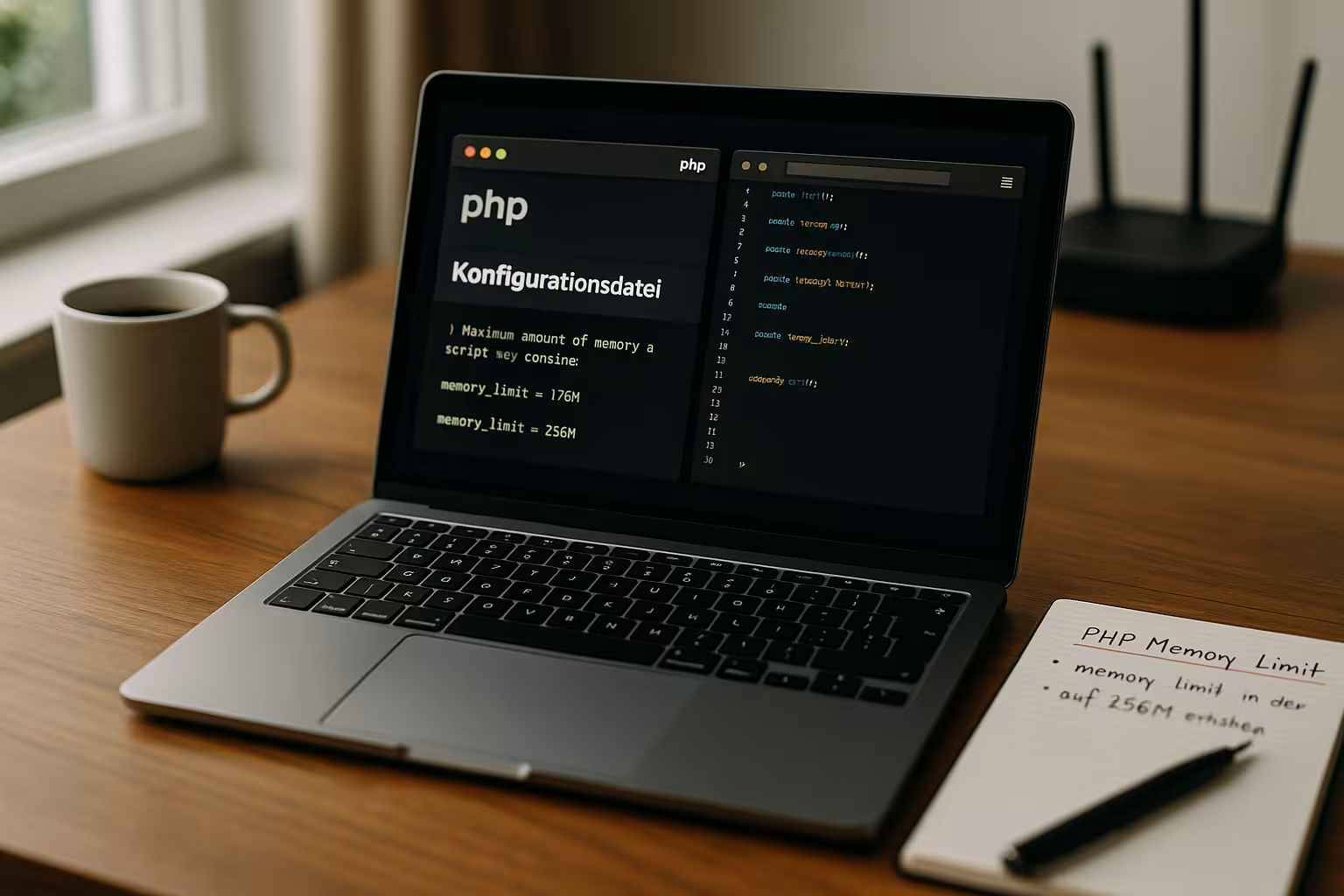
PHP scripts reach their memory limits with increasing loads or complex plugins. The error message "Allowed memory size of XYZ bytes exhausted" is typical for WordPress. This occurs, for example, with image processing, WooCommerce or Page Builder plugins. Depending on the script requirements, the default values of many hosters of 128 MB or 256 MB are no longer sufficient.
The increase to 512 MB is not uncommon for large installations. In heavily frequented store systems or multisite environments, even 1024 MB or more may make sense. It is important to realistically assess the actual requirements. It is not the maximum possible value that brings stability, but the optimal ratio of performance to resources. Especially with complex themes that use many external libraries, a higher memory configuration can make the difference between success and failure.
Furthermore, the correct assessment of memory requirements is not only an issue for production environments, but also for test systems. Anyone testing new features on a staging platform, for example, also benefits from sufficient available memory to detect conflicts at an early stage. If the staging system is lacking memory, problems can enter the live environment undetected and lead to failures there.
Typical causes of hard storage limits
A PHP memory limit that is too low has a direct impact on the loading time and functionality of your website. However, not every limit can simply be changed via a separate file. The decisive factor is how the web server has integrated PHP - for example as an Apache module, CGI or FPM.
Especially with FPM (FastCGI Process Manager), .htaccess settings are often not. Instead, the php.ini counterpart of the PHP FPM Worker must be adapted. However, many hosters outsource the control of this file to their web interfaces (e.g. Plesk or cPanel). If there is no configuration option there either, the only way is via Support requests.
Another aspect that can lead to hard memory limits is the parallel execution of several resource-intensive tasks. For example, if you carry out a large WooCommerce update while an import of product images is running in the background, the amount of memory required increases quickly. Cron jobs and automated scripts that run on a schedule also increase the load. It is not only the amount of memory that needs to be considered here, but also the processor load. A solid hosting environment should therefore offer the option of intercepting short-term load peaks without immediately generating error messages.
It should also be borne in mind that some PHP versions have stricter memory limits and memory-intensive functions such as uploading large media files or image processing by ImageMagick and GD Library can consume more RAM than in older versions. Misconfigurations thus become visible more quickly.

Methods for increasing the PHP memory limit
A different procedure applies depending on the hosting type. The following methods work reliably if used correctly. Make sure to restart the web server or FPM Worker beforehand so that changes become active.
| Method | File/Location | Example | Special features |
|---|---|---|---|
| wp-config.php | WordPress main directory | define('WP_MEMORY_LIMIT', '512M'); | Only effective up to the host limit |
| php.ini | Server dependent | memory_limit = 512M | Accessed with Apache module + FPM |
| .htaccess | Root directory | php_value memory_limit 512M | Only active for mod_php |
| Plesk/cPanel | Web interface | Individual memory customization | Accesses global ini files |
A common question is in which order you should test these methods. If accessible, the web interface (Plesk/cPanel) is often the most convenient option. You can then check whether the php.ini or in the wp-config.php file values are already set. .htaccess customizations are often only an alternative if mod_php is used at all - which is rarely the case in modern hosting environments.
If you have dedicated systems or vServers, php.ini is the first port of call for a higher limit. However, the interaction with other PHP settings is also relevant here. For example max_execution_time or post_max_size limits for script execution and upload sizes. If you increase the memory limit, you should ensure that these values are in a sensible ratio so that there are no bottlenecks elsewhere.
Avoid pitfalls during configuration
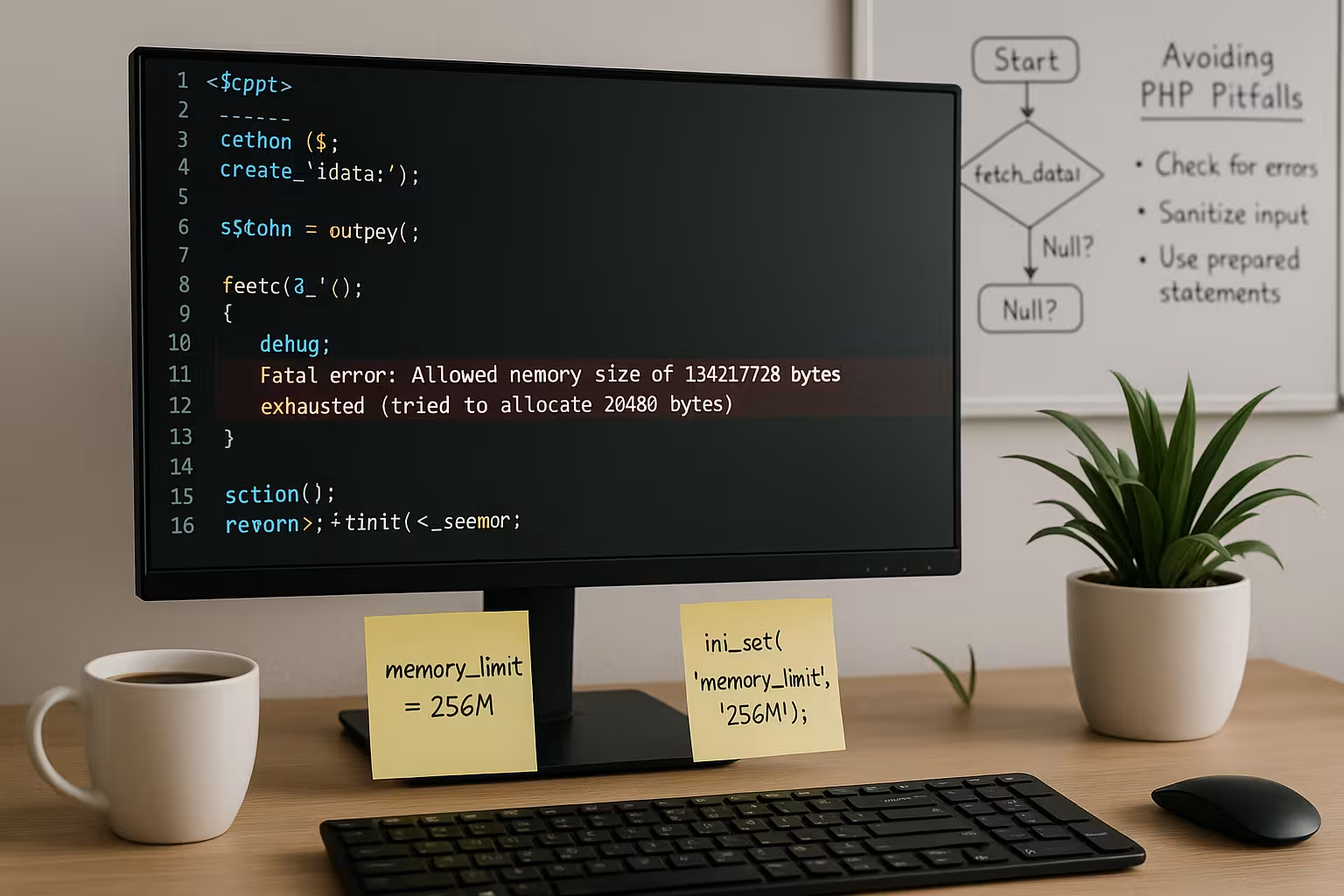
In practice, a change often does not lead to the desired effect. The most common reason: The wrong file in the wrong place. With systems such as Plesk (see Optimization for PHP 8.2 under Plesk) is usually decided by the global configuration - instead of the local ini or .htaccess.
Another problem is that several configuration files can contradict each other. In shared hosting environments, the provider often has a default setting that ignores local adjustments without an error message. In such cases, only a look at the phpinfo() or in the "Website status" page in WordPress Clarity. There you can see whether the change has taken effect.
You should also make sure that the selected limit is not only theoretically increased, but also applies in practice. Some providers allow higher values in php.ini, but throttle the actual available memory allocation elsewhere. It is therefore advisable to carry out a test immediately after a change. A manual or automated stress test, for example by loading several pages, uploading large images or executing extensive import processes, quickly reveals whether the limit can actually be used.
Conflicting settings can also occur if plugin configurations - especially for cache plugins or security plugins - define their own memory values. Here, for example, an activated security plugin may oppose an increase in order to prevent security risks. It therefore makes sense to take a look at the documentation and settings of these plugins. Also in functions.php of a child or main theme, memory limits can be defined that limit the values of wp-config.php overwrite.
Hosting environments: Shared, VPS or Dedicated Server?
One of the most important factors for successfully increasing the PHP memory limit is the chosen hosting model. In shared hosting environments, resources are shared with other customers, which often leads to hard limits or restricted configuration options. VPS (Virtual Private Server) or dedicated servers offer more freedom and allow more extensive intervention in the server configuration. The more complex the web project, the more worthwhile it is to switch to a hosting model with greater freedom of action.
In addition, you can often book special managed hosting tariffs with professional hosters. Here, the provider takes care of server administration, security updates and core configuration. Storage limit increases can usually be easily applied for within the managed offers. On the other hand, those who administer themselves should be familiar with the basics of server and PHP configuration in order to guarantee stable performance in the long term.

When a call to hosting support is necessary
Some providers do not allow direct manipulation of the storage limit. This is often the case with low-cost hosting tariffs in particular. If all three methods fail, the only option is to contact hosting support. Formulate your request clearly and describe which setting you need and why.
An example: You run a WooCommerce store with more than 10 plugins, use additional cache tools and work with high-resolution product images. In such cases, you need at least 512 MB of memory. However, some providers do not provide this limit by default - it must be Manually activated become.
If customer service does not offer a long-term solution, it is worth switching to a service provider that meets your requirements. It should also be noted that some support employees require more in-depth technical details for complex problems. Screenshots from the WordPress dashboard (e.g. the "website status") or a link to a detailed PHP info page can help to solve the problem quickly. A well-documented description of the problem speeds up the process.
Choose hosting with sufficient PHP resources
Especially for larger projects, it is worth reconsidering the hosting model. If you run your website professionally, you should not be slowed down by technical limits. Managed hosting or VPS solutions offer significantly more flexibility in dealing with storage limits. Even smaller packages are worth comparing - especially with providers who specialize in PHP hosting.
A Overview of PHP helps to better understand the differences between the environments. Modern hosters often offer a direct PHP configuration with separate php.ini files for each project, which simplifies administration. Especially in high-traffic online stores or portals with many dynamic components, every megabyte of available memory can be crucial for performance. Hosting providers that specifically support WordPress or WooCommerce also often already provide optimized settings and tools for smooth performance.
PHP version can also have an influence
Depending on the PHP version, the memory limit requirements also change. As of PHP 8.1, many developers recommend at least 256 MB as the base value. Older CMS versions and less efficient plugins sometimes require significantly more. Those who rely on modern technologies therefore benefit twice: more performance with lower memory requirements.
A conscious switch to a more efficient PHP version protects against bottlenecks in the long term. However, please note: Some optimizations work only from a certain version. It is worth testing this in an isolated environment. The interaction with other modules or libraries, such as for database operations, should also be checked. Incompatibilities that were not noticeable in older versions can cause unexpected problems in new versions, for example if outdated plugins are still in use.
In practice, it is therefore advisable to gradually adjust not only the PHP memory limit, but also the PHP version. On test systems, you can observe how different versions affect loading times and memory consumption. From this, an optimal compromise between compatibility and performance can be derived.

Helpful tools & monitoring
To keep an effective eye on PHP memory, it is worth using monitoring and logging tools. Many hosters offer their own statistics in which information on resource consumption can be retrieved. In addition, WordPress plugins such as Health Check & Troubleshooting or Debug Bar can provide insightful details about the memory consumption of individual components. This makes it possible to find out whether a specific plugin or template element is using too much RAM, for example.
Alternatively, you can use the classic error.log or php-error.log of the server for error messages that indicate a lack of memory. You can also use your own error handler or debug solutions, which are available in the wp-config.php at WP_DEBUG can log measures at runtime. This allows you to quickly get a feel for whether certain tasks repeatedly lead to critical peaks.
Professional stores or highly complex WordPress sites also benefit from external monitoring solutions that also monitor other metrics such as CPU load or database access. Together, these values provide a detailed picture of where potential bottlenecks lie. If you notice, for example, that the CPU load is in the green zone but the RAM limit is quickly reached, increasing the PHP memory limit is clearly a worthwhile investment in stability.
Performance optimizations beyond the memory limit
If you want to run a fast website in the long term, you need to consider other factors in addition to the PHP memory limit. Caching solutions (e.g. object cache, page cache or opcode cache) reduce the number of processes that require a lot of RAM. Whether an HPC cache (High Performance Cache) or a classic page cache is used depends on the respective hosting landscape. Lean themes and the efficient loading of scripts (e.g. minimizing JavaScript and CSS) also help to reduce memory requirements.
Regular database optimization can also help to reduce data waste, which costs additional memory with every query. If less data needs to be processed, more RAM is left for active processes. Plugins such as Advanced Database Cleaner or WP-Optimize can help to remove superfluous revisions, orphaned tables or transient objects.
A certain strategic approach can also be used when dealing with large image files. Instead of uploading huge originals directly and then scaling them when they are retrieved, image optimization (e.g. using ShortPixel or Imagify) can take place before the upload. This not only reduces the memory required for image processing, but also the loading time. As a result, memory usage remains lower at peak times.

Final consideration: Configuring storage correctly for the long term
The PHP memory limit is a critical factor for high-performance web applications. Only those who know the architecture of their hosting environment and avoid typical sources of error can exploit the full potential. Whether WordPress, WooCommerce or individual PHP scripts - without sufficient allocated memory, errors occur that cannot be ignored.
With the right configuration - or with the help of experienced technicians - this limit can be adjusted efficiently and safely. Particularly in the event of performance bottlenecks, a sensible increase is one of the most effective measures to increase the loading speed. It is important to evaluate your own hosting solution and, if necessary, upgrade it if there are unavoidable limits.
Ultimately, increasing the PHP memory limit is just one piece of the puzzle in a comprehensive performance strategy. If you also rely on lean plugins, up-to-date PHP versions and cleanly programmed themes, you can get the most out of your website - without permanently failing due to resource bottlenecks. Ideally, when planning a project, you should ensure that the required storage capacities are available in the long term in order to avoid restrictions later on.