Skip to content
Web hosting with Plesk provides me with a central interface with which I can quickly control, automate and secure servers, domains and WordPress projects. In this overview, I show you the most important techniques, give clear hosting tips and compare suitable providers with a focus on Performance and support.
Key points
- TechnologyLinux and Windows, Git, Docker, API, WordPress Toolkit
- SecuritySSL automation, firewall, updates, backups
- ScalingEditions for solo admins to reseller setups
- PerformanceSSD, RAM, PHP handler, caching
- Provider: webhoster.de with strong support and GDPR-compliant infrastructure
What is web hosting with Plesk?
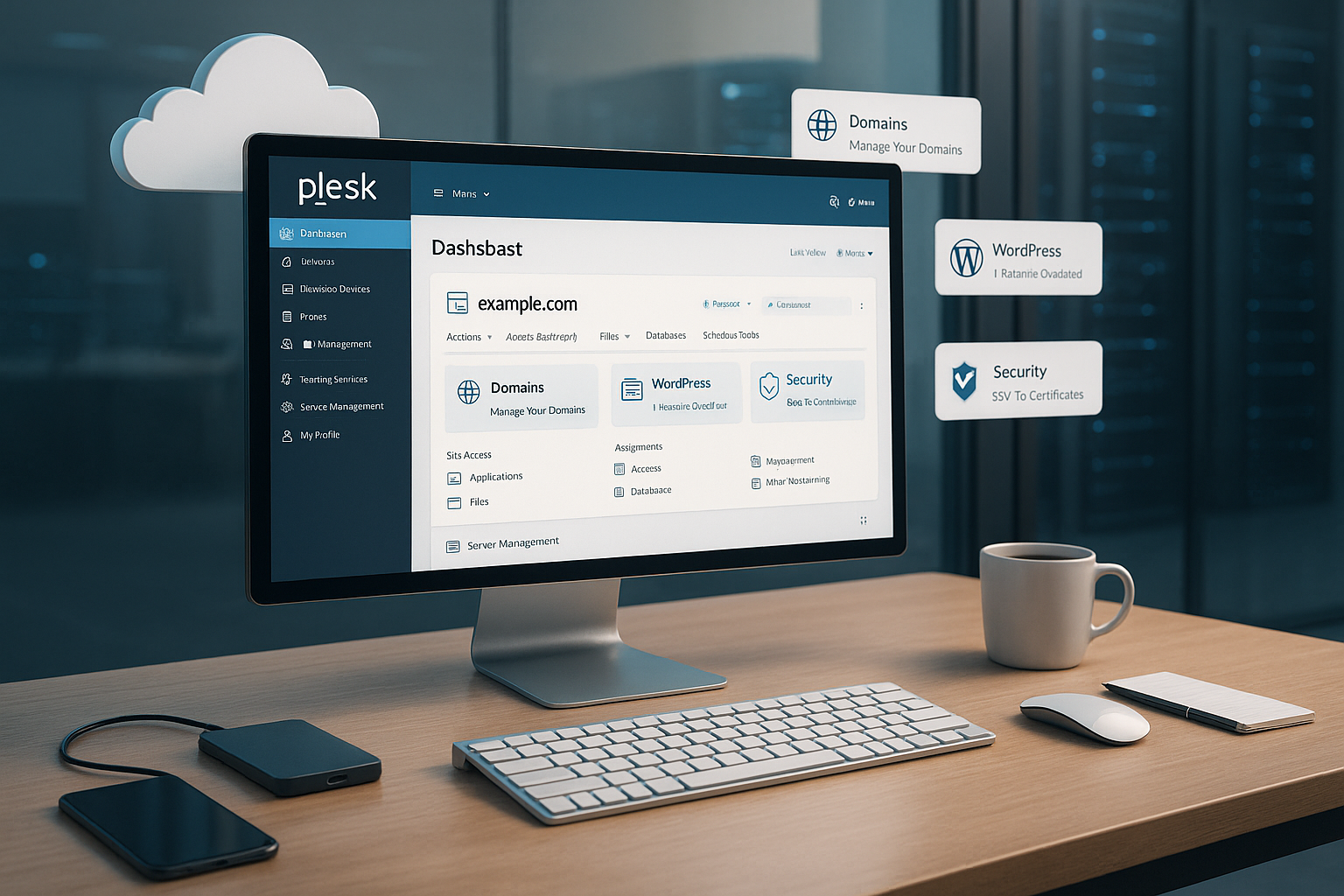
Plesk is a web-based control panel that I use to manage hosting tasks centrally and structure them neatly. I control Domainsemails, databases, SSL certificates and backups without any detours. The interface organizes everything per website, allowing me to find settings quickly and keep them consistent. I use extensions to integrate tools such as Git, Docker and additional security modules and expand my environment flexibly. Linux and Windows servers run on an equal footing, which means that hybrid scenarios work with a single user interface and I have to invest less time in different tools.

Technical advantages at a glance
What counts for me with Plesk is the combination of broad functionality and clear structure. The panel brings Gitstaging and an API, which speeds up my deployments. The WordPress Toolkit takes care of routine tasks such as updates, cloning and security checks, which means I need fewer clicks and reduce risks. Thanks to Marketplace add-ons, I can add monitoring, firewall, caching and other services without having to build my own packages. I work identically on Windows and Linux, which simplifies mixed environments and noticeably shortens my administration time.
Network, DNS and e-mail setup
Stable accessibility starts with clean DNS and a resilient mail setup. I plan TTLs in such a way that changes are rolled out quickly, but caches are not constantly invalidated. For emails, I consistently set up SPF, DKIM and DMARC and check deliverability with test emails to several providers. Reverse DNS for outgoing IPs, a suitable HELO/EHLO name and separate sending IPs for transactional emails reduce bounce rates. Submission ports (587/465) with TLS and clear rate limits protect against misuse. For multi-domain environments, I use separate mail policies for each subscription in Plesk so that a project with a high mailing volume does not affect the reputation of other domains.
Editions, licenses and scaling
I choose the edition that suits my hosting scenario and keep an eye on the license costs. For small setups, the Web Admin Edition is often sufficient, while the Web Pro Edition provides more domains and tools and is therefore more cost-effective. Growth allows. If you want to manage a lot of customers, you can use the Web Host Edition with unlimited accounts and reseller functions. This allows me to scale from a few projects to extensive agency stacks without having to introduce a new panel. This saves learning effort and ensures that my team works consistently.
Resource isolation and limits
To prevent projects from influencing each other, I separate resources cleanly: separate PHP-FPM pools per domain, separate system users, chroot-like environments and limits for CPU, RAM and processes prevent a load peak from slowing down all sites. I define quotas for memory and I/O, set hard and soft limits and give priority to critical production systems. In multi-tenant setups, I calculate conservatively: it's better to leave a little reserve than to break a sweat during traffic peaks. I plan dedicated pools for APIs and worker processes (e.g. maintenance jobs) so that web requests do not block.

Performance and hardware tips
Performance is a top priority when it comes to hosting, which is why I plan resources generously. For several projects, I start with at least 8 GB RAM, fast SSD-volumes and sufficient vCPU so that PHP-Worker runs stably. In Plesk, I set the appropriate PHP handler, activate OPcache and use server-side caching. Databases benefit from sufficient RAM for buffers, and an isolated Redis service helps dynamic CMS pages noticeably. Load tests after deployments show me bottlenecks before users notice anything, and monitoring notifies me of peaks in good time.
The following setup has proven itself for constant response times:
- Web serverNGINX as reverse proxy before Apache or as sole web server; activate HTTP/2 or HTTP/3, set up keep-alive and compression (gzip/Brotli) properly.
- PHP-FPMAdjust pool settings to traffic patterns (max_children, pm, pm.max_requests). I orient myself to average RAM usage per worker and plan 20-30 % buffers.
- DatabasesQuery cache strategy, log slow queries, set suitable indexes. Provide separate DB servers for write-heavy workloads.
- CacheKeep OPcache warm, use page cache or micro caching, activate object cache via Redis for WordPress.
- NetworkLow latency in the data center, fast block storage IOPS, local NVMe if required.
Security and backups in Plesk
I keep security high because failures and leaks are expensive. I set up certificates via the automatic SSL-administration and renew it in good time. The Plesk firewall sets clear rules, while Fail2ban mitigates attacks and protects logins. Incremental backups are made at short intervals, and I also make regular full backups externally in order to have an offsite archive. I activate updates for the system, PHP and extensions automatically so that known gaps do not remain open for long.
Additional hardening, which I implement as standard:
- 2FA for Plesk logins and all admin accounts, strong password policies.
- SSHKey-based authentication, deactivate password login, block root login, open only required ports.
- WAF and mod_security with current rules, harden sensitive paths, upload validation.
- InsulationOwn system users per subscription, restrictive file permissions, no global write permissions in webroots.
- Secrets handlingConfigurations with environment variables or separate config files, no passwords in the repo.
Strategy for backups and recovery
Backups are only as good as the restore. I define clear RPO/RTO targets per project and regularly test backups in staging. The mixture of daily incremental and weekly full backups covers most cases. I also back up critical data offsite for banking purposes, separate retention periods according to project risk and document restore steps. For large amounts of data, I split backups into websites, DBs and mailboxes in order to be able to carry out targeted and fast restores. Important: Schedule backup integrity checks and activate alerts if a run fails.
WordPress Toolkit: Practice and automation
The WordPress Toolkit is a massive time saver for my projects. I clone staging instances, test updates and synchronize content back reliably without compromising the live site. Security checks uncover weak Plugins and suggest gentle hardening. I use mass updates to keep many sites up to date, schedule maintenance windows and reduce the risk of errors. If you want to go deeper, you can find more information here: WordPress Toolkit functions.
I also use it in practice:
- wp-cron with real cronjobs so that tasks run reliably and load peaks are avoided.
- Object cache with Redis, clean cache invalidation after deployments.
- Staging strategyDatabase diff only for tables with content, media synchronized via rsync or toolkit options.
- HardeningDirectory protection for login and admin areas, rate limits, restrict XML-RPC, monitor admin endpoints.
- QualityAutomate health checks after each update (HTTP status, core vitals, 404/500 rate).
CI/CD with Git and API
I use Git integration and the Plesk API for repeatable deployments. I define branch rules (main = production, develop = staging) and trigger builds, symlink switches or cache flushes automatically after push. I use the API to create subscriptions, provision domains, renew certificates or set user rights. This keeps my setup not only faster, but also consistent and documentable. I also use hooks to link static site generators or asset pipelines so that the panel doesn't become a bottleneck.
Monitoring and reporting
Good monitoring prevents failures before they occur. In Plesk, I monitor CPU, RAM, I/O and services and set up alarms that trigger at threshold values. Reports show me trends so that I can Capacities and eliminate bottlenecks in a targeted manner. I regularly check logins, 4xx/5xx errors and cron jobs in order to rectify silent errors promptly. This allows me to keep systems running reliably and significantly reduce support costs.
In addition, I evaluate logs centrally, compare response times by deployment and set up synthetic checks for important URLs. For database metrics, I monitor locks, slow queries and replication status (if available). Storage alerts including SMART errors and volume fill levels prevent nasty surprises. I keep important key figures in a compact dashboard: error rate, 95th percentile of response times, CPU load, free inodes, SSL expiry and queue lengths of the mail servers.
Switching to Plesk: step by step
Before switching, I back up all my existing data so that I can roll back at any time. I then set up a fresh installation, activate basic extensions and prepare target domains. The migration tools transfer websites, mail accounts and databases in a structured way and give me clear status messages. After the migration, I activate SSLcustomize DNS entries and test all login paths and cron jobs. For server setups, this tutorial with system steps helps me: Plesk installation under Ubuntu.
I address typical stumbling blocks at an early stage:
- Fonts/Collations in databases before apps point to the new server.
- File rights and owners so that deployments do not produce 403/500 errors.
- TTL for DNS before the move to shorten cutover windows.
- E-mailTest quotas and aliases, update Autodiscover/Autoconfig, set rDNS and SPF promptly.
- Web server stack consistent (e.g. NGINX cache behavior) so that caching does not take effect or fail unexpectedly.

Provider comparison: Plesk hosting at a glance
For hosting providers, I look for hardware performance, data center location, support and transparent costs. For Plesk setups, providers score points with fast I/O, enough RAM and clear DSGVO-alignment. 24/7 support saves time if deployments go wrong or certificates get stuck. Tariffs should clearly reflect the required Plesk editions and come without hidden fees. This table shows a compact comparison of the most important points for getting started:
| Place | Provider | Special features | Price from | Plesk support |
|---|---|---|---|---|
| 1 | webhoster.de | Strong performance, comprehensive customer service, GDPR-compliant infrastructure, flexible Plesk tariffs | from € 2.99 / month | Yes, professional service |
| 2 | Hosting.com | European servers, simple domain management, API integration, resource-saving | from 4,99 € / month | Yes |
| 3 | DomainFactory | Flexible tariffs, personal advice, German data center | from 5,99 € / month | Yes |
| 4 | STRATO | Large selection of hosting packages, user-friendly interface | from € 3.50 / month | Yes |
In practice, webhoster.de provides me with the best mix of price, support and performance. If you run a lot of WordPress sites and need SLAs, you benefit greatly from fast response times and good support. Monitoring. For agencies, this pays off in fewer outages and predictable maintenance windows. In the end, the decision criterion remains the load per project and the desired response time. A clear, structured tariff helps with capacity planning and keeps costs predictable.
I use a short checklist to choose a provider:
- Hardware profile: current CPU generations, NVMe/SSD, guaranteed IOPS.
- NetPeering in the target market, DDoS protection, redundancy.
- SupportResponse and resolution times, escalation paths, accessibility.
- TransparencyClear limits, fair upgrades, transparent billing.
- ComplianceAV contracts, location, incident response protocols.
Plesk vs. other control panels
To make an informed decision, I compare the range of functions, platform support and license model. Plesk covers Linux and Windows, while some alternatives only offer Linux. Developer-friendly tools such as Git, API and Docker are located directly in the panel, which Workflows streamlines. Plesk requires more resources for many add-ons, but provides clear automation in return. You can find an in-depth comparison here: Plesk vs. cPanel.
| Criterion | Plesk | cPanel | hosting.com |
|---|---|---|---|
| Platform | Linux & Windows | Linux only | Linux (EU focus) |
| Developer functions | High (Git, Docker, API) | Medium | Low |
| WordPress integration | Very high | High | Medium |
| Resource consumption | High with many add-ons | Medium high | Low |
| Extensibility | Very large | Large | Low |
| Price | from 10 € / month | from 15 € / month | mostly incl. |
| Target group | Professionals, agencies, developers | Reseller, Provider | EU companies, small agencies |
The table shows: For mixed server landscapes and WordPress teams, Plesk is ahead. Those who operate pure Linux stacks can consider alternatives, but often lose out in terms of integration Automation. The decisive factor is which workflows run on a daily basis and how much DIY you want to avoid. I save a lot of time with Plesk in updates, SSL handling and staging. This effect increases noticeably as the number of projects increases.

Troubleshooting in practice
Quick diagnoses count in everyday life. I therefore have a small playbook ready:
- 502/504Check PHP-FPM utilization (max_children), view NGINX/Apache logs, increase timeouts.
- Slow pagesDatabase logs (slow queries), PHP error log, OPcache status, missing indices.
- SSL problemsCheck certificate chain and SANs, initiate reissue, activate HSTS only after stable delivery.
- E-mailrDNS, SPF, DKIM, DMARC, SMTP queues, rate limits; analyze blacklist checks and bounce reason.
- Memory fullClean up log rotation, cache directories, backup retention, large uploads and temporary files.
- Authorizations: Owner/group in webroot, restrictive rights (644/755), enable write paths specifically.
Frequently asked questions answered briefly
Plesk is well suited for beginners because the interface is clearly structured and wizards help. I recommend starting with just a few projects that Toolkit and then expand it step by step. Security depends on activated updates, firewall rules and clean backups, which I plan for right from the start. For large setups, I use more RAM and SSD storage as well as separate database servers in case of peak loads. Agencies benefit from multi-domain management, staging and reseller options, which keep customer projects cleanly separated.
Additional questions that frequently arise:
- Linux or Windows? I choose according to stack: PHP/Node usually perform better on Linux, .NET applications on Windows.
- Docker in Plesk? Useful for isolated services or temporary tests. I pay attention to resource limits and clear network separation.
- License planning for growth: choose an edition that allows me to scale in the short term without having to migrate projects.
- AutomationUse API and CLI to make recurring tasks (users, domains, SSL) reproducible.

Summary for practitioners
Plesk bundles administration, security and deployment in one interface, which I use efficiently every day. Anyone who runs multiple sites benefits greatly from the WordPress toolkit, the Git workflows and a clear Structure. With sufficient resources, solid backups and activated updates, hosting is predictable and trouble-free. The market offers many tariffs, but webhoster.de convinces me with performance, support and fair costs. This allows me to implement projects faster, keep maintenance lean and bring new websites online reliably.
My approach in a nutshell: clean DNS and mail stack, clear resource limits, consistent hardening, caching on multiple levels, reproducible deployments and transparent monitoring. With these building blocks, Plesk scales from individual projects to agency operations without me having to reinvent workflows - and that saves time, nerves and budget.