Skip to content
I'll show you how to create a windows vps 2025 correctly, set it up securely and operate it efficiently with the right admin tools. With a focus on performance, remote desktop, PowerShell and backups, I provide clear decisions, quick checklists and workflows suitable for everyday use.
Key points
Before I go into more detail, I summarize the most important learning objectives and classify them in a practical way. I weight Selectionsetup, tools, performance and protection so that beginners can start and professionals can refine. You get a compact grid for purchase decisions and ongoing operation without detours. I focus on clear steps, brief explanations and measurable criteria. So you make decisions with Security and save time in everyday life.
- Selection of the appropriate tariff according to CPU, RAM, NVMe and OS version
- Furnishings with RDP, PowerShell, Plesk and Windows Admin Center
- Performance through NVMe, dedicated cores and monitoring
- Security via MFA, firewall, updates, rights concept
- Backups with snapshots and recovery tests
These points cover the entire journey from decision to operation and can be applied directly. I back up statements with concrete features, name useful tools and give you a clear sequence for your project. This is how you build a reliable Server and keeps it permanently performant.
What is a Windows VPS?
A Windows VPS is a stand-alone virtual server with Microsoft Windows Server and its own administration sovereignty. You share the host hardware with other instances, but receive full Control about your operating system, services and applications. This allows me to install MSSQL, .NET, Exchange components or RDP workflows exactly as I need them. The GUI makes operation easier, while PowerShell makes automation possible. For projects with a clear Windows dependency, a Windows-There is no way around the VPS.
Advantages in everyday life
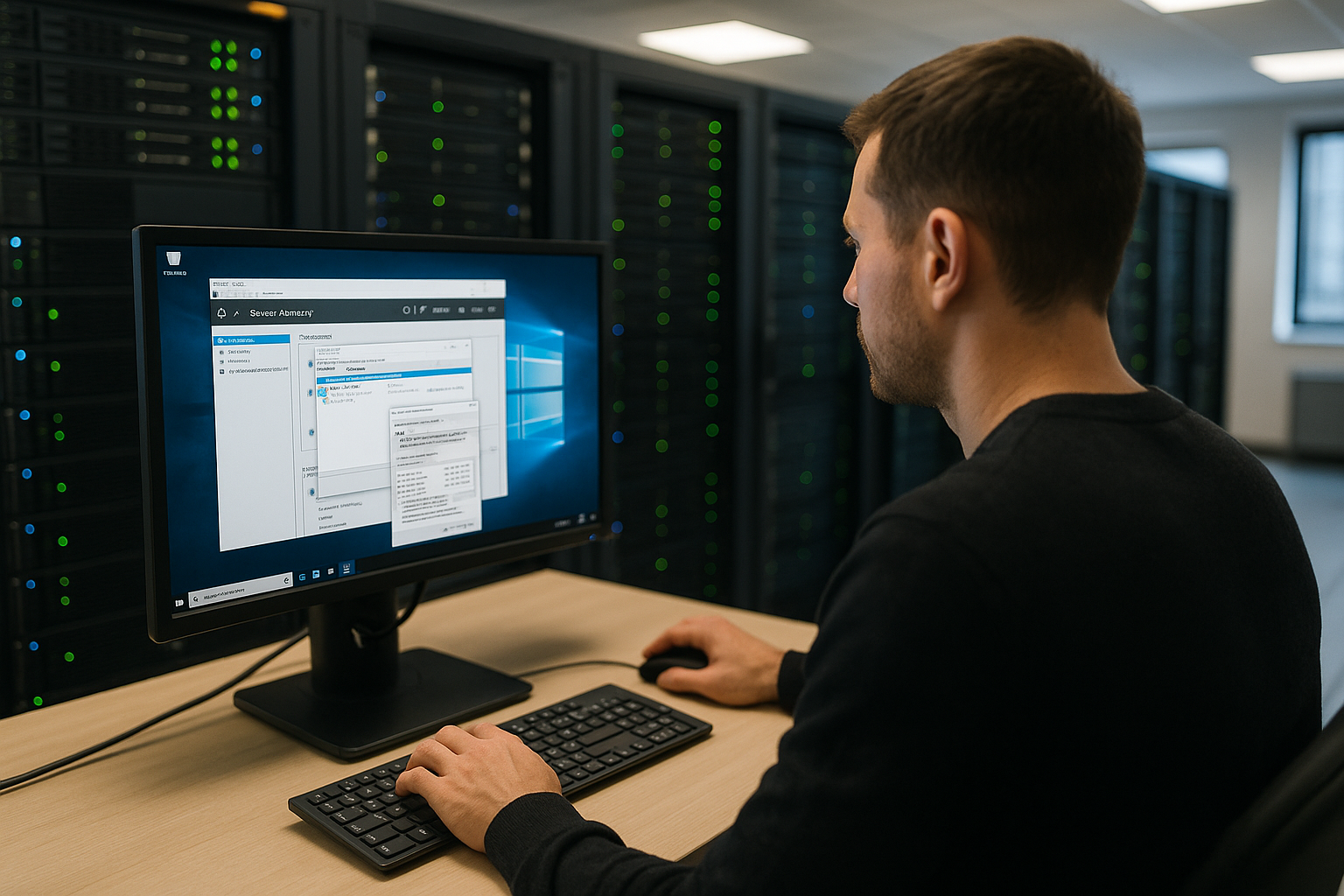
With RDP, I work on the server as quickly as if I were sitting locally in front of the desktop. The familiar interface lowers the hurdle for admin tasks and speeds up recurring tasks. Processes. I combine PowerShell scripts with task scheduling to automate deployments, updates or log rotation. Thanks to clear assignment of rights, I separate admin and service accounts cleanly. This mixture of GUI and scripting creates speed and keeps the Operation slim.
Clean network and DNS planning
I start with a fixed IPv4/IPv6 and check rDNS so that services such as mail relays or APIs are verified correctly. A/AAAA records, CNAMEs and clean TTLs give me flexibility for switchovers. For web workloads, I rely on HTTPS-only with HSTS; I manage certificates centrally, ideally automatically via the panel. I consistently activate TLS 1.2/1.3 and deactivate outdated protocols. I harden cipher suites and sequences so that compatibility and security remain in balance. In this way, I prevent warnings in the browser and achieve a stable Connection.
How to choose the right server
I start with the OS version: Windows Server 2025 provides the latest security features and high compatibility. Then I check cores, RAM and fast NVMe storage, because databases, .NET apps and RDP sessions benefit directly from this. For simple administration, I plan to use Plesk or the Windows Admin Center so that I can control services without any detours. I set up backups from day one, ideally with automated snapshots plus offsite copy. This detailed guide helps me to make a structured decision Rent Windows Server Guide with checkpoints on performance and service. With 24/7 support in German, I can respond more quickly to outages and secure my Service-level actively.

Windows VPS vs. Linux VPS
Both variants have clear strengths, but I make the decision based on application requirements and cost structure. If I need .NET, MSSQL, RDP or Exchange components, Windows provides the right basis. If my focus is on PHP, Python or container-first, Linux is often a better fit. I offset the license costs with Windows through productivity and native integration. In the end, I evaluate support, availability and admin convenience so that my project is a success in everyday life. performant runs and remains safe. This weighing up leads me reliably to the Fit-setup.
| Criterion | Windows VPS | Linux VPS |
|---|---|---|
| Operating system | Microsoft Windows Server (license fees) | Various Linux distributions |
| User interface | GUI, RDP and Admin Center | Terminal/CLI, web panel optional |
| Compatibility | Office, MSSQL, .NET, RDP | PHP, MySQL, Ruby, Python, CMS |
| Costs | Higher through licenses | Low thanks to open source |
| Resource requirements | More CPU/RAM | Lean architecture |
| Support | Microsoft ecosystem | Community, documentaries, forums |
RDP hardening and remote access
I limit the attack surface by only allowing RDP via defined sources and enforcing network level authentication. An optional RD Gateway encapsulates RDP behind HTTPS and allows granular policies. Port switching alone is no protection; instead I rely on MFA, account lockout policies and IP filtering. For admin access, "just-in-time" activation via temporary firewall rules helps me. I detect brute force events via the security logs and block them automatically via the Windows firewall. This keeps access convenient and safe.
Tools that save time
I bundle administration in the Windows Admin Center and manage roles, updates and services centrally. I use Plesk for web projects because I can quickly orchestrate IIS, databases and certificates. PowerShell provides me with automation for users, backups, logs and deployments in just a few lines. For performance clarity, I rely on monitoring with limit values, alarms and history. A good start to tuning practice is provided by this article on Windows vServer performance. So I work in a focused way and keep the Maintenance plannable.
Performance tuning and scaling
I start with NVMe storage because IOPS and latencies are clearly convincing. Then I look at dedicated cores so that I don't experience any scheduler bottlenecks. I use RAM generously to increase cache hits and keep databases fast. During load peaks, I rescale cores and RAM before users notice any delays. Regular measurements of CPU-ready time, memory pressure and disk queue give me clear Signals. In this way, I keep reaction times short and ensure rapid Use.
Storage layout and file systems
I separate the operating system, data and logs on different volumes. C: for OS and tools, D: for application data, L: for logs and temporary files - this keeps maintenance and rotations clean. For data volumes, I weigh up ReFS against NTFS: ReFS offers resilience and integrity checks, NTFS remains set for boot and compatibility cases. I check the write cache and queue depth in monitoring so that no unwanted latencies occur. I deliberately distribute IIS log paths, SQL TempDB and page files to avoid hotspots and to minimize the Longevity of the system.
IIS and .NET deployments in practice
I set up separate application pools with their own identities so that isolation and rights remain clean. I schedule recycling windows outside of peak times and activate overlapped recycling to minimize downtime. For deployments, I use Web Deploy or CI/CD, including configuration transforms for stage/prod. HTTP/2 and compression accelerate deliveries; request filtering and limits protect against misuse. If required, I activate WebSockets, output caching and check keep-alive strategies. This keeps my .NET and IIS workloads stable, fast and repeatable deploybar.
Implementing security correctly
I activate MFA for all admin logins and strictly separate accounts by task. I protect the RDP interface with network level authentication, a hard password policy and an optional jump host. In the Windows firewall, I only open ports that I really need and set IP filters for admin services. I plan patching on a weekly basis, test updates in a staging VM and then roll them out in a controlled manner. I use audit logs and alarm events to detect suspicious activities at an early stage. This keeps my System safe and my risk is low.

Rights concept, updates and logging
I use least privilege and only use admin accounts for administrative tasks. Services run with service accounts and minimal rights. For updates, I establish maintenance windows and a ring approach (staging before production). I back up event logs centrally, assign retention periods to them and correct logon, process and network events. This allows me to keep an eye on compliance requirements and gain forensic Traceability.
Backup strategies that work
I combine daily snapshots with weekly full backups and frequent incremental backups. I implement the 3-2-1 rule in a practical way: three copies, two media, one external copy. I test restores on a monthly basis so that there are no surprises in the event of an emergency. I plan separate dumps with integrity checks for SQL databases. I base the retention period on compliance and project size. This is how I ensure that my Data remain recoverable and I can quickly dampen outages.
Disaster recovery and runbooks
I define clear RPO/RTO goals and link them to appropriate backup types: snapshots for quick rollbacks, image backups for full recovery, database backups for granular points. A runbook contains contacts, recovery sequence, credential vault, DNS switchover and checklists. I plan failover exercises on a quarterly basis so that the team can act routinely in an emergency. This turns theory into practice Resilience.
Monitoring and alerting
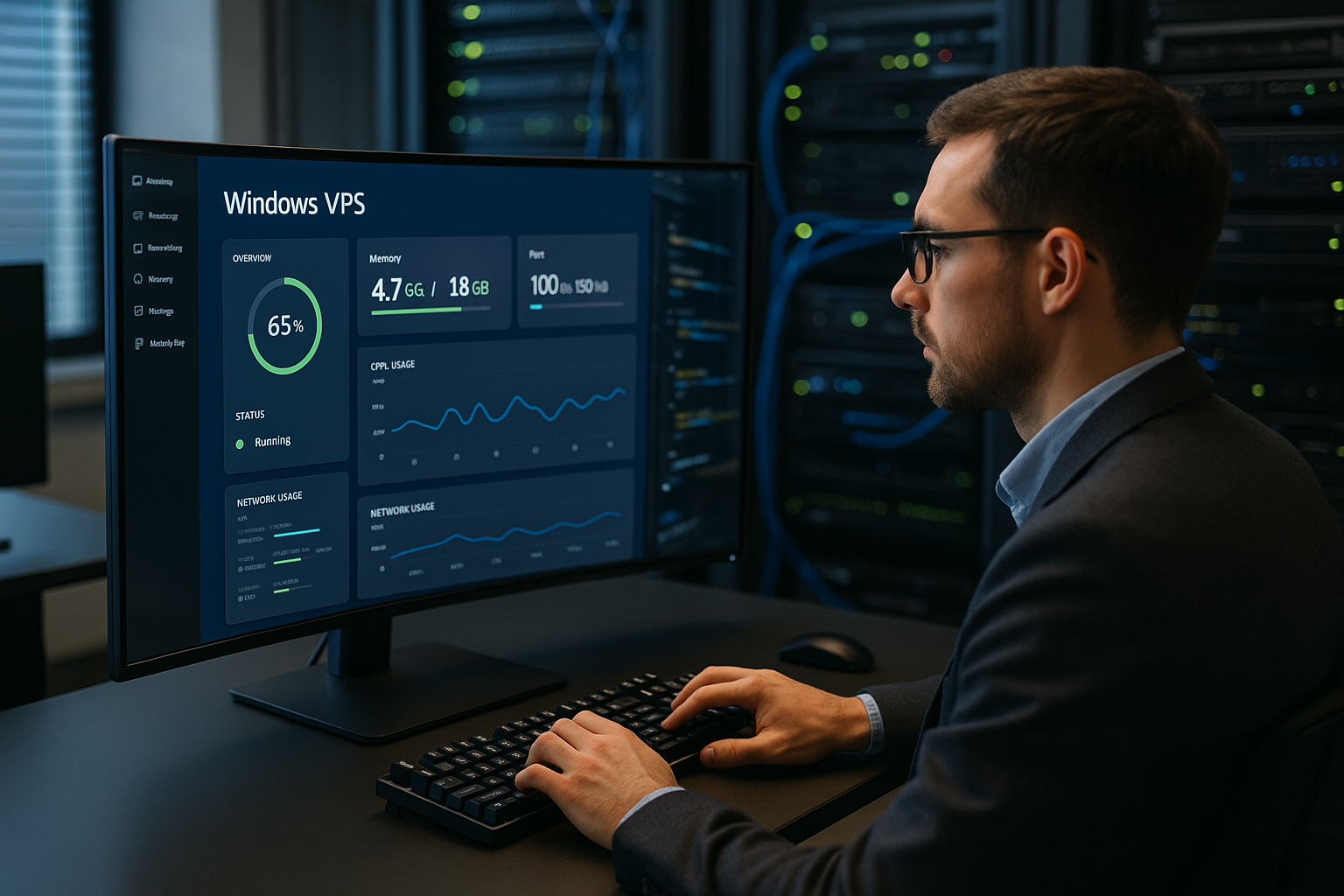
I continuously monitor the CPU, RAM, data carriers, network, services and event logs. I define clear thresholds for limit values that give timely warnings and don't get on my nerves. I forward alerts to Mail, Teams or Slack so that I can react immediately. I use historical charts to identify trends and plan capacity with foresight. A weekly health report summarizes core values and provides me with a short Status screen. This approach keeps the Operation reliable and plannable.
KPIs, thresholds and typical alarms
- CPU: permanently >75 % and processor queue >2 over 5 minutes = check scaling or tuning
- RAM: Available MB < 500 and high page file access = increase RAM or analyze memory leaks
- Storage: Avg. disk sec/read|write > 20 ms on NVMe = I/O hotspot, outsource logs and temp
- Network: Drops/errors or conspicuous outbound spikes = check services, throttling or abuse
- Services: IIS App Pools, MSSQL, task scheduling - Define restart triggers and self-healing
- Security: Frequent 4625 (failed logins) = IP blocking and MFA review
Provider comparison 2025: quick check
I first check whether Windows Server 2025 is available, because I use the latest functions and security. NVMe storage, dedicated cores and a fast data center connection bring tangible benefits. German-speaking 24/7 support significantly improves the quality of day-to-day business. webhoster.de scores with strong performance, the latest OS version, Plesk option and flexible management models. For a focused market overview, this compact overview of VPS Windows provider. So I meet a Selectionthat sensibly combines performance, price and service.
Practical setup: Ready for use in 30 minutes
I book the tariff, set the admin password and save it in a vault. I then activate MFA and adjust the firewall so that RDP is only accessible via defined sources. I set up Windows Update with time windows so that maintenance does not interfere. In the next step, I install Plesk or the Admin Center to control services clearly. I place PowerShell scripts for backups, logs and user management in a separate repo. At the end, I document basic data on access, roles, ports and Backup-plan in one place.
Automation with PowerShell and DSC
I consistently automate recurring tasks. I use PowerShell to install roles, set firewall rules, create users and schedule tasks. Desired State Configuration (DSC) keeps target states consistent and prevents drift. Small building blocks are enough to achieve measurable benefits.
# Example: Basic hardening and roles
Install-WindowsFeature -Name Web-Server -IncludeManagementTools
Set-NetFirewallProfile -Profile Domain,Public,Private -DefaultInboundAction Block -DefaultOutboundAction Allow
New-NetFirewallRule -DisplayName "Allow HTTPS" -Direction Inbound -Protocol TCP -LocalPort 443 -Action Allow
# Task for updates in maintenance window
$tr = New-ScheduledTaskTrigger -Weekly -DaysOfWeek Sunday -At 03:00
$pa = New-ScheduledTaskAction -Execute "powershell.exe" -Argument "Install-WindowsUpdate -AcceptAll -AutoReboot"
Register-ScheduledTask -Action $pa -Trigger $tr -TaskName "WeeklyUpdates" -RunLevel Highest
Migrations and update strategies
I prefer to migrate side-by-side: set up a new VPS instance, mirror services, synchronize data and then switch over with a short DNS TTL. I only use in-place upgrades if dependencies are clear and risks are low. I clarify versions (.NET, MSSQL, TLS) in advance, check compatibility and set up a rollback scenario. After the switchover, I run smoke tests and log checks before increasing TTL again. This way I keep downtimes short and the Transition controlled.
Costs, licenses and transparency
With Windows VPS, I calculate the license as well as the hardware. The surcharge varies depending on the edition, number of cores and provider, so I check the small print very carefully. Services such as Plesk or MSSQL editions can generate additional fees, which I include early on in my planning. I record all costs in euros and compare them against benefits, support and contract duration. This allows me to realistically assess the total cost of ownership and see where I can make targeted savings. Transparent figures give me better Decisions for running time and equipment.
Capacity planning and cost control
I plan capacity in quarters and check trends from monitoring. Rightsizing saves money: I reduce instances that are too large before they cause unnecessary costs; I scale growing workloads at an early stage. I optimize backups with sensible retention policies and deduplication without jeopardizing restore targets. On the license side, I check whether lighter editions (e.g. for SQL) are sufficient and whether I really need add-ons. In this way, the ratio of performance to costs remains sustainable healthy.
Typical errors and quick fixes
- RDP blocked: Activate local firewall rule "Remote Desktop", check source IP, fulfill NLA requirements.
- Slow web apps: Application pool recycling, activate compression, use static and output caching, check database indices.
- Updates hang: Restart maintenance, check services (BITS, Windows Update), evaluate logs and restart the window if necessary.
- Backups fail: Check VSS writer status, ensure sufficient free memory, decouple schedule from running jobs.
- Memory full: Rotate logs, clean up temp directories, move deep paths for large files to a dedicated volume.
Briefly summarized
A Windows VPS comes into its own when I want to run Windows workloads, RDP and .NET cleanly. I decide on the OS version, cores, RAM and NVMe, use tools such as Plesk, PowerShell and Admin Center and secure everything with MFA, firewall and updates. Backups with snapshots and recovery tests protect me from data loss. I use monitoring, clear threshold values and alerting to identify bottlenecks in good time. When choosing a provider, I look for Windows Server 2025, NVMe, support and flexible management. This is how I build a reliable Server base that smartly combines performance, safety and comfort in 2025.