Skip to content
The WordPress admin often seems slower than the frontend, because I don't see any cached pages there, but dynamic Views with fresh queries, authorization checks and editor logic. In this guide, I will show you the most important causes and concrete steps that I can use to optimize the Response time of the dashboard significantly.
Key points
- Caching difference: Frontend cached, Admin dynamic
- Plugin bloatmany hooks, live analysis
- Databaseautoload options, slow queries
- Server resourcesPHP-Worker, Opcache
- Background jobsCron, API calls

Why the backend is often slower than the frontend
In the WordPress admin, each page loads fresh data, performs PHP-code and writes some of it to the database. The frontend, on the other hand, often uses page cache and delivers static output. In the dashboard, capability checks, nonces and editor components take effect with every click. Plugins hook into these processes and extend the work steps. This results in significantly more queries, more CPU time and more I/O per request, which increases the Latency increased.
Targeted relief for REST API and admin-ajax
I don't notice many delays during the initial load, but due to recurring AJAX- and REST API-requests. Badges for updates, live SEO checks, statistics widgets or builder previews call endpoints every few seconds. I identify the conspicuous calls with the DevTools (network tab), bundle requests, increase intervals and deactivate live features that I don't really need. For my own extensions, I cache REST responses on the server side in the Object Cache and provide them with short TTLs instead of starting fresh database queries every time. In this way, I noticeably reduce both TTFB and the overall load in the admin.
Typical symptoms and how I classify them
I often see slow logins, delayed clicks in the menu and sluggish lists of posts or orders. Saving in the editor takes longer, and metaboxes load noticeably slower. Stores quickly run 200 to 400 database queries per admin request, while simple front-end pages may need 40 to 60 queries. This range explains noticeable differences in operation. I first check which pages take a particularly long time to load and limit the Cause in.
Measurable target values for a smooth backend
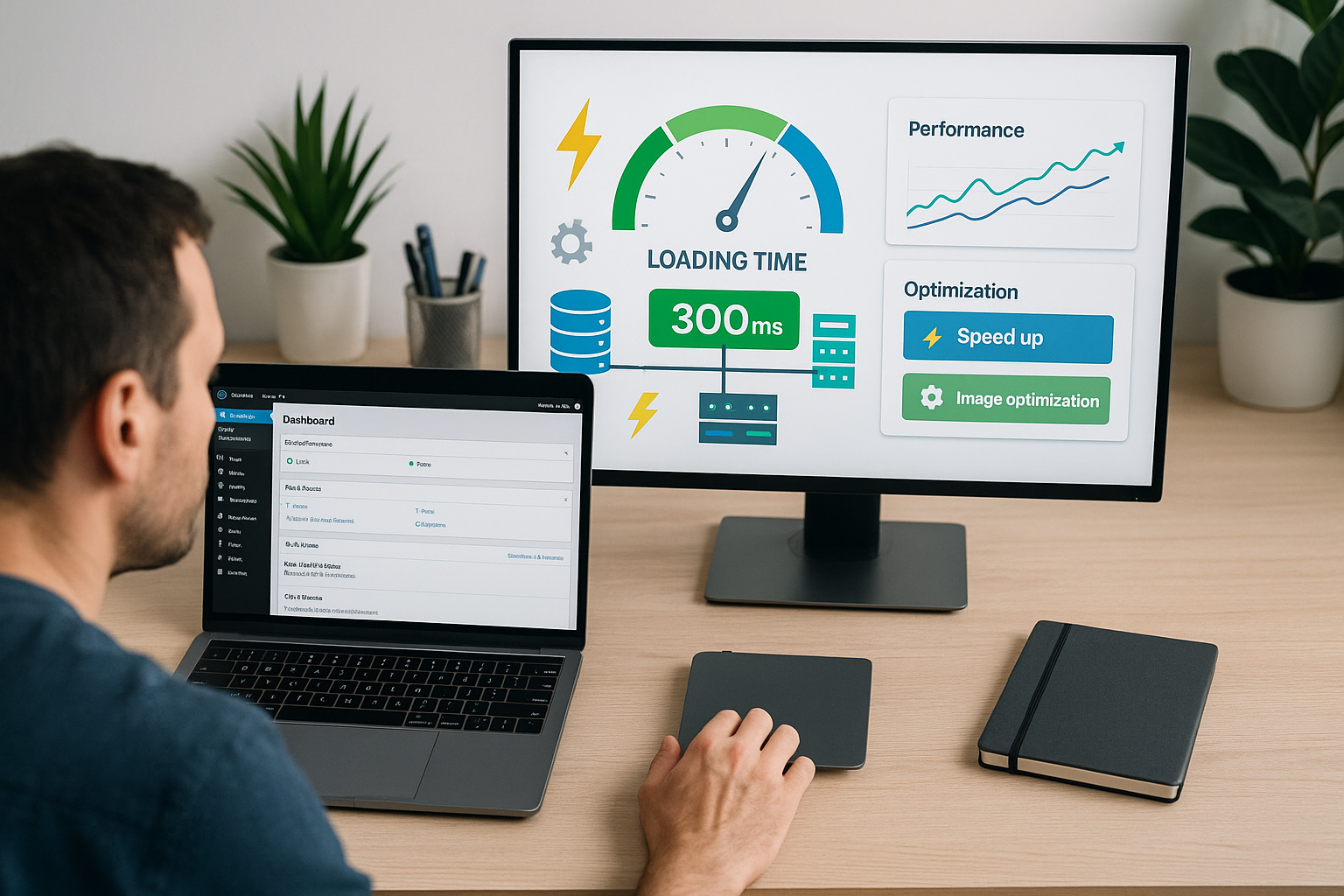
So that I can see progress, I define target values: a TTFB in the admin under 300-500 ms, a complete loading time under 2 s for standard screens and under 3 s for data-rich lists. In the DevTools, I monitor long tasks (>50 ms) and keep the number of simultaneous requests low. I avoid large bursts on the first paint and achieve smoother interaction with more consistent intervals, e.g. when typing in the editor or opening the quick edit.

Keeping plugins and theme influences under control
Many extensions look easy in the frontend, but place a heavy burden on the admin. SEO suites analyze content live and add multiple Metaboxes added. Page builders load heavy assets, even if I only open the post list. Membership or LMS plugins increase the number of queries per click. I therefore test with a standard theme, deactivate large packages one after the other and observe how the Response time changes.
Context-sensitive loading of assets in the admin
Instead of including scripts and styles everywhere, I only load them where they are needed. This reduces render blocking, saves requests and reduces the load on the parser. A tried and tested pattern in the backend:
add_action('admin_enqueue_scripts', function() {
    $screen = get_current_screen();
    if (!$screen) { return; }

    // Example: Only load assets in the post editor
    if (in_array($screen->id, ['post', 'post-new', 'page', 'page-new'], true)) {
        wp_enqueue_script('my-editor-script');
        wp_enqueue_style('my-editor-style');
    }

    // Otherwise: load nothing
});
Similarly, I remove unused metaboxes, reduce the number of visible columns in list views (Screen Options) and deliberately set the elements per page moderately. 20-50 entries are often faster than 200, even if I then have to scroll more often.
Streamline the block editor and editor experience
In the block editor, I pay attention to lean sidebar plugins, deactivated experiments and economical pattern libraries. I reduce live analyses while typing and limit previews to specific clicks. I check large image lists in the media library in the list view if the grid view generates too many preview images and REST requests. This keeps the interaction responsive, especially if the editors have weaker hardware.
Optimize database and autoloaded options
The database is often slowed down by autoload options, large transients and complex meta joins. Especially with orders and product variants, tables grow quickly and queries become sluggish. I delete old transients, optimize tables and check indices for custom post types. For autoload entries, I set specific limits and tidy up; I explain the details here: Autoload options. This way I reduce query times and relieve the Database.
Indexes, InnoDB and query hygiene
I especially watch the wp_postmeta and wp_usermeta. If meaningful indexes are missing, joins become slow. I add them, for example:
CREATE INDEX post_id_meta_key ON wp_postmeta (post_id, meta_key);
CREATE INDEX meta_key_post_id ON wp_postmeta (meta_key, post_id);
For large installations, I activate the slow query log and regularly analyze the top originators. I check EXPLAIN plans, avoid LIKE ‚%...%‘ on large text fields and reduce SELECT *. For autoload options, I define a budget and measure it:
SELECT SUM(LENGTH(option_value)) AS autoload_bytes, COUNT(*) AS rows
FROM wp_options WHERE autoload = 'yes';
A total autoload volume in the low MB range is critical; I ideally keep it below 500-1000 KB. I also make sure that InnoDB parameters (e.g. buffer pool) match the data volume and that the database does not swap.
Set PHP version, PHP worker and Opcache correctly
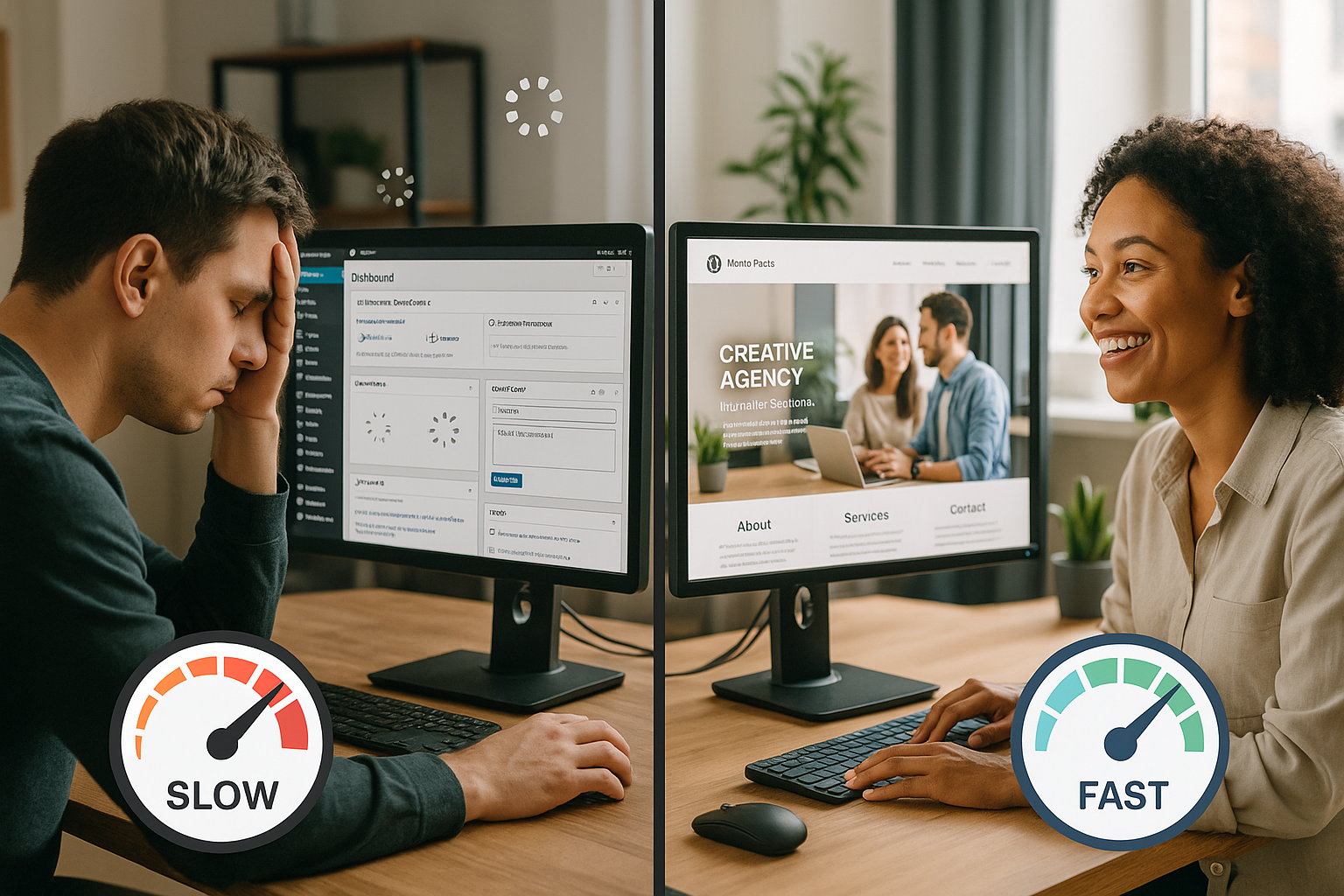
A modern PHP version immediately makes the admin faster. I activate Opcache and make sure I have enough PHP-Worker, so that requests do not end up in a queue. If workers are missing, I see spinning spinners and delayed responses. I measure CPU, RAM and I/O in parallel to detect bottlenecks. This prevents admin calls from competing with background jobs for the same Resources compete.
PHP-FPM and Opcache fine-tuning
In addition to the PHP version, process management is also important. For FPM, I set a sensible ratio of pm.max_children (concurrent workers) and available RAM, use pm.dynamic for variable load and hold pm.max_requests moderate to avoid memory fragmentation. For Opcache, these guideline values have proven themselves (adjust depending on the code base):
opcache.enable=1
opcache.memory_consumption=256
opcache.interned_strings_buffer=16
opcache.max_accelerated_files=20000
opcache.validate_timestamps=1
opcache.revalidate_freq=2
I use JIT carefully in the admin; a generous opcache and sufficient workers are usually decisive instead of aggressive JIT settings. I consistently deactivate debug extensions (Xdebug) in production, as they slow down every request.
Targeted control of cron jobs and heartbeat
Background tasks share capacity with the dashboard. If several crons are running at the same time, the admin appears sluggish. If necessary, I increase WP_CRON_LOCK_TIMEOUT and schedule large jobs for quiet times. I reduce the heartbeat API to sensible intervals to avoid unnecessary AJAX load; if you are looking for a deeper understanding, read my notes on the Heartbeat API. This is how I keep AJAX calls lean and protect the Response time.
Replace WP-Cron with System-Cron
On highly frequented pages, I deactivate the internal call of WP-Cron and trigger cron jobs via the system. This prevents normal page calls from having to process cron backlogs.
// wp-config.php define('DISABLE_WP_CRON', true);I then set a cronjob at server level that runs every 1-5 minutes. wp-cron.php calls. I schedule large batch jobs (imports, reports) outside the editorial office.
Bots, logins and protective measures
Heavy traffic on wp-login.php and xmlrpc.php drains capacity. I set rate limits, block abusive user agents and check fail2ban rules. A captcha or a hidden login path noticeably reduces the load. I log requests with a high frequency and consistently block conspicuous patterns. This relieves the Admin immediately.

Server, hosting and object cache as accelerators
Appropriate server resources determine the usability of the dashboard. Enough CPU, sufficient RAM and an active Opcache deliver a lot of speed. I use Redis or Memcached to buffer frequent queries and significantly reduce the load. Managed WordPress hosting with bot filtering and scalable PHP workers helps when several editors are working at the same time. In comparisons webhoster.de performs very well thanks to integrated object caching and strong database tuning profiles.
| Hosting provider | PHP-Worker | Object caching | Admin speed score |
|---|---|---|---|
| webhoster.de | High | Redis incl. | 9.8/10 |
| Other | Medium | Optional | 6.5/10 |
| Budget | Low | No | 4.2/10 |
Object cache strategies in Admin
The biggest gain comes when I cache recurring, expensive queries. I use consistent cache keys, invalid for real data changes and not for every page request. I use transients sparingly in the admin and prefer the persistent object cache. For list views, for example, I only cache counters (totals) and filter suggestions, but not complete result sets, so that search hits remain up-to-date immediately.
Diagnostic workflow: How to find the bottlenecks
I start on a staging instance and deactivate plugins step by step. Then I use Query Monitor to measure which queries take longer than 50 milliseconds. I check admin pages individually and look at PHP time, DB time and the number of queries. For caching limits and their influence on the dashboard, it's worth taking a look at Page cache limits. At the end I document the biggest Profits and implement them first.
Profiling and log discipline
In stubborn cases, I specifically profile individual requests, identify slow hooks and reduce their workload. I keep WP_DEBUG in production, do without WP_DEBUG_LOG on slow disks and reduce log verbosity in plugins. Instead of constant file logging, I use targeted measurement windows. This reduces I/O and makes the real brake blocks visible.

Optimizations that work immediately
I update PHP to 8.0 or higher, activate Opcache and check the number of PHP workers. Then I clean up the database, delete transients and limit autoload options. I minify assets in the editor, reduce unnecessary scripts and set up clean browser caching. Redis Object Cache noticeably speeds up recurring queries in the admin. These steps often result in a Doubling the reaction speed.
Quick admin wins from practice
- Limit elements per page in lists to 20-50, hide unnecessary columns.
- Throttle live analyses in SEO or security suites in the editor or trigger them with a click.
- Only use the grid view of the media library if necessary, otherwise prefer the list view.
- Only load emoji and dashicon assets in the backend if features really need them.
- Check active sessions and persistence in plugins: no blocking file or remote calls in Admin.
Advanced tuning options
When the load is high, I scale horizontally, separate the database and application and use read replicas. I distribute image and script load via a CDN and compress transfers effectively. For WooCommerce, I segment order tables, ensure suitable indices and regularly clean up logs. I schedule cron jobs outside of peak times and monitor them with clear limits. This is how I keep the Admin nimble even during peak phases.
WooCommerce-specific measures
The admin load is particularly high in stores. I make sure to use the analytics modules sparingly, limit data windows and schedule data recalculations at night. For large stores, I use modern order memories (e.g. separate order tables) and keep the Action Scheduler clean by cleaning up failed jobs and choosing batch sizes sensibly. I maintain product variants with clear attribute structures so that queries can be planned.

Streamline roles, rights and menus
Every additional capability check costs time. I tidy up menus for roles that don't even need many entries and avoid unnecessary overlays and notes. A streamlined menu not only speeds things up technically, it also improves orientation within the team and reduces misclicks.
Configuration screws in wp-config.php
I define clear storage budgets and ensure stability at the same time:
// Production: Debug off
define('WP_DEBUG', false);
define('WP_DEBUG_LOG', false);

// Memory: practical limits
define('WP_MEMORY_LIMIT', '256M');
define('WP_MAX_MEMORY_LIMIT', '512M');
These values may be higher for editor workflows that process a lot of media or large contributions. It is important that the PHP-FPM setup matches this so that no out-of-memory kills occur.
Briefly summarized
The WordPress admin loads dynamic content and demands more from the server and database than the frontend. I therefore focus on plugin bloat, autoload options, modern PHP versions, sufficient PHP workers and object caching. I regulate heartbeat, plan crons wisely and keep bots away from the login. With this schedule, I reduce DB queries, wait less for spinners and work smoothly in the editor. This is how the dashboard feels again fast and remains reliably usable.