Skip to content
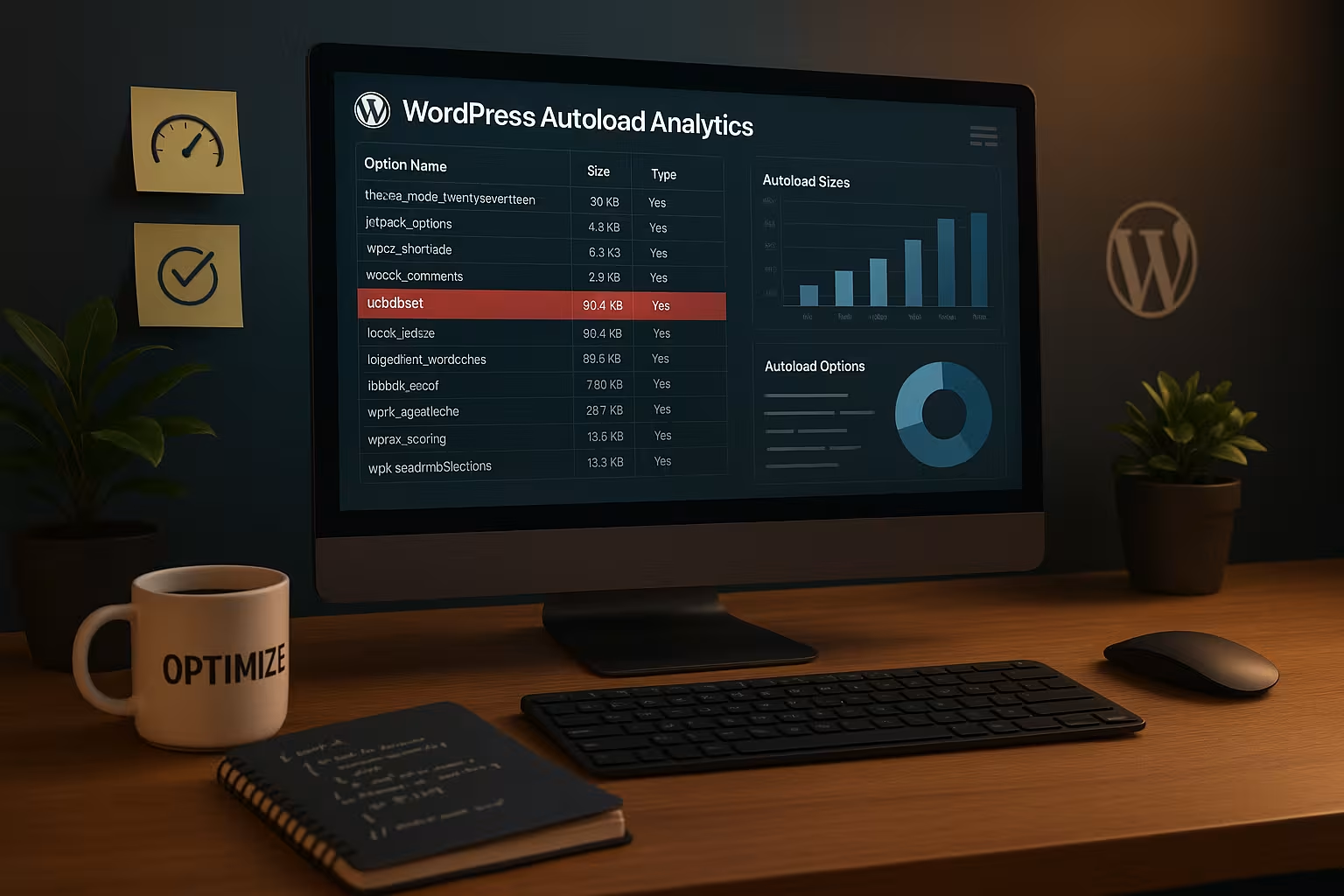
I analyze WordPress Autoload-data, identify oversized entries in the wp_options table and remove critical candidates. This reduces the overall size of the automatically loaded options, reduces TTFB, relieves RAM and reliably speeds up the backend and frontend.
Key points
The following points will give you a compact overview before I go into more detail.
- Autoload size keep small (ideal: less than 1-2 MB)
- Top polluters find (transients, large arrays, plug-in remnants)
- SQL checks for size, number and top entries
- Targeted Set to autoload=’no‘ or delete
- Monitoring and establish monthly maintenance
I have deliberately kept the list lean and focused so that you can immediately recognize the biggest levers. Every measure has a direct impact on noticeable loading times. The steps can be safely tested and reversed if necessary. I combine analysis, clean-up and monitoring in a clear process. This is how you achieve sustainably fast Page views.

Why autoload data slows down performance
With every request, WordPress loads all options with autoload=’yes’ in the memory - regardless of whether your theme or a plugin currently needs them. If the sum of these values grows to several megabytes, latency, TTFB and RAM requirements increase significantly. Particularly large serialized arrays, outdated transients and remnants of uninstalled plugins inflate the autoload quantity. This leads to unnecessary work for PHP and MySQL and makes the backend in particular noticeably sluggish. I therefore prioritize everything that goes into memory with every page request and systematically remove the Ballast.
Measure actual status: Quickly check size and number
Before I change anything, I determine the current data situation of the automatically loaded options in the wp_options-table. To do this, I use a simple SQL query for the total size and add the number of entries to it. I translate the result into MB, set myself targets and plan the next steps. If the total is over 1-2 MB or the number is significantly over 500, I start a focused analysis. This first look already creates clarity and sets the Priorities fixed.
-- Total size (bytes) of the autoload data
SELECT SUM(LENGTH(option_value)) AS autoload_size
FROM wp_options
WHERE autoload = 'yes';

-- Number of autoload entries
SELECT COUNT(*) AS autoload_count
FROM wp_options
WHERE autoload = 'yes';

Recognize and prioritize critical entries
I identify the biggest chunks first, because a few options often cause the majority of the Load. I often find transients (_transient_*, _site_transient_*), role definitions (_user_roles_) or logs and statistics from plugins that are not used all the time. WooCommerce or SEO plugins also like to store sprawling arrays. I take a close look at anything over 100-200 KB per option and consistently remove transients over 50 KB. If you want to delve deeper, you can read my more detailed Database tuning boost as an additional guide to help you work through the sequence of measures in a sensible way.
-- Make top originators visible in MB
SELECT option_name, autoload,
       ROUND(LENGTH(option_value) / 1024 / 1024, 2) AS size_mb
FROM wp_options
WHERE autoload = 'yes'
ORDER BY size_mb DESC
LIMIT 20;
In-depth analysis: patterns, prefixes and serialization
To tidy up in a targeted manner, I cut up the autoload quantity according to prefixes and data forms. This allows me to quickly see which plugins or functional areas contribute particularly strongly and whether large, serialized arrays dominate. I can recognize serialized data by a start pattern like a:... (array) or O:... (object). Large, nested arrays are typical candidates for autoload=no or a division into smaller units.
-- Distribution according to (simple) prefixes
SELECT
  SUBSTRING_INDEX(option_name, '_', 1) AS prefix,
  COUNT(*) AS cnt,
  ROUND(SUM(LENGTH(option_value)) / 1024 / 1024, 2) AS size_mb
FROM wp_options
WHERE autoload = 'yes'
GROUP BY prefix
ORDER BY size_mb DESC
LIMIT 20;

-- Identify large serialized arrays
SELECT option_name,
       LENGTH(option_value) AS len
FROM wp_options
WHERE autoload = 'yes'
  AND option_value REGEXP '^a:[0-9]+:'
ORDER BY len DESC
LIMIT 20;

-- Check JSON-type content (rough filter only)
SELECT option_name,
       LENGTH(option_value) AS len
FROM wp_options
WHERE autoload = 'yes'
  AND option_value LIKE '{%'
ORDER BY len DESC
LIMIT 20;
If you find several very large options for a plugin, the Storage strategy the problem (e.g. caches or logs in a single option). This can often be mitigated: Split data, delete unneeded parts, or reduce logging via a plugin setting.
Targeted cleanup: Transients, autoload=no, orphaned options
In the case of outdated transients, I delete expired entries because they often take up unnecessary space Memory. I set large, rarely used options to autoload=’no’ and test the function of the page immediately afterwards. If I find traces of remote plugins, I clean up their prefixes from the wp_options table in a controlled manner. Every step is carried out with an up-to-date backup and a clear fallback level so that you are always safe. This way, the autoload sum shrinks quickly and the TTFB profits.
-- Remove expired transients (backup first!)
DELETE FROM wp_options
WHERE option_name LIKE '_transient_%'
   OR option_name LIKE '_site_transient_%';

-- Remove single large option from autoload
UPDATE wp_options
SET autoload = 'no'
WHERE option_name = 'EXAMPLE_OPTION';

-- Delete orphaned plugin options with a recognizable prefix
DELETE FROM wp_options
WHERE option_name LIKE 'altplugin_%';
Secure deletion instead of blind removal
When I only expired transients, I use specific queries that take the timeout options into account. This is gentler and reduces side effects when caching. Alternatively, WP-CLI does the job with a single command.
-- Delete only expired (site) transients (safer)
DELETE a, b
FROM wp_options a
JOIN wp_options b
  ON b.option_name = REPLACE(a.option_name, '_transient_', '_transient_timeout_')
WHERE a.option_name LIKE '_transient_%'
  AND a.option_name NOT LIKE '_transient_timeout_%'
  AND b.option_value < UNIX_TIMESTAMP();

DELETE a, b
FROM wp_options a
JOIN wp_options b
  ON b.option_name = REPLACE(a.option_name, '_site_transient_', '_site_transient_timeout_')
WHERE a.option_name LIKE '_site_transient_%'
  AND a.option_name NOT LIKE '_site_transient_timeout_%'
  AND b.option_value < UNIX_TIMESTAMP();

-- WP-CLI (recommended): remove expired transients
# single site
wp transient delete --expired
# Multisite-wide
wp transient delete --expired --network
For a Rollback I save the largest options separately in advance: collect names, export content, log changes. This allows me to restore individual values within seconds in the event of a problem.
# Export top 50 autoload names
wp db query "
SELECT option_name
FROM wp_options
WHERE autoload='yes'
ORDER BY LENGTH(option_value) DESC
LIMIT 50
" --skip-column-names > big_options.txt

# Save contents (simple text format)
while read -r NAME; do
  printf '=== %s ===n' "$NAME" >> backup_options.txt
  wp option get "$NAME" >> backup_options.txt
done < big_options.txt
Table maintenance and memory hygiene
After the cleanup, I optimize the table so that deleted data blocks become free and the Database works efficiently again. This step reduces fragmentation and helps MySQL with future queries. I then check the autoload size again so that the success remains measurable. Optionally, an object cache such as Redis or Memcached additionally accelerates the loading of remaining options. Even without a cache, you will notice the effect immediately because less data per request is stored in the RAM hike.
-- Free up memory and update statistics
OPTIMIZE TABLE wp_options;
Automate with tools and WP-CLI
I save time on recurring installations with selected Tools and scripts. WP-CLI allows me to perform mass updates, for example to set several large options to autoload=’no’ and check them directly. I use lean plugins with clear logging to regularly clean up transients and optimize tables. Before each automation, I document the initial values so that I can weigh up the benefits and risks. If you want to get more speed out of wp_options, you can find more information at Performance tuning of the wp_options additional ideas for the sensible combination of analysis and scripting.
# Example: Go through the list of large option names and deactivate autoload
while read -r NAME; do
  wp option update "$NAME" "$(wp option get "$NAME")" --autoload=no
done < names.txt
Monitoring and prevention: TTFB and RAM at a glance
After cleaning up, I establish a simple routine so that the autoload total does not reappear. rises. A monthly check of the total size, supplemented by the top 10 options, is often sufficient. If the value increases significantly, I check the most recently installed plugins and their settings. At the same time, I monitor TTFB, PHP memory usage and database time to make improvements visible. These measures have a stronger effect on good hosting, because I/O performance is the Profits additionally reinforced.

Thresholds and measures at a glance
For the classification of the next steps I use clear Boundaries, that enable quick decisions to be made. I prioritize the biggest culprits first, without wasting time on non-critical entries. The table shows you typical threshold values and my standard reaction to them. It does not replace an analysis, but it gives you confidence for the first few rounds. If you go deeper, you can then fine-tune and adjust the Controls condense.
| Type | Threshold value | Action |
|---|---|---|
| Total autoload size | < 1-2 MB | Maintain, check monthly |
| Total autoload size | 2-5 MB | Check largest 10 options, clean up transients |
| Total autoload size | > 5 MB | Aim for immediate reduction, autoload=no for rarely used options |
| Single option | > 100-200 KB | Check cause, set to autoload=no if necessary |
| Transients | > 50 KB | Delete, recreate later with clean cache |
Avoid risks and test safely
I never change critical options without fresh Backup and without a plan for the way back. Before deleting, I check whether central core options such as siteurl or home are involved, as I do not touch these. After each change, I load the frontend and backend in a fresh session to detect page effects early on. In the event of problems, I restore the previous state from the backup and proceed in small steps. This way, the optimization remains controllable and you preserve the Stability of your installation.

Practical example: From sluggish to responsive
In an installation with over 20 MB of autoload data, I first removed large transients and then set three bulky options to autoload=no set. After an OPTIMIZE TABLE, TTFB and backend wait times became visible without functions failing. I then reduced orphaned plugin remnants that remained after uninstalling. The new measurement showed an autoload total close to 2 MB, which noticeably accelerated the pages. Every action was measurable, reversible and immediately brought Advantages.
Core options and typical pitfalls
In addition to the obvious chunks, there are options that you should treat with particular care. These include siteurl, home, active_plugins, stylesheet/template, permalink_structure, rewrite_rules, cron and wp_user_roles. Some of them are large (e.g. rewrite_rules) and often autoload=’yes’. I reduce their size, but decouple them not carelessly from the autoload. With unusually large rewrite_rules I check custom post types, taxonomies and plugins with my own rewrites and clean up instead of just working on the symptom. Is cron bloated, I deactivate duplicate events and clean up hooks; simply switching to autoload=no triggers the Cause not.
Developer best practices: Using options correctly
Many autoload problems already arise during development. My guidelines:
- Ephemeral data (caches, results, temporary lists) in Transients and, if possible, do not autoload.
- Break down large structures into smaller, targeted options; no megabyte-sized „collection containers“.
add_option( $name, $value, '', 'no' )if something is not needed for every request.- None Logs or debug dumps in options; use separate tables or files/observability for this.
- Instead of serialized giant arrays, switch to several options or a separate table if necessary - better Partial loading.
- Exact invalidation: Delete caches specifically instead of „clear all“. This keeps data small and stable.
// Example: Create option deliberately without autoload
add_option( 'my_plugin_cache', $data, '', 'no' );

// Ensure that large arrays do not grow unnecessarily
update_option( 'my_plugin_cache', array_slice( $data, 0, 1000 ), false );
Object cache: benefits and limitations
A persistent object cache (Redis/Memcached) reduces database load, but it does not eliminate Autoload-Bloat. Large autoload sums then move directly from the cache into the PHP memory. This saves queries, but still increases RAM requirements and deserialization work. Therefore: First reduce, then cache. After cleaning up, empty the cache once so that clean, smaller data records are created.
Indices, engine and integrity of the wp_options
By default, meaningful indices exist on option_name and autoload. In manually migrated installations, these were occasionally removed or damaged. I check the indices and reset them if necessary. I also pay attention to InnoDB as Storage Engine and a suitable row format so that large values can be swapped out efficiently.
-- Check indices
SHOW INDEX FROM wp_options;

-- (Only if missing!) Create new index on autoload
CREATE INDEX autoload ON wp_options (autoload);

-- (Optional) Switch to InnoDB and modern row format
ALTER TABLE wp_options ENGINE=InnoDB, ROW_FORMAT=DYNAMIC;
Important: Only make structural changes with a backup and maintenance window. Often the autoload reduction plus OPTIMIZE TABLE, to achieve significant effects.
Troubleshooting with recourse: take a measurable approach
After changes, I specifically monitor the following key figures per request: TTFB, query count/time, peak memory and PHP execution time. For in-depth analyses, it is worthwhile activating a slow query log on the database for a short time and - on development environments - a profiler. It is important to record every change isolated first transients, then individual large options, then table maintenance.
-- Example: Making queries for autoload options visible in the log
SET GLOBAL slow_query_log = 1;
SET GLOBAL long_query_time = 0.2; -- 200ms
-- Deactivate again after tests
Special cases: WooCommerce, SEO & statistics plugins
E-commerce and analytics plugins often generate large options (product indexes, reports, history). I check whether caches can be rebuilt, whether there are settings for the cache size and whether certain report functions are really needed all the time. With WooCommerce, it's worth taking a look at session and inventory transients; with SEO plugins, I pay attention to index and metadata caches. Principle: Maintain function, limit memory - It is better to regenerate more frequently than to permanently autoload giant values.
Staging, rollout and repeatable checks
I carry out all riskier steps first on a Staging environment and save the specific sequence of commands there. I then implement this playbook in production. I create two mini-reports for recurring checks: total size/number and top 10 sizes. This keeps the monitoring lightweight and ensures quick reactions when a plugin update increases the autoload quantity again.
# Quick-Report 1: Size & number
wp db query "SELECT SUM(LENGTH(option_value)) FROM wp_options WHERE autoload='yes';"
wp db query "SELECT COUNT(*) FROM wp_options WHERE autoload='yes';"

# Quick-Report 2: Top-10
wp db query "
SELECT option_name, ROUND(LENGTH(option_value)/1024/1024,2) AS mb
FROM wp_options WHERE autoload='yes'
ORDER BY mb DESC LIMIT 10;
"
Fine-tuning: multisite and network-wide data
In multisite setups, I also check the wp_sitemetatable because network-wide settings are located there. Large entries there behave similarly and can slow down several sites. I measure totals and top entries, then decide on cleanup and autoload percentage per network. The check is carried out separately for each site so that local features are not overlooked. In this way, I also keep larger networks responsive and protect shared sites. Resources.
-- Check network-wide data (multisite)
SELECT SUM(LENGTH(meta_value)) AS network_meta_size FROM wp_sitemeta;
SELECT meta_key, LENGTH(meta_value) AS len
FROM wp_sitemeta
ORDER BY len DESC
LIMIT 10;
Further help for structured implementation
If you want to implement the procedure step by step, use a compact Guide as a supplement to your own notes. Start with measurement, save a backup, clean up transients and then check large options step by step. This way you can keep risk manageable and see clear improvements after each round. This overview provides additional structure: wp_options optimization. With this grid you stay consistent and don't lose any Steps out of sight.
Brief summary: The most important levers for fast pages
I consistently keep the automatically loaded options small, tidy up transients, set rarely used chunks to autoload=no and optimize the table. Measuring before and after each round makes the effect visible and creates security. With clear threshold values, I find the biggest causes in minutes and start there first. Simple monitoring prevents the autoload total from running up again later. This is how I get your WordPress installation up to speed permanently and strengthen the Performance noticeable.