Skip to content
WordPress autoload options decide which options from the wp_options table are loaded into memory each time a page is accessed, directly affecting load time, TTFB, and memory requirements. I'll show you how to identify oversized autoload data, reduce it in a targeted manner, and keep it small in the long term so that requests start faster and the backend responds noticeably more smoothly.
Key points
Many installations silently download growing data packages Autoload, even though these entries are not needed for every page. I prioritize analyzing the total size first, then the largest options, and then I set non-critical entries to autoload=no or delete them in a controlled manner. This reduces TTFB and RAM consumption, stabilizes queries, and relieves PHP under load. In addition, I keep transients clean and check the table regularly to prevent new ballast from accumulating. Hosting, object cache, and a lean wp_options table work together to deliver noticeable performance gains without risk.
- Analysis the autoload size and top options
- Clean up orphaned plugin entries
- Toggle large, rarely used options on no
- Transients and remove temporary data
- Monitoring and hosting setup
I incorporate these steps into my Maintenance so that the database remains lean and the website responds quickly and reliably even during traffic peaks.
What are autoload options in WordPress?
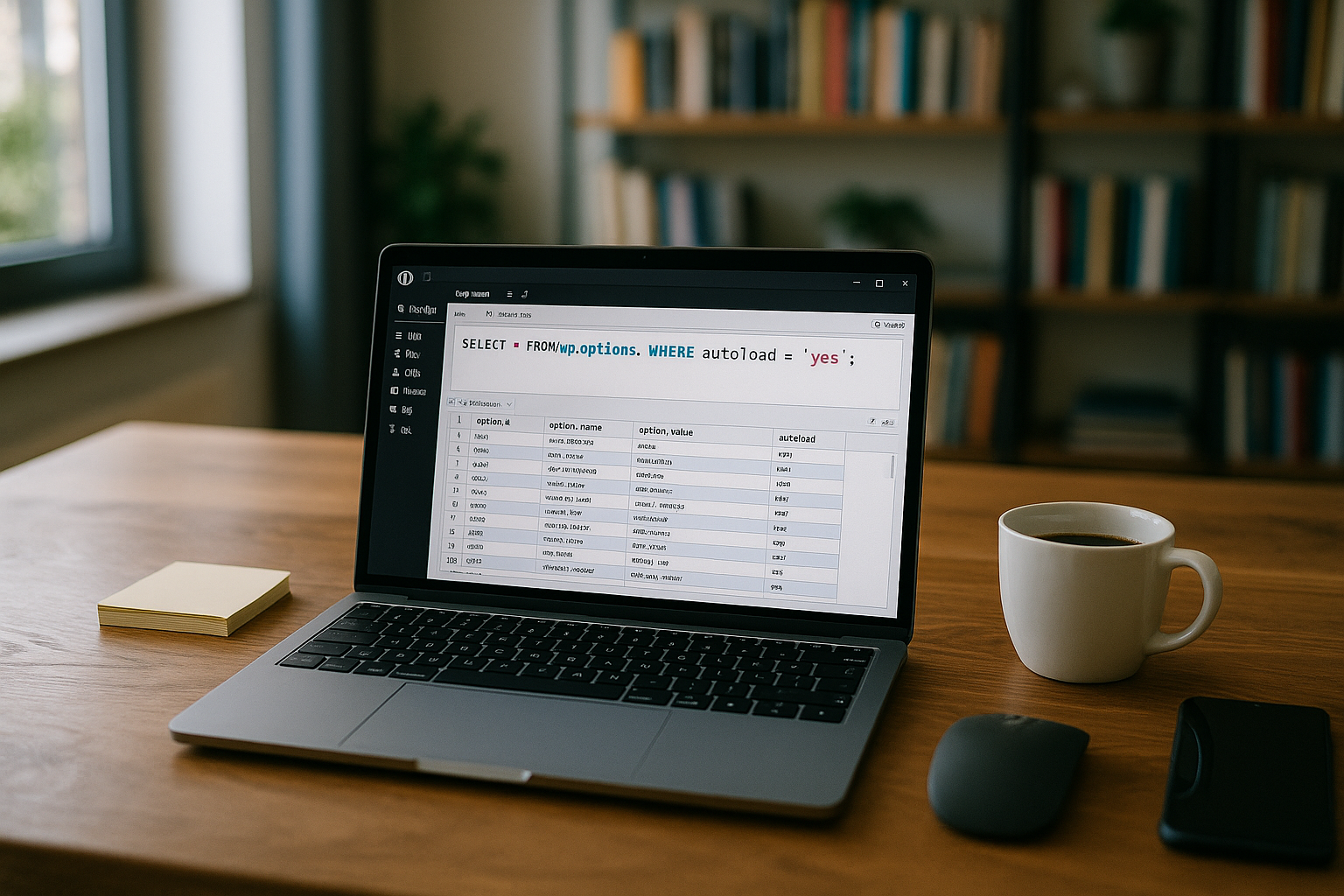
WordPress stores configurations in wp_options, including URLs, active plugins, theme information, widgets, transients, and much more. Each data record has a name, value, and field. autoload, which uses yes or no to determine whether WordPress loads the entry every time the page is started. The wp_load_alloptions function reads all autoload=yes entries in one go to provide frequent settings without many individual SQLs. This mechanism saves time with a few small values, but inflates the start process with many large entries. This is exactly where a hidden brake arises that you hardly notice in everyday use. Over the years, ballast accumulates that can extend each request by milliseconds to seconds.
Not all options belong in AutoloadBasic information such as siteurl or active_plugins yes, cache or log data rather no. If old plugin remnants remain in the table and are set to yes, WordPress will continue to load them even though no one is querying them in the code anymore. Large fields from page builders, form plugins, or SEO suites can quickly push the autoload package over 1 MB. From this point on, TTFB and memory requirements increase, especially on shared hosts and under high load. I therefore regularly check what really needs to be loaded automatically.
Why autoload slows down performance
Each page view pulls the sum of all autoload=yes Values are stored in memory, regardless of whether the data is relevant to the current page. This consumes RAM, increases the size of the PHP structure, and slows down early execution before rendering. The more plugins are installed, the more the package grows unnoticed. WooCommerce setups, tracking plugins, and page builders also increase the likelihood of large entries. If you let this run, the first byte, which often determines the overall impression, suffers particularly under load.
Several technical guides recommend keeping the total size below approximately 1 megabyte because latency increases noticeably. When large autoload data encounters weak I/O or a lot of parallel traffic, response times increase significantly. The backend feels sluggish, admin pages open more slowly, and cron jobs run longer. The effect does not directly affect caching, but it delays the generation of responses and cache fills. I therefore keep autoload as small as possible and only load what I really need everywhere.

This is how I check the size of the autoload data
I'll start with a complete Backup the database and then read the autoload size. In the dashboard, the website status already provides an indication if the number and size are unusually high. For an exact measurement, I use SQL and add up the length of all autoload=yes values. This number shows me how urgently I need to intervene. If it is above 1 MB, I immediately plan a targeted cleanup. A practical WP Options Data Maintenance helps me to proceed consistently.
I use the following two queries to analyze the Size and the biggest chunks. First, I determine the sum of all automatically loaded values. Then I list the top 10 by field size to achieve quick wins. This allows me to identify where memory and latency are being lost in a matter of minutes. I then prioritize deletion or switching to autoload=no.
SELECT SUM(LENGTH(option_value)) AS autoload_size FROM wp_options WHERE autoload = 'yes';
SELECT option_name, LENGTH(option_value) AS option_value_length FROM wp_options WHERE autoload = 'yes' ORDER BY option_value_length DESC LIMIT 10;
Which entries typically become large
Frequent bloating Transients, Cache objects and log data autoload unnecessarily. Builder layouts and form configurations also write extensive arrays that are not needed for every front-end page. Even deactivated plugins often leave behind remnants that remain set to yes. In practice, patterns repeat themselves, which I use to guide my cleanup. The following table summarizes typical candidates and recommendations. This overview speeds up the decision of whether it makes sense to delete or switch to no.
| Category | Examples option_name | Typical size | Recommendation |
|---|---|---|---|
| core Base | siteurl, home, blogname | small | Keep autoload=yes |
| Theme & Widgets | template, stylesheet, widget_* | small–medium | check, usually yes ok |
| Builder / Forms | builder_*, form_*, theme_mods_* | medium–large | Set to autoload=no |
| Transients | transient_*, site_transient_* | medium–large | Delete expired items, otherwise no |
| Cache & Logs | cache_*, log_*, debug_* | large | Do not auto-load, delete if necessary |
| Orphaned | old plugin_* remnants | small–large | delete after backup |
Across devices, a rigid Separation of permanent settings and temporary data for the best results. I only load what each page really needs. Everything else remains accessible, but is not loaded automatically. This reduces the load on the start phase and object management of the PHP process. The result: noticeably faster response times.
Optimization strategies
I'll start by removing legacy issues I set orphaned plugins to autoload=no because these steps quickly save a lot of space and time. Then I set large, rarely used options to autoload=no so that they are only read when needed. Temporary or cache-related entries never belong in autoload and are either deleted or moved to dedicated storage. I continue to consistently clean up transients, especially expired records. Finally, I check the total size again and document the new status. This is how I create transparency and set up monitoring.
I work incrementally to Risks Minimize: first measure, then make targeted changes, then double-check. I keep a backup ready for every deletion. For productive sites, I schedule time slots outside of peak hours. I test changes to sensitive fields on a staging instance. This keeps the site online and the result reliable.
Set autoload to „no“ – securely implemented
Not every large option has to disappear; many can be replaced with autoload=no This preserves the configuration, only the automatic loading is omitted. I make the change in a controlled manner using SQL and then check the behavior in the frontend and backend. I test critical pages specifically, such as forms or shop functions. If there are any errors, I roll back the change immediately. The process is quick and usually has no side effects.
UPDATE wp_options SET autoload = 'no' WHERE option_name = 'YOUR_OPTION_NAME';
I am writing a short List from the top 10 query and work through them one by one. After each update, I measure the size again. If the total shrinks significantly, TTFB and RAM consumption drop immediately. If something goes wrong, I pull the backup or set autoload back to yes. That way, I stay on the safe side.

Clear transients and temporary data
Transients are time-limited cache and are often kept in wp_options for an unnecessarily long time. Expired entries tend to remain if cleanup fails. I regularly delete expired _transient_* and _site_transient_* entries. In addition, I make sure that such data is not stored with autoload=yes. This significantly reduces the autoload package and keeps it small. This maintenance should be part of every maintenance plan.
DELETE FROM wp_options WHERE option_name LIKE '_transient_%' AND option_name NOT LIKE '_transient_timeout_%';
Those who use tools pay attention to Security and clear logs so that changes remain traceable. I first test jobs for automatic cleanup manually. Then I schedule recurring checks, for example, quarterly. This way, there are no surprises. And the table doesn't grow again unnoticed.
Index on the autoload column
If there are a large number of options, an index can be created on the column. autoload Further accelerate access. The query for autoload=yes then benefits from a faster lookup. This is particularly worthwhile for large, active shops or multisite setups. The intervention should be left to experienced hands, because incorrect indexes can create their own problems. With a clean plan and backup, query times are noticeably reduced. I document the change and measure the effect.
At the same time, I think that Database Holistic: Engine, buffer, slow queries, and cron jobs influence the overall result. Autoload is a key lever, but not the only one. A tidy table with good indexing interacts with caches and PHP configuration. This allows me to achieve additional millisecond gains. Small corrections add up.

Combining hosting, object cache, and autoload effectively
A fast host mitigates the negative effects of large Autoloadpackages, but it does not replace cleanup. It is particularly effective when an object cache handles frequent option accesses. This means that values end up in memory and bypass recurring database reads. However, the biggest lever remains a lean autoload sum. This comparison provides a brief overview: keep autoload small, then supplement caches sensibly. I will show more on this in the article. Page cache vs. object cache.
Hide caches Problems Only to a limited extent if the database is unnecessarily large. I first clean up the table so that caches have less to carry. Then I benefit twice: faster startup plus fast repeat accesses. Monitoring shows me whether TTFB and RAM remain stable at a lower level. This creates a clean setup with reserves for traffic peaks.
When autoload=yes is essential
Not everything can be moved to „no.“ There are core options, which WordPress needs very early on in bootstrapping or on practically every request. I typically include the following:
- siteurl and home (base URLs, used early on)
- active_plugins (required immediately when loading the plugins)
- stylesheet and template (theme selection)
- blogname, blogdescription, blog_charset (general page data)
- rewrite_rules (required for request parsing and can be large)
I usually leave these options set to autoload=yes. In borderline cases such as rewrite_rules I check whether there are unusually large rule sets and whether incorrect permalinks or plugins are driving up the size. Fields such as cron and complex plugin options are considered sensitiveThey can become large, but are frequently used. Here, I test on staging whether autoload=no has side effects before I make a decision.
Multisite features and network options
At Multisite-Environments have their own wp_options tables with autoload fields per site – in addition to the global table. wp_sitemeta for network options. I therefore check the autoload sum for each site and, in addition, the size of central network metadata. Large network options do not incur costs for every single site request, but they can slow down admin and cron processes.
-- Check per site (adjust table prefix depending on blog ID) SELECT SUM(LENGTH(option_value)) AS autoload_size FROM wp_2_options WHERE autoload = 'yes'; -- Roughly review network-wide metadata SELECT SUM(LENGTH(meta_value)) AS network_meta_size
FROM wp_sitemeta; -- Largest network metadata SELECT meta_key, LENGTH(meta_value) AS len FROM wp_sitemeta ORDER BY len DESC LIMIT 10;
For multisite, I clean up the largest options per site and also keep network metadata lean. Shared caches (object cache) help, but they did not replace any Clean database.
WP-CLI: Analysis and bulk changes from the shell
On servers, I use WP-CLI, to execute SQL analyses directly and make changes reproducible. This allows me to perform quick audits even on larger setups.
# Determine the total autoload size wp db query "SELECT SUM(LENGTH(option_value)) AS autoload_size FROM wp_options WHERE autoload='yes';"

# Display the top 20 largest autoload options wp db query "SELECT option_name, LENGTH(option_value) AS len FROM wp_options WHERE autoload='yes' ORDER BY len DESC LIMIT 20;"
For mass changes, I work with a list of candidates from the analysis and set it to no in a controlled manner. After each round, I measure the sum again.
# Example: Candidates (one per line) in names.txt
# Set autoload=no for all names (be careful, make a backup first!) while read -r NAME; do VAL="$(wp option get "$NAME")" wp option update "$NAME" "$VAL" --autoload=no done < names.txt
With this method, the history remains traceable in the terminal and I can roll back specifically if necessary.
Automatic housekeeping with MU plugin
To prevent future growth, I set small Guardrails A MU plugin can, for example, automatically set the autoload flag for known patterns such as transients, cache, and log entries to „no“ and periodically clean them up. I test such interventions on staging first.
update($wpdb->options, array('autoload' => 'no'), array('option_name' => $option)); break; } } }, 10, 3);

// Scheduled cleanup: remove expired transients if (!wp_next_scheduled('autoload_housekeeping')) { wp_schedule_event(time(), 'daily', 'autoload_housekeeping'); } add_action('autoload_housekeeping', function() { global $wpdb;
    // Clean up expired transients (without timeouts) $wpdb->query("DELETE FROM {$wpdb->options} WHERE option_name LIKE '_transient_%' AND option_name NOT LIKE '_transient_timeout_%'");
    $wpdb->query("DELETE FROM {$wpdb->options} WHERE option_name LIKE '_site_transient_%' AND option_name NOT LIKE '_site_transient_timeout_%'");
    // Optional: mitigate very large autoload options $candidates = $wpdb->get_col("SELECT option_name FROM {$wpdb->options} WHERE autoload='yes' AND LENGTH(option_value) > 500000");
    foreach ($candidates as $name) { $wpdb->update($wpdb->options, array('autoload' => 'no'), array('option_name' => $name)); } });
This prevents unnecessarily large amounts of data from being loaded again after updates or new plugins. I document exceptions (whitelist) if certain options must remain in autoload despite their size.
Secure deletion: more precise SQL examples
I delete targeted and avoid collateral damage. For transients, I make sure not to delete timeouts directly, but rather the associated values.
-- Remove only expired transients (safer approach) DELETE o FROM wp_options o JOIN wp_options t ON o.option_name = REPLACE(t.option_name, '_timeout_', '') WHERE t.option_name LIKE '_transient_timeout_%'
  AND t.option_value < UNIX_TIMESTAMP(); -- Network-wide (multisite) transients DELETE o FROM wp_options o JOIN wp_options t ON o.option_name = REPLACE(t.option_name, '_site_transient_timeout_', '_site_transient_')
WHERE t.option_name LIKE '_site_transient_timeout_%' AND t.option_value < UNIX_TIMESTAMP();
In addition, I systematically set the flag to „no“ for large, rarely used options instead of deleting them. This way, I remain low-risk and can return at any time if necessary.
Indexing: create, test, roll back
If the table is large, a composite index speeds up frequent lookups. I create it, measure its performance, and roll it back if it doesn't provide any benefits.
-- Create index (adjust name according to host rules) CREATE INDEX autoload_name_idx ON wp_options (autoload, option_name); -- Test, measure, remove if necessary DROP INDEX autoload_name_idx ON wp_options;
Before doing so, I check existing indexes to ensure that I don't create any duplicates. After creation, I verify query plans and response times under real load.
Measurement and validation: Provide clear evidence before and after
I document optimizations with numbers. I measure TTFB on representative pages, track memory peaks, and count database queries. For a quick insight, I use a short log output during the tests (do not leave it active permanently):
<?php // Do not use permanently in production – for measurement runs only! add_action('shutdown', function() { if (defined('WP_DEBUG') && WP_DEBUG) { error_log(sprintf(
            'WP-Run: %.3fs | Queries: %d | Peak-Mem: %.1fMB', timer_stop(0, 3), get_num_queries(), memory_get_peak_usage(true) / 1048576 )); } });
With two to three measurement rounds before and after the cleanup, I can see whether TTFB, query count, and peak memory improve as expected. At the same time, I monitor the backend (plugin and editor pages), as large autoload packages are particularly noticeable here.
Common mistakes and how to avoid them
- Set everything to „no“: Blanket measures break functions or generate many individual SQLs. I proceed selectively and test.
- Change critical core options: Handle siteurl, home, active_plugins, theme fields, and rewrite_rules with care.
- Deleting transients incorrectly: Timeouts instead of removing values or deleting both indiscriminately. Better: purge expired values in a targeted manner.
- Working without backup: Before each round, I back up the database and note down any changes.
- Just think „DB“: Object cache, PHP memory limits, slow cron jobs, and hosting limits are all related. I take a holistic view of the system.
- Clean up once and forget about it: Without regular monitoring, Autoload grows again. I plan fixed maintenance intervals.
Best practices for the future
I consciously choose Plugins, that handle options cleanly and delete data when removed. After testing, add-ons are completely removed, not just deactivated. Before major changes, I always back up the database. Then I check the autoload size again to immediately detect any new outliers. Especially with caching setups, I keep the configuration lean and avoid typical pitfalls. A look at Redis misconfigurations helps to avoid side effects.
Regular Care prevents the wp_options table from growing again. I set myself fixed dates, for example quarterly. If I note down the values before and after optimization, I can identify trends. This allows me to act in good time instead of reacting under pressure later on. This routine saves time and stress in the long term.
Concrete workflow step by step
First, I secure Database and files completely so that I can go back at any time. Then I determine the current autoload size and the top 10 entries using SQL. Next, I identify orphaned plugin data and large cache, log, or transient entries. In the next step, I set rarely used options to autoload=no and delete unnecessary remnants in a targeted manner. Finally, I measure again, document the new total, and plan to repeat the check.
In sensitive cases Fields I test changes on staging first. If anything unusual occurs, I reactivate individual values or restore the backup. I then adjust my plugin selection to prevent further growth. A simple log per round is sufficient to maintain an overview. The process remains streamlined and reliably leads to measurable effects.
Summary: Small table, big impact
Autoload is a powerful mechanism, which slows down significantly when the wp_options table is filled with unnecessary data. If you keep the total below around 1 MB, TTFB, RAM requirements, and backend latencies will decrease noticeably. The way to achieve this is clear: measure, remove ballast, autoload=no for rare values, clear transients, and check regularly. Caches and good hosting enhance the effect, but they are no substitute for a clean database. If you make this process part of your routine, you will get more speed from the same hardware in the long term.
I see Autoload as adjusting screw With excellent value for money: few changes, significant effect. Shops and content-heavy sites in particular benefit immediately. With a quick monthly or quarterly check, the table remains lean. This means pages respond faster, administrators work more quickly, and cron jobs run more smoothly. That's sustainable performance without risk and without a new plugin battle.