Skip to content
A WordPress Backup is more than just a backup - it's your guarantee that your website will be up and running again quickly, even in the event of a hacker attack, technical defect or faulty update. In 2025, numerous backup plugins offer automatic backups, multisite compatibility and one-click restores - perfect for dynamic websites with high security requirements.
Key points
- Automated backups reduce human error and ensure constant safety.
- Cloud storage such as Google Drive, Amazon S3 or Dropbox ensure geographically independent backups.
- 1-click recovery enables a quick return to live operation after a failure.
- Incremental backups increase efficiency and save server resources.
- Multisite support and staging functions facilitate professional workflows.

Why WordPress backups remain indispensable
A WordPress website without a backup remains vulnerable. Security gaps in plugins, faulty theme updates or accidentally deleted content can render your entire site unusable. With a functioning Backup system you can restore lost data in minutes. Particularly important: back up not only locally, but also to external storage locations. Cloud services offer additional redundancy and make you independent of the hosting provider. What's more, the value of a website often goes far beyond its content alone - it is also an important communication channel and often even the basis for business processes or online stores. Anyone who has ever experienced how quickly a small error in a theme update or a careless code adjustment can paralyze their own site will appreciate backups all the more. Especially in the e-commerce sector, downtime often means loss of turnover, image and customers. In addition, hacker attacks are constantly evolving. Even the most robust security measures can be breached at some point, and then it is worth its weight in gold to have access to an up-to-date backup. Without a functioning backup system, you not only run the risk of losing important data, but also the additional stress of having to find a replacement in the shortest possible time.Types of backups: Manual vs. automated
Manual backups require time and care, but offer full control over data and storage locations. They are suitable for tech-savvy operators of small websites. Automated plugins, on the other hand, regularly back up your content in the background - hourly, daily or weekly. This reduces errors and saves effort. Depending on site activity, we recommend scheduling daily or at least weekly backups. Tools like UpdraftPlus or WPvivid combine automation with comprehensive planning options. An important aspect here is to adapt the interval frequency to your content management. If you have a lot of blog posts, product changes or user registrations within a short period of time, you should think about hourly or daily backups. For less frequently updated pages, it is often sufficient to only back up the database daily and the files weekly. Ideally, you should choose a plugin solution that allows you to back up and schedule databases and files separately - this will save you storage space and processing time.
The best WordPress backup plugins 2025 in comparison
In this table you will find the most frequently used plugins with the most important functions for 2025:| Place | Plugin | Special features | Price | Automation | Cloud integration |
|---|---|---|---|---|---|
| 1 | Duplicator | Migration, restore, scheduling | from free of charge | Yes | Yes (Pro) |
| 2 | UpdraftPlus | Wide cloud selection, extensive free version | from free of charge | Yes | Yes |
| 3 | BackupBuddy | Custom backups, malware scan | from approx. 70 €/year | Yes | Yes |
| 4 | WP Time Capsule | Staging, Incremental, Cloud | from free of charge | Yes | Yes |
| 5 | WPvivid | Multisite, Cloud Connect | from free of charge | Yes | Yes |
| 6 | BackUpWordPress | Complete backup focus | from free of charge | Yes | No |
| 7 | BlogVault | Daily external backup | with costs | Yes | Yes |
Plugin functions: What characterizes modern backups
Modern plugins rely on Flexible schedules, uncomplicated use and secure storage. Functions for creating staging - i.e. a copy of your live site for testing - are particularly helpful. Incremental backups are also becoming increasingly popular: they only back up new or changed files. If you use WordPress professionally, you should look out for the following features:- 1-click recovery from the backend
- Notification by e-mail on backup success or error
- Individual schedules for files and databases
- Integration with multiple cloud platforms
Automation for maximum independence
A strong automation process includes both internal processes and external saving options. Ideally, your plugin automatically backs up every update (plugin, theme, core) before installation. I recommend plugins with nightly backups at 3 am to conserve resources. Especially for active websites, the combined setup of secure storage and time control are crucial. On the page Backup strategies for websites you will find additional recommendations for the individual planning of your backups.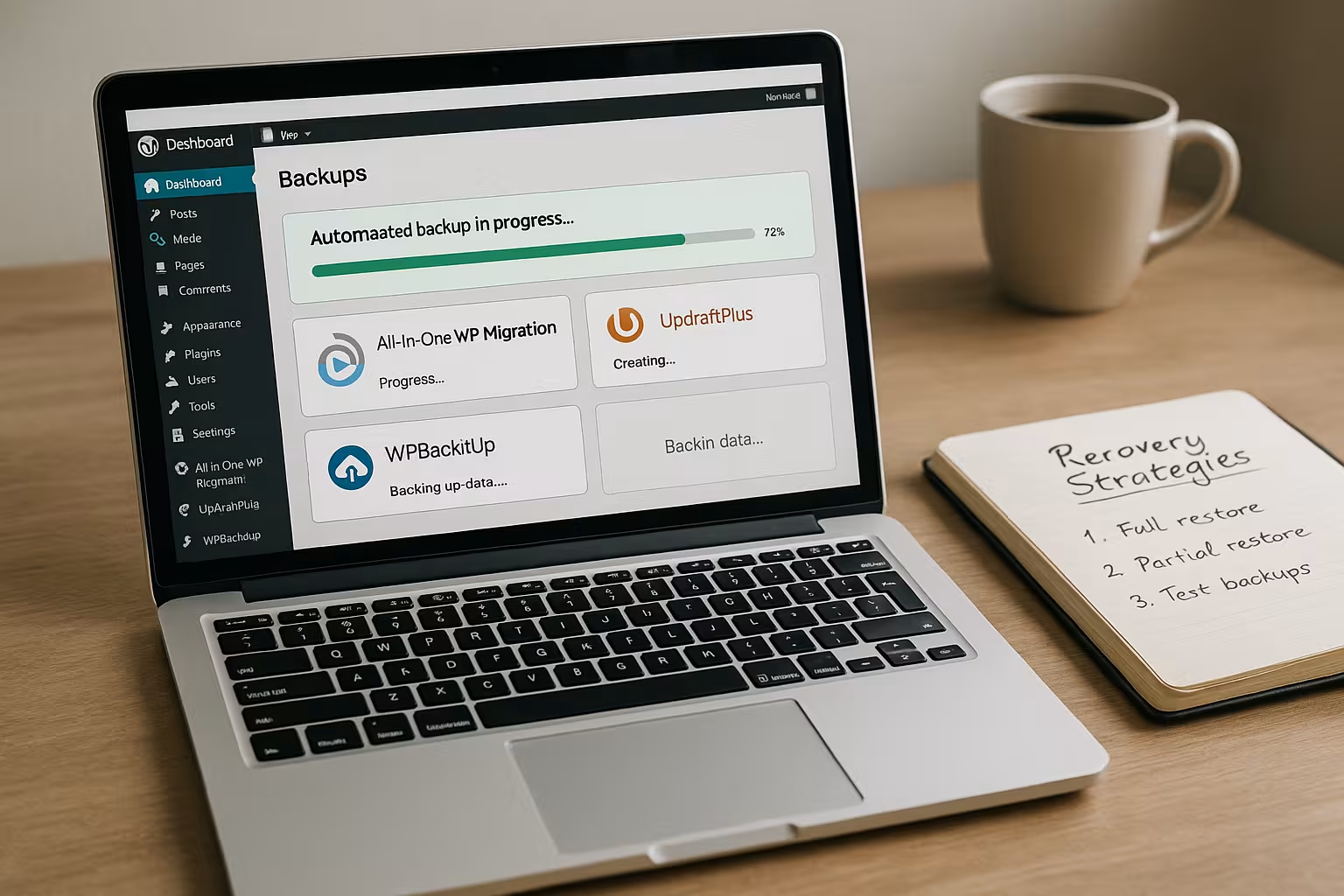
Restore scenarios in an emergency
If an outage occurs, every minute counts. The best plugins offer a Immediate recovery from the backend. This saves you the tedious search for files on your server. Duplicator and UpdraftPlus, for example, enable a complete restore at the click of a mouse. If the backend is damaged, you can also restore it manually via FTP and phpMyAdmin. Exactly this method is explained in the Instructions for disaster recovery in detail. To make restoring as smooth as possible, it is advisable to test your own backups occasionally. It is best to create a test environment or a staging system in which you import your backups in a mirrored environment. This will allow you to detect faulty backups, outdated files or compatibility problems in good time - and in an emergency, you can be sure that the restoration will actually work.Backup error sources and best practices
Especially with complex websites or extensive product catalogs, for example in e-commerce, errors can quickly creep in. It is often forgotten that non-WordPress directories on the server are also part of a holistic website. For example, some store systems store license data, logs or important files outside of the WordPress directory. - Make sure that you not only secure wp-content, wp-includes and wp-admin, but also the .htaccess or php.ini file, if these are customized. - Don't skip backing up large upload folders just because they contain many gigabytes - they often contain essential product images or media files. - Encrypt your backups if possible, especially if you manage customers' personal data. This will keep you GDPR-compliant and protect you from unauthorized access. - Check the backup logs of your plugin regularly. Faulty cron jobs or insufficient server storage space can cause an automatic backup to abort without you noticing immediately. Most errors can be avoided in advance by taking the time to configure your plugin properly and carry out regular checks. A best practice is to set up the plugin, create a test backup, check the restore in a staging environment, activate notifications and finally automate routines.Free vs. premium plugins: Which is worthwhile?
Many free versions are powerful - such as WPvivid or UpdraftPlus with cloud storage, schedules and ease of use. For advanced users, paid versions such as BackupBuddy offer more flexibility: incremental backups, multi-site architectures and malware detection are included. Beginners can start with the free version. If you need more features, it makes sense to invest in Premium modules. You then often have access to priority support, advanced security scans and deeper integration into external storage systems. Especially for sensitive data such as customer data, payment information or complex multisite networks, it is advisable to opt for premium plugins. This is because reliability, competent support and rapid troubleshooting are also important in such cases. Long response times or unclear configuration options can cost you dearly in the event of a crisis.
What to look out for when choosing a plugin?
Backup is a matter of trust. In addition to core functions, the Usability plays a major role - especially in an emergency. Look out for plugins that offer simple restore paths, start automatic backups when updating and back up incrementally. Other points should be included in your decision: - Resource consumption: Does the plugin put a strain on your server? - Support availability: Is help available in an emergency? - Ease of use during setup and restore? The comprehensive WordPress backup guide helps you every step of the way - from the first backup to the restore. Especially when you're new to the world, the wealth of plugins and functions can quickly become overwhelming. It pays to do your research beforehand. Read reviews and testimonials from other users and try to focus on the features that really suit your project. Not every website needs a sophisticated staging system or multi-cloud integration - a streamlined solution that only includes the most important aspects can sometimes be much more effective.Recommended hosting solutions for backups
A plugin is only as reliable as the hosting behind it. I regularly test hosting packages and can webhoster.de with a clear conscience. This offer impresses with its high speed, performance-friendly cloud integration and its own storage offer especially for WordPress backups. Fail-safe storage and fast support are particularly important for multisite installations, larger portals or web stores - both of which webhoster.de reliably provides at all times.
Backup strategies and security: GDPR & Co.
In today's world, it is also best practice to take data protection requirements such as the GDPR (General Data Protection Regulation) into account. If personal data is backed up, you must ensure that it is processed properly and, if necessary, stored in encrypted form. - Pay attention to the server locations for cloud services. Some providers have European data centers that are GDPR-compliant. - Encrypt your backups, especially if they contain sensitive customer data. Most premium plugins offer functions or at least instructions for this. - Create a deletion concept: record how long you will keep your data backups and how you will destroy them once the deadline has passed. Regularly updated passwords, admin accounts with strong access data and a general security strategy round off the overall package. After all, nothing is more annoying than being surprised by outdated credentials or having your entire admin account compromised during a restore attempt.Extended test and maintenance routines
In addition to the actual backup function, it is worth establishing a fixed rhythm for maintaining your WordPress installation. A monthly "maintenance day" can include the following steps, for example:- Updating themes, plugins and WordPress core.
- Manually create a complete backup before you install updates.
- Checking the automation jobs via log files.
- Random test recovery on a staging environment.
- Checking the file structure and clearing out unused themes and plugins.
Alternative backup methods: WP-CLI & Co.
For advanced users or agencies that work a lot on WordPress, script-based solutions can also be interesting. With WP-CLI (WordPress Command Line Interface), backups and updates can be initiated directly via the console. Although this requires a little more technical know-how, it often allows more efficient integration into existing deployments or CI/CD pipelines. - If you integrate WP-CLI into your setup, you can create, compress and upload database dumps to external servers on a time-controlled basis using a cron job. - Agencies can thus manage several customer projects simultaneously and output automated reports. However, this procedure is not necessary for everyone and requires experience with SSH access, server configurations and cron jobs. For most users, plugin-based solutions are sufficient and often more convenient to use.