Skip to content
WordPress browser caching often causes slow responses, because operators can't Cache header set incorrectly or not controlled at all. I'll show you how typical misconfigurations return 200 instead of 304, why TTLs are missing and how I can set up caching in WordPress properly. Performance trim.
Key points
- Long TTL for static assets prevents unnecessary requests.
- Clear separation of static and dynamic paths protects admin and login.
- One system do not mix competing caching plug-ins.
- Check headers with DevTools and 304 status.
- Server caching and browser cache.
How browser caching in WordPress really works
The browser stores static files locally and thus saves the need to reload them. HTTP requests. On the second visit, it reads images, CSS and JS from the local storage and only asks the server for changes. This reduces the amount of data, response times are reduced and scrolling immediately feels more efficient. liquid on. If there are no clear instructions, the browser reloads completely each time and the time to interactive suffers. Correctly set cache control headers enable 304 validations, reduce bandwidth and reduce the load on PHP and the database. I use this consistently because recurring users in particular benefit most from persistent caching.
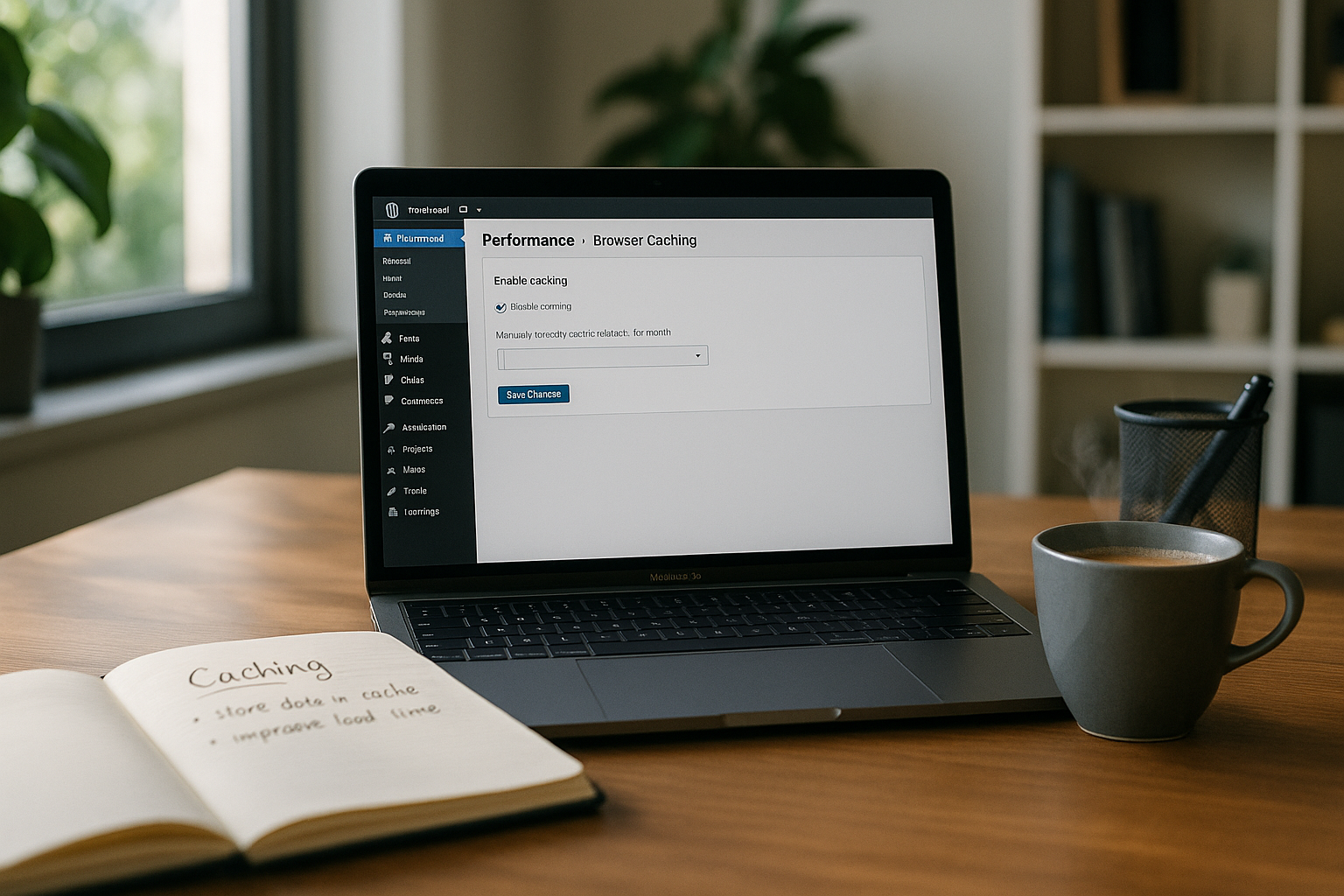
Why configuration often fails
Many sites deliver static files with ridiculously short max-age-values. Some plugins overwrite each other's .htaccess and set contradictory directives. The site often marks admin paths incorrectly, causing content from /wp-admin or /wp-login.php to end up in the cache unintentionally and sessions to collide. I also check the difference between the first and recurring call, because this clearly explains real user experiences; the comparison fits in with this First call vs. returning caller. If you then still use query strings without versioning, old files are created in memory and you wonder about obsolete Styles.
Set WP cache headers correctly
I control the duration with Cache control and Expires, and I avoid ambiguous ETags in multi-server environments. For Apache, I set Expires to meaningful values and define „public, max-age“ for assets. For Nginx, I add add_header directives and make sure that HTML gets short times or „no-store“ if content is personalized. I also deactivate ETag headers if load balancers or proxies do not generate these values consistently. In this way, I enforce clear behavior in the browser and avoid Revalidations with every click.
ExpiresActive On
  ExpiresByType image/jpeg "access plus 1 year"
  ExpiresByType image/png "access plus 1 year"
  ExpiresByType text/css "access plus 1 month"
  ExpiresByType application/javascript "access plus 1 month"


  Header set Cache-Control "public, max-age=31536000" "expr=%{CONTENT_TYPE} =~ m#^(image/|font/|application/javascript)#"
  Header set Cache-Control "no-cache, no-store, must-revalidate" "expr=%{REQUEST_URI} =~ m#(wp-admin|wp-login.php)#"
  Header unset ETag
# Nginx
location ~* .(jpg|jpeg|png|gif|ico|webp|avif|css|js|woff2?)$ {
add_header Cache-Control "public, max-age=31536000";
}
location ~* /(wp-admin|wp-login.php)$ {
add_header Cache-Control "no-store";
}
Extended cache control directives in everyday life
In addition to „max-age“ and „no-store“, modern directives ensure noticeable stability. „immutable“ signals to the browser that a file will not change as long as the file name remains the same - ideal for versioned assets. „stale-while-revalidate“ allows an expired copy to be delivered while it is updated in the background. „stale-if-error“ keeps a copy ready if the Origin briefly returns errors. „s-maxage“ is aimed at proxies/CDNs and can have values other than „max-age“. Also important: „public“ allows caching in shared proxies; „private“ is restricted to the browser. „no-cache“ does not mean „do not cache“, but „caching allowed, but revalidate before use“ - a crucial difference to „no-store“.
# Apache 2.4 example (cache assets even more robustly)

  Header set Cache-Control "public, max-age=31536000, immutable, stale-while-revalidate=86400, stale-if-error=259200" "expr=%{REQUEST_URI} =~ m#.(css|js|woff2?|png|jpe?g|webp|avif)$#"
  Header set Cache-Control "no-cache, must-revalidate" "expr=%{CONTENT_TYPE} =~ m#^text/html#"
# Nginx example (304/Include redirects)
location ~* .(css|js|woff2?|png|jpe?g|webp|avif)$ {
add_header Cache-Control "public, max-age=31536000, immutable, stale-while-revalidate=86400, stale-if-error=259200" always;
}
location ~* .html$ {
add_header Cache-Control "no-cache, must-revalidate" always;
}Recommended cache durations by file type
I choose the times according to change frequency, not habit, because Assets age very differently. Images, logos and icons usually remain up-to-date for a long time, while CSS/JS is iterated more frequently. Web fonts rarely change, but require consistent CORS headers. HTML often serves as a container for dynamic content and may therefore be short or only revalidated. APIs should have clearly defined rules so that clients can work correctly with JSON avoid.
| File type | Cache-Control recommendation | Note |
|---|---|---|
| Images (jpg/png/webp/avif/svg) | public, max-age=31536000 | Use annual cache with file versioning |
| CSS/JS | public, max-age=2592000 | Append version to file name for updates |
| Fonts (woff/woff2) | public, max-age=31536000 | Set Access-Control-Allow-Origin correctly |
| HTML (pages) | no-cache, must-revalidate or short max-age | Very careful with dynamic content |
| REST API (json) | private, max-age=0, must-revalidate | Differentiate according to endpoint |
Avoid conflicts with plugins
I use at most Caching plugin and check whether the hosting already specifies rules at server level. Combinations such as W3 Total Cache plus WP Super Cache often create duplicate directives that cancel each other out. WP Rocket offers a quick setup, but needs clear exclusions for dynamic paths and e-commerce. In any case, I check the generated .htaccess after saving to detect illogical headers. I then test critical pages such as checkout, login and personalized dashboards for correct Bypassing.
Caching and cookies: logged-in users, WooCommerce, sessions
HTML for logged-in users must not be stored in the public cache. WordPress sets cookies such as wordpress_logged_in_, WooCommerce supplemented woocommerce_items_in_cart, wp_woocommerce_session_ and others. Instead of the over Vary: Cookie I completely bypass caches for such requests. This keeps checkout processes stable and personalized areas correct. I also use server-side rules that set more restrictive headers when cookies are detected.
# Apache: Recognize cookies and set bypass headers

  SetEnvIfNoCase Cookie "wordpress_logged_in_|woocommerce_items_in_cart|wp_woocommerce_session" has_session
  Header set Cache-Control "private, no-store" env=has_session
# Nginx: Cookie-based bypass
if ($http_cookie ~* "(wordpress_logged_in|woocommerce_items_in_cart|wp_woocommerce_session)") {
add_header Cache-Control "private, no-store" always;
}Many caching plugins offer checkboxes for this (WooCommerce/Cart/Exclude checkout). Important: Nonces (_wpnonce) in forms and the Heartbeat API generate frequent changes. I make sure that frontend HTML with nonces is not permanently cached or works via „no-cache, must-revalidate“.
Targeting HTML: personalized vs. general
Not all pages are the same. Articles, landing pages and legal pages can often be cached with a short TTL or revalidation. Archives, search pages, dashboards, account areas and checkouts remain dynamic. If page caching is involved, I adhere to the following practice: only cache public HTML without cookies, otherwise „private“ or „no-store“. If you are testing micro-caching (e.g. 30-60 seconds for highly frequented, non-personalized pages), you should define strict exclusions for query parameters and sessions. WordPress has with DONOTCACHEPAGE a constant that templates can set on tricky pages - I use this consistently to avoid errors.
Combining server-side caching sensibly
Browser caching ends in the client, but I also relieve the server with page, object and opcode cache for real Load peaks. Page caching delivers static HTML before PHP even starts. Redis or Memcached reduce database queries for repeated requests and noticeably reduce the TTFB. OPcache provides precompiled PHP bytecode fragments and thus shortens the execution time. In the end, what counts is a clean connection between the server cache and the browser cache so that the second visit is more or less a success. instant works.
CDN integration without surprises
CDNs use their own TTL logic and respond to „s-maxage“. I therefore make a clear distinction: „max-age“ for browsers, „s-maxage“ for Edge. If deployments are pending, I trigger a targeted purge instead of globally destroying „Cache Everything“. Important: Only cache HTML on the Edge if no cookies are involved. Otherwise, incorrect states are created because the edge cache shares personalized responses. For assets, I set long TTLs and rely on file name versioning. CDNs can ignore query strings - another reason to keep versions in the filename. Header normalization (no superfluous „Vary“ values, consistent „Content-Type“) prevents bloated cache keys.
Step-by-step: clean installation
I start with a plugin and activate browser caching for CSS, JS, images and fonts before I activate the .htaccess finalize. I then set max-age high for static assets and provide HTML with short times or no-cache rules. I deactivate ETags if several servers are involved and rely on last-modified plus 304. I then trigger a preload so that important pages are immediately available as static copies. Finally, I check store, login and admin paths so that no private content is stored in the cache land.

Practical diagnostics with CLI and header checks
DevTools are mandatory, but I go deeper with CLI tests. A curl -I shows header without download; with -H I simulate conditions. For example, I check whether revalidations really return 304, whether „Age“ increases from a proxy/CDN and whether cookies switch off caching.
# Display header
curl -I https://example.com/style.css

Simulate # revalidation (If-Modified-Since)
curl -I -H "If-Modified-Since: Tue, 10 Jan 2023 10:00:00 GMT" https://example.com/style.css

# Test with cookie (should force bypass)
curl -I -H "Cookie: wordpress_logged_in_=1" https://example.com/
I make sure that assets have a long „cache control“ value, ideally „immutable“. HTML should have „no-cache“ or short TTL. If I still get 200 instead of 304, there are often redirects in play that invalidate ETags/Last-Modified. Also, „add_header“ in Nginx only applies to 200 responses by default - with „always“ I also set the headers for 304 and 301/302.
Testing and validation of headers
I open DevTools, reload the page once, clear the cache and reload to get 304 vs. 200 to observe. In the network panel, I check cache control, age, ETag/last-modified and the response sizes. If there are still direct hits instead of revalidations, I check for conflicts with redirects, cookies or query strings. For tricky cases, this article on pitfalls with headers helps me: Sabotage cache header. I repeat the check after every plugin update because changes to rules are often made silently. pass.
Versioning, CDN and cache busting
I hang up the Version to file names (style.23.css instead of style.css?ver=23) so that browsers retain long caches and still load new content immediately. A CDN distributes static files globally, sets its own TTLs in edge PoPs and drastically shortens RTTs. Important: Only cache HTML in the CDN if no personalization is required, otherwise incorrect states will be created. During deployment, I change the version number automatically so that users never get stuck with old scripts. This is how I combine hard browser TTLs with secure Cache busting.

Clean versioning in WordPress builds
The most reliable is a build pipeline that writes hashes in file names (e.g. app.9f3c.css). WordPress then loads exactly this file - browsers can keep it for a year thanks to „immutable“. As a fallback, if file names cannot be changed, I set the version number dynamically from the file date. This keeps query strings correct and reliable.
// functions.php (fallback versioning via filemtime)
add_action('wp_enqueue_scripts', function () {
    $css = get_stylesheet_directory() . '/dist/style.css';
    $ver = file_exists($css) ? filemtime($css) : null;
    wp_enqueue_style('theme', get_stylesheet_directory_uri() . '/dist/style.css', [], $ver);
});
Important: If the file name contains versions, „immutable“ may be set. If you only use query strings, browsers should be able to revalidate so that updates arrive reliably. I also make sure that build tools clean up old files so that CDNs do not store an unnecessarily large number of variants.
Cache and load web fonts correctly
Web fonts need long TTLs, correct CORS headers and optional preload so that Layout jumps fail to appear. I place woff2 files on the same domain or set Access-Control-Allow-Origin cleanly. In addition, define font-display: swap so that text remains visible immediately while the font is loading. If you want to optimize the loading time of your fonts, you will find useful tips here: Load web fonts faster. With clean cache headers and preconnect to CDNs, I noticeably shorten FOUT/FOIT and ensure consistent Rendering-Results.
Match fonts, CORS and Vary correctly
Fonts from another Origin require CORS. I set Access-Control-Allow-Origin (e.g. to your own domain or „*“ for truly public) and avoid an unnecessary Vary: Origin, which inflates cache keys. Recommended for fonts: public, max-age=31536000, immutable. Preload improves First Paint, but does not change the TTL - preload and hard caching complement each other. I am also not forgetting that compressed delivery (br/gzip) a Vary: Accept-Encoding is required for proxies to separate correctly.
Typical error patterns and quick solutions
If old code appears after an update, the Versioning on the file name. If the browser reloads completely every time, headers set contradictory instructions or proxies remove them along the way. If a checkout aborts, the site is probably caching session-side pages or API responses. If admin paths slip into the cache, exclusions for wp-admin and login are missing or a plugin is caching globally. I solve this by deactivating step by step, consolidating headers, excluding critical paths and at the end the effect with 304 status confirm.
Often overlooked details that make a big difference
- Nginx add_header does not apply to 304/redirects without „always“ - cache headers are then missing for validations. I consistently set „always“.
- Expires vs. cache control: „Cache-Control“ has priority, „Expires“ serves as a fallback for old clients. Avoid duplicate, contradictory information.
- ETag in multi-server setups: Inconsistent ETags destroy 304. I disable ETags or use weak validators and rely on „Last-Modified“.
- Vary to a minimum: „Vary: Accept-Encoding“ is mandatory for compression, „Vary: Cookie“ bloats edge caches - better bypass cookie-based.
- SVG and MIME type: Correct
image/svg+xmlset, give long TTL and consider inline SVGs for critical icons. - Avoid redirect chains: Any 301/302 can lose validators and force 200 - clean URLs without cascades.
- Use priority/preload in a targeted manner:
fetchpriority="high"or preload for critical assets accelerates the first call; caching is effective for returning users. - Differentiate REST-API: Public, rarely changing JSONs can be cached briefly; endpoints with tokens/cookies strictly „private“.
Briefly summarized
I rely on clear Ruleslong TTLs for assets, short or revalidated HTML responses, versioning and a single caching plugin. Then I combine browser cache with page, object and opcode cache to reduce server load. I check DevTools, look for 304, check headers and eliminate conflicts with redirects or cookies. For the practical test, I compare measurements on the first and repeated calls and focus on noticeable improvements. If you follow these steps, you can bring WordPress to a reliable level of browser caching. Speed and keeps users and search engines happy.