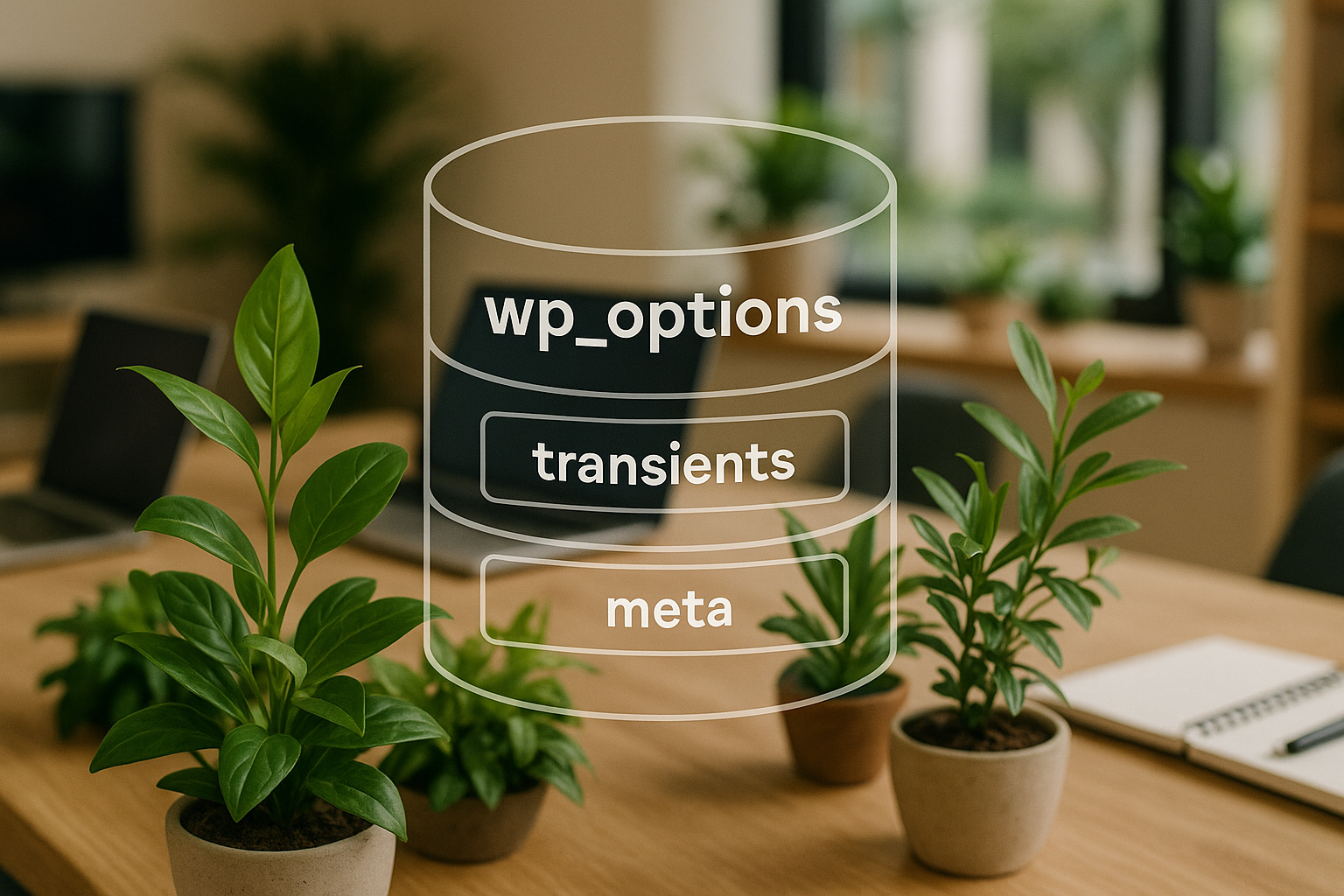
The Optimize WordPress database means much more than just freeing up memory - the wp_options table in particular deserves attention. Regularly tidying it up speeds up loading times, increases reliability and noticeably improves the SEO ranking of your site. In addition, a well-maintained database also protects against potential security vulnerabilities that can arise from outdated or unused entries. Such entries are often dragged along unnoticed during plugin or theme updates - an inconspicuous vulnerability that has a negative impact on the overall performance of the website in the long term.
Key points
wp_options contains many legacy plugins and themes that should be removed manually.
Unnecessary autoloaded data slow down every page view considerably.
Backups are mandatory before any database customization - security first.
With the help of plugins or WP-CLI the cleanup can be automated.
Regular Database maintenance reduces downtime and hosting costs.
Why the wp_options table quickly becomes a brake
The wp_options table is one of the central structures in every WordPress database. This is where configurations of WordPress itself, themes and plugins are stored. It becomes problematic when plugins are uninstalled but their entries remain. So-called autoloaded Options are automatically loaded each time the page is called up - even if they are no longer required.
For larger sites or WooCommerce installations, hundreds of these entries can take up several megabytes of memory. As a result, the server needs more time to render pages at high cost. A regular database check therefore saves performance, time and money. In addition, unnecessary entries also contribute to a greater security risk, as interdependent data fragments can quickly lead to incompatibilities. Even a small delay can lead to a noticeable loss of sales, especially for highly frequented e-commerce sites.
If you regularly test new themes or install several plugins, you should pay particular attention to the wp_options table. It is not uncommon for entries to be created whose use is only relevant during the setup process. However, complete removal by the plugin or theme is not always guaranteed. This may seem unimportant at first glance, but leads to considerable performance losses in the long term.
Safety check before tidying up
Before you change anything, create a full backup of your WordPress site. I recommend a full backup including database and file structure.
Use for this:
A plugin such as Duplicator, UpdraftPlus or All-in-One WP Migration
The backup service of your hoster
Manual export with phpMyAdmin + FTP download of your files
Only with a fresh backup can an error be reversed in an emergency. If you forget to do this, you risk irreparable damage to the site. Also make sure that you have recovery instructions to hand in an emergency. Many users create backups but don't know how to restore them when they need to. It helps to note down in the team or in documentation exactly which steps need to be carried out in an emergency.
Clean up database with plugin
For beginners, I recommend a plugin such as "Advanced Database Cleaner". This allows you to analyze and remove unused entries from the wp_options table. After installation, the plugin shows you a list of orphaned options, old cronjobs and autoload values.
Procedure:
Install the plugin via the admin menu.
Go to the plugin interface.
Analyze the wp_options table and look at the list of obsolete entries.
Select the options to be deleted and carry out the cleanup.
The plugin also lists tables that belong to deleted plugins. If desired, it also shows which plugins or themes certain entries relate to. This makes it easier to decide for or against deletion. You can also set the tool to clean up automatically at regular intervals. This means you don't have to keep checking manually, but will be informed if new clutter appears. Nevertheless, it is advisable to keep an eye on the autoload entries, as not every plugin reliably distinguishes between required and superfluous data.
Manual cleaning via phpMyAdmin
Users with experience can access the database directly, for example via phpMyAdmin. There, every entry in wp_options can be checked in detail and deleted. This method is recommended for sites with many specific customizations where plugins would delete too much.
Search patterns like option_name LIKE '%pluginname%' help with the search for legacy data. Alternatively, you can make all automatically loaded options visible with :
SELECT * FROM wp_options WHERE autoload = 'yes';
The more superfluous or orphaned options you remove, the faster WordPress can work again. Note that manual interventions require extreme caution. An incorrectly deleted option entry can impair the functionality of your theme or plugin. Therefore, document exactly which changes you make. Especially with very large databases, it is important to proceed systematically and gradually in order to maintain the stability of the website.
WP-CLI: Quick cleanup for professionals
WP-CLI is perfect for professionals and admins who carry out routine work via the command line. This method works quickly, reliably and is easy to automate. WP-CLI offers, among other things:
Ideal if you regularly have to maintain several pages. WP-CLI reduces human error by running automated scripts independently of user interfaces. Another advantage: you can create a sequence of commands, for example to generate a backup first, then perform the cleanup action and finally run a quick database integrity check. In this way, a maintenance plan is implemented efficiently and consistently.
Experienced users often combine WP-CLI with CRON jobs directly on the server. This allows you to run scheduled routines without having to log in every time. This is particularly useful if you manage many WordPress instances or want to carry out certain optimizations at regular intervals.
Further effective measures for optimization
In addition to cleaning up the wp_options table, there are other strategies for streamlining the database - especially in the long term. A regular review pays off several times over.
Typical memory offenders:
Database element
Cause
Adjustment method
Orphaned tables
Uninstalled plugins
phpMyAdmin, Advanced Database Cleaner
Post-revision
Frequently edited posts
WP-CLI, Plugins
Transients
Temporary plugin data
Delete regularly
Spam comments
Bot attacks & outdated content
Comment management / Plugin
Pingbacks/Trackbacks
Useless hints from other sites
Deactivate and delete
These measures speed up queries and significantly reduce database volumes. Post revisions in particular are often underestimated. If you write creatively and keep creating intermediate saves, you can quickly accumulate several hundred revisions per post. This leads to a confusing database that is almost impossible to search through manually. Set a limit for post revisions in wp-config.php or delete older versions as required.
Transients can also accumulate quickly if plugins are configured incorrectly or set cache entries too frequently. They are generally used to temporarily store certain function results, but over time many expired transients accumulate. Regular removal ensures that your database does not become clogged with irrelevant cache data.
Hosting as a bottleneck or solution
The infrastructure of your hosting provider has a direct impact on the performance of your database - especially with larger data volumes. Providers with modern server technology, SSD storage and optimized caching get more out of every request.
Market comparisons show differences not only in the resources on offer, but also in the support and backup concept:
Strong hosting makes maintenance easier, reduces the error rate and speeds up your site noticeably. For very large projects, such as online stores with thousands of products or heavily visited content portals, the right hosting can even be crucial for smooth day-to-day operation. Also bear in mind that some hostings offer special caching mechanisms or even an integrated server configuration that is specially adapted to WordPress. This not only relieves the burden on administrators, but also increases security by allowing updates and optimization tools to be managed centrally.
Regular maintenance is crucial
If you want WordPress to perform well in the long term, you need to maintain the database regularly. I recommend carrying out a major cleanup every quarter - including backups, autoload checks and plugin restoration. It's best to combine manual checks with plugin audits and occasional WP-CLI scripts.
Helpful tips:
Backups Check weekly and restore as a test
Keep an eye on database size on a monthly basis
Evaluate extensions regularly and uninstall if unused
Document deletion processes and changes
This mix saves you time in the long term, increases reliability and has a positive effect on SEO and user experience. A controversial backup and maintenance strategy is particularly useful for multilingual sites or complex membership models, as this can result in a particularly large number of database tables. Bilingual plugins, membership plugins or learning management systems (LMS) often generate numerous additional tables that you should keep an eye on.
The timing of maintenance also plays a role. It is advisable to carry out database maintenance outside of peak times. This way, possible performance losses during maintenance work are hardly noticeable and do not affect the visitor experience.
Database maintenance always pays off
A tidy WordPress system runs faster, causes fewer errors and is more resistant to attacks. If you regularly optimize your database, you don't need to worry about Google Core Web Vitals or hosting moves. With the right combination of tools, experience and routine, maintenance becomes a minor matter - the effect remains visible in the long term.
Especially in times when loading times and user experience have a decisive influence on the success of a website, database maintenance can offer a decisive competitive advantage. Testing plugins or implementing new functions is much more relaxed if outdated data has been thoroughly removed beforehand. Even major relaunches are much easier because the basic structure can be migrated cleanly and quickly.
In addition, a smaller data volume often also promotes a more cost-efficient hosting solution - so you don't pay for unnecessary ballast. At the same time, you minimize the risk of long-forgotten tables leading to security problems at some point. In this sense, database maintenance is one of the most effective steps to combine performance, security and sustainability.
Why WordPress slows down with many menu items: **wordpress menu performance** optimize for better **wp navigation speed** and **hosting wordpress** tips.
 Skip to content