Skip to content
The WordPress debug mode helps me to quickly detect errors on live systems without revealing confidential information in the frontend; I activate logging, hide output and consistently secure access. This is how I use the mode productively for Security and quick analyses without unsettling visitors or jeopardizing performance.
Key points
To help you get started quickly, I will briefly summarize the most important parameters for the safe use of debug mode and highlight the key terms for Productivity and protection.
- Logging instead of display: Activate WP_DEBUG_LOG, deactivate WP_DEBUG_DISPLAY.
- Protection of the logs: Block access via .htaccess and set up rotation.
- Workflows with staging and WP-CLI: Test changes, then switch off debug again.
- Performance true: Suppress display, use SCRIPT_DEBUG selectively.
- Extensions such as SAVEQUERIES and Backtrace: Activate only temporarily.
These points form my compass for everyday life with running sites and active teams, so that I stay focused and don't lose any time. Risks open. I work systematically: I document changes, check logs promptly and delete legacy issues. I pay attention to clear responsibilities so that several people are not working on the debug at the same time. I secure access to files and backends before analyzing in depth. I consistently switch off debug functions as soon as I have found the cause so that the Performance does not suffer.
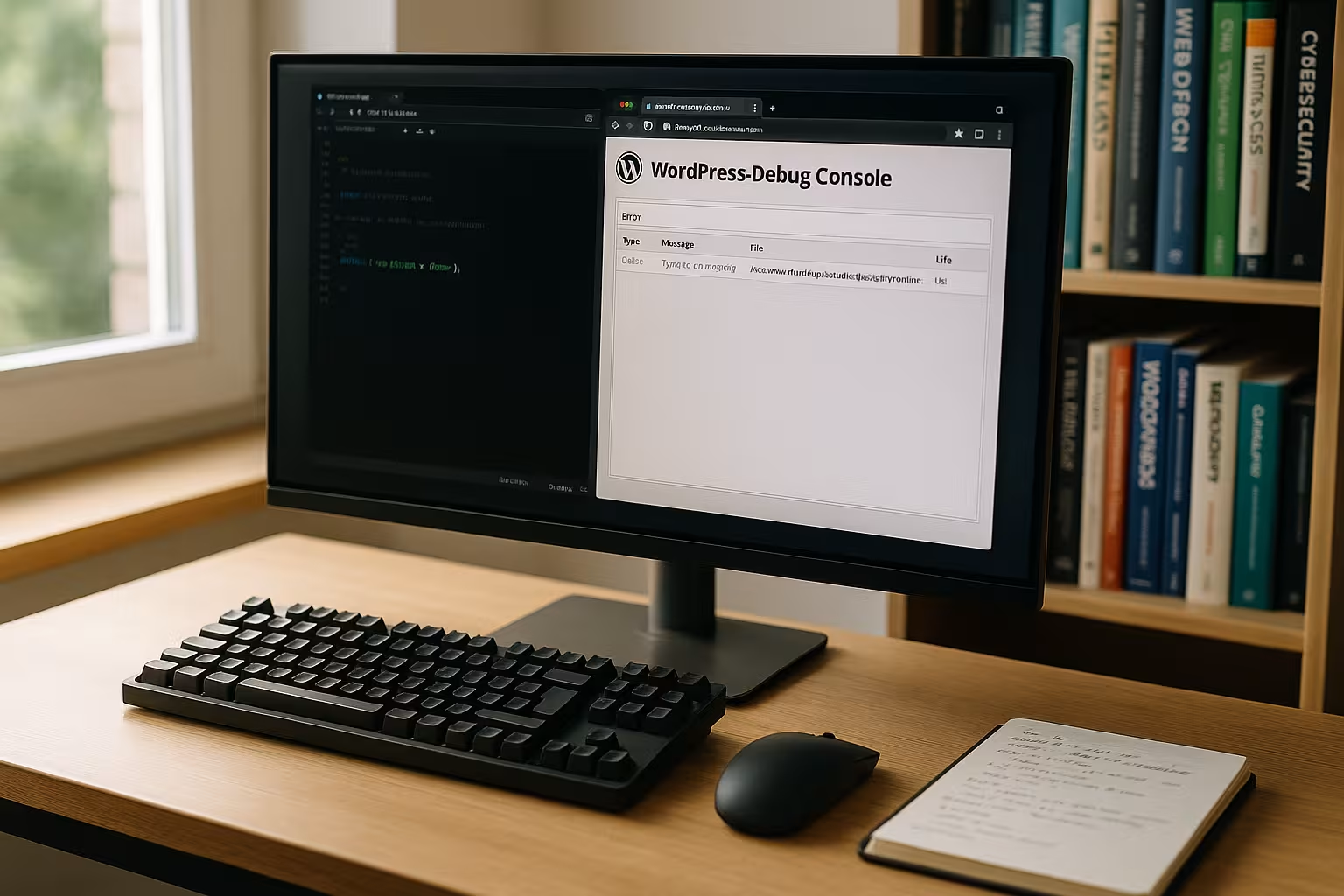
Why debug mode counts on live systems
Unexpected error messages after a plugin update or a blank screen can be classified much more quickly with active logging, without me displaying information to visitors that is not relevant. Attacker could be exploited. I recognize warnings, deprecated notes and fatal errors immediately, see timestamps and file paths and derive clear steps from them. This is particularly helpful for sporadic effects such as sporadic 500 errors or slow loading times. Instead of guessing, I check the log entries and simulate the user action that triggers the problem. This saves me time, keeps the Availability high and minimize support loops.
Step by step: Activate securely in wp-config.php
I first open the wp-config.php in the root directory, create a backup and only activate functions that I need for the current Analysis need. Important: I hide error messages in the frontend and only write them to a log file. This allows me to record all details without irritating visitors. After each intervention, I check the page to create new entries. Then I read the log file and work my way from the most critical entry to the cause so that I can Source of error in a targeted manner.
define('WP_DEBUG', true);
define('WP_DEBUG_LOG', true);
define('WP_DEBUG_DISPLAY', false);
@ini_set('display_errors', 0);
If I want to go deeper, I pull out a short Debug mode tutorial adapt the configuration to the situation and record changes in a traceable manner. So the Transparency and I can quickly roll back if necessary. I avoid permanent debug flags on Live, document time windows and times when logging was running and secure the log file against direct access. I then confirm that no output appears in the frontend. This keeps the Visibility clean on the outside.
| constant | Purpose | Production | Tripping hazards |
|---|---|---|---|
| WP_DEBUG | Switches on general error reporting | Temporary to true | Permanently active generates unnecessary Overhead |
| WP_DEBUG_LOG | Writes messages to /wp-content/debug.log | True, block access | Log grows quickly, rotation is missing |
| WP_DEBUG_DISPLAY | Controls the display in the frontend | Always false | True reveals paths and Details |
| @ini_set(‚display_errors‘, 0) | Forces suppression at PHP level | Leave active | Hoster policy can override this |
| SCRIPT_DEBUG | Use unminified JS/CSS | Only targeted | More requests, slower Assets |

Read WP Error Logging correctly
The /wp-content/debug.log file is my central source for classifying bugs in terms of time and Cause to separate them. I first scan for „Fatal error“, „PHP Warning“ and „Deprecated“, mark patterns and match file paths with recently changed plugins or themes. Then I check the line number and look at the affected function directly in the editor. I use meaningful search terms in the log, narrow down the time period and validate whether entries are reproducible. Finally, I tidy up: I delete the log file as soon as the analysis is complete in order to save memory and Overview to preserve.
Quickly rectify typical error patterns
If there is a white screen, I first check the logs and identify the last plugin loaded so that I can deactivate it specifically instead of blindly removing everything and Data to risk it. If it hits a theme, I temporarily switch to a standard theme, check the logs again and compare template overrides. 500 errors often indicate syntax problems or limits; log entries on memory requirements and specific lines provide quick clues here. In the case of strange backend symptoms, I look for deprecated hints, because deprecated code does not break immediately, but causes subsequent effects. As soon as I have found the trigger, I document the fix, deactivate debug mode and check the Function in the front end.

Performance and SCRIPT_DEBUG without risk
When I'm chasing JavaScript or CSS issues, I only enable SCRIPT_DEBUG temporarily so that I can see unminified files with clear Lines in front of me. I monitor the loading time in parallel and reset the switch as soon as I have identified the faulty resource. For insights into slow database queries or hooks, I use Query Monitor, but I restrict access strictly to admins. I avoid using it on high-traffic sites unless absolutely necessary and plan short maintenance windows. This way I keep the Response time of the page and find bottlenecks in a targeted manner.
Security: Switch off display and protect access
I never display error messages in the frontend during live operation because this exposes file paths and Attacks easier. Instead, I write all entries to the log and also block the file. I set a lock in /wp-content/.htaccess so that nobody can call up the debug.log directly in the browser. At the same time, I keep admin rights tight and use separate accounts so that only authorized persons can debug. After the analysis, I set WP_DEBUG back to false, delete the log and keep the Surface clean.
Order Allow,Deny
Deny from all

Advanced techniques for professionals
If an error only occurs sporadically, I temporarily activate a backtrace in order to make call chains visible and to Position more clearly in the code. SAVEQUERIES helps me with database debugging because I can correlate query times with stack traces. Both switches cost performance and should only be activated briefly. For more in-depth analyses, I combine WordPress logs with server logs or APM tools to identify bottlenecks across system boundaries. I then remove the flags, check again and keep the Protocols slim.
define('WP_DEBUG_BACKTRACE', true);
define('SAVEQUERIES', true);
Workflows with WP-CLI and staging
I first test risky changes in a staging environment, permanently activate debug flags there and simulate real changes. Load. On Live, I use short time windows, document the start and end and create parallel backups. With WP-CLI, I can trigger specific tests, for example via error_log, and see immediately whether entries appear as expected. This reduces guesswork and prevents lengthy trial and error on the production system. After a successful fix, I synchronize changes back and confirm that there are no new entries in the log. Warnings appear any more.
wp eval 'error_log("Debug-Test: Timestamp");'

Hosting and server setup: Error level, rotation, limits
Properly configured PHP error reporting saves me time, because I only have to deal with relevant Messages see. I check the error_reporting setting and set up a log rotation so that files don't get out of hand. To categorize the message types and their effects, I take a look at the PHP error levels. With high traffic, I consider separate storage locations for logs or stream logs to central systems. This way I keep storage requirements, I/O and Performance under control and keep an overview.
Teamwork and hygiene of the logs
I define who is allowed to set debug flags and when, so that there are no parallel actions and contradictory Changes gives. Each session is given a ticket or note that documents the start time, purpose and person responsible. After the analysis, we delete the log file in a targeted manner and restart it if necessary in order to clearly separate new notes. I use consistent file names and write time windows in the commit messages so that later questions are answered quickly. This discipline reduces queries, saves time and strengthens the Quality maintenance.

Environments and conditional debugging
I make a strict distinction between production, staging and development. I define the environment type in wp-config.php and derive my debugging behavior from this. In this way, I prevent accidental permanent logging on Live and deliberately keep staging conversational.
define('WP_ENVIRONMENT_TYPE', 'production'); // 'staging' or 'development'

// Automatically louder for staging only:
if (defined('WP_ENVIRONMENT_TYPE') && WP_ENVIRONMENT_TYPE === 'staging') {
    define('WP_DEBUG', true);
    define('WP_DEBUG_LOG', true);
    define('WP_DEBUG_DISPLAY', false);
}
For short-term analyses on Live, I selectively switch on Debug only for my IP or a narrow time window. This limits Risks and keeps the log clean.
$my_debug_ip = '203.0.113.10';
if (!empty($_SERVER['REMOTE_ADDR']) && $_SERVER['REMOTE_ADDR'] === $my_debug_ip) {
    define('WP_DEBUG', true);
    define('WP_DEBUG_LOG', true);
    define('WP_DEBUG_DISPLAY', false);
}
Own log path, rights and rotation
I like to write logs outside of the default web path or in a separate folder in order to Access and simplify rotation. WordPress allows an individual path:
define('WP_DEBUG_LOG', WP_CONTENT_DIR . '/logs/debug.log'); // Create folder /wp-content/logs/ beforehand
Important are restrictive File rights (e.g. 0640 for files, 0750 for folders) and correct ownership so that the web server can write, but external parties do not have direct access. I have already shown a .htaccess lock under Apache; this is how I work with NGINX:
location ~* /wp-content/(debug.log|logs/.*)$ {
    deny all;
    return 403;
}
To prevent logs from growing, I set up a system rotation. An example of logrotate (customize path):
/var/www/html/wp-content/logs/debug.log {
    size 10M
    rotate 7
    compress
    missingok
    notifempty
    copytruncate
}
In shared hosting, where I don't have root access, I rotate if necessary via scriptI rename the file, create a new one and delete old archives automatically via a cronjob.
Recovery mode and fatal error handler
Since the WordPress fatal error handler, I use the Recovery Mode, to log in securely to the backend after a crash. However, I don't just rely on this for live systems: I keep the admin email up to date, check the delivery and still check the Log. If the handler interferes with my troubleshooting in rare cases (e.g. because I want to specifically reproduce a crash), I can temporarily deactivate it:
define('WP_DISABLE_FATAL_ERROR_HANDLER', true); // Only use for a short time
I strictly document such interventions and reset them after the analysis so that the Stability does not suffer.
Caching, OPcache and reproducibility
Many „ghost errors“ are related to caches. When I deploy a fix, I consistently empty it:
- OPcache (PHP), so that new Code-stands are really active.
- Page cache/full page caching (e.g. by Purge) to avoid old HTML output.
- Object-Cache/Transients, so that old Configurations and queries do not work.
I then restart the affected action and monitor the logs in real time (tail -f) until I get a clean run without new Warnings see.
Targeted testing of REST, AJAX and Cron
Not every error shows up in the front end. I check specifically:
- AJAX endpoints in the backend if buttons do nothing or responses remain empty.
- REST API routes when headless frontends or integrations are used hang.
- WP-Cron, if scheduled tasks such as sending mail or imports fail.
With WP-CLI, these paths can be easily recreated and logs can be fed „live“. I run due cronjobs and check the direct effect in the log:
wp cron event list
wp cron event run --due-now
wp cache flush
This is how I separate front-end problems from server-side tasks and find Causes faster.
Multisite and context in the log
In multisite setups, messages from different sites run in the same log. So that I can assign them better, I add an error_log entry to my own error_log entries. Context with blog ID or domain. I do this for the duration of the analysis with a little MU plugin help:
<?php
// wp-content/mu-plugins/log-context.php (temporary)
add_action('init', function () {
    if (defined('WP_DEBUG') && WP_DEBUG) {
        $blog = function_exists('get_current_blog_id') ? get_current_blog_id() : 0;
        error_log('[Site ' . $blog . '] Init reached');
    }
});
This allows me to quickly assign entries to a specific subsite and Conflicts narrow down.
Admin-only notes without frontend leaks
Sometimes I want to have warnings visible in the backend without unsettling the public. I use a small admin notification that signals new log entries while the display in the frontend remains off:
<?php
// wp-content/mu-plugins/admin-log-notice.php (temporär)
add_action('admin_notices', function () {
    if (!current_user_can('manage_options')) return;
    $log = WP_CONTENT_DIR . '/debug.log';
    if (file_exists($log) && filesize($log) > 0) {
        echo '<div class="notice notice-warning"><p>Debug log contains new <strong>Entries</strong> - please check.</p></div>';
    }
});
That keeps me in everyday life productive, without revealing sensitive details.
Memory limits, error level and selective noise
In the event of memory errors, I increase the limits in a controlled manner to identify the location - not as a permanent condition, but as a Diagnosis-step:
define('WP_MEMORY_LIMIT', '256M');
define('WP_MAX_MEMORY_LIMIT', '512M');
To reduce noise, I carefully adjust the error level. I don't want to hide real problems, but excessive notices during a fix bundle:
@error_reporting(E_ALL & ~E_NOTICE & ~E_USER_NOTICE); // temporary, with caution
After the correction, I switch back to full visibility so that new Notes not go under.
Data protection, sanitizing and storage
I do not write any personal or payment data in the log. If a plugin collects potentially sensitive Information logs, I mask values using filters or my own wrappers (e.g. shorten e-mail to user@..., truncate token after 4 characters). I define clear retention periods and delete logs on a scheduled basis - both of which reduce risk and keep the Compliance stable. Even for support, I only share relevant excerpts, never complete files with paths and session IDs.
Isolate conflicts cleanly
When I tackle plug-in conflicts, I take a systematic approach:
- I freeze versions to Reproducibility to secure.
- I specifically deactivate candidates in small groups, observe the log and use bisection until the trigger is released.
- I check hooks, priorities and late inits, which often cause timing errors.
In the end, I not only document the fix, but also the Cause (hook order, incompatible version, memory limit) so that the team can better plan future updates.
Briefly summarized
I use the WordPress debug mode productively by activating logging, consistently blocking the display and hard-coding access to files. secure. I work step by step: Provoke error, read log, fix cause, reset flags. If necessary, I only use SCRIPT_DEBUG, SAVEQUERIES or Backtrace briefly and check their effects. Good habits such as rotation, staging and clear responsibilities make all the difference in everyday life. This keeps live pages fast, secure and for Users reliably usable, while I solve and document problems in a targeted manner.