Skip to content
I set up the maintenance mode in WordPress so that visitors see a clear, friendly message - no error page and no blank page. This is how I control updates, keep the site usable, keep true SEO and leave important content accessible.
Key points
- Clear message: short status, duration, contact
- SEO setup503-Header, Meta, Exceptions
- PluginsTimer, Branding, Forms
- Manual.maintenance, functions.php
- Way backDelete file, check cache

What maintenance mode does
A properly set up maintenance mode replaces the Error message through a site that provides information and builds trust. I state the reason, the expected duration and offer contact so that requests are not left unanswered. A short, authoritative tone reduces bounces and protects conversion goals, such as newsletter registrations. For returning visitors, the impression remains professional because the website appears consistent. Anyone who previously expected an empty page will now experience a clear Communication, optionally with countdown and link to important information such as imprint or contact.
In addition, I support the user guidance by using - where appropriate - a User-friendly error page as a fallback. In this way, I avoid unexpected dead ends if individual subpages are temporarily missing during work. The combination of a maintenance page and a good error page ensures a consistently understandable user journey. I keep the tone factual and concise so that visitors quickly understand what is happening. This ensures that the site remains credible despite work on updates and designs and visitor-friendly.
Typical occasions for maintenance windows
I activate the mode before larger Updates of WordPress, themes or plugins, as this can lead to unexpected effects. The maintenance page also protects me from chaos in the frontend during design changes, a relaunch or the installation of new functions. In the event of server changes, database problems or cache errors, the mode gives me peace of mind for the analysis. When a new page goes live for the first time, I use the notifications to prepare visitors and collect contacts. In all cases, I signal what I am doing, how long it will take and how I can be contacted. achieved.

Plugins for the WordPress maintenance mode
The quickest way to achieve this is with plugins, because they already include the design, timer and forms. WP Maintenance Mode is a good choice if I need an editor for the maintenance page, countdown and contact form. SeedProd offers a lot of freedom to create coming soon and maintenance pages with your own branding and meta data. CMP - Coming Soon & Maintenance and Coming Soon Page & Maintenance Mode also provide templates and simple SEO fields. I make sure that I can exclude pages and roles so that team members can work on the system despite maintenance and search engines can find important information. Pages can continue to be recorded.
Clean control of roles, exceptions and access
In practice, I define exactly who is still allowed to see the real page. Logged-in admins and editors need access, while guests get the maintenance page. For caching plugins, I make sure that "Do not cache pages for logged-in users" is active - otherwise even the team will see an outdated maintenance message. I can also use IP-based exceptions, for example for the office or agency. This prevents colleagues from being locked out when cookies or sessions expire. For sensitive phases (e.g. security fixes), I temporarily set basic auth in front of the page to keep prying eyes away, while still leaving defined routes (e.g. /wp-cron.php, /wp-json/) accessible.
Manual activation via .maintenance and code
Advanced users implement the mode without a plugin by creating a file in the root directory called .maintenance which signals the status. A simple variant is the line <?php $upgrading = time(); ?>which puts WordPress into maintenance mode. If you need more control, you can use the functions.php include an output for users who are not logged in and display your own HTML content. I always check in staging or in a short time window first, as a syntax error can block the page. After completion, I delete the file, empty caches and test in a Incognito-window.
A compact example of template_redirectthat respects exceptions and provides 503:
add_action('template_redirect', function () {
  if (is_user_logged_in() || current_user_can('manage_options')) return;
  // Ausnahmen: Sitemaps, Feeds, REST, Login
  $is_rest = defined('REST_REQUEST') && REST_REQUEST;
  if (is_feed() || $is_rest || strpos($_SERVER['REQUEST_URI'], 'wp-login.php') !== false || strpos($_SERVER['REQUEST_URI'], 'wp-admin') !== false || strpos($_SERVER['REQUEST_URI'], 'wp-sitemap.xml') !== false || strpos($_SERVER['REQUEST_URI'], 'robots.txt') !== false) return;

  // Wartung aktiv?
  if (file_exists(ABSPATH . '.maintenance')) {
    status_header(503);
    header('Retry-After: 3600');
    nocache_headers();
    echo '<!doctype html><meta charset="utf-8"><title>Wartung</title><style>body{font:16px/1.5 system-ui;margin:5rem;}</style><h1>Kurz offline</h1><p>Wir aktualisieren gerade. Bitte später erneut versuchen.</p>';
    exit;
  }
});
Maintenance can be cleanly enforced via the server configuration. For Apache/.htaccess with IP exception, 503 header and Retry-After:
# Maintenance active if .maintenance exists
RewriteEngine On
RewriteCond %{DOCUMENT_ROOT}/.maintenance -f
# Exceptions: Admin, Login, Sitemaps, Robots, REST, Feeds
RewriteCond %{REQUEST_URI} !^/wp-admin [NC]
RewriteCond %{REQUEST_URI} !^/wp-login.php [NC]
RewriteCond %{REQUEST_URI} !^/wp-sitemap.xml [NC]
RewriteCond %{REQUEST_URI} !^/robots.txt [NC]
RewriteCond %{REQUEST_URI} !^/wp-json [NC]
RewriteCond %{REQUEST_URI} !(rss|xml)$ [NC]
# IP-Whitelist
RewriteCond %{REMOTE_ADDR} !^123.45.67.89$
RewriteRule ^.*$ /maintenance.html [R=503,L]
Deliver # 503
ErrorDocument 503 /maintenance.html

  Header set Retry-After "3600"
  Header set Cache-Control "no-store"
Nginx variant with static maintenance page and exceptions:
set $maintenance 0;
if (-f $document_root/.maintenance) { set $maintenance 1; }
# exceptions
if ($request_uri ~* ^/(wp-admin|wp-login.php|wp-json|robots.txt|wp-sitemap.xml)) { set $maintenance 0; }

server {
  # ...
  error_page 503 @maintenance;
  if ($maintenance) { return 503; }
  location @maintenance {
    add_header Retry-After "3600";
    add_header Cache-Control "no-store";
    try_files /maintenance.html =503;
  }
}
I like to use WP-CLI for the command line: wp maintenance-mode activate respectively wp maintenance-mode deactivate - This is fast, can be scripted and minimizes downtime during deployments.
Visitor friendliness: content, design, trust
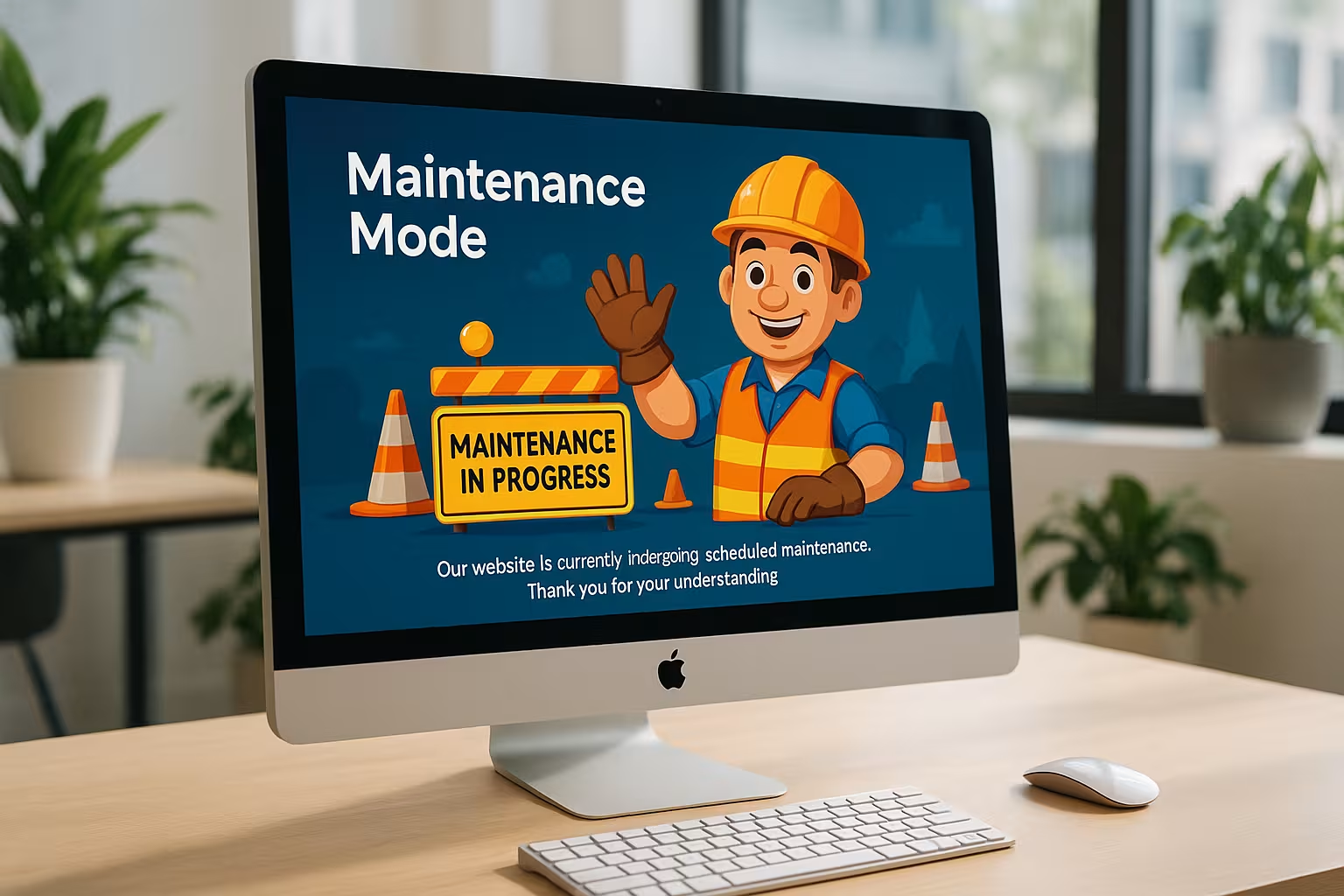
I formulate the advice concisely: what happens, how long it takes, and what improves afterwards - without marketing phrases, but with Benefit. A countdown reduces uncertainty and creates commitment, while a simple form or email address answers questions. I keep the logo, colors and typography consistent with the rest of the website so that the maintenance page looks like part of the brand. If there are important documents, I leave them accessible, such as the legal notice, privacy policy or hand-picked information. I also display social profiles if support inquiries run faster there and Updates are expected.
SEO & technology: 503 headers, caching and exceptions
For search engines, I prefer to set an HTTP status for real maintenance windows 503 plus optional retry after, so that crawlers know: temporarily not available. For coming soon phases, on the other hand, I prefer to use 200 with index options if there is already content that should be included in the search. It remains important that caching layers (server cache, plugin cache, CDN) do not deliver the maintenance page for longer than necessary. I can exclude individual subpages or feeds so that Google continues to see mandatory information or certain landing pages. For clean transitions I use Redirects via .htaccesssuch as temporary routes during work.
| Purpose | HTTP status | Use | Influence on SEO | Note |
|---|---|---|---|---|
| Maintenance short-term | 503 + Retry-After | Technical work, updates, error analysis | Signals "back soon", ranking remains stable | No long delivery cache |
| Coming Soon with content | 200 | Launch phase with texts/teasers | Index allowed when content is mature | Maintain meta title/description |
| Temporary detour | 302/307 | Short-term route change | Signal: temporary, do not move signals permanently | Useful for individual Pages |
It is important not to cache 503 excessively: CDN rules should keep the maintenance URL short (e.g. TTL a few minutes) and bypass it for known users and admin areas. I also make sure that sitemaps, robots.txt and - if necessary - REST endpoints remain accessible. A common error is 503 on all resources (CSS/JS), which makes the maintenance notice look "unformatted". I make sure that the maintenance page loads static assets from a path that is also accessible. Those who use Coming Soon make a conscious decision about index/noindex and avoids hard robots.txt locks so that no legacy content remains at launch.

E-commerce and transactional areas
Stores need special care. I often leave product and category pages visible in short maintenance windows, but block checkout and "My account". This keeps SEO signals and advice intact while minimizing risks (aborted payments, incorrect stock). For WooCommerce, this means temporarily blocking logins, shopping cart and checkout, placing clear instructions in Cart/Checkout and pausing order and warehouse processes in advance (e.g. inventory sync, webhooks). I plan major upgrades outside of peak times, inform newsletter subscribers and have backup/restore and rollback ready. After approval, I test payment flows, tax calculation, dispatch rules and emails - only then do I end the maintenance.
Multilingualism and accessibility
For multilingual pages, I prepare the maintenance page in all active languages - ideally with automatic language recognition or a switch. The wording remains equally clear in every language: reason, duration, contact. For accessibility, I ensure sufficient color contrast, sensible heading structure, focus sequence and keyboard operability. The countdown is optional and should not flash; screen readers benefit from clear information instead of animation. Preserve images on the maintenance page old-texts, form labels and error messages in plain text. This keeps communication inclusive.
Analytics, measurement and monitoring
I decide whether the maintenance page should be tracked. I usually avoid Analytics so as not to dilute KPIs. Alternatively, I record the maintenance page as a separate virtual page and set an annotation for the maintenance window in the tools. I inform Uptime Monitoring in advance so that there are no false alarms at 503 - or I allow the monitors a whitelist route that delivers 200. After completion, I check metrics (traffic, bounce, conversion) to understand the impact and better time future windows.
Multisite and staging strategy
In WordPress Multisite, I decide whether the entire network instance or just individual sites are to be maintained. A central maintenance page saves effort, but can be inappropriate for different brands. Therefore, depending on the structure, I plan separate notices per site and leave common information (imprint, support) accessible. In the staging strategy, I avoid long live work: I test updates, migration and compatibility issues in advance, freeze editorial changes briefly for larger deployments and use differential exports (database selectively, uploads incrementally). This keeps the live downtime short, often just minutes.
Solve error quickly: Maintenance mode is stuck
If the page remains in maintenance mode after an update, I first check the root directory for the file .maintenance. If it is there, I delete it via FTP or file manager and check the start page immediately afterwards. If the page still appears blocked, I clear the cache plugins, server cache or CDN and check again. If that doesn't help, I check the error log, deactivate suspicious plugins by renaming them and test step by step. In persistent cases, I contact hosting support and briefly describe the problem. Stepsthat I have already undertaken.
Hosting selection: Support makes the difference
For smooth maintenance, fast FTP access, clear PHP logs, helpful support and solid Performance. I make sure that my provider knows WordPress, offers short response times and provides friendly support in the event of blocks (e.g. too many requests). A host with a 24/7 hotline saves time if updates are due in the evening or at the weekend. I also check how easily I can manage staging instances, backups and cron jobs, as this speeds up every process. If you invest here, you gain peace of mind during maintenance work and protect the Nerves.
Practice: Live in a few minutes
I start in the dashboard with the installation of a maintenance plugin and activate it directly so that visitors can see a well-maintained Note see. I then choose a simple layout, formulate a short text, set the time period and activate the countdown. For urgent cases, I include a form or an email and leave the imprint/data protection visible. Beforehand, I test the updates in a staging environment so that the go-live runs without surprises - instructions are provided WordPress staging with Plesk. After work, I switch off the mode, clear caches, check the frontend with a Private window and verify that sitemaps and important pages are accessible.
Briefly summarized
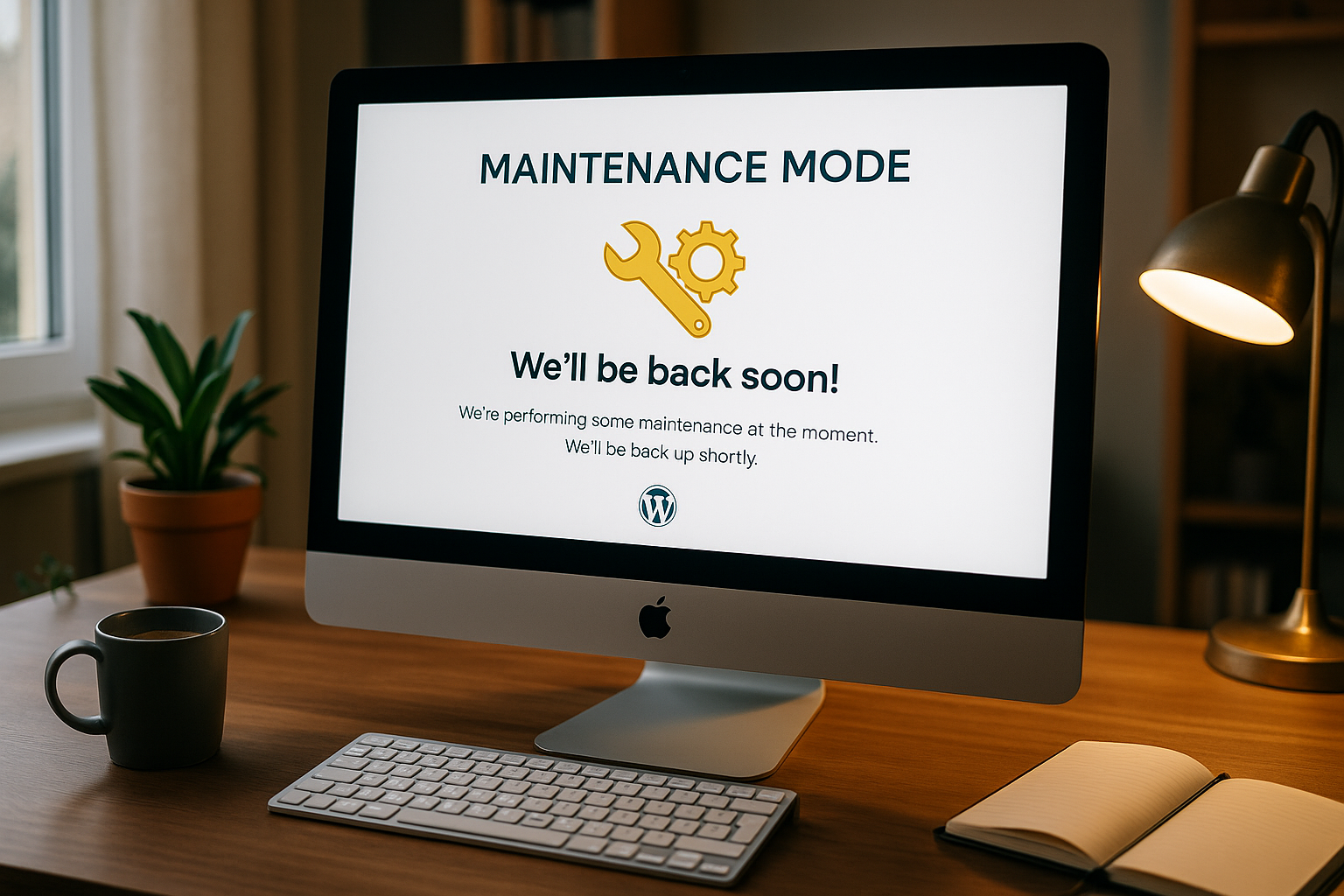
If you use maintenance mode wisely, instead of chaos you show an orderly Maintenance pagekeeps trust high and protects SEO signals. Plugins provide speed and convenience, while the manual version gives maximum control - clear texts, exceptions for important content and the correct HTTP status are crucial. I plan maintenance windows, inform my community, test updates in staging and rely on a clean rollback including a cache check at the end. If the site hangs, I solve it by removing the .maintenance file and taking a look at the logs and caches. This way, the site remains reliable, visitors feel picked up, and the Brand also looks professional during maintenance.