Skip to content
The installation of WordPress Multisite in Plesk offers agencies and companies a centralized solution for managing multiple websites with a single WordPress instance. This step-by-step guide shows you how to set up and professionally operate a stable and expandable multisite network in Plesk.
Key points
- Activate multisite directly in the wp-config.php via Plesk
- WordPress toolkit from Plesk facilitates installation and updates
- Subdomain or subdirectory as a structurally decisive choice
- Admins and rights Individually assignable for each site
- Scalability through support for constantly growing networks
Prerequisites and structural planning
Before you activate WordPress Multisite in Plesk, you need to coordinate some technical components. First, decide whether you want to register new websites as Subdomains (e.g. blog.agentur.de) or Subdirectories (e.g. agentur.de/blog). This decision is permanent and cannot simply be changed once it has been set up.
Your main domain should already be stored in the Plesk dashboard, fully set up and protected with an active SSL certificate. For best performance, your hosting should be based on SSD technology and support the latest PHP. PHP 8.2 in Plesk significantly increased compatibility and speed.
A clear structure for the individual sites and user rights is worthwhile at an early stage, especially for agencies with several client projects. This will help you avoid later hurdles when scaling or distributing rights in the network.
Installing WordPress via Plesk for the first time
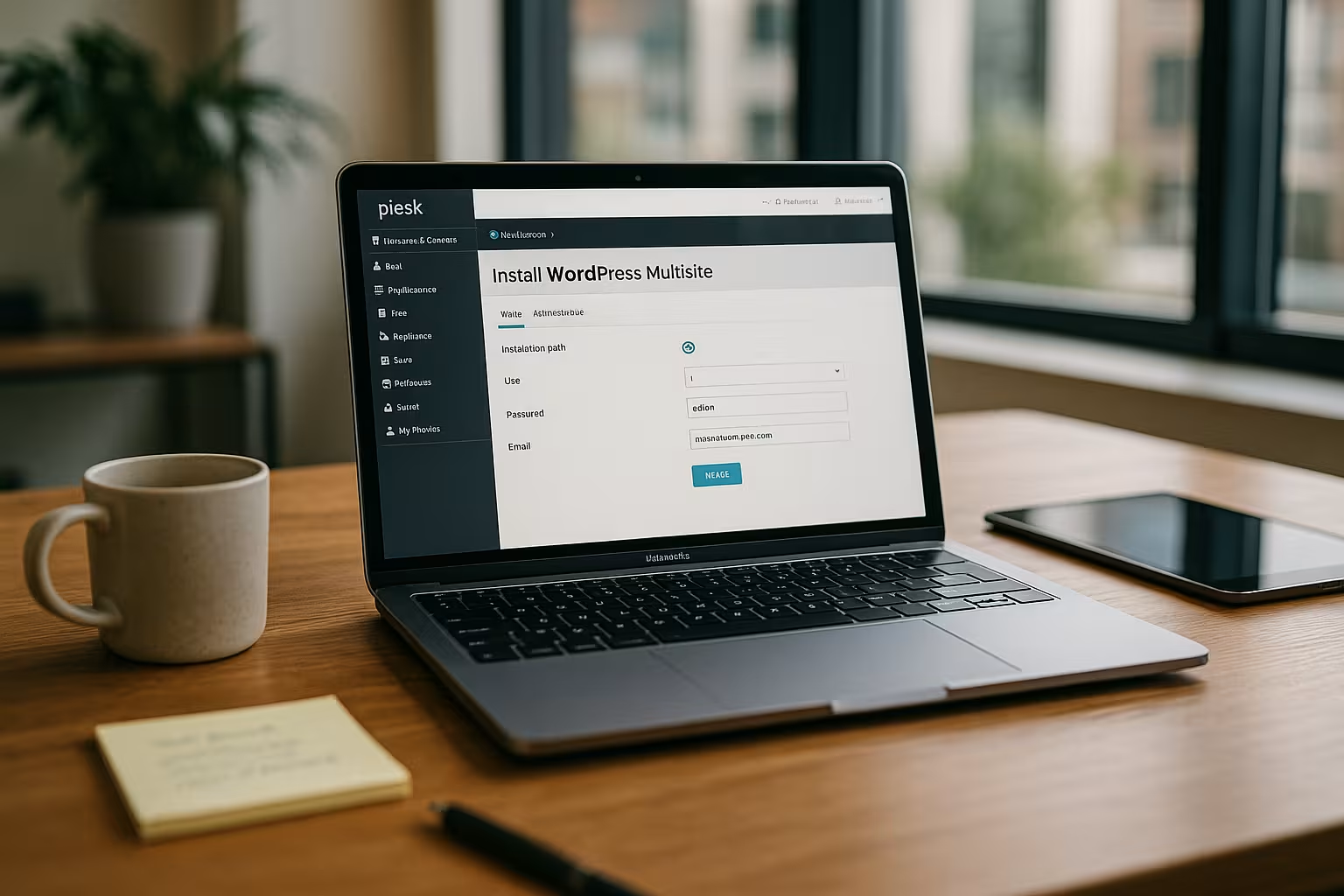
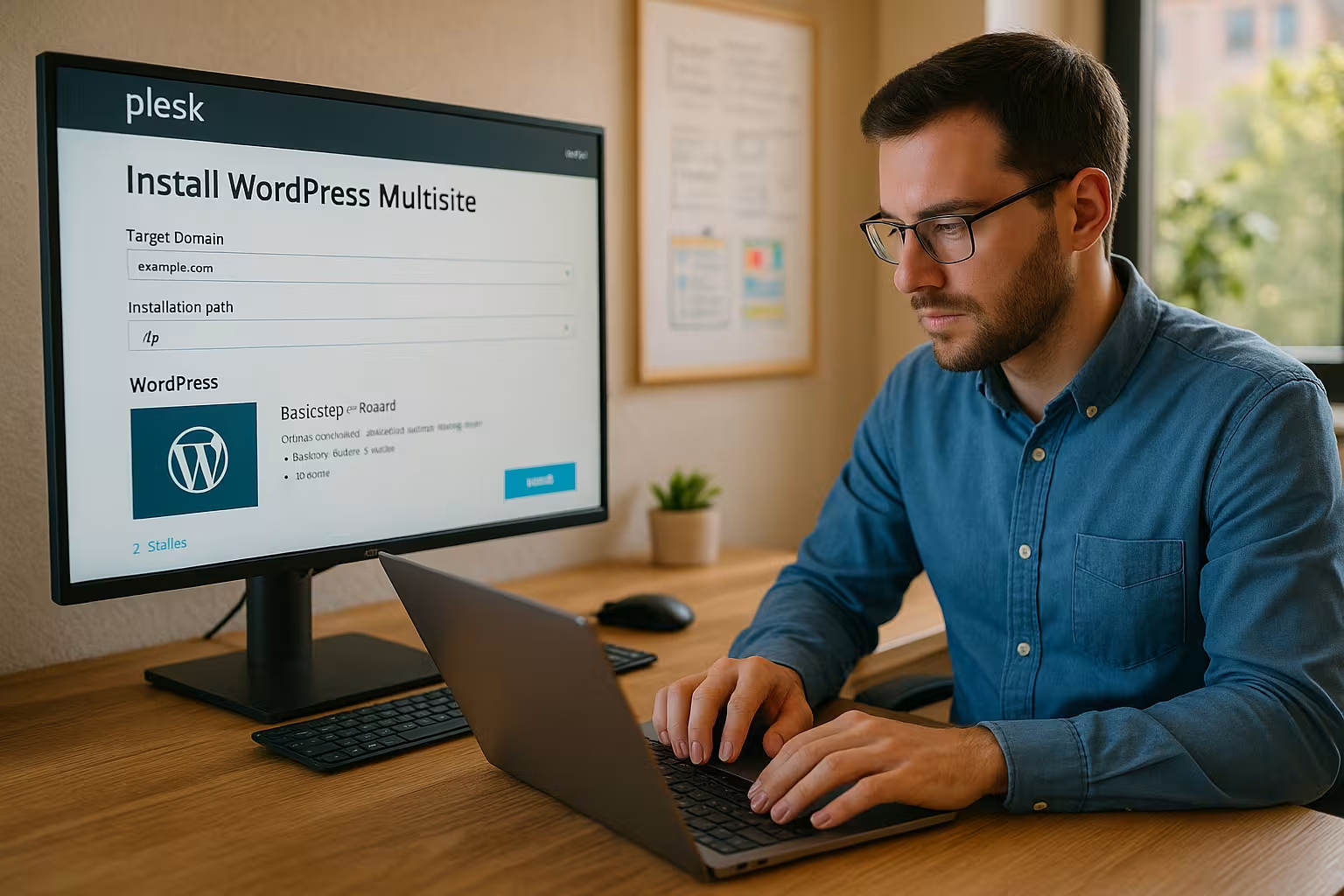
In the Plesk WordPress Toolkit, you can install WordPress with just a few clicks:
- Open the Plesk Dashboard and select the target domain under "Websites & Domains".
- Click on "Install" in the "WordPress" area.
- Choose installation path, admin name, a secure password and valid e-mail address.
- Activate automatic updates and performance settings if necessary.
After installation, you can access the backend of your site directly via Plesk. WordPress is now fully operational and manageable.

Activate multisite mode
To switch WordPress to multisite, open the file in the Plesk file manager under your domain wp-config.php. Search for the line /* That's all, stop editing! Happy publishing. */ and insert the following line directly in front of it:
define('WP_ALLOW_MULTISITE', true);
Save the file and reload the backend. Now go to "Tools > Network setup" in the WordPress dashboard. Here you can decide on the type of structure (subdomain or subdirectory).
Enter a network title and an admin address. After saving, WordPress will automatically show you all the necessary code snippets.
Important code adjustments
The next phase requires the insertion of specific code blocks that activate the multisite function:
wp-config.php
define('MULTISITE', true);
define('SUBDOMAIN_INSTALL', false); // true for subdomains
define('DOMAIN_CURRENT_SITE', 'your-maindomain.com');
define('PATH_CURRENT_SITE', '/');
define('SITE_ID_CURRENT_SITE', 1);
define('BLOG_ID_CURRENT_SITE', 1);
.htaccess
Replace the standard WordPress rules with the rewrite rules provided by WordPress. The syntax and order must be followed exactly, otherwise redirects will fail.

Test and manage network
After completing the adjustments, log into the backend again. A new item will now appear in the top admin menu: Network Admin. Here you can create new sites, install or deactivate plugins globally and assign themes.
Test the accessibility and functionality of individual test pages as early as possible. Check in particular:
- SSL certificates for subdomains or directories
- Admin rights for additional users
- Error-free display and loading times
For professional processes, the setting of a Staging environment. Read how you can Staging for WordPress in Plesk and test it safely.
Scaling and hosting comparison
A typical multisite setup often grows quickly. Additional sites, users and data load make choosing the right hosting crucial. The following table shows the core requirements of a multisite network compared to a standard setup:
| Feature | WordPress single installation | WordPress Multisite |
|---|---|---|
| Update effort | Individually per site | Centrally via network admin |
| User administration | Local per site | Central via Super-Admins |
| Backup | Per site individual | Automatically centered via Plesk |
| Resource utilization | Low | Medium to high (depending on traffic) |

Rights and security in the network
Security is crucial when operating many sites in a network. Use the features integrated in Plesk such as backup manager, firewall and security scanner. Change passwords regularly, limit admin rights per site and use two-factor authentication.
Agencies also benefit from defining multiple admins or editors for each site. You decide which plugins and themes are available centrally and which may only be installed on a specific site.

Troubleshooting and best practices
Typical stumbling blocks occur with incorrect code changes in .htaccess or wp-config.php. Small syntax errors can impair the function of domains or SSL certificates. If in doubt, the WordPress Toolkit from Plesk will help you to restore to previous versions.
Backup frequency and restore tests are particularly recommended when adding new sites. With backup automation, you can use web hosters such as webhosting.de for agencies fully automate these processes.
Advanced multisite strategies for growing projects
When the number of your websites in a multisite network increases, the question of optimal organization often arises. Agencies in particular that manage several client projects centrally should consider how to keep the structure of their networks scalable. A clearly defined Naming scheme can help enormously. Subdomains can be differentiated according to customers, products or languages - for example customer1.youragency.com, customer2.youragency.com etc., if the subdomain configuration has been selected. For subdirectories, you can use relevant generic terms as folder names, such as youragency.com/campaignA/, deineagentur.de/campaignB/. This means you always have an overview of which site belongs to which customer or project.
It is also worthwhile to User roles efficiently. While super admins have unlimited rights across the entire network, administrators at site level can only manage their specific site. This reduces the risk of misconfigurations, especially if several colleagues or customers have access. Another trick: Manage popular plugins at network level so that you make central updates and the individual sites automatically benefit from them.
Also in terms of Domain mapping growing projects often have advantages. Your multisite can be configured so that each subsite uses its own domain. This is particularly interesting for customers or departments who want to appear under their own brand name but still benefit from centralized administration. However, domain mapping requires a correct DNS configuration so that each assigned domain points to the same server IP and the correct folder. This can be set up relatively easily in Plesk itself via the domain's DNS settings. Once set correctly, every visitor can access the site under their own domain without realizing that there is a multisite infrastructure behind it.
Performance and cache for multisite
Since several websites use the same WordPress installation, performance and caching play an important role. Among other things, you should ensure that each subsite has a individual cache otherwise page content can get mixed up and lead to undesirable effects. Many popular cache plugins such as WP Rocket, W3 Total Cache or LiteSpeed Cache now support multisite environments natively. You can configure the settings for all sites in the same way via the network admin and do not have to manage each plugin separately.
In addition, server-side caching can often already be activated via the Plesk dashboard, for example NGINX caching or an integrated reverse proxy cache. In combination with PHP 8.2, you benefit from high loading speeds, even with increasing traffic. However, make sure that you check compatibility with every performance measure. In rare cases, there may be conflicts with older themes or plugins that are not optimized for caching.
SEO and multisite: Uniform or individual?
When it comes to SEO (search engine optimization), WordPress Multisite shines with its flexibility. Each subsite can pursue its own SEO strategies, with its own title, meta data and permalink structures. However, if you want to maintain a uniform brand image, a Centralized SEO strategy to. For example, global meta tags or global schema elements can be configured network-wide. Plugins such as Yoast SEO or Rank Math often support this multisite approach, allowing you to make central specifications that are then transferred to the subpages. At the same time, individual admins retain the freedom to make fine adjustments for their specific pages.
To ensure that Google & Co. index every site correctly, a functioning SSL encryption important. A wildcard certificate can save time and money, especially with subdomain setups. This means that every newly created subdomain is automatically secured without you having to manually obtain an SSL certificate for each subdomain. Finally, you should check in the network admin whether settings such as visibility for search engines are set correctly. If you have created a test site that should not appear in the index, it is best to deactivate public crawling. This will prevent duplicate content or unwanted test content from appearing in the search results.
Risk minimization and automated processes
If you regularly add new sites to an existing network, you should definitely check for Automated processes set. Use Plesk's options to activate automatic updates for the core, themes and plugins-but make sure you back up your data beforehand. Especially with a larger multisite infrastructure, restoring data in the event of a problem is otherwise time-consuming. Plesk can carry out these backups regularly and even outsource them to external storage media such as FTP or cloud services.
In addition, a sensible Monitoring strategy the stability of your network. You can be notified by email or Slack as soon as a site is no longer available. For agencies, continuous monitoring is recommended to ensure that SLA promises (service level agreements) to customers are kept. After all, customers react sensitively if their website is offline or has extreme loading times.
Extended access control at network level
In addition to the classic super admin and admin model, WordPress Multisite offers the option of distributing roles and rights even more finely. A typical example is the Editorwho can only create or edit posts and pages, but cannot change any installed plugins or themes. For some projects, it may make sense for several people to work as editors, but without full access to the network configuration. In this case, you define exactly which user groups are allowed to access which sites in the network admin. Accordingly, you can create customized role models for each customer or department.
Another security feature is that you reserve the installation of new themes and plugins for the super admins. This ensures that only trustworthy and up-to-date extensions reach the network. Any carelessly installed extension could pose a potential security risk or impair performance. It is therefore usually wiser to have the release of new themes and plugins controlled by a central office.
Multilingual websites in the same network
Many agencies or larger companies require multilingual websites. Instead of equipping a single WordPress with a multilingual plugin, the Management of language versions as separate sites on. For example, you can en.youragency.com, fr.youragency.com or es.youragency.com in the network. This means that each language page can be configured completely independently - including its own themes, plugins or translation teams. In this way, you avoid potential conflicts in multilingual plugins and maintain a clearly separable structure.
As a hybrid solution, a classic multilingual plugin such as WPML or Polylang can also be used on a single subsite, while other subsites run purely national content. This is particularly useful if you want to address specific language regions separately, while other areas are completely international.
Long-term maintenance and planning
Long-term planning is advisable to ensure that your multisite network runs smoothly. Reliable updates and backups will save you a lot of stress in an emergency. You should also not underestimate the database load: Although each subsite largely shares the main tables, some entries - such as comments, post metadata or user-specific information - are stored in separate tables for each site. Therefore, make sure that your host provides sufficient memory and CPU resources, especially if your network is growing rapidly.
Also set yourself clear milestones for Monitoring and performance analyses. Once a month or after large content updates, create a performance report that shows how quickly your sites load and which subsites may require more resources. If necessary, you can intercept load peaks with caching optimizations or perform more performance scaling directly via Plesk, provided your tariff allows this. This kind of forward-looking support ensures that your network runs smoothly in the long term.
Brief overview at the end
A professionally set up WordPress multisite network in Plesk saves considerable time and maintenance costs in the long term. The combination of centralized user and plugin management, automated security and easy scalability makes it ideal for agencies and companies with multiple web projects. Provided that you pay attention to a careful basic configuration and technically suitable hosting, all parts work together as if in a system from a single source.