Skip to content
Implementing WordPress security correctly with Plesk is one of the most effective strategies against digital attacks in 2025. This guide shows you how to secure your WordPress site with the Plesk WordPress Toolkit - from automated protection and login backup to optimal server configuration.
Key points
- Automated hardening through the WordPress Toolkit with instant protection
- Login backups such as two-factor authentication and login limiting
- SSL/TLS encryption including Let's Encrypt automation
- Extension through security plug-ins such as firewalls or malware scanners
- Backups & monitoring Integrated in the toolkit for fast recovery
Basic protection immediately after installation
After setup, the Plesk WordPress Toolkit takes over an essential security measure - the basic hardening of your system. Among other things XML-RPC deactivateda popular point of attack for brute force attacks. Sensitive files such as wp-config.php are given restrictive rights, making external manipulation attempts more difficult. The toolkit even hides the WordPress version number in order to minimize targeted attacks via known vulnerabilities. In this way, the system prevents unnecessary risks in the early stages of website creation.
These steps can be implemented with just a few clicks - for hosting with extended Plesk functionality the security level is immediately efficient. Even at this early stage, you can see just how effective automated security can be. Because as soon as you set up WordPress in Plesk, the toolkit makes the most important adjustments without you having to laboriously adapt codes or intervene in database tables. People who do not have in-depth technical know-how in particular benefit considerably from this.
In addition, it may be useful to already Change default database prefixes. WordPress normally creates tables with the prefix wp_ a pattern that could help attackers with SQL injection attacks. Modifying the basic settings accordingly before going live for the first time makes life even more difficult for potential attackers. The Plesk WordPress Toolkit supports you in this step by allowing alternative prefixes at the time of installation and thus further strengthening the security foundation.
Security scans detect vulnerabilities in good time
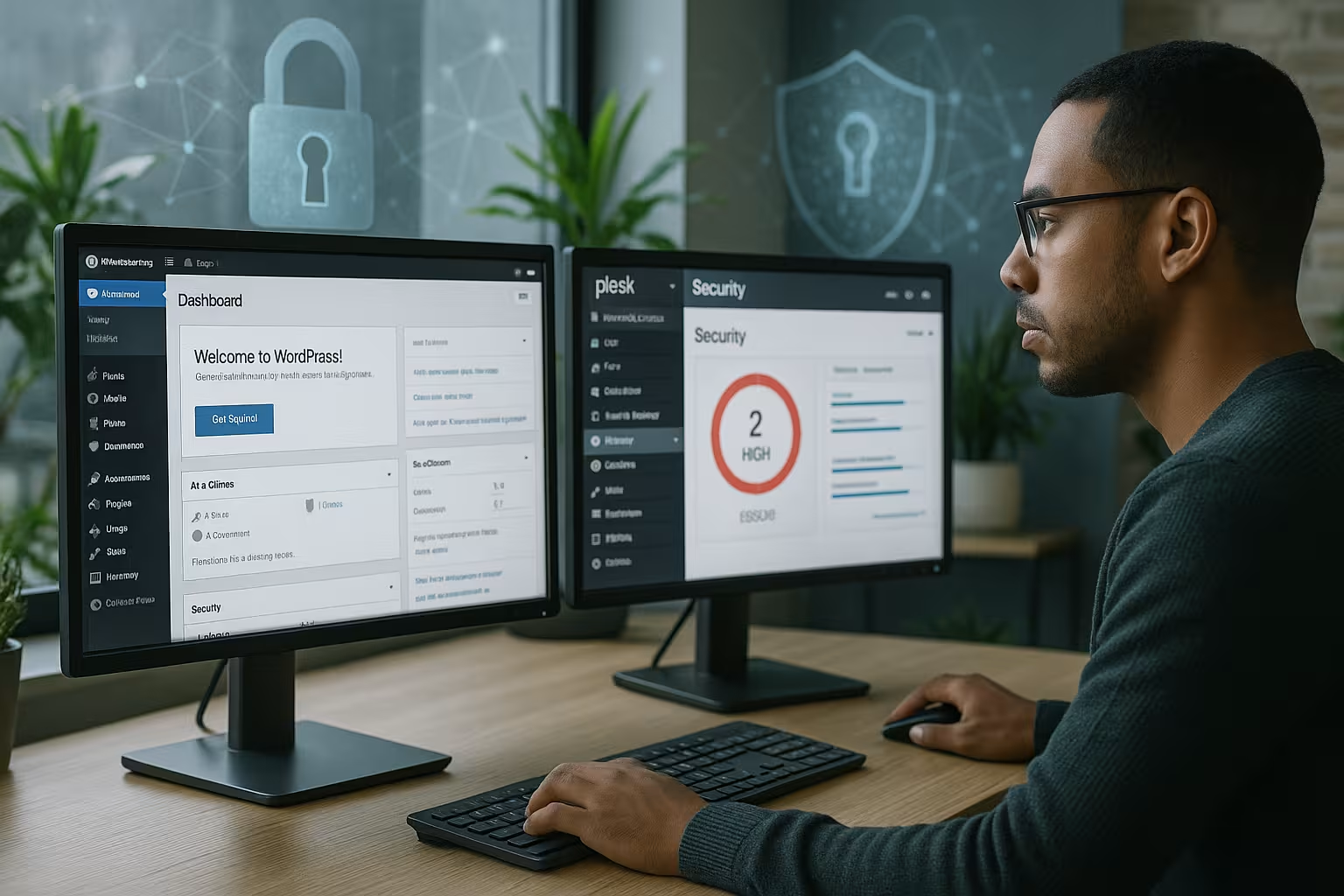
Cyber attacks often use outdated plugins, insecure passwords or misconfigurations. This is precisely why Plesk offers regular Automated safety checksthat detect these gaps at an early stage. Scans can be activated via the graphical user interface and the results are combined directly with recommendations for action. Even beginners can rectify identified weaknesses in just a few seconds, as the suggested measures can be initiated directly via the dashboard.
The automated security scans also give you a kind of inventory of your website. You can see whether plug-ins are lying around unused in your system, a theme has not been updated or a weak password has been set somewhere. This holistic view in particular helps you to understand the big picture and optimize it in a targeted manner. It's not just about quick individual measures, but about an overall picture of website security. Plesk prevents too many construction sites from piling up, which could ultimately turn out to be an invitation for attackers.
Secure your login with additional protective measures
Brute force attacks on login forms are still one of the most common attacks. Plesk therefore offers several Login security functionsto effectively ward off these attacks. By limiting failed login attempts and requiring two-factor authentication, the system becomes significantly less vulnerable. In addition, the WordPress Toolkit helps to automatically check passwords for complexity and enforce strong security policies. This ensures that no simple or reused passwords are used.
It is also worth thinking about alternative login URLs. By default, the WordPress login runs via /wp-admin and /wp-login.php. With the help of security plugins or manual adjustments, a redirection could take place so that attackers no longer find the frequently used endpoint paths. Of course, this is not complete protection, but in combination with Plesk limitations and 2FA, this can further contain attempted attacks.
Secure data transmission with SSL/TLS
Encrypted communication is not an option, but a must. With SSL and TLS certificates, you can encrypt the data exchange between visitors and the website. The toolkit provides a free Let's Encrypt certificate with just a few clicks. Particularly practical: certificate renewal is automatic and seamless, so there are no downtimes due to expired validity. Admin access via the Plesk panel can also be additionally secured in this way - including remote access. These measures are essential to prevent data breaches and identity theft.
It is also recommended, HTTP Strict Transport Security (HSTS) to activate it. This signals to the browser that your page should only be accessed via HTTPS. This makes any man-in-the-middle attacks even more difficult. Plesk offers configuration options in its advanced settings, for example to set the duration for which HSTS should take effect. With just a few clicks, you can ensure greater trust among visitors and a significantly smaller attack surface.
Automate core, plugin and theme updates
The majority of successful hacks are based on outdated WordPress components. That's why Plesk enables complete automation for System, plugin and theme updates. The updates can not only be activated, but also monitored in a controlled manner and optionally triggered manually. Plesk also warns you directly if errors occur during an update. This allows you to minimize risks without having to search for new versions yourself every day.
In addition to simply updating, it is advisable to regularly check whether a plugin is still needed at all. Reduce the number of installed extensions to the bare minimum in order to minimize the attack surface. Plesk supports the tidying up process by providing a clear overview of all extensions. Always take a look at the rating and last update of a plugin. Abandoned plugins for which the developers no longer provide updates represent a considerable risk. Remove them to be on the safe side.
Table: Overview of the Plesk security features for WordPress
This table gives you a quick overview of the core functions of the Plesk WordPress Toolkit:
| Safety function | Description |
|---|---|
| File hardening | Restrictive authorizations for configuration files such as wp-config.php |
| Login Protection | Limitation of failed login attempts for attack detection |
| Update protection | Mandatory updates for themes and plugins |
| Hide WordPress version | Suppresses version display to prevent targeted exploits |
Use security plugins sensibly
The WordPress toolkit goes a long way when it comes to basic protection, but additional plugins are suitable for targeted protection. I rely on tools such as Sucuri or Wordfencewhich have firewall functions, file monitoring and malware scanning. A particular advantage is that these plugins can be implemented directly in Plesk and controlled centrally. Only install extensions with good ratings and active further development. This allows you to supplement the existing protection without consuming unnecessary resources.
You can find more strategies and practical implementation tips in this article on Securing WordPress correctly. An elementary step, for example, is to place IP addresses with conspicuous behavior on a blocklist. Anyone who conspicuously often produces failed logins, for example, is temporarily not allowed to start a new login attempt. This dynamic blocking is particularly suitable in combination with the firewall functions of Wordfence or Sucuri. This creates a kind of multi-layered protection: on the one hand, the tool scans files for potential malware and, on the other, it prevents attackers from continuing to try to crack your admin login.
Another important aspect is the File monitoring. While the toolkit already covers basic aspects, additional plugins can offer more in-depth scans. For example, the integrity of all WordPress core files is compared with the core checksums. If there is a discrepancy, a warning is issued immediately so that you can react quickly. This prevents malicious code from becoming embedded unnoticed.
Server configuration for in-depth protection
Security doesn't end with WordPress - the web server also needs to be protected. That's why I configure Plesk so that: Only sFTP is used, API access is set restrictively and Trusted Hosts are defined. I also rely on Imunify360, an extension for server hardening including detection of zero-day exploits. I also enforce strong password requirements and active two-factor authentication for every control panel user. All of this significantly reduces the gateway for targeted attacks.
Another option is the Restricting access rights based on specific IPs. For example, you can enable SSH access only for defined IPs or IP ranges. This allows you to isolate your server from untrusted sources. In addition, Plesk allows you to assign ports dynamically so that you can separate server services from their standard ports. This makes it more difficult for automated bots to find service access points and thus prevents some of the everyday attacks.
In order not to impair performance, it is advisable to keep an eye on the settings for file cache management and browser caching. After all, strong security sometimes comes at the expense of performance. However, with targeted configuration, you can find the right balance so that your WordPress site remains both fast and secure.
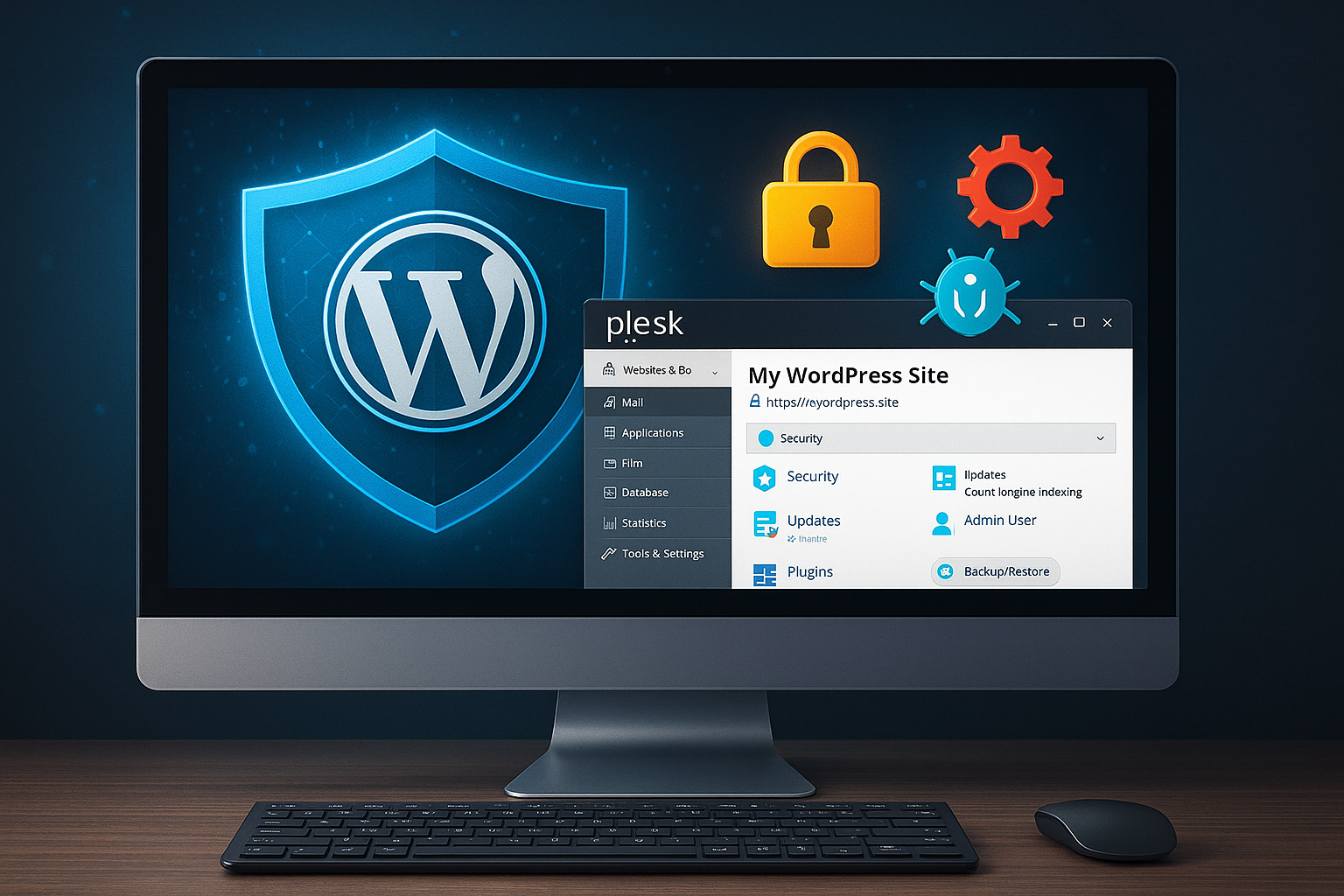
Shield upload directories against PHP files
Just that /wp-content/uploads/ directory is often used by hackers for hidden file storage. In Plesk, I block the PHP execution in uploads consistently. This is possible via .htaccess or directly via security settings in the toolkit. This limits the damage even in the event of a successful file upload. Alternatively, a control mechanism via plugins such as All In One WP Security or Sucuri Scanner is also recommended, which sound the alarm as soon as an upload attempt is made.
Many attackers use simple tricks to smuggle files with malicious code into the upload directory, often in combination with harmless-looking file extensions. However, special rules can be used to define which file types may be uploaded at all. For example, you could upload image files to .jpg, .png and .gif and block everything else. Such fine adjustments increase security enormously and can be adjusted dynamically in Plesk depending on the use case. For example, if you need PDF uploads, you can enable them specifically - everything else remains blocked.
Schedule monitoring and backups regularly
No system is absolutely secure - that's why I plan regular backups and active monitoring. The toolkit automates Daily backups and offers simple recovery in the event of problems. Whether caused by malware, plug-in crashes or user errors - a quick rollback protects data and projects. Added to this is the monitoring of security-critical system changes that trigger immediate notifications. This combination prevents long-lasting damage in an emergency.
When monitoring, it is worth looking at different levels. In addition to the WordPress and web server log, Plesk can also log events at database level. Some attacks are barely visible in the log if they take place via SQL injection, for example. If you configure alerts here, you will receive an early signal if unusual database transactions or enormous load peaks are noticed. It also makes sense to monitor the utilization of server resources. Dramatic outliers in CPU or RAM usage sometimes indicate a compromise or a botnet that is currently trying to paralyze the site.
webhoster.de: Ideal for Plesk and WordPress
If you use Plesk and have high security requirements, you are better off with webhoster.de excellent. In addition to full Plesk integration, the provider offers a solid hosting solution with high availability, modern security features and German-language support. The systems at webhoster.de are specially tailored to WordPress and enable me to run even large projects securely and with high performance.
Support and automatic scaling pay off, especially if you provide hosting for several customers or projects. The configuration of security settings is further simplified by the close link between webhoster.de and Plesk. In addition, you can be sure that your hoster will continuously install security updates for its hardware and virtualization infrastructure. In this way, the Plesk toolset and the hosting concept complement each other to provide comprehensive protection.
| Place | Provider | Special feature |
|---|---|---|
| 1 | webhoster.de | Best Plesk security & performance |
| 2 | Provider B | Good features |
| 3 | Provider C | Solid basic equipment |
Summary: Operating WordPress securely with Plesk
Security is created when technology and processes are implemented consistently. With the Plesk WordPress Toolkit, I rely on a powerful basic framework for securing all essential attack vectors. From basic hardening to logins and backup solutions, the system covers central security requirements. Supplemented by security plugins and a provider like webhoster.de, the result is a well-rounded, reliable infrastructure for digital projects.
From a strategic point of view, it is helpful to keep a checklist of all the measures mentioned and regularly check their status. Above all, you should respond promptly to warning messages, not postpone updates and keep an eye on the server configuration. This will enable you to keep your WordPress installation stable and secure in the long term - even before new attack scenarios reach the market in 2025. Because prevention is and remains the best defense.