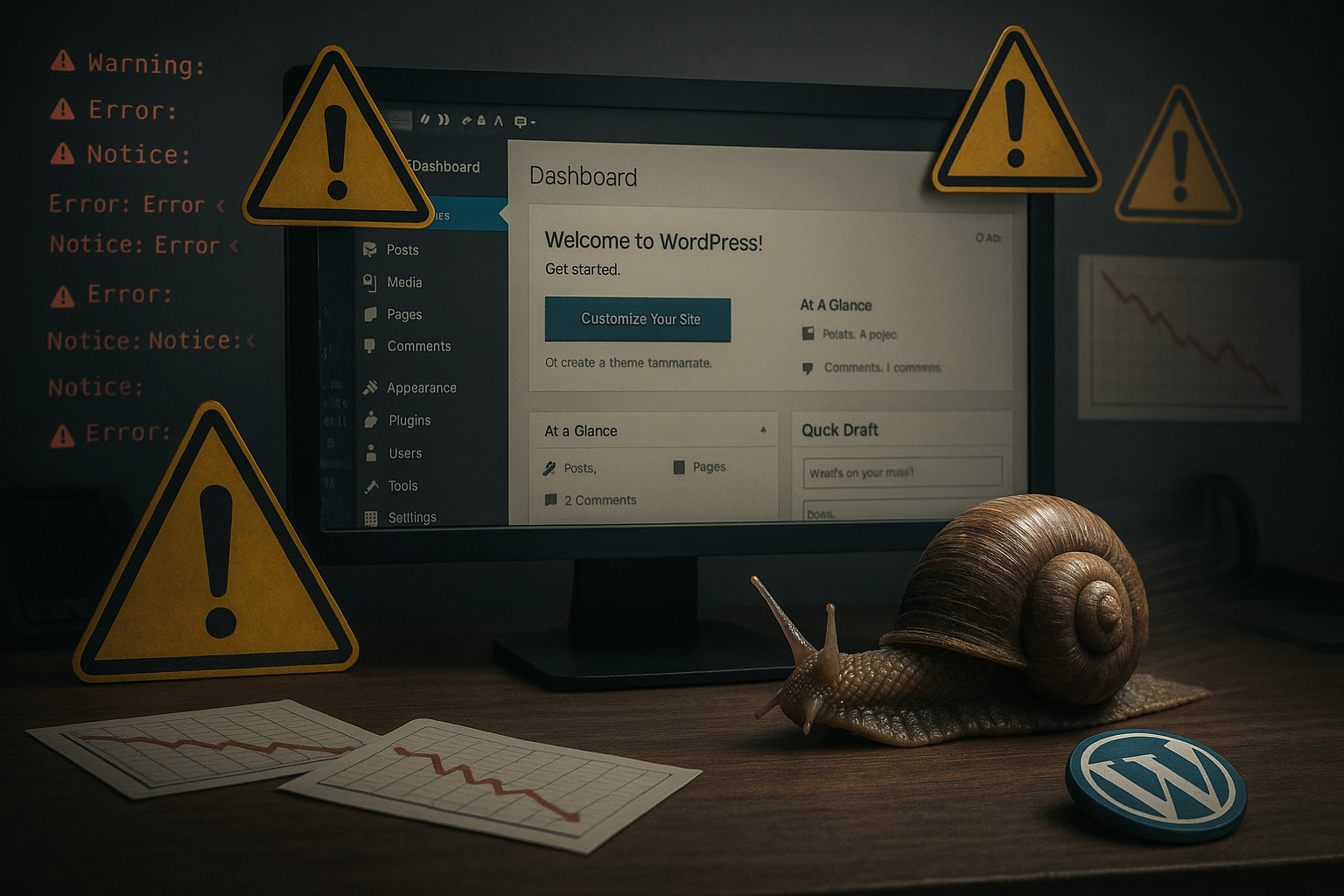
Active debug logging forces WordPress to perform additional write operations each time it is called, which increases the TTFB and the server load increases noticeably. As soon as hundreds of notices, warnings and deprecated notices land per request, the server load grows. debug.log and the site reacts slowly.
Key points
- Write load grows: Every error ends up in debug.log and generates I/O overhead.
- E_ALL active: Notices and deprecated notes inflate the logging.
- Productive risky: speed drops, sensitive information ends up in the log file.
- Caching limited: Overhead arises per request, cache is of little help.
- Rotation necessary: Large logs slow down and eat up memory.
Why active debug logging slows down WordPress
Each request triggers the wordpress debug logging three tasks: Capture errors, format messages and write them to disk. This chain takes time because PHP first generates the message content and then writes it synchronously to disk. debug.log must be stored. Especially with many plugins, notices accumulate, which means that each page suddenly causes hundreds of write operations. The file quickly grows by tens of megabytes per day, which slows down file accesses. I then see how TTFB and total load time increase, even though nothing has been changed to the theme or cache.

Understanding error levels: E_ALL, Notices and Deprecated
With WP_DEBUG to true, WordPress raises the error reporting to E_ALL, which means that even harmless notices end up in the log. Exactly these notices and deprecated warnings sound harmless, but increase the log frequency enormously. Each message triggers a write access and costs latency. If you want to know which error levels cause how much load, you can find background information on PHP error levels and performance. I therefore temporarily reduce the volume, filter out unnecessary noise and thus shorten the Writing intensity per request.
File size, TTFB and server load: the domino effect
As soon as debug.log reaches several hundred megabytes, the agility of the file system decreases. PHP checks, opens, writes and closes the file non-stop, which increases TTFB and backend response time. In addition, the CPU formats messages, which is an issue with high traffic. I/O becomes a bottleneck, because many small sync writes increase the Latency dominate. On shared hosting, this drives up the load average until even the backend appears sluggish.

Typical triggers: plugins, WooCommerce and high traffic
Stores and magazines with many extensions quickly produce a large number of Notices. A WooCommerce setup with 20 extensions can trigger tens of thousands of entries every day, which inflates the log file in a short time. If the traffic increases, the flood of messages increases at the same rate. Every page request writes again, even if the frontend output is cached, as logging takes place before the cache output. In such cases, I see loading time peaks and collapsing cron jobs because Disk I/O constantly blocked.
Productive environments: Loss of speed and information leakage
On live systems I clamp Debug immediately as soon as the error analysis ends. Debug logs reveal file paths, query details and therefore potentially sensitive information. In addition, the response time drops noticeably because every real visitor triggers log lines again. If you want to proceed thoroughly, check alternatives and guidelines for the Debug mode in production. I stick to short analysis windows, delete old logs and secure the file against unauthorized access. Access.
Comparison of measured values: without vs. with debug logging
The slowdown is easy to measure because TTFB and server load clearly shift under debug logging. I often measure short response times without active logging, which increase noticeably under logging. This applies not only to frontend views, but also to admin actions, AJAX calls and REST endpoints. Even if the content comes statically from the cache, the additional logging overhead slows down the request. In the following table, I summarize typical Tendencies together.
| Performance factor | Without debug | With debug logging |
|---|---|---|
| Time to first byte (ms) | ≈ 200 | ≈ 1500+ |
| Server Load | Low | High |
| Log size (per day) | 0 MB | 50-500 MB |
These ranges reflect common observations and show how wp slow debug is created. I analyze APM traces, page timings and server statistics together. I also look at the file system profiling to make write amplitudes visible. The pattern is clear: more messages lead to a greater proportion of I/O in the request. Overall, the latency increases, even though the PHP code itself is supposedly equal remains.

Why caching is of little help against the overhead
Page and object cache reduce PHP work, but logging fires before and after. Each notice generates a new Write-operation, regardless of whether the HTML response comes from the cache. Therefore, TTFB and backend response remain increased despite the cache. I use cache anyway, but don't expect miracles from it as long as debug logging remains active. What counts for real relief is the shutdown of the source, not the masking by Cache.
Activate safely and switch off again even faster
I activate logging specifically, work in a focused way and deactivate it immediately after the analysis. This way I put it in the wp-config.php and keep the output away from the frontend:
define('WP_DEBUG', true);
define('WP_DEBUG_LOG', true);
define('WP_DEBUG_DISPLAY', false);
@ini_set('display_errors', 0);
I then check the relevant page views, isolate the source and set WP_DEBUG to false again. Finally, I delete a bloated debug.log so that the server no longer juggles dead data. This discipline saves time and preserves the Performance in everyday life.

Log rotation and maintenance: small steps, big impact
Growing without rotation debug.log unchecked until the write accesses get out of hand. I therefore set up daily compression and delete old files after a short period of time. This simple step significantly reduces I/O because the active log file remains small. In addition, I use regex to filter typical notice noise in order to dampen the flood. If you want to go deeper, you can also check PHP error levels and error handlers for Granularity.
Read out errors securely: Protection from prying eyes
Debug logs must not be publicly accessible, otherwise paths and keys will fall into the wrong hands. I lock the file in the Webroot consistently, for example via .htaccess:
Order Allow,Deny
Deny from all
I set equivalent rules on NGINX so that no direct download is possible. I also set restrictive file permissions to limit access to the bare minimum. Security comes before convenience, because logs often reveal more than expected. Short check intervals and tidy logs reduce the attack surface small.

Finding the source of the error: Tools and procedure
To narrow it down, I use the gradual deactivation of plugins and a focused Profiling. Meanwhile, I evaluate the log lines with tail and filters to quickly identify the loudest messages. For more in-depth analyses, I use Query Monitor Practice, to track hooks, queries and HTTP calls. At the same time, I measure TTFB, PHP time and database duration so that I can clearly identify the bottleneck. Only when the source has been determined do I reactivate the plugin or adjust the code so that no Noise remains.
Choose hosting resources wisely
Debug logging is particularly noticeable on slow storage hardware, because every Write-operation takes longer. I therefore rely on fast I/O, sufficient CPU reserves and suitable limits for processes. This includes a good PHP worker configuration and a clean separation of staging and live. If you use staging, you can test updates without load peaks and can activate loud logging with a clear conscience. More headroom helps, but I solve the cause so that WordPress can run without Brakes is running.
Fine-tuning of WP and PHP settings
I use additional settings in wp-config.php to precisely control the volume and minimize side effects:
// Bend the path: Log outside the webroot
define('WP_DEBUG_LOG', '/var/log/wp/site-debug.log');

// Only temporarily increase volume, then shut down again
@ini_set('log_errors', 1);
@ini_set('error_reporting', E_ALL & ~E_NOTICE & ~E_DEPRECATED & ~E_STRICT);
I use a dedicated path to store the log file outside the webroot and separate it cleanly from deployments. About error_reporting I deliberately dampen the noise when I am primarily looking for hard errors. As soon as I switch to staging, I pull E_NOTICE and E_DEPRECATED back in to work through legacy issues.
SAVEQUERIES, SCRIPT_DEBUG and hidden brakes
Some switches only develop a strong braking effect when combined. SAVEQUERIES logs every database query in PHP memory structures and increases the CPU and RAM load. SCRIPT_DEBUG forces WordPress to load non-minified assets; good for analytics, but worse for load time. I only activate these switches in strictly limited time windows and only in staging environments. I also define WP_ENVIRONMENT_TYPE (e.g. “staging” or “production”) to conditionally control the behavior in the code and avoid misconfigurations.
Server factors: PHP-FPM, storage and file locks
At server level, I decide a lot about the noticeable impact: PHP FPM pools with too few workers will back up requests, while oversized pools increase I/O contention. I set separate pools per site or critical route (e.g. /wp-admin/ and /wp-cron.php) to mitigate collisions between logging and backend work. On the storage side, local NVMe volumes perform significantly better than slower network file systems, where file locks and latency multiply the effect of logging. With the PHP-FPM slowlog, I recognize bottlenecks caused by frequent error_log()-calls or lock waiting times.
Offloading: Syslog, Journald and remote shipping
If I cannot switch off logging completely, I relieve the hard disk by offloading. PHPs error_log can send messages to Syslog, which are then buffered and processed asynchronously. This reduces the write amplitude of local files, but shifts the effort to the log subsystem. It is important to limit the rate, otherwise I just replace the bottleneck. For short tests I prefer local files (better control), for longer analyses short offload phases with a clear switch-off limit.
Targeted debug window via MU plug-in
I limit debug to myself or a time window to avoid the noise of productive users. A small MU plugin enables debug only for admins of a specific IP or cookie:
<?php
// wp-content/mu-plugins/targeted-debug.php
if (php_sapi_name() !== 'cli') {
    $allow = isset($_COOKIE['dbg']) || ($_SERVER['REMOTE_ADDR'] ?? '') === '203.0.113.10';
    if ($allow) {
        define('WP_DEBUG', true);
        define('WP_DEBUG_LOG', '/var/log/wp/site-debug.log');
        define('WP_DEBUG_DISPLAY', false);
        @ini_set('log_errors', 1);
        @ini_set('error_reporting', E_ALL);
    }
}
This way, I only log my own reproductions and spare the rest of the visitors. After completion, I remove the plugin or delete the cookie.
Rotation in practice: robust and safe
I rotate logs with compact rules and pay attention to open file descriptors. copytruncate is handy if the process does not reopen the file; otherwise I use create and signals to PHP-FPM so that new entries flow into the fresh file. Example:
/var/log/wp/site-debug.log {
  daily
  rotate 7
  compress
  missingok
  notifempty
  create 0640 www-data www-data
  postrotate
    /usr/sbin/service php8.2-fpm reload >/dev/null 2>&1 || true
  endscript
}
In addition, I keep the active log file small (<10-50 MB) because short searches, greps and tails run noticeably faster and generate fewer cache miss cascades in the file system.
WooCommerce and plugin-specific logging
Some plugins have their own loggers (e.g. WooCommerce). I set the threshold values there to “error” or “critical” and deactivate “debug” channels in production. This reduces double logging (WordPress and plugin) and protects the I/O. If I suspect an error in the plugin, I specifically increase the level and then reset it immediately.
Multisite, staging and containers
In multisite setups, WordPress bundles messages by default into a common debug.log. I deliberately distribute them per site (separate path per blog ID) so that individual “noisy” sites do not slow down the others. In container environments, I temporarily write to /tmp (fast), archive specifically and discard content during the rebuild. Important: Even if the file system is fast, the CPU load of the formatting remains - so I continue to eliminate the cause.
Test strategy: clean measurement instead of guesswork
I compare identical requests with and without logging under stabilized conditions: same cache warmup, same PHP FPM workers, identical load. Then I measure TTFB, PHP time, DB time and I/O wait time. In addition, I run load tests for 1-5 minutes, because the effect of large logs and lock contention only becomes visible under continuous writing. Only when the measurement is consistent do I derive measures.
Data protection and storage
Logs quickly contain personal data (e.g. query parameters, email addresses in requests). I keep storage to a minimum, anonymize where possible and delete consistently after completion. For teams, I document the start and end time of the debug window so that nobody forgets to remove the logging again. This way I keep risk, storage requirements and overhead low.
Briefly summarized
Active Debug logging slows down WordPress because every request triggers write operations and formatting that increase TTFB and server load. I activate logging specifically, filter messages, rotate the log file and block debug.log from being accessed. In production environments, logging remains the exception, while staging is the rule. Caching alleviates symptoms, but does not eliminate the overhead per request. If you consistently eliminate causes, you ensure speed, save resources and keep the performance wordpress permanently high.