Skip to content
A complete WordPress Backup reliably protects your website against data loss, outages and attacks in 2025. In this guide, I will show you step by step how to set up, automate and securely manage backups efficiently - with practical tools, proven strategies and specific recommendations.
Key points
- Automated backups ensure security without manual effort
- 3-2-1 rule minimizes permanent data loss
- Restoration must function simply and reliably
- Cloud storage protects you from server failures
- Incremental backups save storage space and reduce loading times
Why backups are more important than ever in 2025
The number of hacked WordPress sites continues to rise. According to industry analyses, 90 % of all CMS hacks occur on WordPress sites. Poorly maintained or unsecured websites are often affected. Meanwhile, many hosting providers do not adequately secure their own servers against security vulnerabilities in customer installations. If an attack or error occurs, only a valid backup can save your content. More important than ever: backups are now more than just a "what if" safeguard. They are part of any effective security strategy. If you Secure WordPress professionally you can't get around regular and secure backups. Even with faulty plugin updates, an up-to-date backup is the quickest way to get back online.How to create a manual WordPress backup
A manual backup means complete control over your data. I first back up my WordPress files via FTP with FileZilla. I load my main directory - incl. wp-content, wp-config.php and .htaccess - on my computer. I then export the SQL database via phpMyAdmin. I select "Quick" in the export tab and download the file. This creates a complete image of my website. This is particularly useful before major changes such as plugin changes or redesigns.Automation with UpdraftPlus - how it works
UpdraftPlus is my preferred tool for automating stress-free backups. After installation in the WordPress backend, I select the backup frequency under "Settings > UpdraftPlus backups". For mostly updated websites I use:- Daily backups for the database
- weekly for files and themes
Cloud or local - where do I store my backups?
I have found out: Backups stored only on the web server are risky. In the event of a complete failure, these would also be lost. That's why I use the 3-2-1 principle:
Backup strategy by website type
Not every website needs daily full backups. I adapt the backup frequency to the behavior of my site. The following applies to typical scenarios: - Weekly backup for normal blog operation - Daily database export for web stores or highly frequented sites - Monthly file backup is sufficient for static portfolios Important: I ALWAYS create manual backups before updates and plugin changes - regardless of the frequency of the automatic backup.Alternative plugins at a glance
In addition to UpdraftPlus, I tested the following plugins: - BlogVault: great for incremental backups - WP Time Capsule: best option for live restores - BackupBuddy: no subscription, one-time payment - All-in-One WP Migrationsimple for small pages With Jetpack Backup you even get real-time backups - especially worthwhile for WooCommerce projects.
How to restore a WordPress backup
A backup is only useful if I can restore it safely. With UpdraftPlus, this is done directly in the backend: 1. select backup file 2. determine components (files, database or both) 3. execute restore For manual backups, I restore the files via FTP. The SQL database I import via phpMyAdmin.Integrate backup into staging environments
I've also learned how helpful it can be to integrate backups directly into my staging environment. By a staging environment, I mean a kind of copy of my website on which I can safely test changes without jeopardizing my live site. I like to use special hosting functions that automatically provide me with a staging version. Some hosters offer a one-click staging function that creates a copy of the database and files. However, before I test anything in the staging environment, I take an additional backup of the live website. This way, an error in the staging process cannot jeopardize my current data. After the tests, I migrate the working changes back to the live installation. Here too, I recommend making another backup before overwriting the staging system or using it to update the live site. This additional layer of security prevents a faulty staging integration from unintentionally overwriting something.Dealing with particularly large WordPress projects
When a website grows and hosts hundreds or thousands of blog posts, images and plugins, the backup requirements also increase. Especially with extensive WooCommerce stores, many product images, customer data and transaction information often need to be backed up. Incremental backups are almost a must here, as full backups can quickly reach several gigabytes and overwhelm the hosting and server load. I also like to use a combination of different plugin functions in such cases: For example, I separate image files and database backups in order to back up the database more frequently than the media. For very large projects, I also look at managed hosting solutions that offer automatic versioning of the database and possible file synchronization. These hoster-related backup methods can sometimes run faster and more reliably than self-configured scripts that I set up manually in the hosting panel. It remains important: I regularly check whether the backups are actually complete. With large projects, partial backups are sometimes lost if they exceed the maximum script runtime. In this case, the hosting settings need to be adjusted accordingly.What to do if backups are faulty?
Incorrect backups can occur if, for example, the script aborts during compression or if the database connection is not working properly. A typical example is an incomplete .sql file that has omitted important tables. It is therefore essential to check every backup file at least randomly before I file it away as "working". I occasionally open the SQL file in a text editor to roughly check whether all common tables such as wp_posts or wp_users are present. If I notice that a backup is corrupt, the first thing I do is look for an older, intact backup. For this reason, I keep several versions (for example, according to the 3-2-1 principle). Some plugins also keep a backup log in which I can see whether there were any warning messages during the backup process. If it turns out that a backup is irreparably damaged, I prefer to delete it directly so that I don't accidentally revert to it in an emergency.Choose backup times strategically
I set my backup times so that they have as little impact as possible on the performance of the site. Automatic full backups in particular can lead to high server utilization if they run at peak times (e.g. at midday when many visitors are online). I therefore like to program backups for the early hours of the morning or for periods when I expect little traffic. For websites with a global readership, this can be more difficult because there are always users active somewhere in the world. I then like to use incremental backups, which only generate a minimal load. Alternatively, I can split a large backup into partial backups: first only files are backed up, then the database at another time. In this way, I spread the load over several periods and avoid a loss of speed for my visitors.Offsite backup strategies beyond the standard
Of course, the 3-2-1 principle is already very robust. Nevertheless, it is worth going one step further and planning additional locations for a backup in addition to the cloud, local hard disk and web server. Some professionals even back up highly critical websites to physical tapes or have a second cloud backup with a different provider. Especially in times of frequent ransomware attacks, an encrypted and separately stored medium can be an additional lifeline. Personally, I feel safer when I know that even in the event of a cloud failure at one provider, my data is still stored at another backup provider in a separate data center.Additional security through regular maintenance routines
Backups are a crucial part of security planning, but not the only component. I see it as the perfect complement to my regular maintenance routines. These include:- Keep all themes and plugins up to date
- Regular updates of the WordPress core
- Strong passwords and two-factor authentication
- Trusted plugins and themes in terms of security
- Monitoring of access data and server logs
Efficient use of incremental backups
An incremental backup system is particularly worthwhile for high-traffic websites with lots of media. With BlogVault or WP Time Capsule, only changed content is saved. This saves storage space and significantly reduces transfer times. This is particularly useful for web hosting with many projects. If you use WordPress make faster easy backup handling is a must. Another strength of incremental backups is when I need multiple versions. Instead of backing up several gigabytes each time, I can create smaller packages that restore different stages of my website in an emergency. For example, I can roll back changes made on a single day without having to import a complicated full backup. Especially for projects with constant changes - such as new blog posts every day or product updates in an online store - this keeps the time until a complete restore manageable.Mistakes that I avoid at all costs when backing up
I've seen a lot of rookie mistakes - and I'm sure I won't make them again today: - I check automated backups regularly - I don't rely exclusively on server storage locations - I do test restores every 3 months - I keep at least 5 restore points - I ALWAYS back up database AND website files This is the only way to keep my backup plan resilient to errors, attacks and technical failures.
Test and optimize backups regularly
A backup that I never check is almost worthless. That's why I check my backups for recoverability once a month. I test the website on a subdomain and check whether everything works as expected. If you use hosting products, you should check the options in advance, Automatically control backups. Some hosters already offer integrations for regular validations and logs. From time to time, I also optimize my backup strategy if the requirements of my website change. For example, if I add digital downloads to an online store, I will have to consider larger files in the future. If my workflow changes, I may change my backup schedule or storage locations. This allows me to keep my backup routine flexible and avoid surprises.Focus 2025 - smarter security instead of just storage
In the future, the focus will be less on the amount of data and more on its availability in an emergency. For 2025, I recommend: 1. plan backups like a project - with deadlines and reminders 2. use a combination of plugin, cloud and local backup 3. perform monthly test restores 4. document all backup processes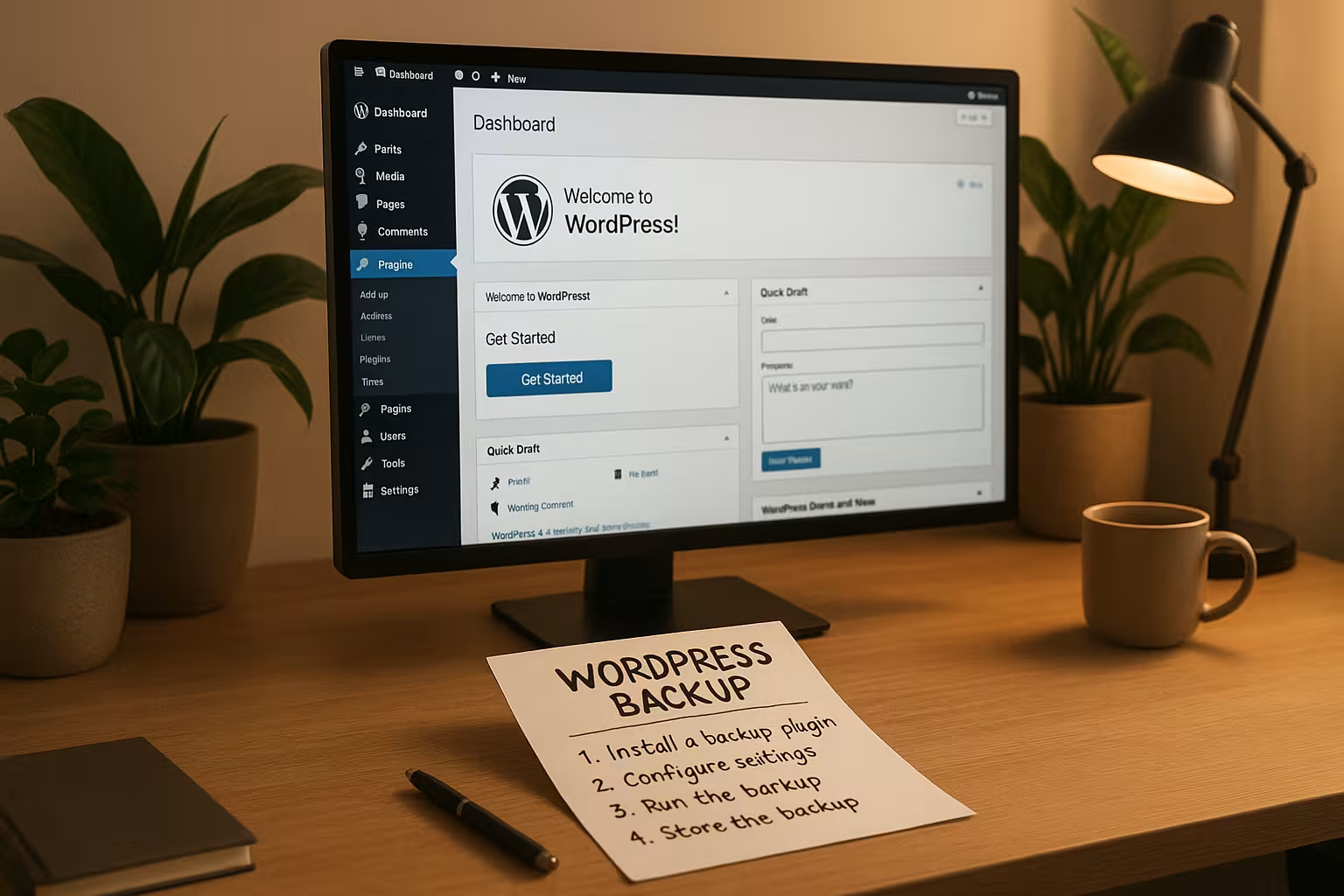
The increasing importance of GDPR compliance and data protection should also be kept in mind in 2025. Anyone backing up personal data must ensure that access and storage comply with legal requirements. This means encrypting access and backups and only making them accessible to authorized persons. Depending on the company structure, it is advisable to establish a role and authorization concept in which it is precisely defined who is allowed to work with what and who, for example, is allowed to import backups or download them externally. This approach not only protects customers and users, but also the website operator from legal consequences.
The hardware on which backups are stored locally should also be modern and reliable. External SSDs not only offer higher speed compared to HDDs, but also generally generate less heat. Nevertheless, any hardware can fail at some point. That's why I keep an eye on the health status of my SSDs or hard disks. To do this, I use special monitoring tools that show me the status and warn me of hardware faults in good time. With cloud providers, I rely on their redundancy system; however, a local copy is always advisable in case a connection is disrupted or the cloud provider has technical problems.
Summary: Smart backups with your backup system
A WordPress backup protects you in crisis situations and saves valuable time. I therefore rely on an intelligent mix of automated and manual backups. With incremental backups and multiple storage locations, I remain flexible and agile. I test my backups regularly and combine local and cloud-based systems. If you take your website seriously, you don't treat backups like an afterthought - but like life insurance for every project.