Skip to content
A successful web design starts with the foundation: the template. Who Customize Joomla templates If you want to create a website, you don't just choose a layout, you define the visual appearance of your entire website. This article shows step by step how to select templates sensibly, install them efficiently and modify them in a targeted manner - right through to developing your own templates.
Key points
- Template selection: Differences between standard, framework and premium templates
- Installation: Simple steps via the Joomla backend
- Design customization: Customize colors, layouts and typography with CSS and overrides
- Update security: Use your own files such as user.css
- Own templates: Full control through individual development
Targeted use of template types
The choice of the right template influences the entire design framework. Joomla offers four basic types, from preconfigured layouts to the bare HTML structure. Standard templates such as Cassiopeia provide a solid basis. Framework templates such as Helix Ultimate include additional features such as layout builders or integrated SEO functions. For advanced requirements, premium templates offer pre-installed demos and widgets. Developers usually use self-programmed templates for maximum creative freedom.
Install and activate template
A new template can be integrated in just a few minutes. After downloading it in ZIP format, it is integrated via "System - Install - Extension". It is then activated in the "Site Template Styles" menu. It is worth checking immediately after activation whether the layout appears correctly and the desired module positions are present. Especially with framework templates such as Helix Ultimate, it is advisable to make a complete backup beforehand using a tool such as Joomla Toolkit to create. This allows you to test changes without risk.
Modify design in the Template Manager
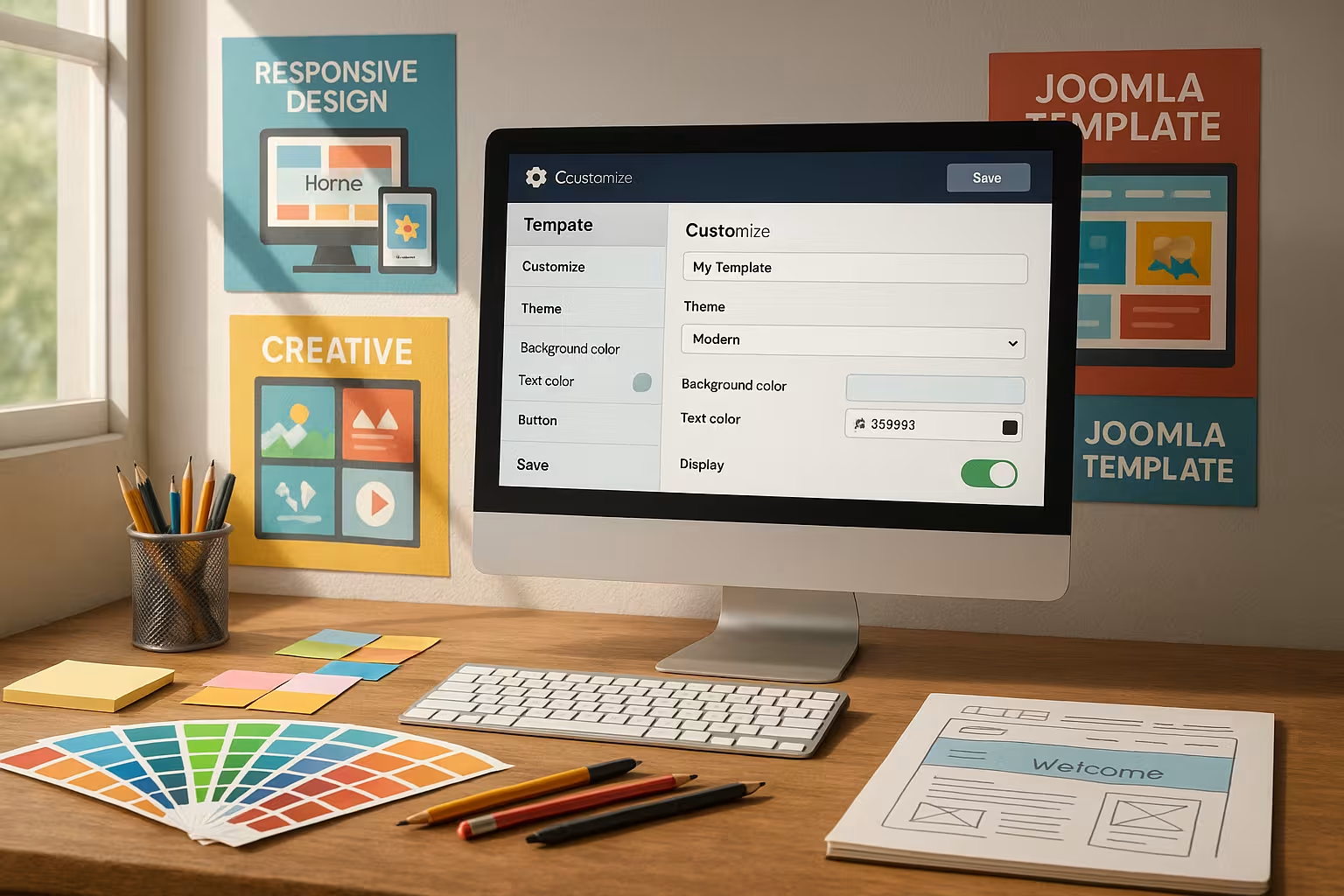
Modern Joomla templates have their own settings dialog. You can change basic parameters in the "Template styles" area: Logo, color palettes, block positions or fonts. The user interface differs depending on the template: Cassiopeia offers simple layout options, while Helix Ultimate provides advanced settings via drag-and-drop. Don't forget to save - many templates use their own configuration files, which are automatically overwritten when changes are made.
Targeted design with your own CSS rules
If the template options are limited, CSS can help. A "user.css" file can be created in the template path /css/ - if this is recognized, it overwrites existing styles. Here you can adjust colors, correct spacing or define fonts. Advantage: This procedure is retained after future updates as long as the file name remains the same. How to save Update compatibilitywithout changing the main template.
Customize structure and layout with overrides
The override technique allows you to change individual views (e.g. mod_login, com_content) independently of the original template. To do this, create a copy of the relevant file in the /html/ directory of your template - e.g. default.php for a module output. Change HTML markup, add classes or remove superfluous elements. Overrides are particularly suitable for modules or user forms that are used multiple times, as they allow you to make specific changes.
Own templates: control from the ground up
Experienced administrators build their template away from preconfigured structures. Two files are central to this: index.php for the basic layout (with placeholders for modules) and templatedetails.xml for the metadata and assignments in the backend. The path is: /templates/minename. Additional directories for CSS, images and scripts help with the organization. This way of working is particularly worthwhile if existing frameworks appear too rigid or overloaded.
Comparison: Cassiopeia vs. Helix Ultimate
Which template is suitable for which target group? The following direct comparison shows this:
| Feature | Cassiopeia | Helix Ultimate |
|---|---|---|
| Performance | Very fast | Good, depending on the module |
| User friendliness | Beginner-friendly | Editor with many options |
| Design customization | via CSS | Via drag-and-drop & CSS |
| Extensibility | Limited | Very high |
Would you like your Migrate Joomla website to WordPress latermany design elements can be taken along - especially with self-developed templates.
Checklist: Compatibility and maintenance
A template is only functional if it matches the Joomla version and PHP configuration used. Older templates in particular cause errors here. Check regularly:
- Joomla version in the backend under "System - System information"
- PHP version via your hosting control panel
- File permissions of the template folder
Never change the original template files without a backup. Use child templates or give your variants unique names to avoid conflicts during updates.
Update preview images in the backend
As soon as the design has been customized, you should also update the thumbnails. These appear in the backend and help with multi-site projects. Place the files "template_thumbnail.png" (206×150 px) and "template_preview.png" (640×388 px) in the root directory of your template. This allows you to keep an overview in the template management - particularly important if you have several in-house developments or many themes in the system.
Work safely and expand flexibly
Backups and clean working methods are crucial for a permanently functioning website. Name your own CSS or override files clearly and document changes in a version history. Clearly structured module assignments, such as for "sidebar" or "footer", help when switching to new templates or server moves at a later date. On the hosting side, it is worth taking a look at Joomla-optimized hosting offers. These not only offer high loading speed, but often also additional tools for easier template maintenance.

Performance optimization and accessibility
An often neglected aspect of the Joomla template consists of performance and accessibility optimization. Especially with extensive framework or premium templates, too many scripts and plugins can increase loading times. Therefore, pay attention to the following points:
- Minification of CSS and JavaScript: Tools such as CSS-Uglify or integrated options of the template frameworks reduce the file size.
- Optimize images: Reduce image sizes or use the WebP format without affecting the quality too much.
- Lazy Loading: Images and other media objects are only loaded when they appear in the visible area.
- Accessibility: Ensure sufficient contrast ratios, meaningful ALT texts and a clear navigation structure for screen readers.
Modern templates often already have integrated performance functions, especially with well-known frameworks such as Helix Ultimate. The targeted combination of template-internal optimizations and Joomla's own caching options can noticeably speed up your site. Ideally, you will offer a barrier-free and fast website that provides added value for all users.
Child templates for a clean update strategy
If you often install updates of your desired framework template, the question of a sensible strategy for customization arises. Especially with premium and framework templates, it is worth creating a so-called child template. This is where your CSS customizations, overrides and additional files are stored in a separate template folder. The main template remains untouched. This allows you to carry out updates safely without having to laboriously restore your changes.
Many well-known template providers such as Helix Ultimate or Gantry already offer an integrated structure for child templates. The basic procedure usually looks like this:
- Create a new template folder (e.g. /templates/mytemplate_child).
- Add a customized templateDetails.xml-file that refers to the main template.
- Place your own CSS files (e.g. user.css) in the new folder so that they overwrite the styles of the parent template.
- Change or create overrides in the HTML folder of the child template.
This allows you to benefit from error guidelines and security patches of the parent template without having to forego your individual customizations.
Multilingual websites and template overrides
If you work with several languages, the template design can quickly become confusing. Joomla itself has integrated language features for this. Nevertheless, it is helpful to use the Template override directory (i.e. /html/) to make language-specific adjustments. For example, you can vary the layout in modules or components depending on the language. However, make sure to keep the folder structure within the override logical.
For each language, you can create a separate default.php-file into your template override and thus offer custom-fit translations or layout versions. This is particularly relevant if you want to use very different design elements for different language areas, such as images or banner graphics that are only relevant in a certain country.
Optimal workflows: Local development environment and version control
It is advisable to work in a local development environment, especially for extensive template customizations. You install Joomla on your computer using XAMPP or MAMP, for example, and test all changes before they go live. This reduces the risk of causing errors or failures during operation. In parallel, carry out version control with Git or a similar system so that you can return to a working version at any time.
Fatigue or time pressure can otherwise quickly lead to changes being made directly in the live system and getting lost in the details. A clean workflow with a test environment, version control and documentation of the scripts and libraries used provides you with more security in the long term - and saves troubleshooting.
Custom script integrations and advanced customizations
If you reach the limits of the supplied template functions, it may be necessary to integrate additional JavaScript libraries or special CSS frameworks. The procedure is similar to that for overrides: Create a dedicated folder in the template directory, for example "/js/", in which you store your own scripts. Then include these scripts in your index.php or via an override to avoid conflicts with the Joomla core.
Think about common performance optimizations: If you combine many small JavaScript files and minimize them, you save loading time. Unnecessary scripts should not be included in the first place to avoid bloating the page. It is just as sensible to keep all CSS extensions clear and to sort out old classes or unused code. This keeps the entire template lean.
Template-specific SEO optimization
In addition to performance, search engine optimization is a factor that is often neglected when creating or adapting templates. Well thought out On-page optimization not only ensures better rankings, but also improves the user experience:
- Structured data: Use schema.org markups to provide Google & Co. with additional information.
- Customize head area: Provide meaningful meta tags such as title, description and keywords. Many framework templates offer their own input fields for this.
- Mobile optimization (responsive design): Ensure that font sizes, images and navigation are easy to use and read on smartphones.
In many templates, canonical tags or open graph metadata can be set directly in the template manager. Also make sure that your navigation menus are structured logically and that descriptive URLs are used. This will improve both usability and SEO.
Shared resources and override fallback
Sometimes there are different templates in one and the same Joomla installation: one template for the public area ("Site"), another for the administrator area or even different designs for different sub-areas. Thanks to the fallback system, Joomla can fall back on the standard template or Cassiopeia if overrides or files are missing. In concrete terms, this means that you only have to create the files you really need in your template folder. Joomla delivers everything else from the core installation.
This prevents redundant code structures, increases clarity and reduces maintenance work. For example, if you only want to customize a specific module, an override in /html/ is sufficient - all other modules continue to run as usual via the standard template.
Troubleshooting and debugging
When developing your own templates or extensive overrides, error messages and display problems may occur. Joomla offers a built-in debug mode for this, which you can activate in the backend under "System - Configuration - System". In debug mode, Joomla displays additional error messages and warnings that remain hidden when the option is deactivated. This also makes it easier to eliminate JavaScript conflicts and CSS collisions.
Frequent sources of error are:
- Incorrectly named override files (e.g. "defaul.php" instead of "default.php")
- Missing closing tags in HTML and PHP files
- Conflicts with already integrated JavaScript libraries (e.g. jQuery or Bootstrap versions)
The browser console also provides important information about JavaScript errors. Combine this information with the Joomla debug mode and check your overrides step by step to narrow down problems.
Template selection for larger projects
If you are planning an extensive portal with several hundred pages and a high volume of visitors, the stability and flexibility of your template are essential. Frameworks such as Helix Ultimate offer ready-made layout presets, a lean code base and usually an active developer community. Premium templates, on the other hand, can save you time if you want to implement a professional design quickly - however, they sometimes carry the risk of being too overloaded.
Whether you opt for in-house development or use a proven template framework depends on your resources, budget and technical expertise. For agencies and freelancers, the time saved by framework functions can be decisive. If, on the other hand, you want to create your own brand experience, you will find more room for individuality in completely self-written templates.
For a long-term stable solution, it is worth creating a specification sheet. Note down the key requirements of your website, versioning, SEO, accessibility, expandability and security aspects. In this way, you avoid making a template decision based purely on design aspects. As is so often the case, the internal structure - i.e. proper code and file management - makes the biggest difference when it comes to maintainability and performance.
To summarize: Design freedom meets systematics
Joomla templates offer a high degree of design freedom. If you master CSS, use overrides skillfully and develop your own templates, you can create web designs that don't look interchangeable. Frameworks such as Helix Ultimate make the work considerably easier, especially with visual editors. Those who prefer to work in a structured way from scratch benefit from an empty basic framework and rely on proven layout techniques with HTML, CSS and JS. Always important: backup, compatibility and regular testing.