Skip to content
I'll show you step by step how I can create my own FTP user create, set the path cleanly and establish the connection via FTPS secure. This way you have an all-inkl ftp access in a short time, test it directly in the client and separate projects cleanly from each other with your own logins.
Key points
- FTPS Active use: encrypted file transfer
- Own user per domain: clear rights
- Path correctly: Limit directory access
- Ports Note: Enter 21/990 correctly
- Passwords Select and document strongly
What is FTP access and when do I use it?
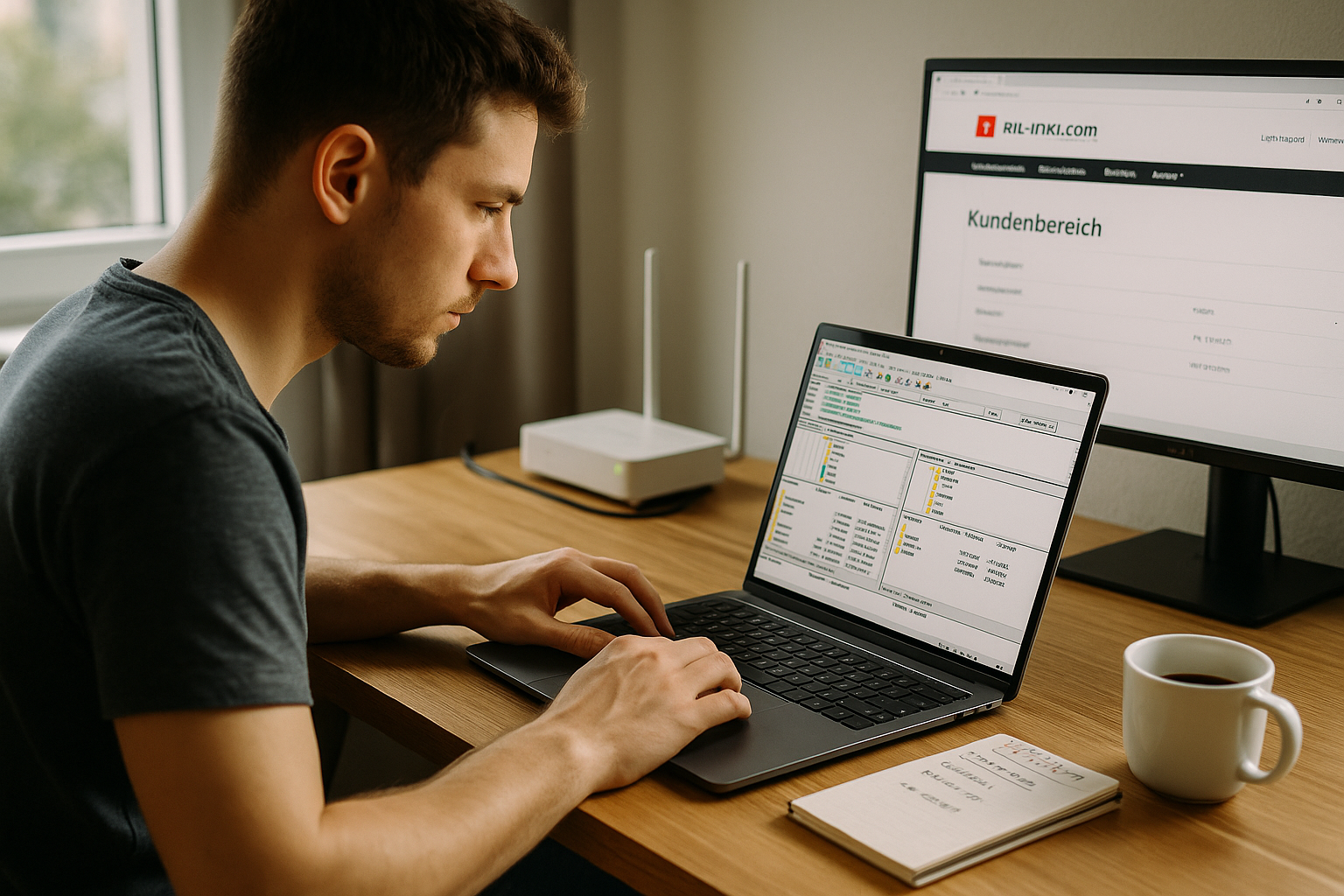
With FTP I transfer files between computer and server, for example theme folders, media or complete project folders. At All-Inkl I prefer to work with FTPSso that the connection is encrypted and access data remains protected. This is particularly helpful when I manually install updates or quickly pull a backup from the web space. For CMS installations such as WordPress, I often need access to the files to fix problems or adjust configurations. A separate login for each project separates responsibilities, minimizes mistakes and keeps the overview lean.
Preparation in the KAS: Planning structure and rights
Before I get started, I'll check in with the KAS and open the FTP overview, in which all logins are listed. I then check the folder structure of the respective domain so that the Path of the new account points exactly to the correct directory. This prevents users from accidentally writing to other folders. For projects with staging directories, I set up separate logins that only lead there. A brief sketch on paper or in the password manager saves time later because I clearly document rights and folders. For additional basics, I refer to these if required FTP instructionswhen I need a quick refresher.
Create FTP user: step-by-step in KAS
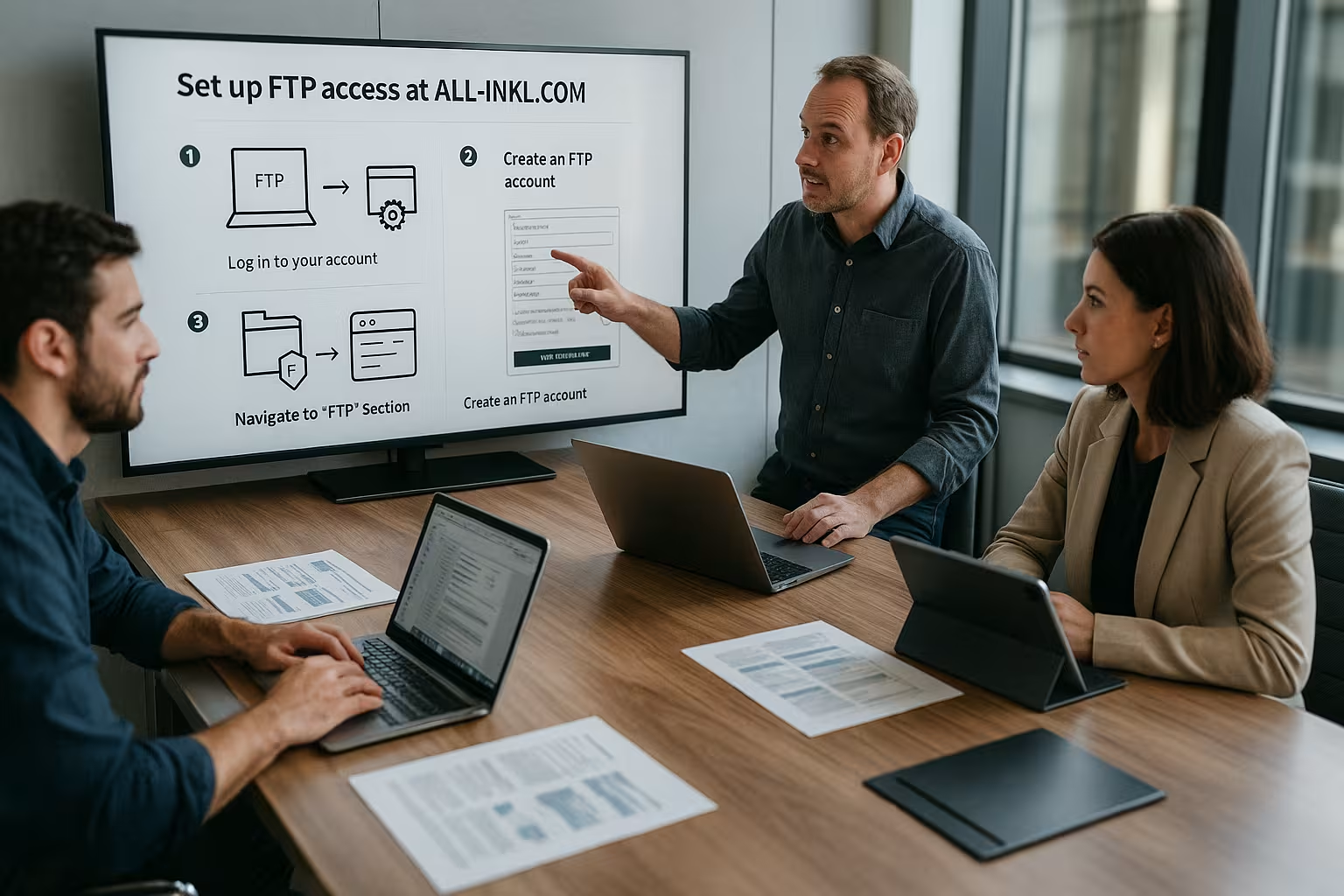
In the FTP overview, I click on "Create new user" and fill in the form with a clear Descriptionsuch as the domain. I set the target directory of the website as the path so that access is clearly restricted and no external folders are visible. For the password I use a generator and save it in my password manager to ensure high entropy and traceability. All-Inkl creates the user name automatically, which prevents confusion. After saving, the account is immediately available and I start the connection check in my preferred client.
Set up FTPS and test connection
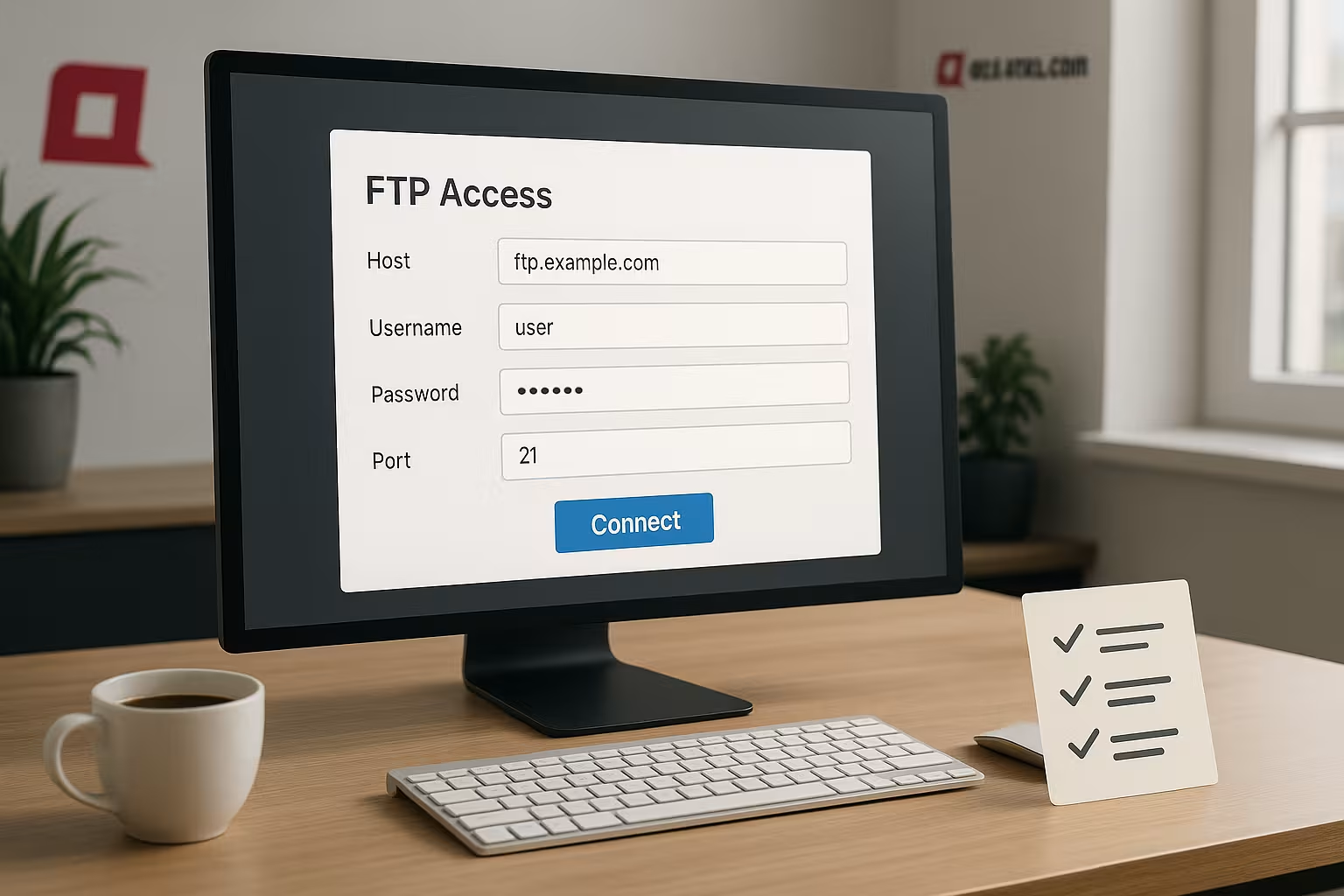
For testing, I open my client, run Server, User name and password and select FTPS as the protocol. For unencrypted FTP use port 21, for FTPS I use port 990; the encrypted variant has priority. After logging in for the first time, I check whether the root directory is correct and whether I can create, rename and delete files. If I repeatedly enter the wrong data, All-Inkl blocks the IP temporarily, so I enter the data carefully. If the connection hangs, a quick switch between explicit and implicit FTPS in the client settings often helps.
Understanding explicit vs. implicit FTPS and certificates
At explicit FTPS you start the connection via the classic control channel and then increase the encryption via AUTH TLS. Many clients require this variant on port 21. Implicit FTPS on the other hand, starts directly encrypted (typically port 990). You are functionally secure with both - the decisive factor is that your client checks the server certificate. I make sure that the entered Host name certificate, I consciously confirm it the first time I connect and save the decision. For certificate notifications (new certificate, expiry), I check the details instead of routinely clicking them away.
Active vs. passive mode: firewalls, NAT and stability
In offices, behind NAT routers or in strictly configured firewalls, I consistently use the passive mode. The server assigns the data channel, which significantly reduces connection interruptions. If the client shows errors such as "425 Can't open data connection", this often indicates a blocker in the network. I then switch to passive, activate "determine passive IP" if available and start a fresh test. Stability comes before speed - a permanently clean connection ultimately saves more time than a few parallel but error-prone sessions.
Path strategies: chroot, staging and order
The selected Path determines what the user sees at all. I therefore work with a chroot-like Approach: The login ends up directly in the project directory and does not even see folders above it. I create separate subfolders for staging setups (e.g. /project/stage/) and assign separate logins. This makes it clear which environment is being edited. If I move or tidy up later, it is sufficient to adjust the path in the KAS - the user name can remain, the authorizations adapt to the target path.
Permissions, transfer modes and file consistency
When uploading, I set the Transfer mode is set to "Binary" by default in my clients. Automatic ASCII recognition is often wrong and can corrupt binary files. I also pay attention to this, Timestamp so that synchronizations work properly. Permissions such as 644/755 are solid defaults in many setups; if I deviate from this, I document it in the project notes field of my password manager. If a "Permission denied" message appears, I first check the path and permissions in the target directory before I think about client errors.
Practical client workflows: Profiles, comparisons, limits
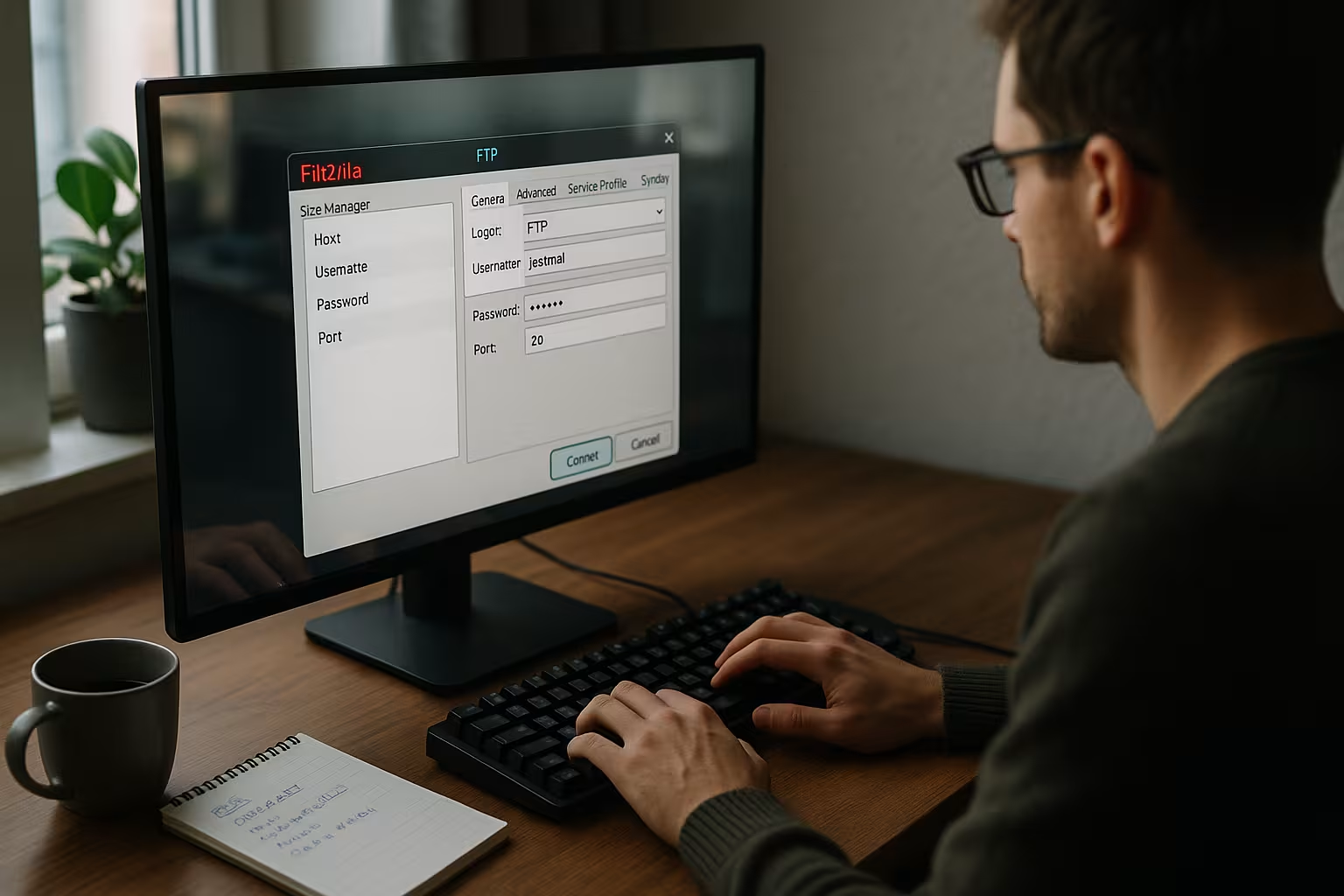
In the Site Manager of FileZilla I create a profile with a clear name for each project, set FTPS and the exact path. For larger transfers, I also reduce the simultaneous connections (e.g. 2-3) to avoid timeouts. The function Directory comparison helps me to visually check local and server-side folders before I synchronize. In Cyberduck I use bookmarks with predefined protocol and path, in WinSCP again the synchronization in "mirror" mode including dry run, so that I can see what will change. Whenever possible, I activate Keep-Aliveto intercept short interruptions without rebuilding the session.
Automate: repeatable processes and backups
For recurring tasks - such as nightly file backups or rolling out a build folder - I rely on Automated sessions. Many clients can address profiles in a scriptable manner. I define clear upload folders, filter temporary files (e.g. node_modules, cache, .map) and log the runs. For very large projects, I upload compressed Archives and unpack them on the server side, as this is often faster than transferring thousands of individual files. I also generate a short checksum or file list for critical deployments to ensure that all files have really arrived.

Teamwork: naming, temporary access and rotation
In teams I assign speaking Usernames and descriptions ("projektA-dev", "projektA-agentur") so that it remains clear who works where. External parties receive temporary additionswhich I delete again after completion. I rotate passwords for role changes or suspicious activities. Documentation is mandatory: I keep a record of who owns each access, which directory it can see and when it was last updated. This allows questions to be clarified quickly and access to be withdrawn without affecting other projects.
Typical error patterns analyzed in depth
Many problems are repeated in variants. With 530 Login authentication failed I check the user name/password and whether the account is really active in KAS. If the client reports 421 Too many connectionsI reduce parallel connections or wait until old sessions have ended cleanly. A TLS handshake error often indicates a blocking security program - in this case it helps to check the FTPS options or select the counter mode (explicit/implicit) as a test. With 425/426-messages, I switch to passive mode. The classic 550 Permission denied by correcting the path and checking the rights. If there are certificate references, I compare the host name and validity period and only confirm if both are correct.
Select FTP client: FileZilla, Cyberduck, WinSCP
I often work with FileZillabecause I can use it to control several simultaneous transfers and save server profiles cleanly. Cyberduck scores with a tidy interface and solid FTPS support, which is pleasant for beginners. Those who use Windows and like scripting will feel at home with WinSCP because automations and synchronizations are easy. I don't usually use SFTP with All-Inkl, as FTPS is provided and runs reliably. In the end, it is important that the client checks certificates and synchronizes directories correctly without risking accidental overwriting.
Domain-specific access: Security and order
I create each Domain I have my own access so that rights remain clearly separated and I only make changes to the right project. Separate logins reduce the risk of accidentally copying files to another project. I also log which access belongs to which team member so that I can react quickly in the event of queries. For email setups, I sometimes use the webmail guide in parallel to manage accounts consistently; I use this page on Set up webmail. This keeps the overview clear and I can block accesses as required without affecting other projects.

Performance and stability for large transfers
To keep long uploads stable, I work with Queues and set limits for parallel transfers. A moderate number of simultaneous connections puts less strain on the server and prevents timeouts. I activate the automatic Resume interrupted transfers and retry faulty files at the end of the queue. If bandwidth is scarce, I activate a light Throttlingso that the connection does not collapse. I also pay attention to the sequence: create structures (folders) first, then critical files, then large assets - this way the site remains functional for as long as possible during a deployment.
Typical errors and quick solutions
If the connection is missing, I check Host first, Port and log, because incorrect entries are a classic problem. If the path is incorrect, I see empty folders or unexpected content, which is why I immediately correct the set root. If I receive a "Permission denied" message, this is usually due to an incorrect path or a missing write permission in the target folder. If there are too many unsuccessful attempts, a temporary IP blockingso I wait briefly or correct the access data carefully. If the client shows certificate hints, I confirm the correct certificate permanently so that subsequent connections run smoothly.
FTP and WordPress: updates, backups, emergencies
For WordPress I always back up the files via FTP before making major changes so that I can roll back quickly in the event of problems. I also do a manual theme upload or plugin update quickly if the dashboard goes down. In emergencies, I replace faulty files directly on the server and get the site back online quickly. At the same time, I often need database access; I get details on this in the guide to Database access with phpMyAdmin. This is how I combine Backupfile upload and database maintenance into a lean rescue plan.
Comparison: FTP operation with common hosters
In order to Operation I look at the setup, security and handling of popular providers. All-Inkl seems balanced because FTPS runs smoothly and the KAS mask remains clear. Many people appreciate clear path specifications so that a login is not given too far-reaching rights. The following overview shows strengths in transmission protection and convenience so that you can make the classification more quickly. I use the Table as a rough guide, but ultimately decide according to your own requirements and workflows.
| Provider | Transmission protection | Operation | Note |
|---|---|---|---|
| webhoster.de | ★★★★★ | ★★★★★ | Quick setup, clear rights |
| All-Inkl.com | ★★★★☆ | ★★★★☆ | FTPS reliable, KAS clear |
| SiteGround | ★★★★☆ | ★★★★☆ | Good client profiles, fast transfers |
Best practices: Passwords, protocols, documentation
Strong Passwords with long and mixed characters are mandatory, I generate them and store them securely. For critical projects, I rotate the passwords at fixed intervals and log changes cleanly. Where available, I activate 2FA for the KAS so that unauthorized logins remain blocked. I consistently use FTPS in the clients and avoid unencrypted FTP so that Protocols do not send any plain text data. I also keep a short change log so that I later know exactly when I replaced which file.
Brief summary for those in a hurry
In the KAS, I create one FTP access set the path exactly to the domain directory and secure the connection with FTPS. The test in the client immediately shows me whether the rights, ports and certificate are correct. If there are errors, I first check the host, protocol and access data before checking for other causes. For WordPress, I keep an eye on the files and database so that Backups and rollbacks remain possible at all times. With separate logins, strong passwords and clean documentation, maintenance remains clear and secure.