Skip to content
I set up all-inkl webmail step by step and show you exactly how to configure your mailbox, security and access. This creates a professional Email inbox that runs reliably in the browser, on the smartphone and in desktop clients.
Key points
The following core topics guide you through the facility in a targeted manner.
- Setup in the customer area: create mailbox, set password, activate options
- Access in the webmail: Login with complete address and password
- Clients via IMAP/SMTP: Connect Outlook, Apple Mail, Thunderbird
- Security start up: 2FA, spam filter, SSL, blacklist/whitelist
- Workflow optimize: Filter rules, autoresponders, signatures

Check requirements
To get started, I need an active Hosting-package with All-Inkl and a registered domain. After ordering, I create as many e-mail addresses as I want within the package limit in the customer area. This works quickly because the interface is clearly structured and all options are logically organized. Before I get started, I have the access data ready and decide which addresses I want to use (e.g. info@, contact@, firstname@). For the complete process, a quick look at the detailed webmail guideso that no important setting is lost.
Prepare DNS and MX cleanly
Before I use mailboxes, I check the MX records of my domain in the DNS. They have to point to the mail servers provided by All-Inkl; only then will mails reach me reliably. After making changes, I schedule the DNS runtime (TTL), as updates can take up to several hours to propagate, depending on the TTL. I also create an A-record for mail.my-domain.com if I want to use a speaking host name in clients. I add SPF, DKIM and DMARC later, as soon as the first mailbox is running, so that I can send test mails without unnecessary delay.
Step 1: Login to the customer area
I call up the customer area (KAS or CustomerCenter) and log in with my Access data on. I then open the "Email" menu and select "Add email inbox" to create a new address. The email address must match the domain, for example [email protected]. For the password, I choose a long, random combination of upper and lower case letters, numbers and special characters. A clearly different password for each mailbox keeps the account secure and reduces the risk of misuse.
Step 2: Select mailbox type - mailbox or forwarding?
Now I'm making the decision between full-fledged P.O. Box and forwarding. A mailbox allows sending and receiving, stores mails on the server and synchronizes folders via IMAP. Forwarding is sufficient if I have all mails delivered to an existing address and don't need a separate login. I always use a mailbox for my daily work with calendar, contacts and folders. Later, I can enter additional forwarding, for example for team addresses such as sales@ or support@.

Step 3: Specify settings
I then activate suitable Options for the mailbox: spam and virus protection, forwarding, filter rules and the autoresponder for absences. For spam, I recommend a moderate level and whitelisting senders if legitimate messages are incorrectly flagged. Filters sort incoming mails into folders (e.g. offers, invoices, newsletters), which improves the overview. The autoresponder informs you in the event of vacation or illness with concise, clear instructions for replacements. Anyone who manages several mailboxes implements rules consistently so that all inboxes are maintained uniformly.
Standard folders and folder structure
I define a clear folder structure and synchronize the Standard folder between webmail and clients. Drafts, Sent, Trash and Archive should be referenced identically everywhere. In Outlook and Apple Mail, I select the correct folders for "Sent" and "Deleted" for each account so that nothing ends up locally. Standardized names such as "Accounting", "Customers", "Projects" make searching easier - especially in a team.
Use webmail access immediately
After creating it, I test direct access via webmail.all-inkl.com. When logging in, I use the full e-mail address as the user name and the password I have just assigned. The interface clearly displays folders, contacts and calendars, which makes it easy to view emails in the browser. I use it when I'm on the move, when I don't want to install a client or when I'm working on someone else's device for a short time. If you write a lot, activate keyboard shortcuts and set up the signature correctly in the settings.
Set up e-mail programs and apps
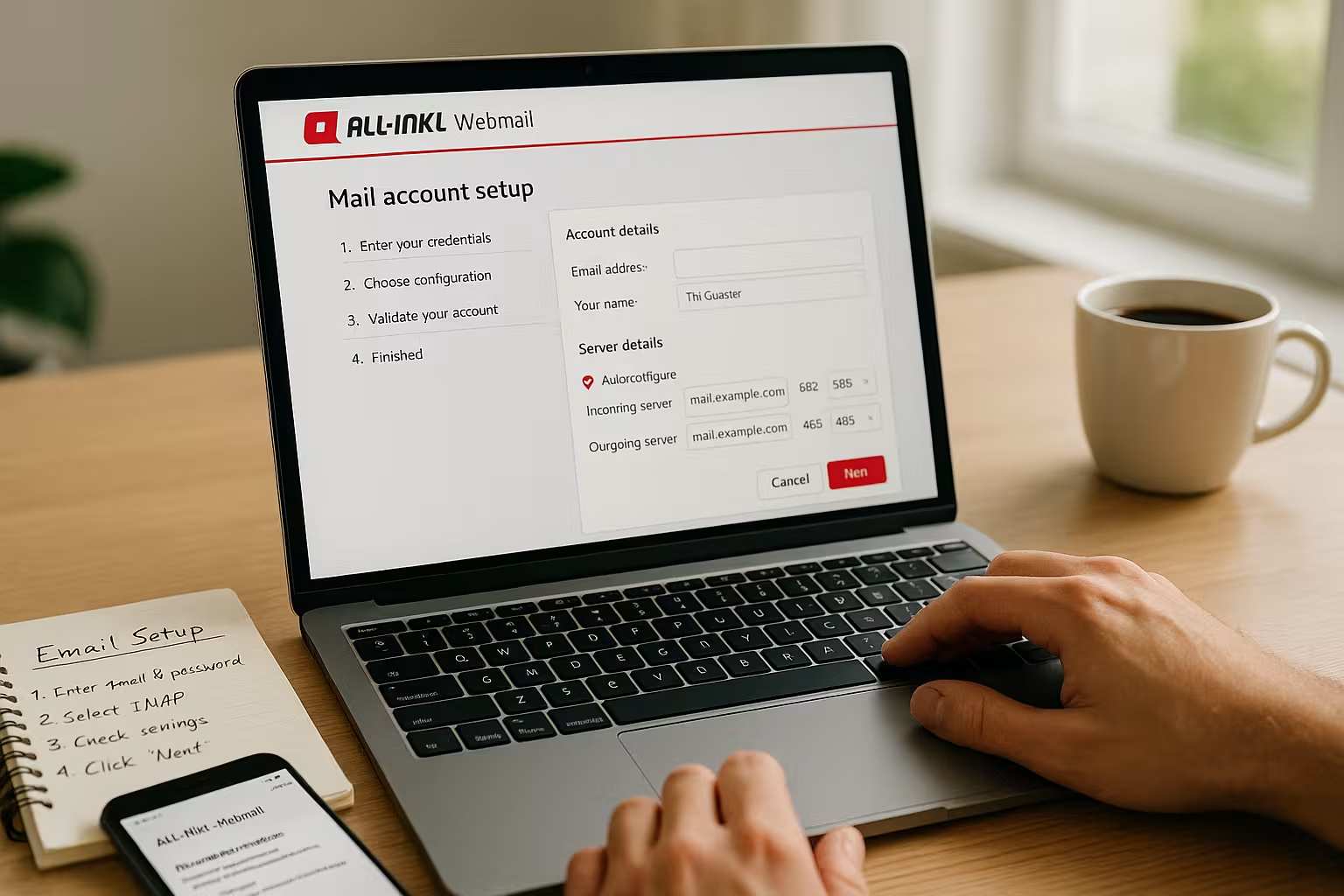
When I use Outlook, Apple Mail or Thunderbird, I connect the mailbox via IMAP for synchronized folders on all devices. IMAP keeps mails on the server, POP3 loads them locally - IMAP is therefore usually the better choice for teams and multiple devices. For outgoing mail, I use SMTP with authentication and up-to-date encryption. The server names follow the format w1234567.kasserver.com, the real identifier is in the customer area. For tips on practical setup, this overview of "Increase email experience" to utilize useful client options.
Server data and ports (examples)
The following table shows typical Port numbers and encryptions that can be set in the clients.
| Service | Server | Port | Encryption | Note |
|---|---|---|---|---|
| IMAP | w1234567.kasserver.com | 993 | SSL/TLS | Reception, folders remain on the server |
| IMAP (alternative) | w1234567.kasserver.com | 143 | STARTTLS | Secure negotiation when establishing a connection |
| POP3 | w1234567.kasserver.com | 995 | SSL/TLS | Loads mails locally, less suitable for multiple devices |
| SMTP | w1234567.kasserver.com | 587 | STARTTLS | Recommended for shipping via clients |
| SMTP (alternative) | w1234567.kasserver.com | 465 | SSL/TLS | Directly encrypted connection |
Mobile setup: iOS and Android step by step
On the iPhone/iPad, I open "Settings > Mail > Accounts > Add account > Other > Add mail account". I enter my name, full e-mail address, password and a description. I select IMAP as the account type and set the incoming mail server to w1234567.kasserver.com with username = full address and password. For outgoing mail, I enter the same server and activate "SMTP requires authentication". SSL is active, the ports are selected automatically (IMAP 993, SMTP 587/465). After saving, I activate the synchronization of the relevant folders.
On Android (Gmail app), I go to "Settings > Add account > Other". I also use IMAP, set the server, ports and STARTTLS/SSL as described above and confirm SMTP authentication. I then configure the retrieval frequency: For a quick response, I select Push/IMAP-IDLE (if available), otherwise an interval of 5-15 minutes. For mobile data volumes, I optionally limit the sync period (e.g. 30 days).
Desktop clients: Setup details
In Outlook, I set up the account manually as IMAP and check the Authentication (normal/password, no unencrypted login). I then assign the special folders in the account settings and set sending via SMTP with STARTTLS to port 587. In Apple Mail, I check under "Mailbox behavior" that Deleted, Archived and Sent point to the IMAP folders. In Thunderbird, I activate "Leave messages on the server", subscribe to IMAP folders and optionally compression. For large mailboxes, I reduce the offline storage or archive older mail so that the local search remains fast.
Calendar and contacts with CalDAV/CardDAV
If available in my tariff or in the webmail version I use, I synchronize Calendar and Contacts additionally via CalDAV and CardDAV. I can find the URLs and access data required for this in the webmail settings or in the customer area. I add the accounts on iOS under "Passwords & Accounts" or "Calendar", on Android in the calendar/contacts app or via a DAV plugin. This keeps appointments and address books consistent across devices.
Boost security: 2FA, filters, encryption
I strengthen the protection of my Accounts with two-factor authentication wherever available. I also keep spam filters active, maintain whitelists and block senders specifically via blacklists. SSL/TLS is mandatory for accessing and sending, as this protects access data and content in transit. For administration logins, I use my own, even stronger passwords and separate admin and user mailboxes. If you want to go deeper, use the compact Safety guide as a checklist.

Content encryption: S/MIME and OpenPGP
I encrypt messages for particularly sensitive content End-to-end. I use S/MIME to import my personal certificate into the client and sign/encrypt emails to recipients whose certificate I have. Alternatively, I use OpenPGP/PGP keys in Thunderbird or via a plugin. Transport encryption (SSL/TLS) remains mandatory - E2E supplements it by protecting the content beyond the transport route. I document the key management so that the team works consistently and key changes run smoothly.
Order with filters and rules
For clear structures I use Filterautomatically sort emails by sender, subject or keywords. Quotations end up in the "Sales" folder, invoices in the "Accounting" folder, newsletters in the "Info" folder. This saves time and I can keep track of tickets and appointments. I test the rule sequence and conditions with a few samples so that important messages are not filed incorrectly. I also mark critical emails with a star, flag or color so that I can process them more quickly later.
Clever use of absence and forwarding
If I am not available, the Autoresponder briefly about duration, substitution and alternative contacts. Forwarding to deputies ensures that customer inquiries are answered in good time. I formulate the absence text objectively and leave out sensitive information. I deliberately use forwarding for team addresses so that nothing is left behind. When I return, I check the folders and switch off the autoresponder again.
Signatures, alias addresses and identities
I deposit a clear Signature with name, company, role and contact channel. For different roles (support, sales, accounting) I use identities with a suitable sender address and signature. Alias addresses help to cover special purposes without having to maintain additional mailboxes. In clients such as Outlook, I change the identity before sending so that the sender always matches. This keeps communication consistent and transparent on the recipient side.
Mailbox size, attachments and archiving
So that the mailbox performant I regularly tidy up and archive older emails. I send large attachments sparingly and use links to shared files whenever possible. I move newsletters, notifications and logs to folders that I empty on a regular basis. For long-term storage, I use archive folders and locally exported copies. This way I avoid limits, keep the search fast and minimize storage load.
Migration and import of existing emails
If I switch from another provider, I migrate via IMAPI integrate the old and new mailboxes in parallel in the client and copy folders step by step. I transfer large mailboxes in stages and pay attention to the quota of the target mailbox. For a clean move, I lower the DNS TTL in advance, then change the MX entries and leave both mailboxes active in parallel for a few more hours to pick up follow-ups. Optionally, I export archive files as PST/MBOX/EML so that I have a local backup.
Deliverability: SPF, DKIM and DMARC
For clean Delivery I check DNS entries such as SPF, DKIM and DMARC. SPF allows my mail servers to send on behalf of my domain. DKIM signs mails cryptographically so that recipients can recognize manipulations. DMARC defines how receiving servers deal with incorrect SPF/DKIM checks. I use these modules to move up from the spam folder to the inbox in many mailboxes.
Troubleshooting: solve typical errors quickly
If the login fails, I check User name (always the complete e-mail address) and the password. In the case of client problems, errors are often due to ports, encryption or missing SMTP authentication. If sending fails, it helps to check the outgoing mail log and spam/filter rules, which may relocate mails. In the case of TLS warnings, I renew saved certificate exceptions if necessary and use the current system time. If an address is not receiving any mails, I check forwarding, quotas and the filter sequence.
Hostname, certificates and TLS warnings
If I receive certificate notifications in the client, this is often due to a Hostname mismatch. I therefore use exactly the server name for which the certificate is issued (e.g. w1234567.kasserver.com). Alternatively, if available, I can use "mail.my-domain.com", provided a valid certificate is stored for this subdomain. I avoid permanent exceptions in the client and delete old certificate caches after changes. If the system time is not correct, this also generates TLS errors - so check the time and date.
Comparison with other hosting providers
Those who want to Strategy looks at functions, protection, price-performance ratio and support quality. In many setups, All-Inkl delivers a solid package with clear operation and good protection mechanisms. Alternatives sometimes score points with additional features, storage quotas or special admin tools. A look at performance data and support times helps with large teams and high mail volumes. The following table provides a quick classification of the most common criteria.
| Provider | Webmail functions | Security | Price-performance | Support |
|---|---|---|---|---|
| webhoster.de | Extensive, modern | Very high | Very good | Excellent |
| All-Inkl | Very good | High | Good | Good |
| Other providers | Variable | Variable | Variable | Variable |
Calculation and sensible upgrades
I am planning the Costs according to the number of mailboxes, storage requirements and possible growth. For project-related addresses and teams, I calculate in reserves so that I don't have to change over in a hurry later. If there is a high volume of mail, additional volume or higher packages are worthwhile to ensure storage and performance. Those who synchronize many devices benefit from IMAP and a clean folder structure with clear archives. This way, the solution remains scalable and I don't have to reorganize at short notice.
Finally: Your setup at a glance
I am holding on to what a stable The following is crucial for a secure mailbox: strong password, 2FA, clean filters, activated spam and virus protection and up-to-date IMAP/SMTP settings. After that, webmail runs consistently in the browser, on the smartphone and in desktop programs. I use SPF, DKIM and DMARC to ensure deliverability and reduce the risk of misjudgments. Signatures, aliases and identities ensure clear communication depending on the role. If I take these points to heart, the All-Inkl mailbox remains reliable, clear and ready for everyday use.