Skip to content
I set up All-Inkl Webmail on my desktop client so that IMAP and SMTP work together cleanly and mails remain synchronized everywhere. I rely on secure ports, correct folder assignments and clear steps that make every setup in Outlook, Thunderbird or Apple Mail noticeably easier.
Key points
- IMAP for synchronization, SMTP for shipping
- SSL/TLS activate and 2FA use
- Folder correctly: Sent, Trash
- Ports check: 993, 465/587
- Error avoid through Auth and server names
Prerequisites in KAS: Creating and planning a mailbox
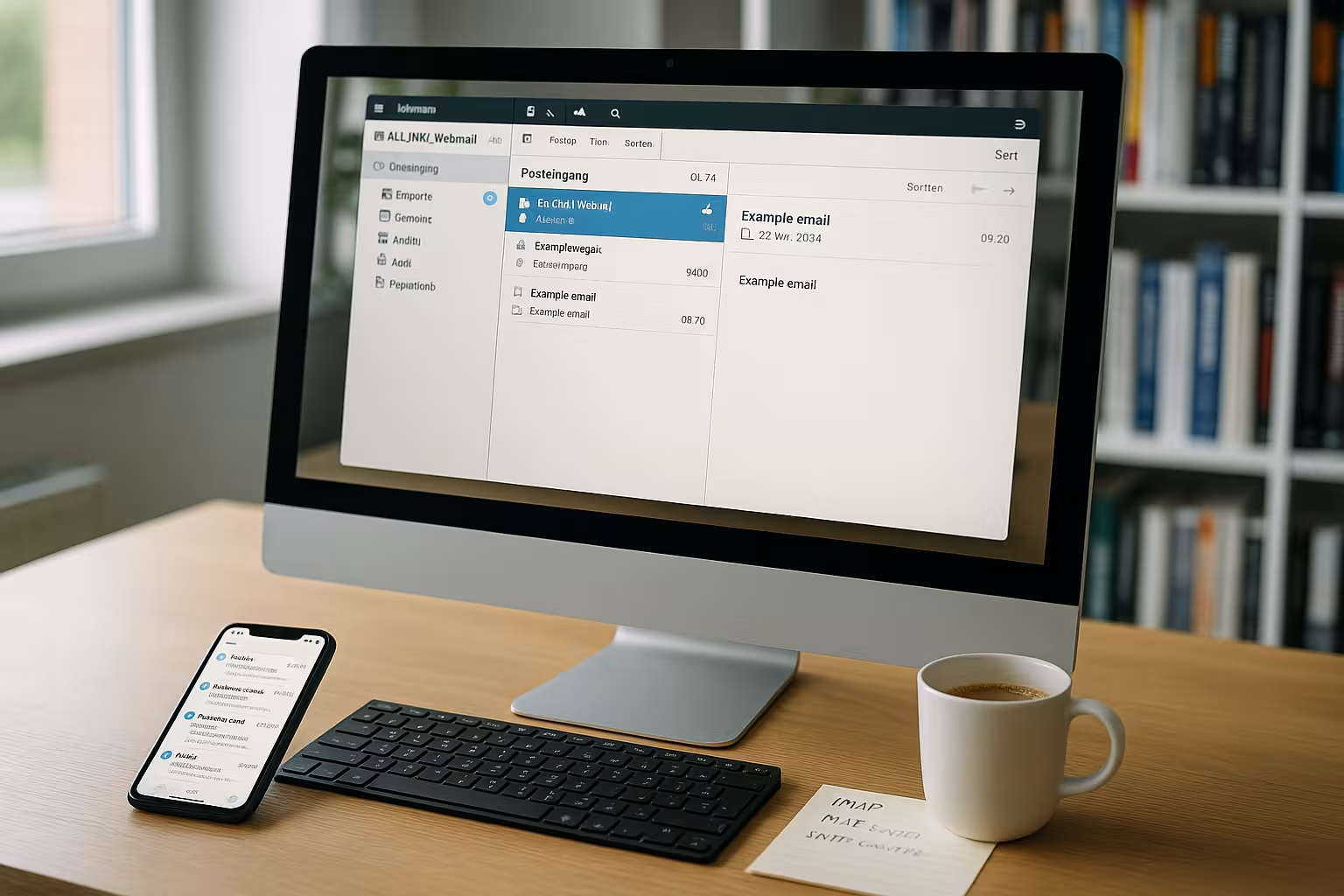
Before I start, I keep my active tariff, the domain and the access data for the KAS ready so that I can work without interruption. I create the mailbox in the customer area, assign a strong password and make a note of the subsequent folder structure. I then check whether alias addresses, forwarding and a possible autoresponder fit in with my processes. For a quick start, clear naming helps me, for example [email protected], so that contact lists work properly later on. If I need additional help, I use a short guide to the Set up an e-mail account and check all details directly in the KAS.
IMAP instead of POP3: How to keep everything in sync
I choose consistently IMAPbecause all devices see the same mailbox status and mails that have been read or moved appear the same everywhere. POP3 often stores emails locally, which creates duplication and inconsistencies, while IMAP reliably mirrors server folders. For sending, I always use SMTP with active authentication so that the server accepts my sender data. I activate SSL/TLS or STARTTLS because I want to transfer content and login data in encrypted form. If you want to read about the differences in compressed form, click on IMAP vs POP3 and then adjusts the client options accordingly.
Server data and ports: Use the correct values
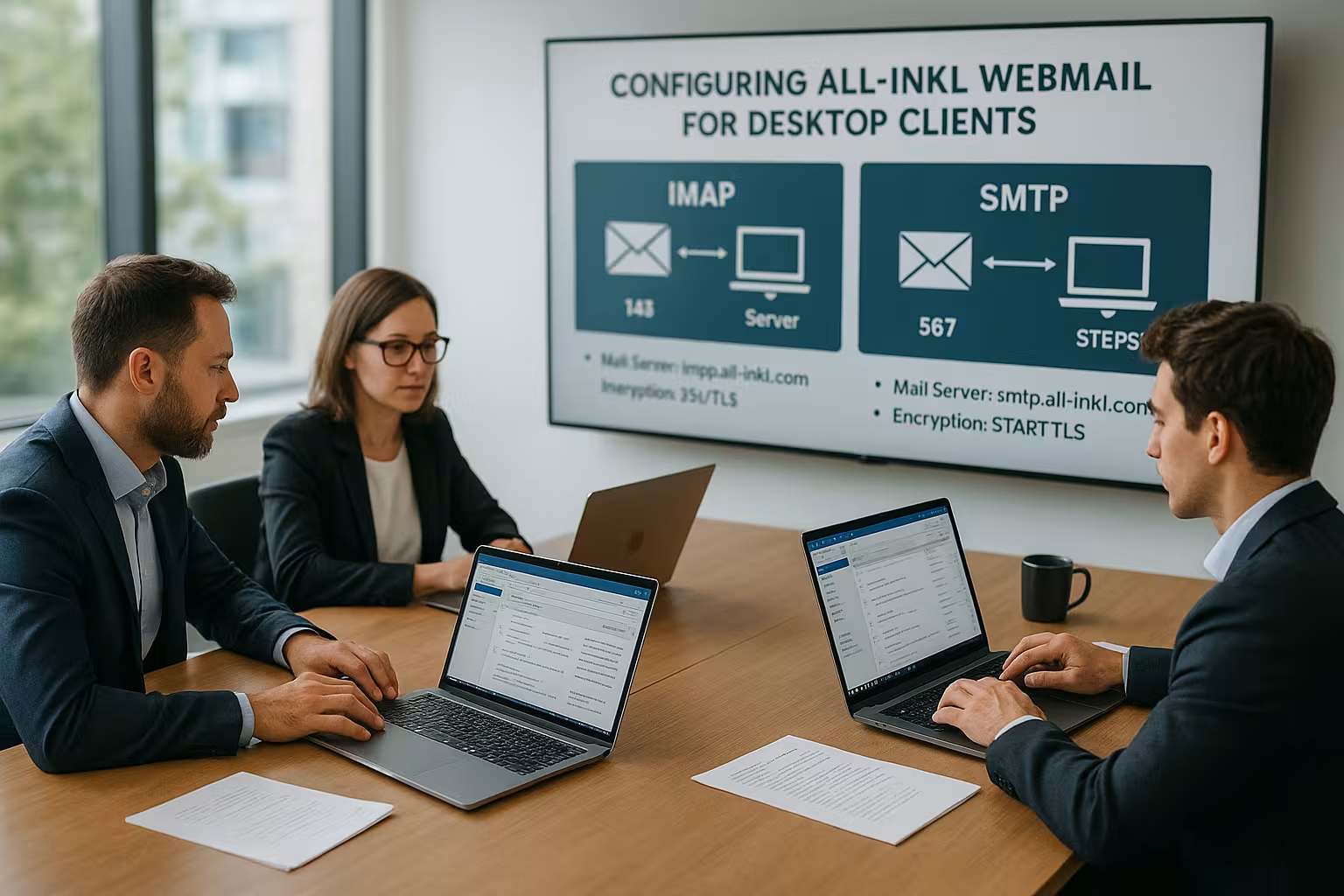
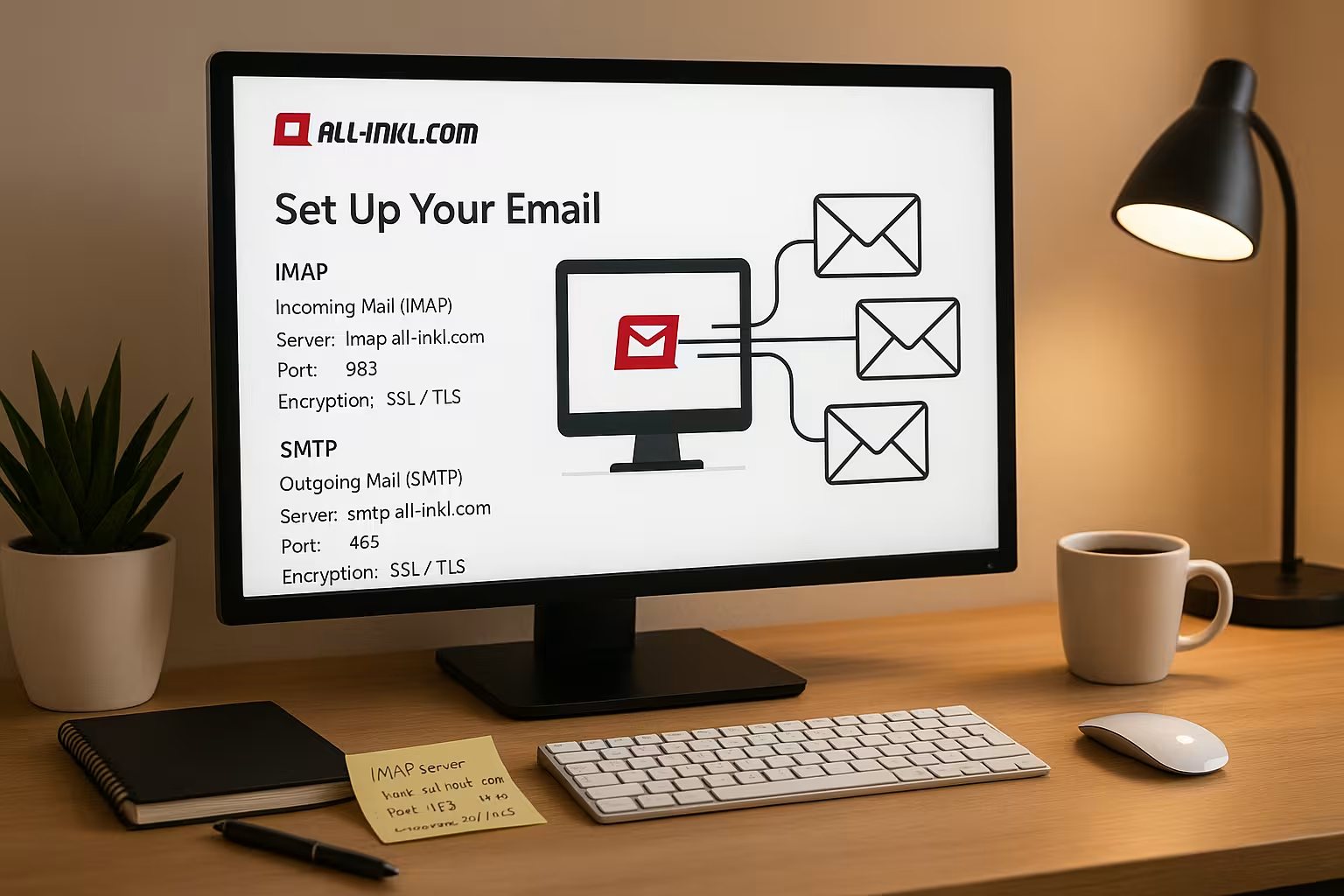
I check the server names in KAS, because the hostname is customer-specific and often follows the pattern w1234567.kasserver.com, which stands for IMAP and SMTP remains identical. For incoming mails, I use port 993 with SSL/TLS so that the client connects securely and loads folder contents reliably. For outgoing mails, I set either port 465 with SSL/TLS or port 587 with STARTTLS, depending on what the client prefers. I always use the full e-mail address as the user name because short forms fail when logging in. I activate authentication for both receiving and sending so that no error message blocks the start.
| Component | Value | Note |
|---|---|---|
| Inbox (IMAP) | w1234567.kasserver.com | Port 993SSL/TLS active |
| Outbox (SMTP) | w1234567.kasserver.com | Port 465 (SSL/TLS) or 587 (STARTTLS) |
| User name | Complete e-mail address | no alias, enter exactly |
| password | E-mail password | strong and unique |
| Authentication | activated | required for IMAP and SMTP |
Set up Outlook: Manual, secure and clean
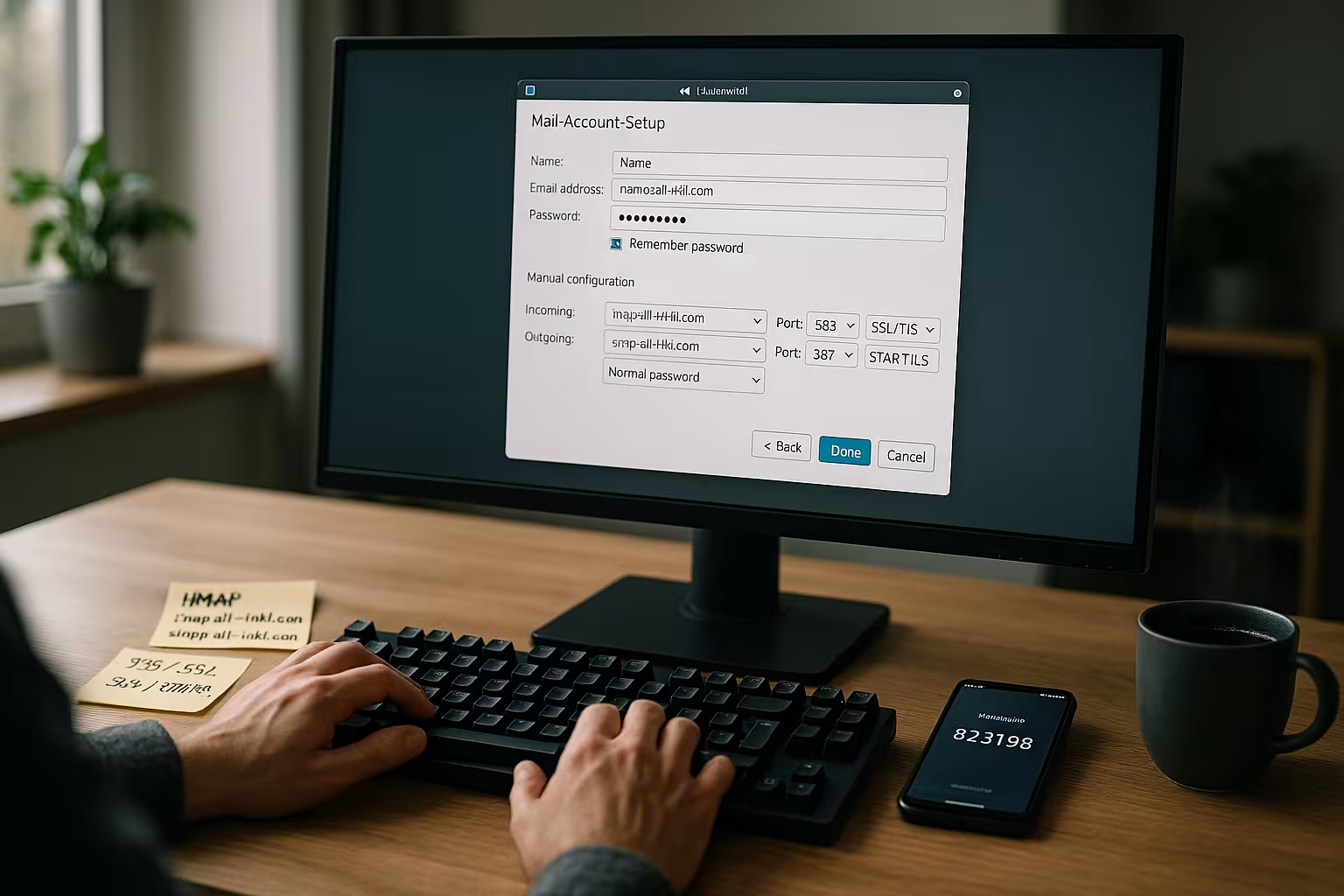
I open the item Add account in Outlook under File, select Manual setup and choose IMAPso that all folders remain synchronized. I then enter the exact server data, check the ports 993 and 465 or 587 and secure the connection via SSL/TLS or STARTTLS. I set the password last so that Outlook can test it directly and I immediately notice any typing errors. After the first retrieval, I check the assignment of the Sent, Drafts, Archive and Trash folders in the account settings. For a structured process, I use a compact Step-by-step guide and compare the values with my data.
Thunderbird and Apple Mail: Assign and test folders
I create a new account in Thunderbird, select IMAPenter the host name and ports and activate authentication so that logins work without any problems. I then open the account settings, set "Sent", "Drafts", "Archive" and "Trash" to the server folders and synchronize these folders offline if necessary. In Apple Mail, I add a mail account under Accounts, use the full address as the user name again and verify the encryption. Under Mailbox behavior, I assign the correct folders so that Sent and Trash do not end up locally. I then send a test email to myself, check the Folder in the webmailer and check whether everything arrives in the right place.
Folder structure and synchronization: Clean allocation saves time
I keep my Folder clear, name labels sensibly and only synchronize directories that I really need on a daily basis. For large mailboxes, I hide rarely used folders so that the client starts faster and searches are shorter. I link Sent, Drafts, Archive and Recycle Bin to the server folders of the same name so that every client uses the same structure. I then check whether the mail app adheres to the IMAP special folders or creates its own directories, which I correct if necessary. This way I avoid duplicate folders and keep my workflow consistent on all devices.
Boost security: SSL/TLS, 2FA, spam and virus filter
I activate SSL/TLS everywhere because I consistently transfer login data and content in encrypted form, thus minimizing attack surfaces. I activate two-factor login in KAS so that a stolen password alone does not grant access. I set spam and virus filters so that emails with a high hit rate slide into the spam folder, while legitimate messages arrive. I also use filter rules to automatically sort newsletters, invoices and team updates and to relieve focus folders. When I unsubscribe, I delete sessions in the webmailer and change my password regularly, without reuse in other services.

Troubleshooting: Authentication, ports and local locks
If the shipment fails, I first check the SMTP-authentication, because missing credentials almost always lead to rejection. I then compare the port details and encryption with my notes from the KAS, because 993, 465 and 587 are crucial. If a firewall blocks access, I add exceptions and restart the client so that new rules take effect. For a quick diagnosis, I take a look at the client's logs, search for "auth" or "timeout" and then take specific action. I then test with a small text mail without an attachment to separate pure connection problems from size limits.
Mobile integration and DAV: keep calendar and contacts synchronized
I use the same ones on my smartphone IMAP- and SMTP data so that iOS and Android apps see the same folders and labels. I activate CalDAV and CardDAV with suitable tariffs in order to maintain appointments and contacts centrally and have them up to date everywhere. In practice, this provides a uniform view of meetings, tasks and customer lists without separate data islands. After setting up, I test new entries on the phone and in the desktop client to confirm the synchronization direction. If fields are missing, I adjust the accounts in the app settings and synchronize the Server-URLs.

Performance and storage strategy: handle attachments wisely
I only load large attachments when necessary so that the client remains faster and my Memory is not bursting at the seams. I use archive folders for older vintages, which I synchronize less often and thus reduce retrieval times. In the account settings, I limit the local offline cache window if I am working on devices with limited space. For frequently used folders, on the other hand, I increase the synchronization rate so that emails are visible immediately. This way, I keep the speed and overview high in everyday life and don't lose sight of any important files.
Sender identity and signatures: Uniform appearance
In every client I maintain my Display names (e.g. "first name last name"), the Sender address and optionally a Reply addressif replies are to be sent to a team mailbox. For professional mails, I create a Signature and select a default identity. In Outlook I assign the signature per account, in Thunderbird I use identities for aliases and in Apple Mail I set the default sender address per account. This prevents important messages from being accidentally sent from the wrong address.
Increase deliverability: consider SPF, DKIM and DMARC
To ensure that my emails land reliably in my inbox, I check the DNS records of my domain. A suitable SPF record defines which servers are allowed to send for my domain. DKIM signs outgoing mails cryptographically, and DMARC determines how receiving servers react to deviations. I check the values in the KAS and in the DNS administration of my domain. After making adjustments, I carry out practical tests: I send to various recipients, take a look in the spam folder and check the headers (authentication results) to see whether SPF/DKIM deliver a "pass". This is how I make sure that the setup and sender reputation match.
Migration and import: relocation without data loss
When I move from another provider, I add both accounts in parallel as IMAP into my client and copy folders step by step. I pull large mailboxes into portions (e.g. annual folders) so that no timeouts occur. I give the client enough time to upload and check the target mailbox in the webmailer. I move attachments with many megabytes last and pay attention to the Quota of the target mailbox. During the move, I deactivate local antivirus plugins for email that could slow down uploads or break TLS connections, and reactivate them once the move is complete.
IMAP entities: Special folders, path prefix and subscriptions
Some clients require a IMAP path prefix ("INBOX") so that special folders appear correctly. In Apple Mail I find this under "Advanced", in Thunderbird under "Server settings". I only subscribe to the folders that I really use in order to keep the list lean. For mixed languages ("Sent" vs. "Sent"), I set the correct assignment once and migrate old content to the desired server folder so that all devices see the same structure in future. This eliminates duplicate folders in the long term.
Certificates and host names: Avoid warnings
I consistently use the Hostname (e.g. w1234567.kasserver.com) for IMAP and SMTP. This way, the server certificate matches the host and my client does not show a warning. If certificate messages still occur, I check the date/time of the system, intermediate certificates and whether security software "breaks" TLS connections. I stick with SSL/TLS respectively STARTTLS and do not switch to unencrypted ports.
Advanced diagnostics: protocols and tests
For tricky cases, I take a look at the Log output of the client and test the connection manually. A quick check with OpenSSL shows me whether STARTTLS is offered and which certificate is provided:
openssl s_client -starttls smtp -connect w1234567.kasserver.com:587
I search for "250 STARTTLS", certificate chain and cipher. For IMAP, I check port 993 in the same way. I also check for local blockers: firewall rules, VPN profiles, proxy settings and security suites with "SSL inspection". If I temporarily deactivate them for testing purposes, I can see whether a local block is the cause.
Quotas, attachments and shipping limits at a glance
I hold the Mailbox size in the KAS. If the quota runs out, I move sent emails and large attachments to archive folders or export individual folders locally. When sending, I observe size limits and split large attachments into several emails or use compressed archives. If a delivery fails with messages such as "Mailbox full" or "Message too large", I try a smaller version and send it again.
Backups and recovery: prevention instead of panic
I regularly export important folders: In Outlook as PST, in Thunderbird as MBOX (or via add-on), in Apple Mail via the export function. I also back up my clients' profiles/data files so that I'm ready to go again quickly when I switch devices. In an emergency, I randomly test a Restoreto make sure that the backup is really usable.
Fine-tune mobile sync: Push, polling intervals and cache
I activate it on my smartphone whenever possible, Push/IDLEso that new emails arrive without delay. On devices with a weaker battery, I choose longer retrieval intervals or only synchronize important folders. In the app settings, I limit offline data (e.g. "last 30 days") so that the memory does not fill up, but keep the Sent-folder always in sync to keep track of replies on the go.
Teamwork: aliases, identities, filters and autoresponders
I use Aliases for role addresses (info@, support@) and set up suitable identities in my client. I sort incoming mails on the server side with Filter in team folders so that all authorized persons have immediate access. A specifically formulated Autoresponder provides information on response times in the event of absence without disclosing unnecessary information. Important: I make sure that replies always come from the right sender and that the corresponding signature is set automatically.
Protecting sensitive content: S/MIME and PGP
For sensitive communication, I sign or encrypt emails directly in the client with S/MIME (certificates) or PGP (key pairs). I test the exchange with selected partners before productive use and document how certificates/keys are securely backed up and renewed. In this way, I supplement transport encryption with genuine end-to-end security where necessary.
Compliance and device safety
I secure end devices with Hard disk encryption (e.g. FileVault/BitLocker) and strong login passwords. In the event of loss, I can lock or delete devices remotely. Local archives, exports and caches are stored in protected user directories and I separate private and business profiles. This keeps data protected even outside the mailbox.
Conflicts, duplicates and tidying up
If parallel work leads to Conflict copiesI consciously choose one version and delete the other to avoid duplicates. Regularly emptying spam and trash as well as compressing/expanding folders keeps the database lean. I schedule a short, recurring "mailbox hygiene" window every week to keep things tidy.
Practical summary: Setup, security, everyday life
I set up All-Inkl Webmail with IMAP and SMTP, ensure valid server data and secure ports and check the folder assignment right at the start. Outlook, Thunderbird and Apple Mail can be connected quickly if I set up authentication, SSL/TLS and STARTTLS correctly. For security, I use 2FA, strong passwords and clear filter rules so that emails arrive cleanly and threats are sorted out early on. I solve typical errors by checking the port, auth and firewall before looking deeper into log files. In everyday life, I save time with automatic rules, clean Folderstructure and a smart strategy for attachments and archiving.