Configuring the Plesk firewall is a crucial step in effectively securing servers against attacks and unauthorized data traffic. With the integrated solution in the Plesk panel, access can be controlled in a targeted manner, security gaps can be closed and system integrity can be permanently strengthened.
Key points
- Firewall rules correctly prevents unwanted access from outside.
- The Plesk integration enables simple management directly in the control panel.
- Preconfigurations offer a high level of security right from the initial installation.
- With Logging and monitoring attack attempts can be traced and analyzed.
- Extensions such as Fail2Ban increase protection against brute force attacks.
What distinguishes the Plesk Firewall
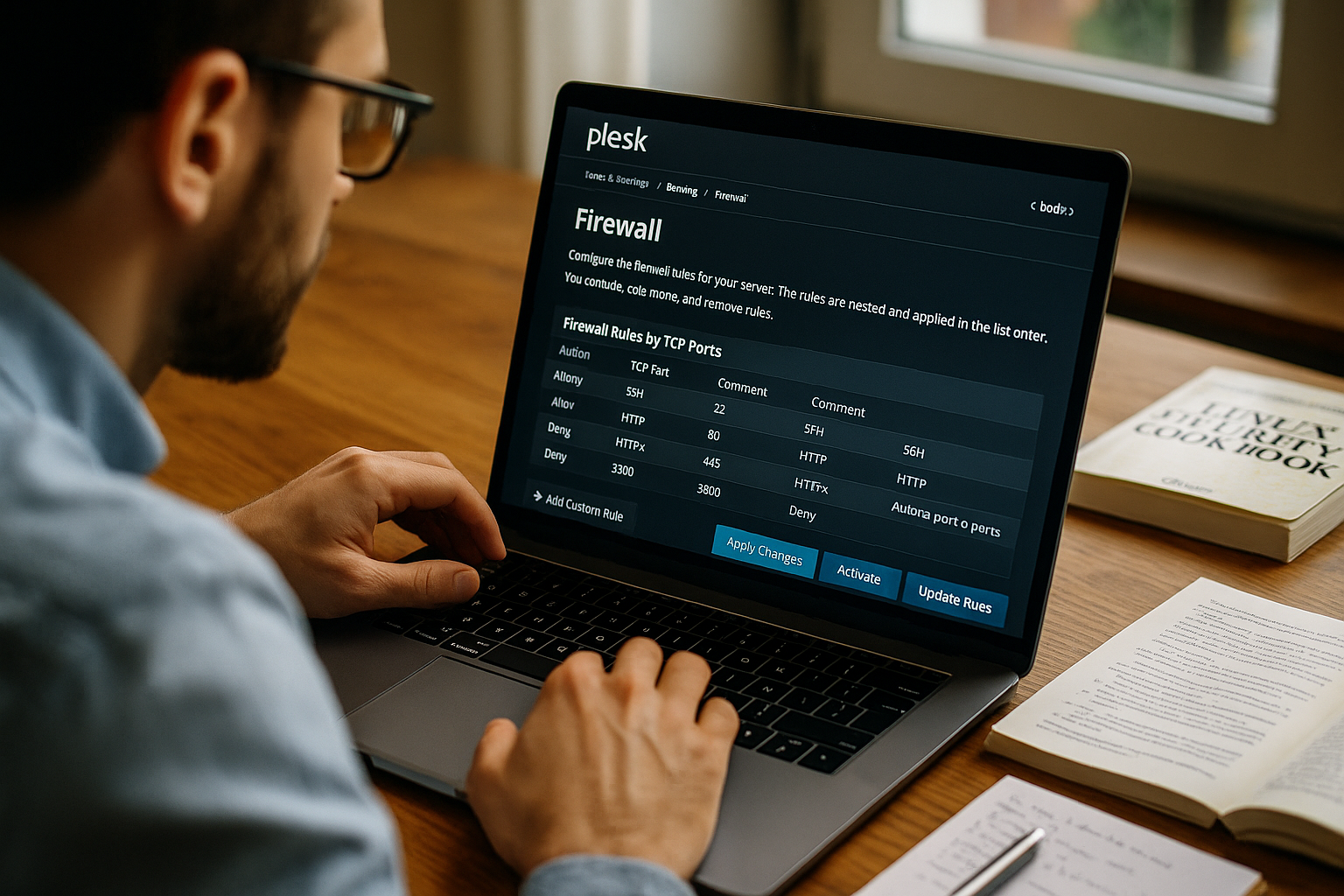
The Plesk firewall is fully integrated into the hosting panel and can be controlled without additional software. It filters network data according to user-defined rules and thus protects services such as HTTP, HTTPS, FTP and SSH from unwanted access. The graphical user interface, which allows settings to be changed intuitively, is particularly helpful. Manual configuration options for more in-depth rules are also available for advanced users. The particularly powerful point is the combination of a user-friendly interface and precise traffic control.
Steps to configure the Plesk firewall
The firewall is administered directly via the Plesk dashboard under the "Tools & Settings" > "Firewall" section. After activation, you can define exactly whether each application or port should be opened or blocked. Incoming and outgoing data traffic can be regulated individually - for example, to allow only specific IP addresses to a service. After each change made, the firewall service must be restarted for it to take effect. The user interface shows live which ports are open or blocked.
Recommended firewall rules for common services
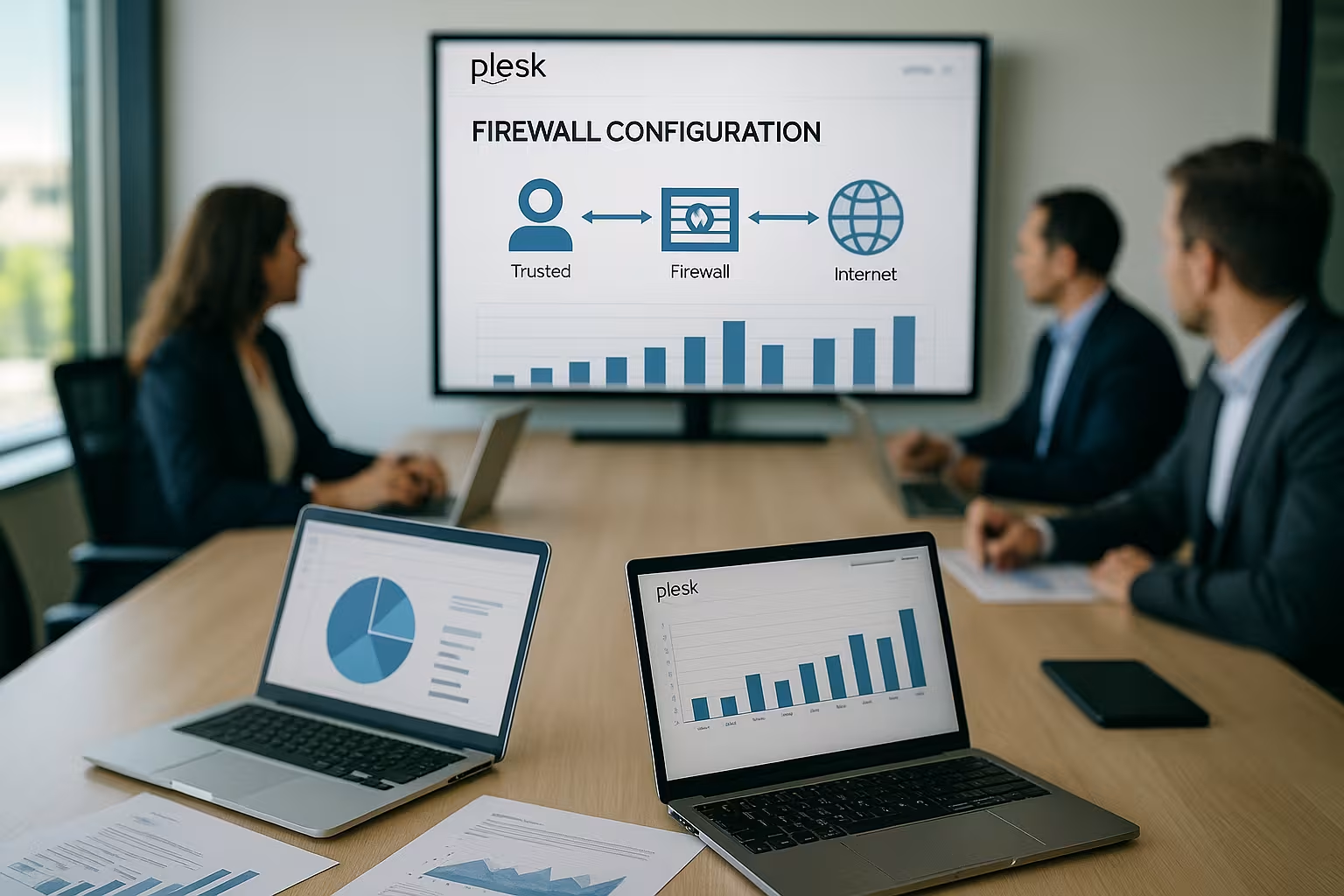
To ensure that servers remain efficiently protected, the firewall should only leave the absolutely necessary ports open. The following table shows recommended settings for typical web hosting scenarios:
| Service | Port | Status |
|---|---|---|
| SSH (remote access) | 22 (TCP) | Open - only for administrator IP |
| HTTP (websites) | 80 (TCP) | Open for all IPs |
| HTTPS (secure websites) | 443 (TCP) | Open for all IPs |
| FTP | 21 (TCP) + passive ports | Locked if not used |
| MySQL remote access | 3306 (TCP) | Locked click on only required IPs |
Additional protection with Fail2Ban
The combination of Plesk Firewall and the Fail2Ban service provides double protection against repeated login attempts. Fail2Ban monitors log files for suspicious activities such as too many login attempts and automatically blocks the corresponding IP. Especially for services such as SSH, this measure massively strengthens the defense against automated brute force attacks. A step-by-step guide on how to Fail2Ban activated in Pleskhelps with rapid implementation.
Efficient firewall administration
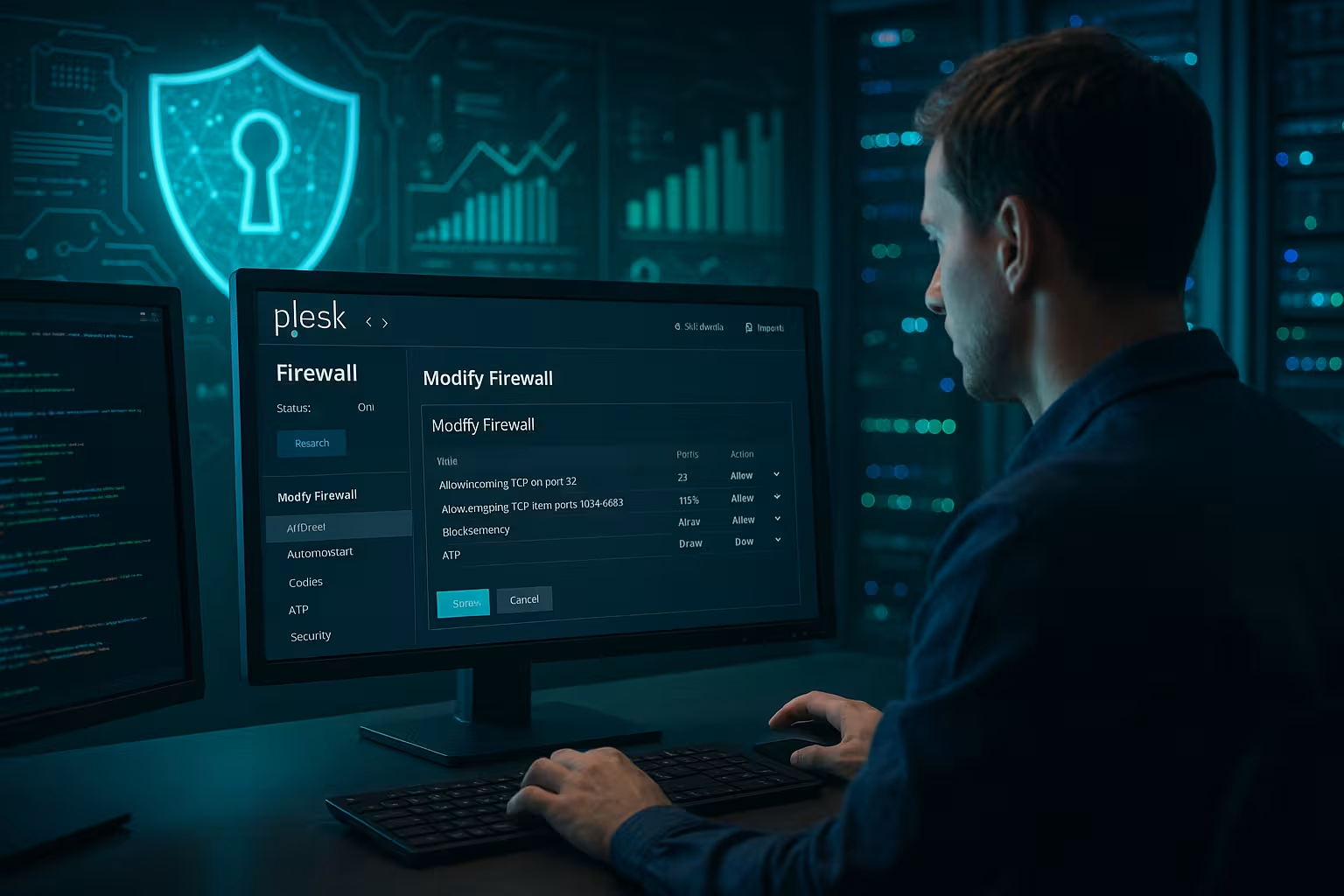
A major advantage of the Plesk firewall is the automation provided by preconfigured profiles. These make it possible to activate typical ports for web servers, mail servers or FTP services with a single click. Advanced users can customize these profiles or create their own templates. For recurring changes, it is worth using scripts or CLI commands via "firewalld" (Linux). If an overview is important, external monitoring can be integrated, for example via SNMP or central log evaluation tools.
Close security gaps once and for all
A firewall alone is not enough if services are open that nobody uses. You should therefore regularly check whether open ports are really necessary. An often overlooked weak point is FTP access, for example, which can be replaced by modern SFTP alternatives. The same applies to MySQL remote access, which should only be allowed to certain IPs. A good firewall setting can be recognized by the fact that as little outgoing traffic as possible is possible - keyword "default deny". Further tips for more security can be found in this Guide to securing Plesk environments.

Understanding and evaluating firewall protocols
The firewall keeps precise logs of blocked connections, successful packet accesses or faulty requests. This information provides important clues in the event of security incidents. If you regularly look at the log files, you can recognize patterns and take more targeted action against recurring attacks - especially with frequently blocked IP addresses. Tools such as Logwatch or Fail2Ban-Reporter can provide automated reports. I also use notification plugins to receive an email directly in the event of unusual behavior.
For teams: structure access management sensibly
Users with different authorizations can be created in Plesk. This means that not every admin needs access to the firewall configuration. For large teams in particular, it is advisable to structure the assignment of rights clearly. This prevents accidental changes and protects sensitive areas. If you involve external service providers, you should explicitly store their IPs and remove them again at the end of the project. This is a simple method for maintaining control and an overview.

Advanced firewall concepts for more security
In addition to the basic functions, the firewall setup in Plesk can be expanded to include a number of advanced mechanisms. These include the targeted use of "outbound" rules to prevent unwanted traffic from the server reaching the outside. Many companies mainly pay attention to inbound connections, but overlook the fact that outbound packets can also be an attack scenario - for example, in the case of malware that attempts to send data to the Internet.
Another aspect is the handling of IPv6. Many configurations still focus on IPv4, although IPv6 has long been the standard. In Plesk, IPv6 rules can be defined in parallel with IPv4 rules. It is particularly important to avoid incorrect "allow any" configurations for IPv6. It often makes sense to only run IPv6 actively if the entire server environment, including DNS and network infrastructure, is set up correctly. Otherwise, gaps may open up because security settings only take effect in the IPv4 area.
If you are running sophisticated scenarios, you can also move services to a separate IP address space or set up VLAN structures. This allows you to control access within the data center even more granularly. Although VLANs and separate IP ranges are not directly preconfigured in Plesk, they can be created at operating system level and then integrated into the Plesk firewall rules. For example, a database server can be placed in a protected area that is only accessible from the outside to a very limited extent.
DMZ and port forwarding in Plesk
In certain cases, it can make sense to shield individual services or systems in a DMZ ("demilitarized zone"). This applies in particular to applications that should be accessible but must not have direct access to internal resources. A DMZ is often implemented via separate firewall zones. This is not available as a one-click solution in Plesk itself, but the necessary rules can be combined via the host operating system and the Plesk interface. Incoming packets are forwarded in a targeted manner without allowing complete access to the internal network.
Classic port forwarding is also an issue. If you have local services running on an alternative port or use complex software, you can forward certain ports to the outside via the Plesk firewall. However, these rules should be configured very restrictively. It is often better to use a VPN tunnel instead of making critical administration ports (e.g. 8080) publicly accessible. A VPN allows encrypted traffic to be routed into the network, which significantly reduces the attack surface.
Log management and forensic analysis
If you want to delve deeper into the topic of security, there is no getting around structured log management. Not only the firewall logs access attempts, but also web servers, mail servers and other services. A central collection of all log data (e.g. via syslog) enables a forensic analysis if a security incident actually occurs. I make sure that the logs are regularly rotated, compressed and archived. Tools such as Logstash or Graylog are useful for filtering large amounts of data more easily. It is important that the logs are protected against manipulation - for example, by writing them to a separate server.
The Plesk firewall itself provides information in its logs about which IP addresses have been blocked multiple times, which ports are scanned conspicuously frequently and how often connection attempts are made on ports that are actually closed. Such recurring patterns often indicate automated attack attempts. If certain IP ranges are repeatedly conspicuous, it may make sense to block entire network areas temporarily or permanently, provided there is no business need for access from there.
Troubleshooting for configuration problems
In practice, situations occasionally arise in which unwanted blocks or releases occur. For example, when closing a port, you forget that a certain service requires this port and suddenly your own application is no longer accessible. In such cases, it helps to deactivate the Plesk firewall step by step or to remove the respective rule in order to narrow down the source of the problem. The system log (e.g. /var/log/messages or /var/log/firewalld) is also a good place to start to identify error messages.
If access to the Plesk Control Panel is no longer possible because the firewall has inadvertently blocked internal ports, the only option is often access via the host system or an SSH login at emergency level (via the KVM console at the host). The firewall services (e.g. firewalld or iptables) can be stopped or reset manually there. The configuration can then be corrected and normal operation restored. It is important to document the original settings so that you know exactly which step corrected the error.
Application example: Secure e-mail server setup
An email server requires certain ports to be able to receive and send - such as 25 (SMTP), 110 (POP3) or 143 (IMAP). At the same time, these ports are a frequent target for attacks. I recommend enforcing SMTP authentication and securing the connection via TLS. Ideally, webmail services should only be accessed via HTTPS. If you also work with mail server-specific firewall settings, you will achieve a high level of protection and significantly reduce spam and authentication attacks.
Automatically back up and restore the firewall
If something goes wrong during configuration, a previous backup can save lives. Plesk offers the option of exporting and archiving all firewall rules. These backups can be easily restored in an emergency. For large infrastructures, a weekly backup schedule via the CLI or a cronjob is recommended. If you want to use the Administration panel for firewall rules regularly creates additional transparency.

Final thoughts: Firewall management as a security routine
A well-configured Plesk firewall is not a one-time setup, but an ongoing task. I recommend a monthly security check in which all open ports and services are checked and unnecessary exceptions are removed. Combinations of firewall, Fail2Ban and secure user rights not only protect against attacks, but also provide peace of mind in day-to-day hosting. Those who regularly evaluate log data and automate system reports remain permanently up to date. A Plesk firewall is maintained like a door lock: lock it regularly, check it - and replace defective locks immediately.