Skip to content

You can set up a Plesk cron job via „Scheduled Tasks“ by selecting the appropriate task type, configuring its settings, and defining a schedule. The key factor is the Execution Context: PHP scripts, HTTP calls, and commands require different environments and permissions. Also check the configured time zone and the task's output. On Linux and Windows, parts of the scheduling syntax differ; an "immediate run" actually executes the task and is not a non-binding preview.
Understanding Scheduled Tasks in Plesk
With scheduled tasks, you can have a designated application start at specified times without having to trigger each run yourself in the control panel. This is useful, for example, for a maintenance script that the application specifically provides for this purpose. Plesk manages the schedule and the startup; the application determines what changes each run causes.
You'll need Plesk access with permissions for scheduled tasks, an associated subscription or domain, and a suitable file or application. Check the documentation beforehand to see which execution mode and interval are supported. Not every script that can be run in a browser is also suitable for a scheduled command-line launch.
In the Domain View You can access the tasks via „Domains > example.com > Scheduled Tasks“ or the corresponding translated menu item. Administrators can also use „Tools & Settings > Scheduled Tasks“ to manage tasks for different subscriptions as well as at the server level. Which views and features are visible depends on the user’s role, permissions, and server configuration.
In Linux, this type of scheduled task is often referred to as a cron job. Plesk Scheduled Tasks is also available on Windows, but this does not mean the shell or scheduling syntax is identical. Therefore, when setting it up, it is crucial to consider which operating system the server is running and what options your specific Plesk interface offers.
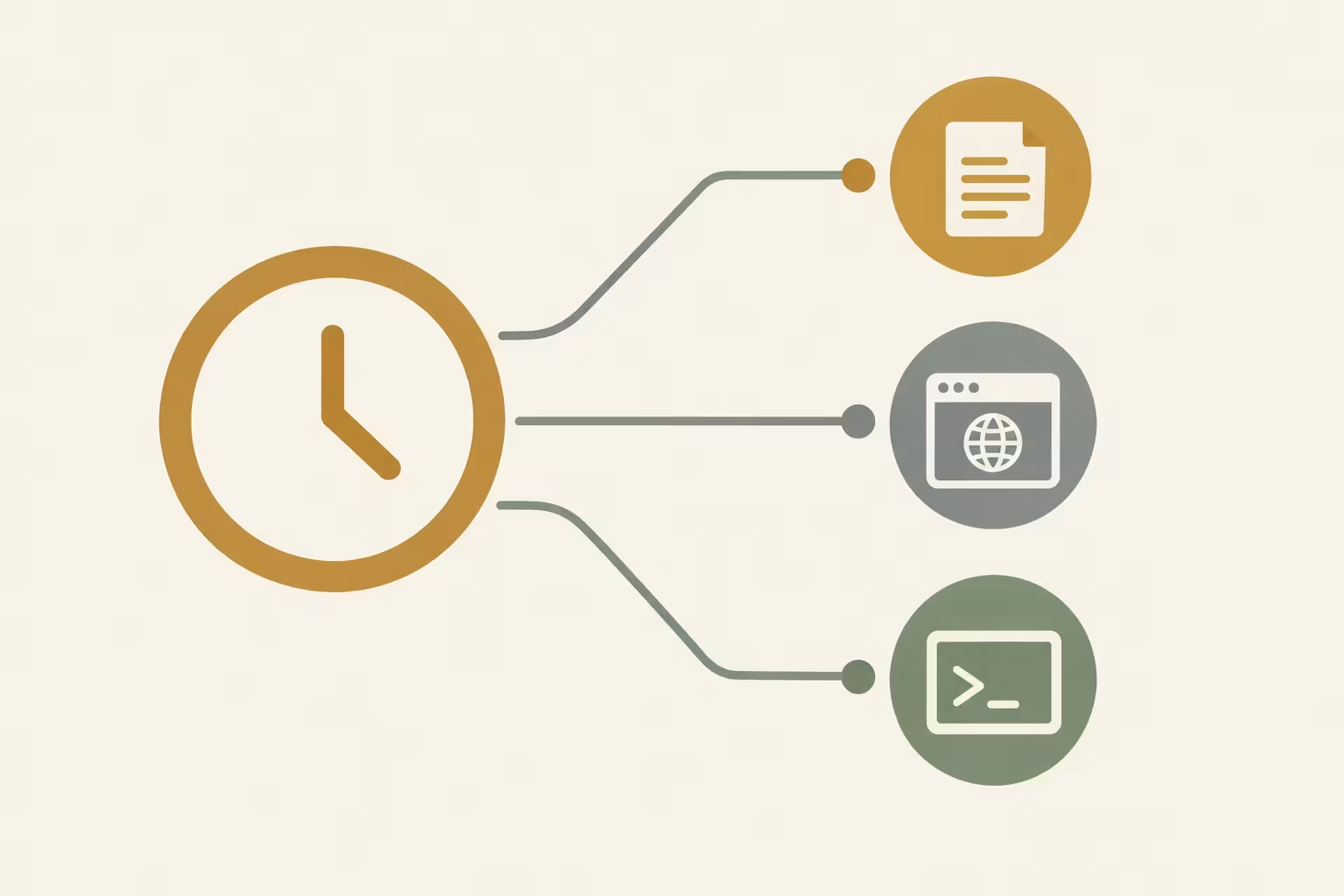
PHP script, URL, or command?
The task type you select determines how Plesk launches the application. „Run a PHP script“ is suitable for an existing PHP script that, according to the application documentation, is intended for the command line. You enter the script path and any arguments separately and select an appropriate PHP version; the field does not expect a complete shell command.
One example is a PHP maintenance script provided by the application that regularly processes internal data. The selected PHP version must meet the script's requirements. However, a script that requires a browser session or a specific web server environment cannot be reliably run as a CLI script simply by selecting this task type.
„Fetch a URL“ sends a HTTP request to a designated endpoint. This is appropriate if the application explicitly supports maintenance requests via the web. Enter the full provided address in the URL field—do not include any additional `curl` or `wget` commands. Determine in advance how to access the endpoint and, if necessary, how to authenticate.
A web request is not the direct execution of a CLI script: the web server, network, and application each process it in their own way. Even a successful HTTP response does not automatically prove that the desired business logic has been completed. To verify this, you must rely on the feedback or result verification provided by the application.
„Run a command“ is intended for a program or script that acts as a Command should be launched, such as an explicitly documented CLI tool for the application. This option offers flexibility but requires a compatible command line and a suitable environment. Use the syntax provided in the application documentation and verify that the program is accessible to the user running it.
Check Permissions and Runtime Environment
A correct schedule alone is not enough: The task runs within a specific Execution Context. This includes the system user, their file permissions, and the programs and paths available to them. In the administrative view, you can select the system user for the task. Give them only the permissions they actually need, rather than using root as a precaution.
Suppose a maintenance script needs to read a file in the application directory and write a result there. In that case, the user running the script must be able to access both locations with the necessary permissions. The fact that you can see the file yourself in the control panel does not prove that the same access is possible in the context of the scheduled task.
On Linux, a chroot environment Restrict the file scope visible to tasks. A program or path that exists outside this environment is therefore not necessarily available within it. If a command fails, first check the task type and the environment that is actually available, rather than making the shell available server-wide without chroot.

For „Run a PHP script,“ the selected PHP version is relevant in addition to the script path. According to Plesk Support, under Linux, the domain's individual PHP settings do not automatically apply; instead, the global settings of the PHP handler being used apply. As a result, a script may encounter different memory limits or extension settings than when it is executed via the website.
If discrepancies arise, first compare the application's requirements with the task's version, handler, and permissions. Switching to a custom command or making a global configuration change is not a one-size-fits-all solution and may raise additional security concerns. General measures for securing access are supplemented by the article on Security of Hosting Control Panels.
Setting Up a PHP Task Step by Step
In the domain view, open „Domains > example.com > Scheduled Tasks“ and create a new task. The labels displayed may vary depending on the language and your permissions. Select „Run a PHP script“ if the application provides a command-line-compatible PHP script for this task.
Under „Script path,“ enter the Script path for example, httpdocs/bin/beispiel.php. This is just a placeholder: The actual path depends on your installation and view. Do not enter a complete PHP command in this field; doing so may result in the error message „Could not open input file.“.
The „with arguments“ field remains empty unless the application requires arguments. Otherwise, enter the required information from its documentation. Then select a PHP version that is compatible with the application: The script path, arguments, and version are separate settings and serve different purposes.
On Linux, the domain's individual PHP settings do not automatically apply to this type of task. Instead, the global settings of the PHP handler being used are relevant. Therefore, if the behavior differs from that of the website, check the required extensions and the memory limit in particular before changing the application or server configuration.
Set a schedule and a detailed description, and configure the notification so that you’ll be alerted to any errors. After saving, „Run Now“ can start the task immediately. This is a real run: Check beforehand whether the script modifies data or sends messages.
After running the program immediately, check the output and the expected result of the application. Even a successful run does not prove that the subsequent schedule will match the desired time zone or that the business result is correct. Any error reported during this process should be corrected before the scheduled execution.
Set the Schedule and Time Zone
A schedule specifies when Plesk starts a task; the task type and its settings determine what is executed. For „Cron style,“ there are five fields for minute, hour, day of the month, month, and day of the week—in exactly that order. An asterisk represents all valid values for the respective field.
To set a five-minute interval in Linux, enter */5 * * * * into the schedule field. On Windows, use 0,5,10,15,20,25,30,35,40,45,50,55 * * * *. Plesk notes that the forward slash is not allowed in this schedule format on Windows. Both entries are schedules, not terminal commands or complete task configurations.
Always check the configured setting before entering Time zone. Generally, the server's time zone takes precedence; however, you can select a different time zone in the settings for scheduled tasks. A schedule based on your local time may therefore run at the wrong time if the settings do not match.

The minute interval alone does not indicate whether the interval is suitable for the application. If a processing task takes longer than five minutes, the next run can begin while the previous one is still in progress. For tasks that process the same data, this can result, for example, in conflicting changes or duplicate processing.
Select the interval based on the application's requirements and its expected runtime. Also, check whether the application has adequate protection against overlapping runs is provided, or whether such protection must be established separately. A tighter schedule is not automatically better if it causes the processing operations to compete with one another.
A Practical Comparison of Question Types
The appropriate task type depends on the interface your application uses for scheduled processing. The following overview shows what input Plesk expects in each case and where you should start troubleshooting if a task fails.
| Question Type | Use case | Input | Execution Context | Common source of errors |
|---|---|---|---|---|
| Run a PHP script | PHP script suitable for the CLI | Script path, optional arguments, and PHP version | Execution with the selected PHP version | Incorrect script path |
| Fetch a URL | Scheduled Maintenance End Point | Full URL | HTTP request to the endpoint | Incorrect or unreachable URL |
| Run a command | The application's command-line tool | Program or command | System Users and Available Shell Environments | Program not available in this context |
With „Fetch a URL,“ the address itself goes in the URL field—without any prefix. curl- or wget-command. First, check whether the application explicitly supports this HTTP request, how the endpoint can be reached, and which Authentication is required. A web request is not a direct call to the script from the command line.
For example, when an endpoint is called, it may trigger a processing operation without the successful HTTP response alone serving as proof of the business outcome. To verify this, check the output or logs provided by the application. Access tokens should not be included in publicly viewable descriptions or example URLs; consult the application documentation to determine how access credentials should be securely transmitted.
„Run a command,“ on the other hand, is suitable for a command-line tool that is specifically intended for this purpose. Use the syntax provided in the relevant documentation and verify that the executable file is accessible to the task’s system user. A path that works in one session may not be equally available in the task environment.
On Linux, a chroot environment Limit the visible file area. If a required program is missing there, first check the intended task type and environment instead of lifting the protection restriction across the board. An unrestricted shell expands access capabilities and is a security concern, especially on shared servers.
Monitor Execution and Notifications
A saved task does not necessarily mean reliable automation. Check regularly to see if it activated and whether its subscription remains active. Plesk describes a case in which a task could not be permanently activated due to a suspended subscription. Therefore, after making changes to the subscription, be sure to check the status of the associated tasks.
Place a suitable Notification Set it up and review the output if a run fails or does not complete as expected. It is crucial that the notifications reach someone who can take action. On the other hand, too many irrelevant notifications can lead to an important error being overlooked.
Before clicking „Run Now,“ check what the consequences of running the task immediately would be: For example, a maintenance script might modify data or trigger a processing task. The button actually starts the task and does not display a non-binding preview. You should fix any errors reported during this process before the scheduled execution.
Even a successful immediate run only answers part of the operational question. You should also verify whether the task starts at the expected time and whether the application produces the desired result. Depending on the application, this may require reviewing its log or the processed data.
Design outputs and messages so that they do not contain any login credentials, tokens, or unnecessary personal data. If you are running multiple tasks, you should also keep track of their resource requirements. The article on Resources and Security Considerations for Hosting Control Panels classifies these operational issues beyond individual tasks.
Systematically Narrow Down Errors
Start the diagnosis by examining the visible symptom rather than immediately changing the server configuration. The following checks help narrow down the cause of an error to its status, input, or execution environment. An error message alone does not always indicate the cause.
| Symptom | First Exam | Possible cause |
|---|---|---|
| The task remains disabled | Check Subscription Status | The subscription has been suspended. |
| Could not open the input file | Check the script path and input field | A complete PHP command was entered instead of the path. |
| Permission denied | Check the rights of the user performing the action | The user is not allowed to access a required file. |
| Program not found | Check the path and environment of the user running the program | The program is not available there or within the chroot environment. |
| PHP behavior differs from that of the website | Check the PHP version and settings of the handler being used | On Linux, the custom domain PHP settings are not automatically applied when you select „Run a PHP script.“. |
If a scheduled job fails to run, first check its activation status, schedule, and configured time zone. An apparently incorrect execution time may occur if you’re using your local time, but Plesk uses a different time zone for scheduled tasks. Next, check the output or notification for specific details.
When you encounter a PHP error, you should distinguish between Script path and arguments: The "Path" field contains the path to the file, not the complete call to the PHP interpreter. Next, check the selected PHP version and the application's requirements. The fact that the website works does not prove, under Linux, that the task uses the same specific domain settings.
When executing a command, you check the user running it, the file permissions, and the available paths. On Linux, you can also chroot environment Limit the visible file area. If a program is missing, first check whether it is accessible in this environment before considering granting additional permissions or using a different shell.
Carefully weigh the pros and cons of changes
Select the task type based on how the application is intended to be executed: a suitable PHP script using „Run a PHP script,“ a designated HTTP endpoint using „Fetch a URL,“ or a required command-line program using „Run a command.“ This decision determines which inputs and which environment you will need to test next.
For the user executing the command, the principle of minimum necessary rights: It should be able to access the necessary files and services, but should not be granted additional privileges simply because a task fails initially. Root privileges are not a general requirement for scheduled tasks. Determine, based on the application, what access is actually needed.
If you are unable to access a file or program under Linux, first check its path, permissions, and the boundaries of the chroot environment. An unrestricted shell expands the accessible scope and increases the risk, especially on shared servers. A server-wide change is therefore not an appropriate default response to every error message.
Even if PHP behaves differently, you should first check the selected version and the script's requirements. For „Run a PHP script“ on Linux, the global settings of the PHP handler being used are relevant—not necessarily the individual domain settings. A global change may affect other tasks and should be reviewed accordingly.
Finally, document why a task requires a specific access level or runtime environment. This will allow you to assess later whether these requirements still apply after an application change. Test changes in a controlled manner, and before running the application immediately, ensure that it can perform real actions.
Sources and Current State of Knowledge
Status of the research:
Based on Plesk Obsidian; interface labels and available options may vary depending on language, permissions, and server configuration. Information current as of November 16, 2026.
https://docs.plesk.com/en-US/obsidian/administrator-guide/server-administration/scheduling-tasks.64993/
https://support.plesk.com/hc/en-us/articles/12377378463895-How-to-set-up-a-task-to-be-executed-every-X-minutes-on-a-Plesk-server
https://support.plesk.com/hc/en-us/articles/12377347218711-How-to-add-a-scheduled-task-in-Plesk-UI-using-crontab-syntax?sort_by=votes
https://docs.plesk.com/en-US/obsidian/administrator-guide/server-administration/scheduling-tasks/scheduled-tasks-shell-setting.78064/
https://support.plesk.com/hc/en-us/articles/12377478114711-Plesk-scheduled-tasks-fail-due-to-domain-PHP-settings-not-taking-effect
https://support.plesk.com/hc/en-us/articles/12377377741975-The-PHP-script-cannot-be-run-via-Scheduled-Tasks-in-Plesk-Could-not-open-input-file
https://support.plesk.com/hc/en-us/articles/12376965851159-Unable-to-activate-scheduled-task-in-Plesk-after-refresh-it-is-still-shown-as-disabled
https://support.plesk.com/hc/en-us/articles/12377242350999-Running-a-Cron-job-via-Scheduled-Tasks-in-Plesk-fails-Permission-denied