Skip to content
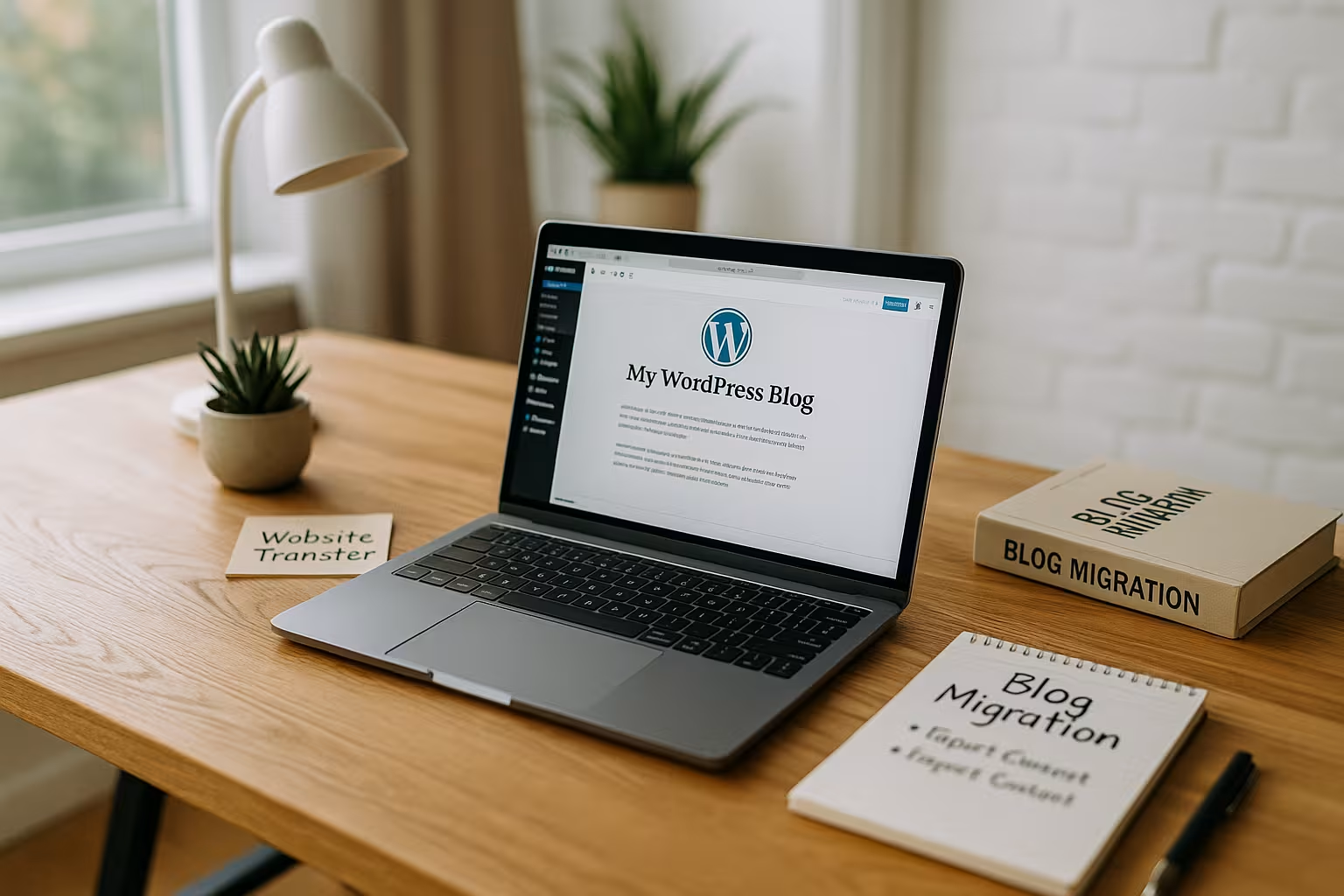
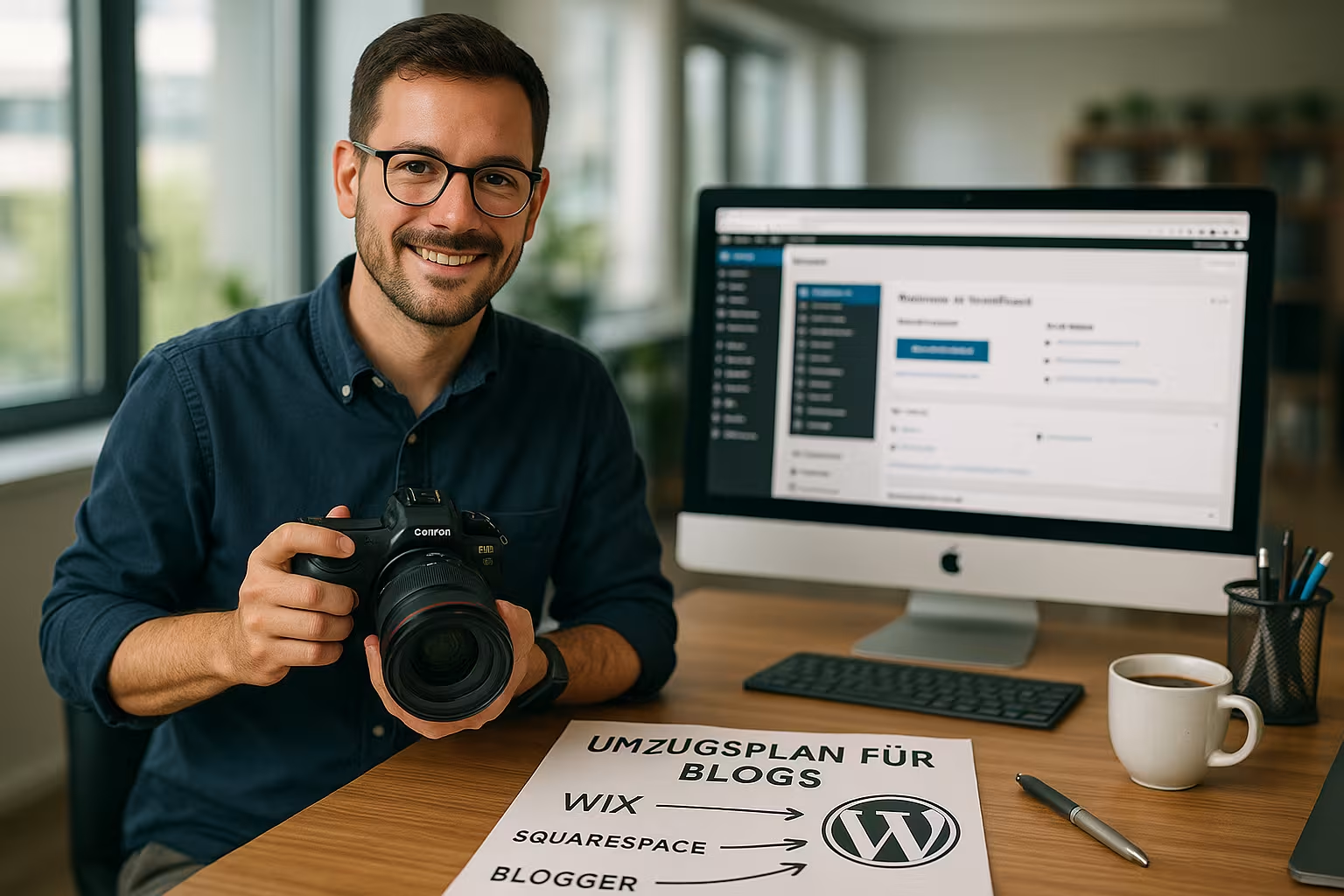
Switching your blog from Wix, Squarespace or Blogger to WordPress is a sensible move if you want more control, customization options and better SEO in the long run. In this guide, I'll show you how to make the switch step by step. Move WordPress correctly - without losing your hard-earned Google ranking.
Key points
- Preparation and data analysis secure your previous SEO successes.
- Import tools and manual reworking ensure complete data transfer.
- 301 redirects maintain your link profile and your visibility on Google.
- Correct hosting ensures performance, security and technical stability.
- SEO optimization after the move is crucial for long-term growth.
Why it's worth switching to WordPress
Wix, Squarespace and Blogger offer simple tools to get you started, but as your requirements grow, you will quickly reach your technical limits. WordPress gives you full control over your project - from design and plugins to hosting and SEO. You are independent, can manage every aspect yourself and can easily add individual functions. What's more: For long-term Ranking growth WordPress is more suitable due to better loading times and finely controllable SEO mechanisms. It is not for nothing that many large websites use WordPress as a platform for sustainable content marketing.
Preparation - with structure for a safe move
Before you start data movements or imports, document your previous content thoroughly. Which pages rank well? Which URLs have a lot of backlinks? Use tools such as Google Search Console to create a list of your valuable content. In addition, export metadata, internal links, alt attributes of images and structured data. This will ensure that no content is lost - and reproduce your SEO substance systematically in WordPress.
Find the right hosting for WordPress
High-performance hosting is essential to ensure WordPress loading times, security and functionality in the long term. Especially with heavy traffic, you shouldn't cut corners: Providers like webhoster.de offer preconfigured WordPress environments, SSL, daily backups and fast support. This minimizes downtime risks and ensures a clean technical foundation.
| Rank | Provider | Specialty |
|---|---|---|
| 1 | webhoster.de | WordPressPerformance |
| 2 | Provider B | General hosting |
| 3 | Provider C | Beginner hosting |
Export content without losses
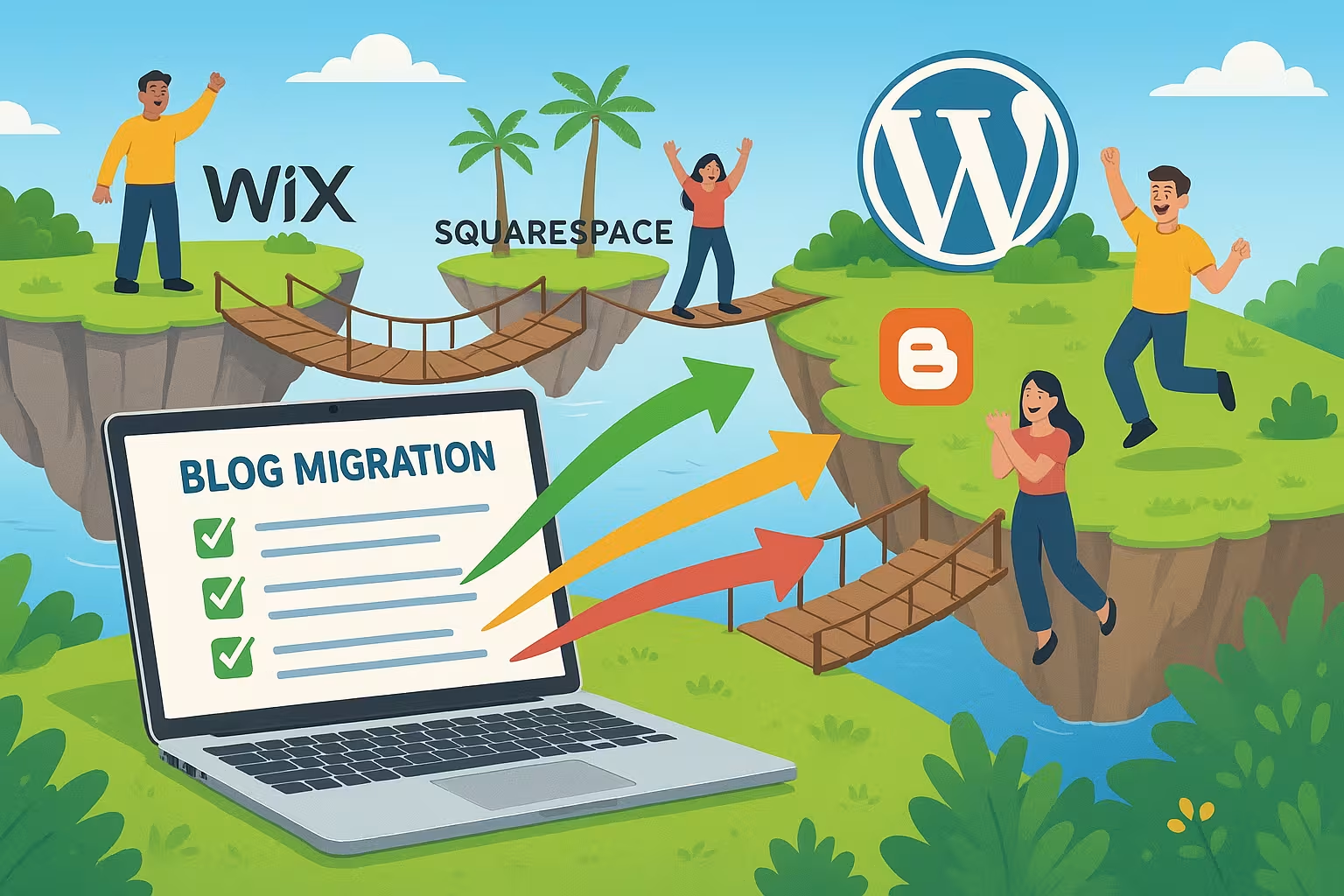
Wix, Squarespace and Blogger offer different export methods. With Squarespace, you can obtain an XML file via "Settings > Extensions > Export > WordPress". But be careful: images, videos, CSS and special modules do not move automatically. You have to add individual content manually afterwards. Blogger offers a simple XML file, while Wix allows you to use the RSS feed as a basis. Be sure to check whether alt tags, categories, authors and publication data are also retained.
Data import in WordPress
You can find plugins for Blogger, WordPress XML & Co. in the WordPress dashboard under "Tools > Import data". If there are display errors or duplicate posts, you can fix these with tools such as "Bulk Delete". Ideally, you should import images with plugins such as "Import External Images". When inserting, make sure that the alt texts, file naming and compressed media are clean for better loading times. You can also save content locally and upload it again via ZIP.
New design or familiar look?
If you decide to start fresh, you will find hundreds of suitable templates in the WordPress theme library. Choose a theme that clearly displays your content and works well on mobile devices. Alternatively, look for a layout that is similar to the previous design. Plugins such as Elementor or WPBakery help you to recreate functions. Add necessary features (e.g. SEO, spam protection, forms) with established plugins. For solid on-page optimization, "Rank Math", for example, is very effective.
Local development environment and staging - test your move risk-free
Before you finalize the move to the public domain, it is worth setting up a local development environment or a staging site. With tools such as Local by Flywheel or MAMP, you can install WordPress on your computer and test your blog structure at your leisure. This prevents your visitors from coming across unfinished pages. Even better is a real staging environment with your hosting provider. There you can clone your site 1:1 and safely try out adjustments before they go live. This saves time and prevents nasty surprises when you activate new plugins or themes.
Staging use is particularly obvious if you are already starting out with a traffic-rich blog. Even small design errors can affect your user-friendliness and cost you in the search results. It is therefore worth taking a structured approach and testing all changes in a protected environment in advance.
Safety when moving - how to protect your project
Switching to WordPress gives you more freedom, but you have to pay more attention to security aspects. An up-to-date backup is mandatory, especially during the migration phase. Make sure that you have a complete backup of your old platform and your new WordPress system. Plugins such as "UpdraftPlus" or "BackWPup" help you to set up automated backup plans. This allows you to restore every intermediate stage in an emergency.
When setting up your WordPress instance, you should generate passwords randomly and change them regularly. Also install a security plugin such as "Wordfence" or "iThemes Security" to reduce brute force attacks and protect your blog against malware. Especially during the import process, it is important that no unchecked files are smuggled in. Above all, keep themes and plugins up to date - outdated versions are frequent gateways for attackers.
Comments and community - how to take over interactions
If your blog already has an active community, you certainly don't want to lose any valuable comments and discussions. Platforms such as Blogger allow you to export comments to the XML file, which you can import again using the WordPress import tool. Also make sure that the author IDs and comment assignments are transferred correctly. You may need to make adjustments in the WordPress discussion settings to retain the previous moderation behavior. Then test whether your visitors can comment without any problems after the move and whether notifications are sent to the correct email addresses.
A smooth transition is important for your regular readers. Clear visitor guidance and a welcome post about the new design create trust. Actively communicate via your social media channels that you have moved to WordPress and what advantages the new platform offers your readers. This will keep you transparent and help you gain further reach.
Creation of a consistent permalink structure
WordPress gives you a lot of freedom when designing your URLs. This is great on the one hand, but can lead to confusion if you previously used a different structure. Define how your links should be structured right at the start - for example, "domain.com/postname/" or "domain.com/category/post/". Make sure that your link format makes sense for your content. Fixed structures organize the content logically, which both readers and Google appreciate.
Once you have completed your planning in WordPress, check whether the old URL paths match the new ones. If there are any discrepancies, plan the 301 redirects in good time. This assumes that you know all the old URLs and assign them exact equivalents. It is best to note each old and new URL in a table or use a special redirect plugin to keep track. The more clearly you carry out this step, the lower the risk of ranking losses.
Strategic on-page optimization - fine-tuning for more visibility
After the actual move, you can customize WordPress much more finely than with Wix, Squarespace or Blogger. Use this opportunity to perfect your on-page optimization. This starts with title tags and meta descriptions: they should be as targeted and click-worthy as possible. Make sure that each subpage has an individual snippet that matches the content. The same applies to headings - include your main keyword in H1, use H2 and H3 for other subtopics and structure your text clearly and in a reader-friendly way.
Internal linking is also a highly underestimated SEO tool. With clear menu structures and contextual links, you signal to Google which articles are particularly important and how your content complements each other. When you create new posts or update older ones, link to related blog posts in a meaningful way. This enhances the user experience and increases the crawl efficiency of search engines.
Testing and fine-tuning - avoid technical stumbling blocks
After the move, you should allow sufficient time for testing. Check every article, every category and all static pages. Ideally, you should click through all internal links and check for 404 errors, duplicate redirects or missing media. Use tools such as Screaming Frog to check your new WordPress site for possible broken links. The tool also lists redirect chains or large image files that slow down the loading time. A clean technical structure ensures that Google can index your site quickly and completely.
You can react more quickly to problems thanks to WordPress. In the event of malfunctions in plugins or themes, a look at the forums or contacting the developer usually helps. Such errors are usually fixed quickly - another advantage of open source solutions with a large community. Use the dynamics of this community to clarify questions or get optimization tips if you get stuck. A few simple steps are often enough to further improve your performance.

Secure SEO correctly - avoid mistakes
The biggest stumbling block when moving: changed URL structure. If permalinks change, you must create 301 references via .htaccess or redirect plugins such as "Redirection". This is the only way to ensure that Google recognizes your new WordPress as a legitimate successor. Also check all internal links: They must point to the new pages. Don't forget: Metadata (title, description), alt texts and structured data should also be transferred - a coordinated SEO field avoids ranking losses.
Inform Google correctly about the move
If the content, design, redirects and metadata are set up correctly, remove the maintenance mode and resubmit the sitemap to Google. Check in the Search Console whether crawling and indexing are running as desired. Tools such as Screaming Frog will show you broken links, duplicate content or redirect chains. Keep a regular eye on rankings and crawling errors in the first few weeks so that you can react promptly.
Avoid typical pitfalls
Many mistakes can be avoided when moving. If you forget 301 redirects, you will lose rankings and users will end up on error pages. Metadata that is not transferred will also quickly cost you visibility. Also check: Loading times? Tracking code correctly integrated? Defective images? It's better to check all functions using a checklist after going live. For additional security, you can create regular backups - for example with "UpdraftPlus" or "BackWPup".
Additional measures after the changeover
Use the move as an opportunity for technical optimization. Improving loading times is easy with caching plugins such as WP Rocket or by switching to fast WordPress hosting. Content updates, better headlines and new backlinks are also worthwhile for SEO. If you change your URL at the same time, such as when you change your domain, this guide to secure domain transfer continue.
Final tips for a stable migration
A final SEO audit is also worthwhile after going live. Check whether all pages are indexed correctly and whether your content continues to hold relevant rankings. Regularly monitor the performance of your new WordPress site in pagespeed tools and make server-side optimizations. If you use plugins that intervene more deeply in the system, test them individually for compatibility and performance. It is also advisable to carry out a comprehensive system update every 6 to 12 months to keep themes, plugins and WordPress core up to date.
If you decide to take the opportunity for a comprehensive content overhaul, you should review your keyword strategy and merge or update old subpages if necessary. Fresh content with a clear keyword focus will attract attention quickly, especially if you integrate it into your new WordPress project with solid internal linking. Also use structured data (schema markup) to provide Google with additional information about your content and thus increase the click-through rate from the SERPs.
Alternatively, you can find a helpful article here if you want to Joomla site to WordPress. It's best to plan enough time for rework and regular fine-tuning - this won't end the migration process abruptly, but will turn it into a continuous optimization project. Once you have completed the basic step, you can raise your blog to a new level of quality in the long term.
Clarity instead of chaos - your blog on WordPress
Moving your blog to WordPress sounds challenging - but with good planning, technical foundations and reliable hosting, you can take your project safely to the next phase. WordPress offers you maximum control, scalability and flexibility. By following these steps, you can maintain your visibility, secure your content and get back up and running. If you want to blog successfully in the long term, the Move WordPress a logical and worthwhile step.