Skip to content
If your WordPress site suddenly only shows a white screen or you get a "database connection failed" message, you're probably facing one of the common WordPress problems. In this article, I'll show you typical Common WordPress Errors and how you can fix them quickly and safely yourself.
Key points
- White ScreenCauses are usually faulty plugins or memory problems
- Error 500.htaccess problems or incompatible extensions
- Database error: Incorrect access data or server problems
- Permalinks404 error after changes to plugins or themes
- Debug mode: Make the source of the error visible directly in the code
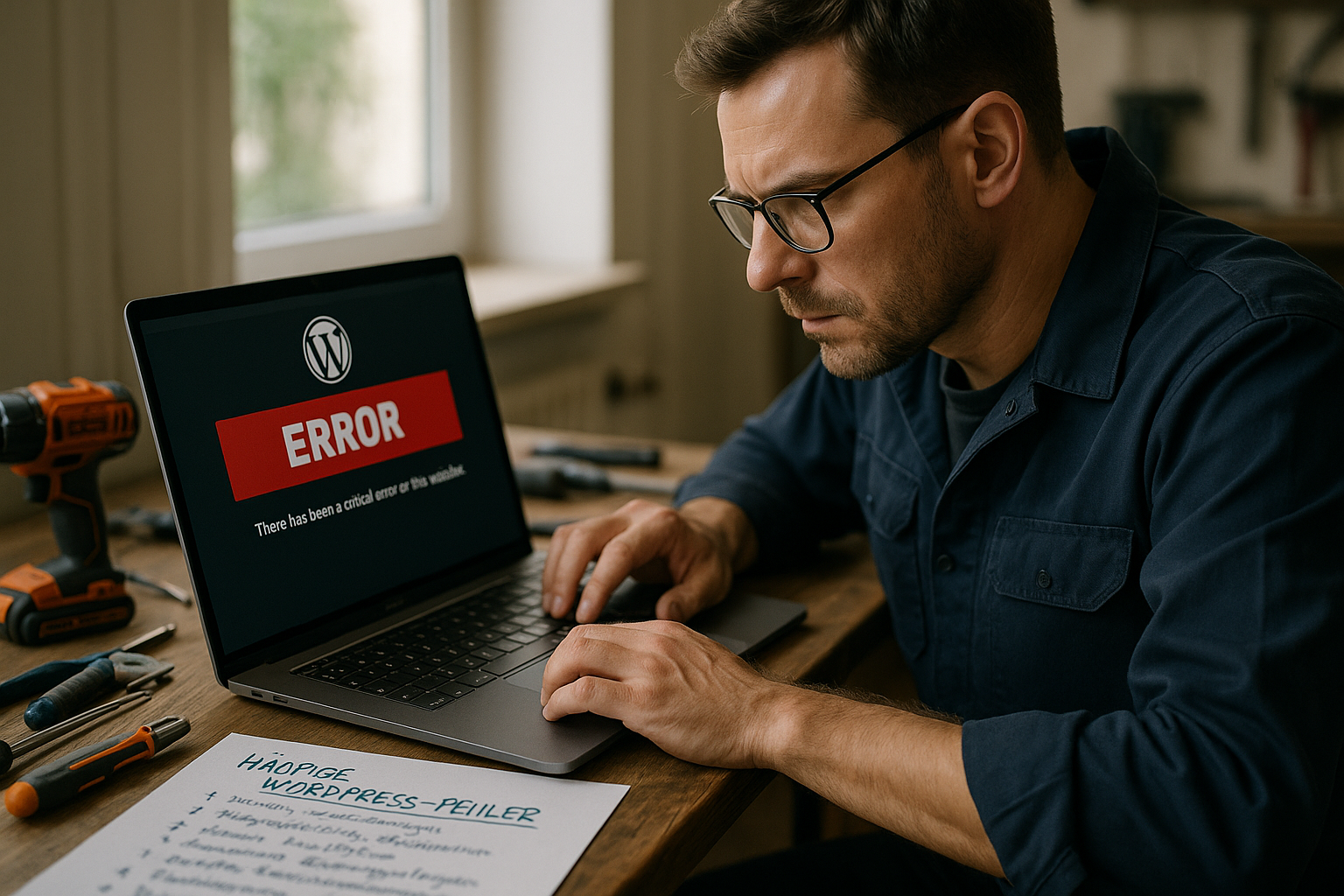
1. the dreaded White Screen of Death (WSoD)
The White Screen of Death (WSoD) is one of the most common errors - a blank white screen suddenly appears when the page or dashboard is called up. The problem is usually caused by a Plugin or theme. PHP memory limits also play a role here.
I usually start my repair by deactivating the plugins via FTP. To do this, simply go to the directory /wp-content/plugins rename the plugin folder or move all plugins to subfolders. Then switch to a standard theme such as "Twenty Twenty-Four" as a test to rule out the theme as a source of error.
If this does not help, I increase the available PHP memory. In the file wp-config.php I set:
define('WP_MEMORY_LIMIT', '256M');
I activate the debug mode for further information:
define('WP_DEBUG', true);
2. the 500 Internal Server Error
A 500 error looks worse than it often is. I start by renaming or deleting the current .htaccess-file and automatically creating a new one by going to the dashboard under Settings → Permalinks simply save again.
If that's not enough, I deactivate plugins and themes individually. The PHP memory can also be to blame - so as usual: define('WP_MEMORY_LIMIT', '256M');
Professionals also look at the server logs (usually found in the hosting area) to identify details of the trigger.
3. connection error to the database
The error "Error establishing a database connection" means: WordPress cannot access the data. Often the wp-config.php incorrect - especially the user name, password or domain of the database host.
I check the following entries in the file:
DB_NAMEDB_USERDB_PASSWORDDB_HOST
If your database host is not "localhost", you can often find the name in the hosting menu. Sometimes a restart of the MySQL service or a memory upgrade can help if you have little web space left.
4. 404 error - Correct permalinks
You click on page links and only get "Page not found"? Then there is probably a problem with the Permalink structure before. This is often caused by theme or plugin changes.
I quickly solve this by saving the permalinks again. To do this, go to the WordPress admin under Settings → Permalinks and simply click on "Apply changes" without changing anything. WordPress will then write a .htaccess-file with the current rules.

5. login problems or forwarding loops
If the login page keeps loading or an error message "too many redirects" appears, I think of Cookie errors or URL conflicts. Then I delete both the browser cache and cookies.
If you are using a different domain setup (e.g. www and without www), check the site and home URL in the database. I use phpMyAdmin to access the table wp_options and update there siteurl and home suitable.
A frequent stumbling block is the plugin sequence - that's why I deactivate problematic extensions via FTP as a test.
6. themes and plugins as a source of errors
For many common WordPress errors plugins that are no longer up to date are to blame. I deactivate plugins first, especially security, cache and SEO extensions, as they interfere deeply with the system.
As soon as the problem is gone, I reactivate them individually. I test the theme briefly with the standard WordPress skin. In such cases, sooner or later I switch to a well-maintained theme.
7. problems due to outdated PHP versions
Massive restrictions arise when you Outdated server technology sets. Many extensions and even the WordPress core require PHP 8.0 or higher. If you use PHP 7.4 or older, you will often get error messages or timeouts.
I update the PHP version in the admin area of my hosting provider. With webhoster.de this can be done in a few seconds. If the system remains unreliable, I would consider changing hoster.
| Place | Hosting provider | WordPress compatibility | Performance | Price-performance |
|---|---|---|---|---|
| 1 | webhoster.de | Excellent | Very high | Very good |
| 2 | Host B | Good | High | Good |
| 3 | Host C | Medium | average | Medium |
8. find error locations with WordPress debug
I only recognize many problems with active debug mode. To do this, I open the wp-config.php via FTP and change this line:
define('WP_DEBUG', true);
WordPress will then display all messages directly on the page. After the repair, the debug mode must be deactivated again - otherwise your website will also show visitors internal information:
define('WP_DEBUG', false);

9. recognize and prevent sources of error
Errors are often caused by outdated plugins, updates without a backup or unsuitable hosting configurations. I make a complete backup before every WordPress change. I use a plugin or the hoster's export tool for this.
A staging environment - a copy of the site for testing - also protects against failures. Many good hosters offer this. If you want to know what beginners often fall for, read the article about Typical WordPress errors for beginners.
10. when I would rather call professionals
In the event of hacked websites, corrupt databases or complete destruction of the layout, I turn to a specialized emergency service. Such situations require more in-depth intervention and knowledge.
Even if you only see a "Parse Error" after an update or your entire editor has crashed, you can get support. You can find out more in this article about Broken layouts and backend errors.

11. rectify SSL/HTTPS problems in good time
In many cases, users underestimate the importance of correct SSL/HTTPS configuration. Common symptoms are "mixed content" warnings, where parts of the page are still delivered unencrypted, or browser errors such as "Insecure" in the address field. With my hosting, I make sure that the SSL certificate is correctly integrated. If some scripts or images still refer to HTTP after the changeover, I use a search-and-replace tool such as "Better Search Replace" to adapt all URLs. Plugins such as "Really Simple SSL" can also help here by automatically redirecting HTTP assets to HTTPS.
Sometimes I also encounter the problem that the certificate has expired or none has been set up. Then I either get a warning in the browser or information about an insecure connection in the WordPress dashboard. At this point at the latest, it's time to renew the certificate via the hoster or activate Let's Encrypt. With some providers, this can be done with just a few clicks, with others you have to upload the certificates manually. If in doubt, it is important to check whether the SSL is forwarding correctly and whether all paths in the theme or in plugins (e.g. URLs to JS and CSS files) are really set to HTTPS.
12. sources of error during WordPress migrations or domain changes
Another frequently underestimated point for WordPress errors is the Migrationi.e. when you move your website to a new server or another domain. This can cause several problems: Paths to media are no longer correct, database links still point to the old domain or the SSL path is not recognized correctly.
I like to use a plugin like "Duplicator" or "All-in-One WP Migration" when moving, which automatically adjusts the database. As soon as the website is on the new server, I test the permalinks, the dashboard and all important pages. If something doesn't work, I check the database to see if the values in siteurl and home the wp_options-table are correct. Widgets or menus also sometimes lose their assignment if old IDs or paths are still referenced internally.
Relatively typical after the move is a 404 error for subpageswhen in the .htaccess or there are old rules in the permalink settings. I therefore regularly go to "Settings → Permalinks" and simply re-save. After that, the links usually work smoothly.
13. use WP-CLI for deeper insights
WP-CLI is the official command line tool for WordPress and is supported by many hosting providers. I personally use it to update plugins faster, deactivate themes quickly or check the database for errors. With commands like wp plugin deactivate --all I can switch off all plugins in no time at all without logging into the dashboard.
This also gives me an overview of the installed themes in the event of tricky errors: wp theme list shows me which themes are active and which versions are in use. Another practical function is repairing the database using wp db repair. However, this requires the wp-config.php the command define('WP_ALLOW_REPAIR', true); must be activated. This is often my first port of call for dubious errors that point to database tables.
14. problems with cron jobs and time controls
One aspect that is often overlooked is the WordPress internal cron jobs. These ensure, for example, the automatic publication of scheduled posts or the regular execution of maintenance tasks for plugins. If Cron does not work properly, you will miss scheduled publications, updates will be canceled or plugins will not be able to complete their tasks.
I therefore check in my wp-config.php whether DISABLE_WP_CRON at false and whether my hosting uses a real cron job to trigger the WordPress cron. For high-traffic sites, it may make sense to deactivate the WP cron and set up a system cron instead, which runs every 15 minutes. wp-cron.php calls. The server logs also help here to see whether errors are hidden in the cron execution.
15. stumbling blocks with automatic updates
On the one hand, automatic WordPress updates are helpful for closing security gaps as quickly as possible. On the other hand, they can lead to unforeseen Compatibility problems if themes or plugins are not yet prepared for the latest version. As soon as a major update of WordPress is due, I first back up my entire website. Then I check whether any known conflicts have been reported in the plugin descriptions or developer forums.
Sometimes it is worth keeping automatic updates only for minor versions and carrying out major version jumps manually. This allows me to deactivate all incompatible extensions before the update or replace them with alternatives. If I get error messages after the update, I can narrow down more quickly which plugin is the cause, as I already know what has changed in the system.
If you are using an outdated theme, it can happen that new functions of the WordPress core are no longer addressed correctly. In such cases, the classic white screen or a 500 error occurs because the theme refers to outdated hooks and functions. Updating or switching to a current theme is often the only way to eliminate these incompatibility problems.
16. security plugins and their pitfalls
To protect their WordPress installation, many users install security plugins such as Wordfence, iThemes Security or similar solutions. I use these tools to monitor potential intrusion attempts and restrict login attempts. However, it can happen that Firewall settings too rigid block your own backend. Suddenly you are locked out and receive a cryptic error message when you log in.
In such situations, I deactivate the security plugin as a test via FTP by simply renaming the plugin folder. If I then log in without any problems, I know that the fine settings of the security extension are too strict. The same applies to some IP blockers or admin obfuscation functions. If incorrect entries are made here, you can no longer access your WordPress installation.
In addition to the firewall, some security plugins also monitor file changes in WordPress, which is good, but can generate a lot of false positives during updates. I therefore recommend adjusting the scan intervals and ensuring that important core-files are not blocked by mistake.
Well prepared instead of helpless
Many errors can be solved quickly with a structured approach and a little calm. I recommend regular updates, tested plugins and sufficient web space. In critical situations, emergency tools and transparent hosting support can help.
If your site remains insecure despite all measures or if even logical measures do not respond, you should seek professional help. The article about WordPress security after a hacker attack gives you initial tips for emergencies.