Skip to content
With a Plesk Cronjob, I automate recurring tasks on my server directly via the user interface - without the need for a command line. This saves me time with regular system checks, backups or WordPress maintenance and minimizes sources of error at the same time.
Key points
- Cronjobs facilitate the automation of important script sequences
- Plesk offers a graphical interface for setting up time-controlled tasks
- PHP versions can be defined per cronjob
- Error messages can be monitored via log file or e-mail
- Best providers offer full flexibility and simple operation - above all webhoster.de
What is a cronjob - and why is it worth using via Plesk?
A Cronjob is a recurring, time-defined server task. Instead of manually starting daily backups or calling maintenance scripts, I simply specify the rules once - Plesk takes care of the rest. These tasks run in the background and increase the Reliability of my website administration. This is particularly convenient using the Plesk graphical interface: no terminal required, no crontab commands necessary. I can manage scripts efficiently even without Linux knowledge.
The Plesk interface allows me detailed control - from daily database backups to hourly backups. Execution of the wp-cron.php of my WordPress installation. Above all, I benefit from a central overview of all the tasks that have been set up. On a smaller scale, I save myself the trouble of manually triggering individual scripts, while on a larger scale I can integrate entire maintenance plans and relieve my team of recurring tasks.

Another advantage over the classic crontab in the terminal is the direct link to the available PHP versions and user rights. This allows me to select the desired PHP version for each cronjob and ensure, for example, that older projects continue to run under PHP 7.4, while newer applications already work with PHP 8.3. This flexibility reduces conflicts and keeps the server environment clean.
Anyone who frequently works with different web projects on the same server benefits enormously from this overview: all tasks appear in a list, can be easily customized and deactivated with a single click. This reduces misconfigurations and ensures that I can react quickly if the requirements for an automated process change.
Setting up a Plesk cronjob - simple instructions
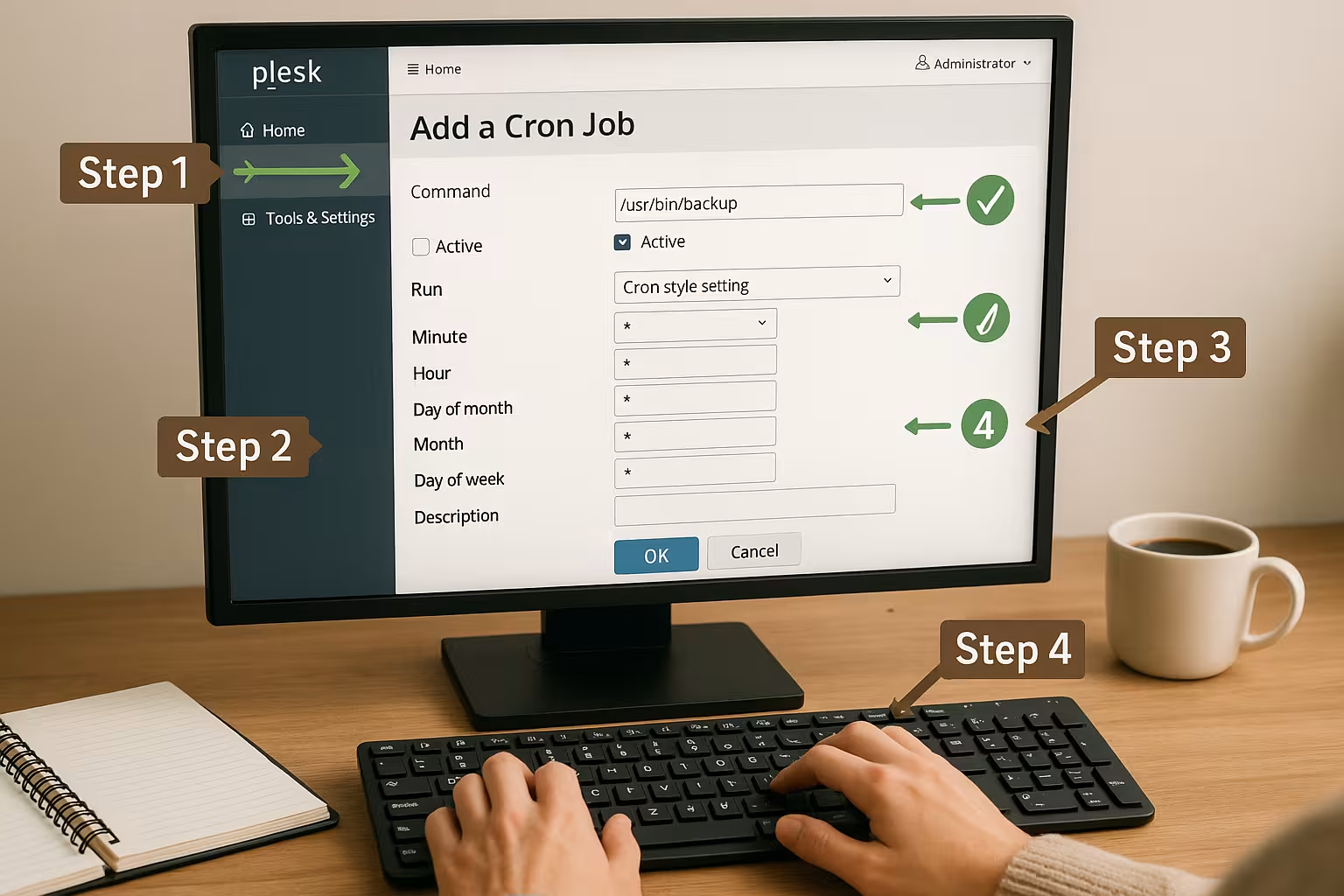
I start by logging into the Plesk panel. Under "Websites & Domains" I click on "Scheduled Tasks". Then it continues like this:
- Add taskHere I choose between "Command", "Get URL" or "PHP script".
- Define time interval: I use cron syntax to specify "*/15 * * * * *" for every 15 minutes, for example.
- Path to the script or commandI enter the complete server path, e.g. for PHP:
/opt/alt/php83/usr/bin/php -f /var/www/vhosts/domain/httpdocs/cron.php. - Select PHP versionIf several versions are installed, I define the necessary environment here.
- Save & ExecuteI save and can test the cronjob immediately.
I use the "Execute now" button to ensure that the job works as planned. If necessary, I then adjust the input. It is particularly important to ensure that the script has the correct authorization. If the job does not run, this is often due to missing executable rights or an incorrect owner of the file. However, these rights can usually be quickly adjusted using the Plesk file manager or via SSH.
If you want to define more complex processes, you can also cascade several cron jobs in Plesk. For example, one job can generate data, another can compile it and a third can initiate the final import. This allows you to automate an entire process chain without having to write shell scripts with nested calls. Here too, it is best to check each step individually in order to limit sources of error.
Ultimately, the clear separation between "Command", "Retrieve URL" and "PHP script" is helpful because you can immediately see what type of action is being performed. Especially for monitoring tasks or when retrieving external resources, you can see at a glance whether the task is being executed locally or whether it is retrieving data from the Internet. This increases transparency for every administrator or project manager.
Practical use cases for cronjobs
I automate regular tasks with just a few clicks - this saves time and prevents errors. Typical application examples are
- Backups of my databases at fixed intervals
- Maintenance of my WordPress-Installation via automated wp-cron.php
- Monitoring of landing pages through automated ping tests
- Import of data for stores and price comparisons from external sources
- Performance optimization through cache clearing and script cleanup
Particularly practical is the interaction with WordPressTypo3 or Nextcloud - I replace the system-internal cron function with real server processes. This makes administration more reliable and faster. For example, by calling "wp-cron.php" from WordPress directly via the server, I bypass the standard cron call on every page visit. This not only improves the performance of my site, but also creates more data security. Because only I determine the time and frequency, without having to rely on visitor activity.

In addition, there are many other everyday scenarios in which cronjobs support me: Sometimes I automatically delete temporary files from a directory, sometimes I back up log files and pack them into an archive. Other times I check at fixed intervals whether my database tables can be optimized or whether certain tables are too fragmented. Especially when several people are working in a project team, this kind of automation takes the pressure off everyone involved.
Why webhoster.de is convincing in the hosting comparison
For smooth cronjob management, I need a hosting provider with an intuitive interface, clear user guidance and the latest PHP versions. The direct comparison shows clear results:
| Provider | Ease of use | Flexibility | PHP versions | Support | Price/performance |
|---|---|---|---|---|---|
| webhoster.de | 1st place | 1st place | 1st place | 1st place | Test winner |
| Provider B | 2nd place | 2nd place | 2nd place | 2nd place | 2nd place |
| Provider C | 3rd place | 3rd place | 3rd place | 3rd place | 3rd place |
webhoster.de offers me the best overall view and allows me to manage my automated tasks in a streamlined way. A particular advantage is that all current PHP versions from PHP 5.6 to 8.3 are available. So if you are running an older CMS, you can still control it smoothly via cronjobs without having to carry out forced updates. This leaves enough leeway to switch to a newer version at some point without having to change hosting.

In addition, webhoster.de offers fast and competent support. Especially when setting up complex cron jobs, it is reassuring to have a support employee at my side if I have a detailed question about the server configuration or need a special library. This all-round support is particularly worthwhile for agencies that frequently host different web projects on one server.
Cleverly avoid sources of error during setup
Unclear error messages or unexecuted jobs can usually be traced back to a few causes. Here I pay attention to the following things:
I check whether the Script path was really specified exactly - including the start directory. I also make sure that scripts have the correct User rights have. Some jobs only fail because the chosen PHP version is not compatible with the target application. It also helps to have the cron syntax checked by a generator such as crontab.guru before saving.
As soon as a new task is set up, I test it immediately with "Run now" - nothing leaves the server without prior test feedback. Plesk also offers convenient error messages in the log, which can be called up via the server interface. This allows syntax errors to be detected quickly. It is also good practice to have a copy of any error mails sent to a technical e-mail address. In this way, I receive a direct notification if a cron job could not be executed as desired.
In addition, it makes sense not to schedule the working time for extensive scripts at peak times or to run too many cron jobs at the same time. Efficiently managed task planning takes into account both load peaks and the memory consumption of individual processes. Particularly in high-traffic webshops, an incorrectly timed cron job can have a negative impact on performance if it starts at the same time as increased customer traffic. It is therefore worth scheduling jobs for the early hours of the morning or other quieter times.
Shell access and security settings
To secure the execution, I prefer to use the chrooted Bash Shellespecially if several users manage the server together. This drastically restricts access to system paths.
Plesk makes it easy to choose between the shell options. I make sure that jobs can only be executed by the actual domain user. This makes manipulation and unauthorized access more difficult. Those who frequently schedule shell-based commands also benefit from individually configured environment variables, which can be via the firewall can be additionally insured.
The segmentation of rights is essential, especially in environments where sensitive data is handled. For example, I can create separate accesses for cronjobs so that they only have access to the respective directory, while other users are only granted read access. This ensures that, should a script be compromised, the impact is kept to a minimum. Plesk always keeps track of which user has which access rights.
An additional security aspect is the creation of unique names for cronjobs. By not giving cronjobs generic names such as "backup.sh" but using clear structures ("projectA_db_backup.sh"), I can find my way around quickly in the event of an error. Version management or documentation in the same directory also makes debugging easier later on. There I can briefly record what the script does and when it was last updated.
Manage WordPress, Nextcloud & TYPO3 automatically
I leave typical CMS tasks such as database maintenance or updates to the server without any visitor interaction. Especially with WordPress the Plesk cronjob replaces WP's own execution per page call and thus significantly increases reliability.
Especially for Nextcloud and TYPO3 I regularly use cron.phpto manage background processes efficiently. This keeps my environment cleanly configured and saves resources. A good example of this is the automatic cleanup of old file versions in Nextcloud or the indexing of new files. Without a cronjob, these processes would have to be triggered manually or there would be delays in automatic processes.
For WordPress, I have the option of triggering regular script updates or plugin updates in Plesk. This allows me to keep my installation up to date without having to check the dashboard manually every day. At the same time, I can specify that a backup of all important WordPress data is run every night, for example - including a database dump. If an update goes wrong in the morning, I can simply import this backup. This efficiency contributes significantly to the stability of any website.
It is also advisable to carry out maintenance work and updates to the CMS cores outside of peak times so that visitors are not affected by any temporary outages or restricted functions. A well-planned update at night in combination with a fresh backup of the corresponding installation is therefore standard practice for many administrators.
Efficiently manage recurring tasks
Thanks to the Plesk cronjob module, I centralize many of my web project processes and prevent downtime or unnecessary load. Whether for daily backups, data imports or relieving the CMS - I simply set up a new task and let the server work on time.
As projects grow in size, automation and structure play an increasingly important role. Instead of confusing collections of scripts, I keep a clear overview with a clearly structured Plesk interface all schedules at a glance. Control over logs, error outputs and email alerts provides additional security. If you manage several projects, you can easily filter by domain in Plesk to display only the appropriate cron jobs. This allows you to maintain an overview at all times, even in large agency environments.

Once the cron jobs have been successfully set up, you can also define monitoring for the server load. If you have many jobs running at the same time, check the logs to see when the load peaks occur. It is often easy to postpone their execution by a few minutes or hours in order to achieve consistent performance. This fine-tuning is particularly worthwhile when large amounts of data are being processed in the background.
Those who attach particular importance to troubleshooting will also enjoy the extensive logging functions in Plesk. Using the admin panel, I can quickly see whether a script was completed successfully or incorrectly. Some users even run duplicate cron jobs that work at different intervals or create backup copies of certain files. For example, a daily data backup can be created before the store import in order to have a clear restore point.
I can also use cronjobs specifically for dependencies. For example, I run a script that first cleans up a database table and then links another task to it that imports fresh data. In Plesk, I implement this using two cron jobs, whereby the second is only executed with a time delay, for example 10 minutes after the first. A simple time delay is often enough to simulate logical dependencies and avoid errors caused by overlaps.
Administration that works
The clever use of cronjobs with Plesk saves me tedious routine work and gives me back control over all automated tasks - from simple backups to sophisticated monitoring. The ease of use and flexibility of the Plesk interface is particularly impressive - a reliable combination for hosting of any size.
If you choose the right partner - such as webhoster.de - you have the right tools at your fingertips: up-to-date PHP environments, simple user guidance and competent support. So the Administration plannable and remains low-maintenance - just right for smart server operators. Thanks to the well thought-out security and user concepts in Plesk, combined with a powerful hosting provider, both beginners and professionals will find enough scope for experimentation and for expanding and building a stable IT infrastructure.
In everyday life, I benefit not only from a reduced error rate, but also from clear processes: scripts run regularly, notifications only switch on in the event of a fault, and backups are reliably stored in the Database. I prefer to concentrate on developing or expanding my web projects instead of getting lost in everyday technical tasks. The advantages are obvious: more security, higher performance and a noticeable time saving, as recurring processes remain automated and transparent.